Student Services Center – Student Center Tab
This resource explains the various sections of the Student Center tab within the Student Services Center pages in MyBU Student. This resource is for staff across schools and colleges to see student data such as classes, hold(s), checklists, milestones, enrollment dates, advisors, and contact information.

Introduction
The Student Center tab in the Student Services Center provides information regarding classes, holds (Service Indicators), checklists/to-do’s, milestones, enrollment dates, advisor(s), contact information, and more. The types of student data viewable will be dependent on security access; some information included here may reflect access for roles with higher level permissions in this area.
Student Services Center (SSC) consolidates student data from various areas of MyBU Student in one page. Please refer to the Introduction to Student Services Center resource for a general overview, or if detailed instructions are needed for one of the other tabs, please refer to that resource: General Info, Admissions, Transfer Credit, Academics, and Financial Aid.
⚠︎ Screen options and menus will vary by user; please note that displays may differ for you based on access that has been granted. All screens shown are for training purposes only.
Navigation
- Navigate to Student Services Center:
- From the Dashboard left menu, scroll to Student Services Center.
- From the Full Site homepage, navigate to: Compass at top right of Nav Bar > Menu > Campus Community > Student Services Center.
- To find a student, enter the student’s available data in the Find an Existing Value window that displays, and select Search.
- The student’s Service Center page will open. Click the Student Center tab to view available data, based on security.
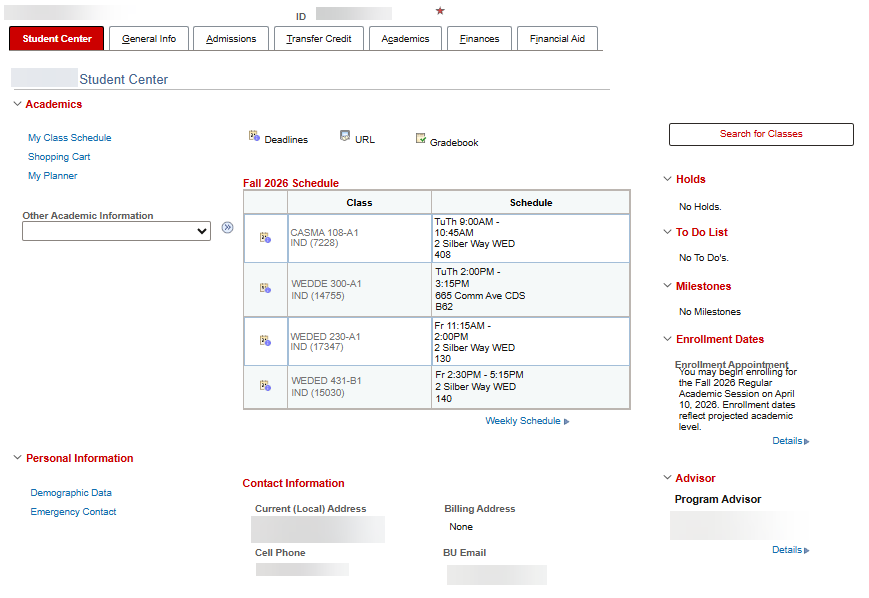
The Student Center tab is divided into three display sections: Academics, Personal Information, and Right-Side Section. Please refer back to this image to review the content layout for all three display sections:
Academics Section
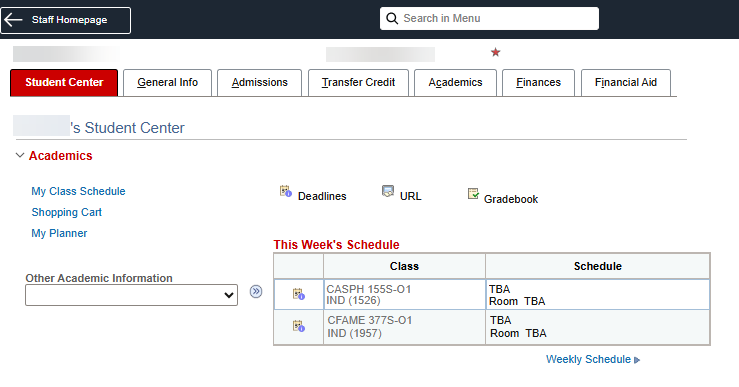
The Academics section of the Student Center tab provides information regarding coursework and academic progress. Refer to the image below for all information and actions described for the Academics section.
MY CLASS SCHEDULE
Selecting the My Class Schedule link in the upper left menu allows for the view and filter of student schedule details.
- In the My Class Schedule window that opens, select a term button, then click Continue.
- Select the Display Option at the top of the page, choosing either List View (default) or Weekly Calendar View.
List View: Shows course characteristics in tables.
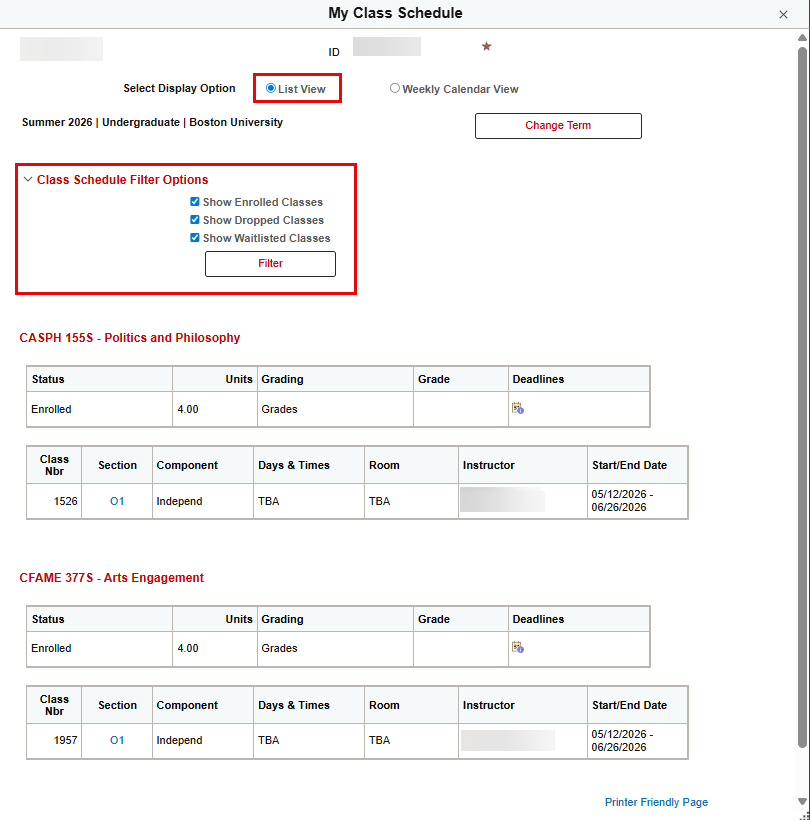
- Class Schedule Filter options: Default displays all Enrolled, Dropped, and Waitlisted classes (use of waitlists will vary depending on the class).
- If you do not wish to see all of these options, uncheck the desired box and select Filter to see the relevant classes.
- Information displayed in tables:
- Course Subject, Number, Title: Listed in red at the top of each section.
- Status: Enrolled, Dropped, or Waitlisted (use of waitlists will vary depending on the class).
- Units: The number of credits attached to a class
- Grade: Will display when populated
- Deadlines: Click this calendar icon to see course related deadlines—Examples: drop or withdrawal
- Class Nbr: This is the number used to enroll in the class section
- Section: Each Class Nbr will have an affiliated section
- Component: Represents different parts of the class such as lecture, recitation, lab, discussion.
- Days & Times: When class meeting times exist, they are populated here. TBA is populated when data is not present. TIP! One Class Nbr/Section can have multiple Meeting Patterns, resulting in multiple Days, Times, Rooms, and Instructors.
- Room: When room assignments exist, they are populated here. TBA is populated when data is not present.
- Instructor: When instructor assignments exist, they are populated here. To be Announced is populated when data is not present.
- Start/End Date: The start and end dates of the class are populated here when they exist. TIP! The Start/End Date may be consistent with Term Begin and End Dates, or may vary in the case of Dynamically Dated classes. Refer to the Office of the University Registrar website for important dates.
Weekly Calendar View: Displays courses within a chart for the days of the week.

- One week at a time is populated based on selecting start dates/times. Select Previous Week and Next Week to move forwards and backwards one week at a time.
- Check desired configuration for Display Options at the bottom of the page. Then select Refresh Calendar to see those options.
SHOPPING CART
Students add classes to their Shopping Carts when planning their schedules and preparing to enroll in classes.
- A student is NOT enrolled in classes that exist in their Shopping Cart.
- The Shopping Cart does NOT “hold” a seat in the class for the student.
Selecting the Shopping Cart link in the upper left menu allows for the view of the Shopping Cart by term and comparison to the student’s enrolled classes.
- In the Enrollment Shopping Cart window that opens, select a term button, then click Continue.
- The Shopping Cart page opens for the selected term.
- Refer to the “Term Shopping Cart” section at the top of the page to see the classes in the Shopping Cart for the selected term.
- Refer to the “My Term Class Schedule” section at the bottom of the page to see the classes in which a student is enrolled for the selected term.
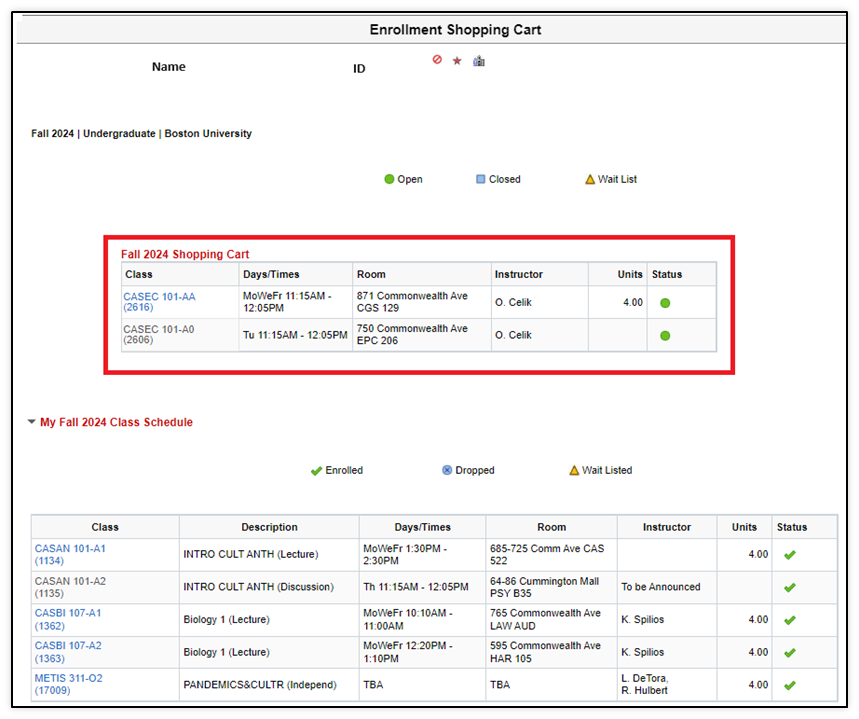
Refer to the Shopping Cart resource for more information.
MY PLANNER
This function is not being used at this time.
THIS WEEK’S SCHEDULE/WEEKLY SCHEDULE LINK
- This Week’s Schedule in the Academics section provides a high-level view of a student’s current schedule.
- Clicking the Weekly Schedule link at the bottom of the Academics section provides the same view as the Weekly Calendar View option under the “My Class Schedule” link, as described above.
Other Academic Information Drop-Down
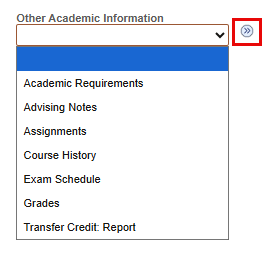
The Other Academic Information drop-down allows for access to additional functionality by selecting an information type from the drop-down and then clicking the small double arrows to the right.
The available selections are determined by security access.
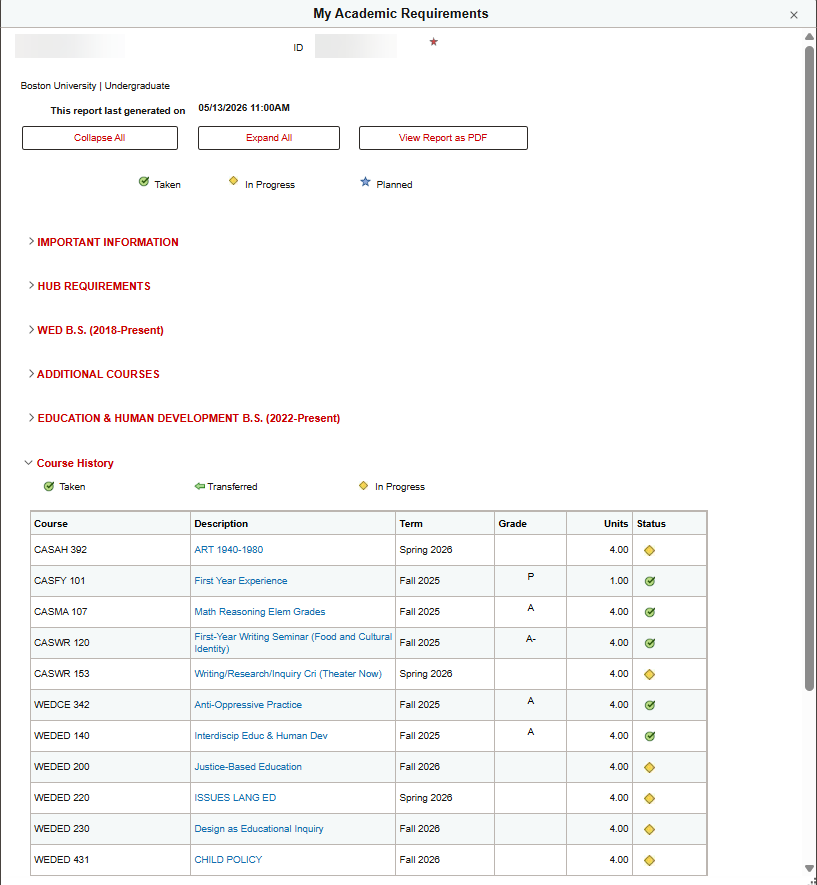
ACADEMIC REQUIREMENTS
Generates a view of the Degree Progress Report. To understand the various elements of the DPR, refer to Advising Degree Progress resource. This information also displays how the requirements will show for students.
ADVISING NOTES & ASSIGNMENTS
Advising Notes function is not being used at this time and displays a message that no notes are available for the selected student.
- Advisors primarily write their notes using the direct Advisor > Advisee & Student Lookup functionality. Refer to the Advisee & Student Lookup and Student Details Processes resource for more information.
Assignments function is not being used at this time and displays a message that there is no information for the transaction requested. Students will use Blackboard to see their Class Assignments.
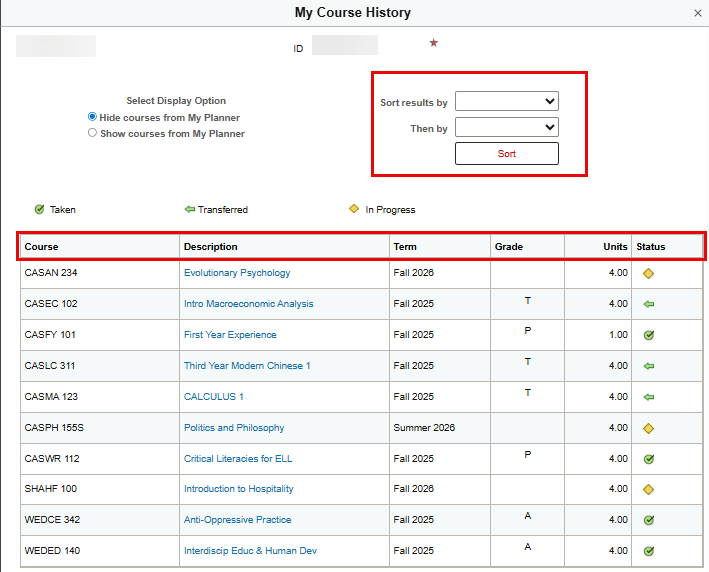
COURSE HISTORY
Provides a transcript-like view of the students’ classes.
- Clicking the column headings will sort the results alpha-numerically.
- Results can also be sorted on two levels, using the Sort Results By and Then By filters on the top right.
- If the Academic Planner function is used in the future, courses in the Planner can be excluded or included using the radio buttons on the upper left.
- The Status of each course is indicated by an icon: green circle and checkmark for Taken status, green arrow for Transferred status, and yellow diamond for In Progress status.
EXAM SCHEDULE & GRADES
Exam Schedule: If user security allows, student-specific final exam schedules will be available by term.
Grades: Displays the student’s grades and related statistics.
- By default, Official Grades for the current term display at the top of the page, with related term statistics at the bottom of the page.
- Select Change Term to see different term grades and statistics.
- Transfer credit displays in the Term Statistics portion of this grid, but per BU policy, are not included in grade point average calculations.
- Printer Friendly Version link is at the bottom right of the page.

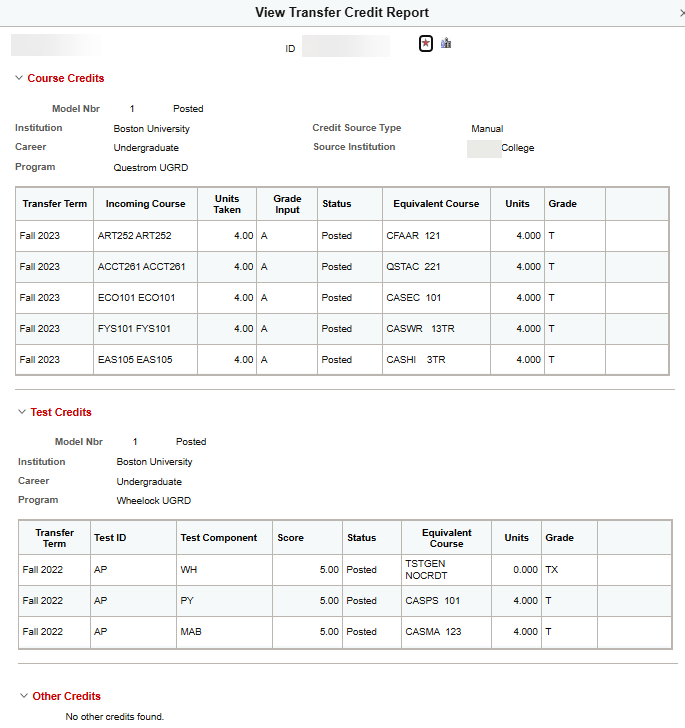
TRANSFER CREDIT REPORT
Displays all Course, Test, and Other credit applied to a student’s record. The Status must be Posted in order for the credits to display in the Degree Requirements Reports. Three different types of credit will display, if available:
- Course Credit: BU Credit awarded for qualified classes completed successfully at non-BU institutions.
- Test Credit: BU credit awarded for exams completed successfully, such as Advanced Placement (AP) and International Baccalaureate (IB).
- Other Credit: BU credit awarded for personal experiences. BU is considering whether this functionality will be leveraged.
For more information on Transfer Credits, visit the OUR’s Transfer Credit resources.
Personal Information Section
The Personal Information section of the Student Center tab provides some high-level bio-demo data for the student. Refer to the image below for all information and actions described for the Personal Information section.

- Selecting the Demographic Data link will open a page of bio-demo data, security permitting. Information includes gender, DOB, Citizenship, and Visa details.
- Clicking the Emergency Contact link opens a page populated with student Emergency Contact Data, such as contact name, relationship, and phone.
- The Contact Information block displays the student’s Current (Local) Address, Billing Address, Cell Phone, and BU Email.
Right-Side Navigation Section
Refer to the image below for all information and actions described for the Right-Side Navigation section of the Student Center tab.

SEARCH FOR CLASSES
Clicking the Search for Classes button accesses the Class Search page in the Full Site area of MyBU Student. Access is determined by security permissions.
- Students will not be using this view when searching for classes. Refer to the Class Search resource to learn more about the view that is utilized by students.
HOLDS
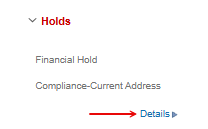
Any negative Service Indicators assigned to the student (i.e., those that may prevent students from taking specific actions, such as enrolling in classes) can be viewed at a glance in the Holds section.
- Positive Service Indicators are not highlighted here. All Service Indicators for a student can be easily accessed by clicking the block symbol (negative Service Indicators) and/or the star symbol (positive Service Indicators) at the top of the Student Center tab page.

- See the Service Indicators resource for more information.

If any Holds are listed for the student in this section:
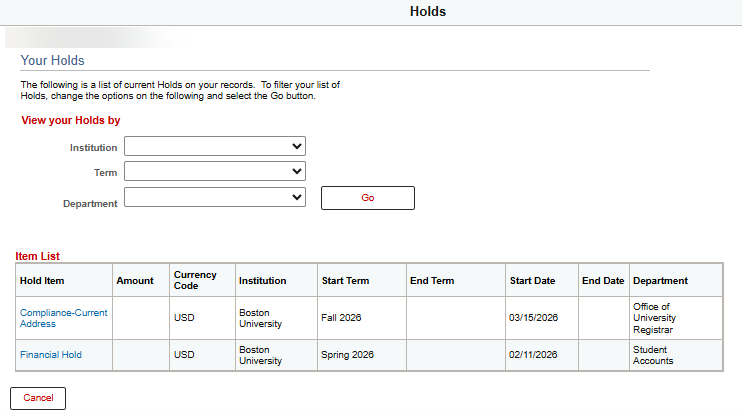
- Click Details to open a table of information about the hold(s).
- If multiple holds are listed, these can be filtered by selecting the desired drop-down and clicking Go.
Service Indicators can also be used to identify particular student characteristics.
A full list of Service Indicators configured to display in Student Services Center are displayed in the General Info tab. See the General Info Tab resource for more information.
TO-DO LIST
When “To Do’s,” or tasks/compliance items, are assigned to students, they will display here. These are usually related to admissions or financial aid processes.
- To view additional information about the To Do List items, click More.
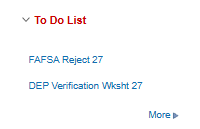
- This opens an expanded table view of each item on the To Do List.

- To view additional information about an item, select the actual To Do item in the expanded table view (in the example above, the user would click the link for Application Fee).

- To view additional information about an item, select the actual To Do item in the expanded table view (in the example above, the user would click the link for Application Fee).
MILESTONES
Milestones are ways to manage non-course related requirements (i.e., Thesis). Milestones may have Levels to identify different steps within that Milestone. They can be configured with Required Dates and allow for multiple attempts.
Those Milestones configured to display in Student Services Center will display here.
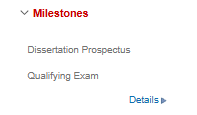
Click Details to display expanded details about items in the Milestone list.
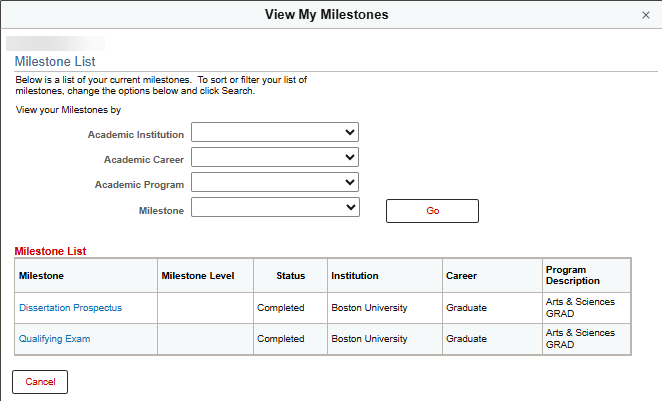
Refer to the Milestones resource for more information.
ENROLLMENT DATES
- When enrollment dates have been applied to students’ records, they can be viewed in the Enrollment Dates section.
- Shopping Cart Appointment: The Shopping Cart Appointment indicates the date a student can add classes to their Shopping Cart.
- Enrollment Appointment: The Enrollment Appointment indicates the student can enroll in classes.
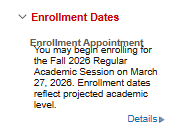
- Click Details to display additional information about enrollment dates, such as end dates and credit limits.
- If information is available for multiple enrollment periods, select the appropriate Term after clicking Details to continue to the desired information.

See the Office of the University Registrar website for details about registration dates and times.
ADVISOR
Refer to this section to see the student’s Assigned Advisor(s).

If no advisor name is listed (or, if “None Assigned” is listed), either:
- No advisor is assigned, or
- A student has changed Academic Programs (CAS; PAR) and the Student Advisor page has not yet been updated with the student’s new Program.
Related Resources
- Student Services Center
- Office of the University Registrar
- Advisee & Student Lookup
- Advisors – Degree Progress Report & What Ifs
- Class Search
- Milestones
- Service Indicators
- Shopping Cart
Page last updated June 2026. For a PDF copy, print this webpage as a PDF.