The resource introduces the Student Services Center and briefly explains each tab. Details for each tab are covered in the linked materials. This information is for staff across schools and colleges to see student data. The types of student data viewable will be dependent on security access.
Introduction
Student Services Center (SSC) consists of many tabs categorized by subject, displaying data from various areas of MyBU Student in one place. Staff may be familiar with the Lookup Student/Act as Student function to view student data. The Student Services Center allows for another method of viewing that data; it consolidates it in one place and also provides some additional historical information in areas. Staff preference can determine which method is used.
Staff will see tabs, and corresponding information on those tabs, based on their security. Information and screenshots included here are for roles with higher level permissions in all areas.
This resource should be viewed as an SSC overview and includes an introduction to each tab only. For detailed instructions on each tab, please visit the resources linked below:
Student Center: classes, holds (Service Indicators), To-do’s, Milestones, enrollment dates, advisor, contact information, and more.
General Info: Service Indicators, Initiated Checklists, Student Groups, Personal Data, Names, Addresses, Phone Numbers, and Email Addresses.
Admissions tab: student’s application data, external education institutions, and test results summary.
Transfer Credit: Course Credit, Test Credit, and Other Credit.
Academics: Student Career(s), Program(s), Plan(s), and Subplan(s), and term data, enrollment, GPA statistics, Academic Levels/Loads.
Financial Aid: Aid Year application/packaging, Award Summary for Aid Year, and Term Summary for Aid Year.
Currently, the Finances tab is not suggested for use, therefore no resource is available at this time.
⚠︎ Screen options and menus will vary by user; please note that displays may differ for you based on access that has been granted. All screens shown are for training purposes only.
Starting SSC
Navigate to Student Services Center:
From the Dashboard left menu, scroll to Student Services Center.
From the Full Site homepage, navigate to: Compass at top right of Nav Bar > Menu > Campus Community > Student Services Center.
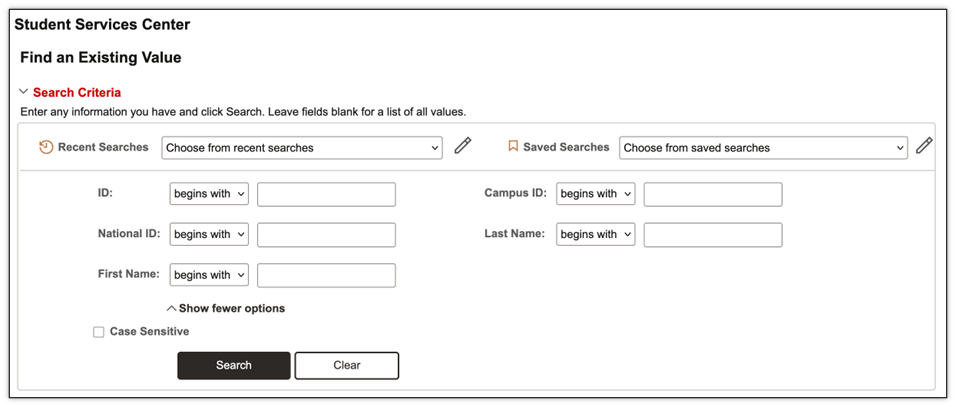
To find a student, enter the student’s available data in the Find an Existing Value window that displays, and select Search.
The student’s Service Center page will open. At the top right of the page, click any available icons that may be included in the student’s information overview, above the information tabs.
Service Indicators (SI), or “holds”: Service Indicators are applied to student records and, when configured to do so, can prevent students from taking specific actions such as enrolling in classes (typically Negative SI). They can also be used to identify particular student characteristics (typically Positive SI).
Negative Service Indicators: Examples include Compliance (Alcohol.edu), Billing, Deceased Student, and Bad Address. Click the red-barred circle icon (the first icon in the image above) to view.
Positive Service Indicators: Examples include International Student and Settlement-Settled. Click the red star icon (the second icon in the image above) to view.
Affiliation Display: Displays the student’s personal affiliations, start date, and affiliation status. Examples include STU-Student. Click the building icon (the third icon in the image above) to view.
FERPA: When exceptions to FERPA releasable data exist, a FERPA icon will display with additional information regarding restrictions to requested Releasable Directory information. Click the screen icon (the fourth icon in the image above) to view.
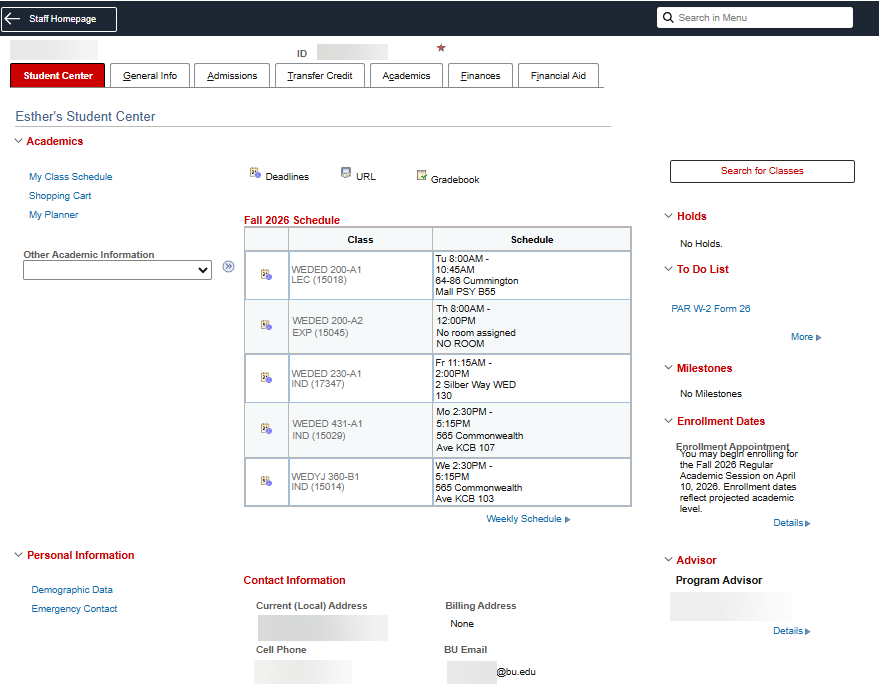
The Student Center tab provides information regarding classes, holds (Service Indicators), To-do’s, Milestones, enrollment dates, advisor, contact information, and more.
The Student Center Tab is divided into three display sections: Academics, Personal Information, and Right-Side Section. Please refer back to this image to review the content layout for all three display sections.
ACADEMICS
The Academics section of the Student Center tab provides information regarding coursework and academic progress. Links and information include:
My Class Schedule: link opens to view and filter of student schedule details.
Shopping Cart: link opens to view the Cart, where students add classes to when planning their schedules and preparing to enroll in classes.
My Planner: not being used at this time.
This Week’s Schedule/Weekly Schedule: link provides a high-level view of a student’s current schedule.
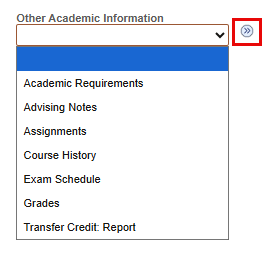
Other Academic Information: menu that allows for access to additional functionality by selecting an information type from the drop-down: Academic Requirements (DPR), Course History, Exam Schedule, Grades, and Transfer Credit Report. Advising Notes and Assignments not being used at this time. The available selections are determined by security access.
PERSONAL INFORMATION
The Personal Information section of the Student Center tab provides some high-level bio-demo data for the student.
Contact information displays. Security permitting, the links open pages to view Demographic Data and Emergency Contact Data.
RIGHT-SIDE SECTION
Search for Classes button accesses the Class Search page in the Full Site area of MyBU Student. Access is determined by security permissions.
Students will not be using this view when searching for classes. Refer to the Class Search materials to learn more about the view that is utilized by students.
If applicable to student, the following will be listed:
Holds is another word for (typically negative) Service Indicators that prevent students from taking specific actions (i.e., enrolling in classes).
To-Do List: When “To Do’s,” or tasks/compliance items, are assigned to students, they will display here.
Milestones: ways to manage non-course related requirements (i.e., Thesis).
Enrollment Dates: If dates have been applied to students’ records, they can be viewed here.
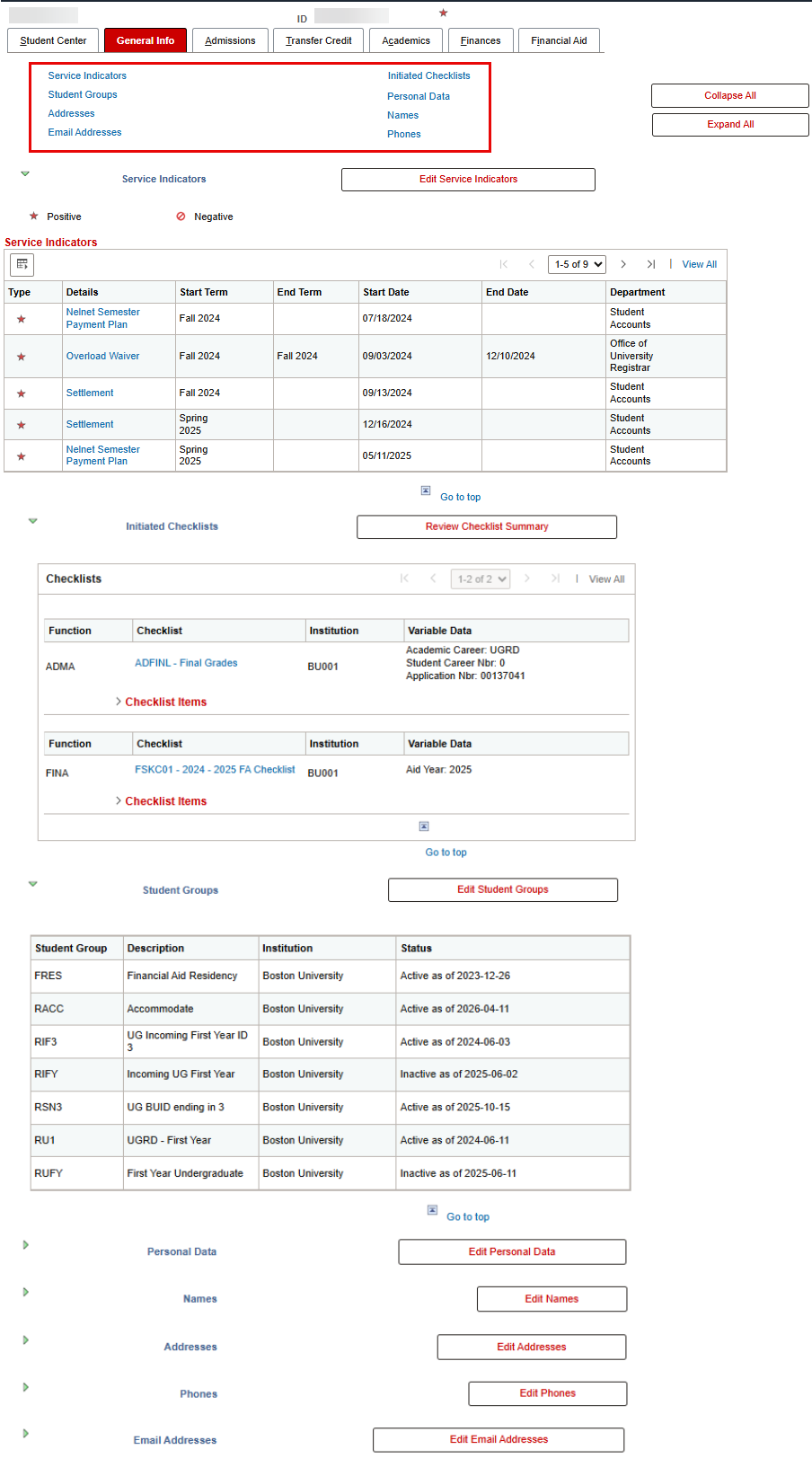
The General Info tab provides an overview of bio-demo information and various student characteristics including Service Indicators, Initiated Checklists, Student Groups, Personal Data, Names, Addresses, Phone Numbers, and Email Addresses.
The General Info Tab is divided into two display sections: at the top of the page, there are direct links that, upon clicking, navigate to the sections beneath. These sections are expandable, editable views of that information. Please refer back to this image to review the content layout for both display sections.
Click on the graphic above to view larger (then click the browser ‘Back’ button to return to this page).
The following are viewable. For those with access, the associated buttons allow for staff to open appropriate pages for editing:
Service Indicators, or holds, details.
Checklists, items, and their statuses.
Student Groups and statuses.
Personal Data; some bio-demo information.
Names, addresses, phones, email addresses.
Admissions Tab
For detailed instructions, please refer to the SSC: Admissions Tab resource.
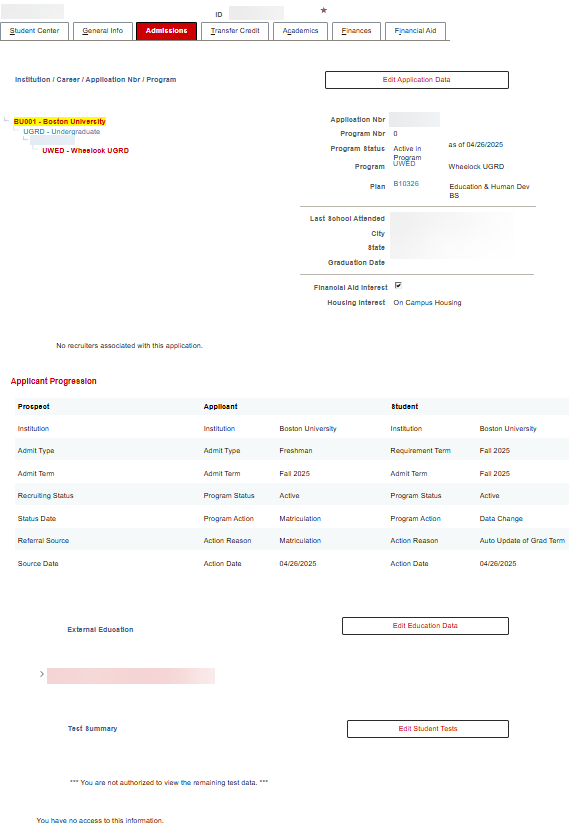
The Admissions tab provides historical information regarding the student’s application process. The tab displays four main sections: Application Data, Applicant Progression, External Education, and Test Summary. Please refer back to this image to review the content layout for all four display sections:
Click on the graphic above to view larger (then click the browser ‘Back’ button to return to this page).
ⓘ NOTE: Admissions data will not be available on this tab for all populations.
Admissions data for students admitted prior to Fall 2024 was not converted into MyBU Student and will not be available on this tab.
Students who are Quick Admitted (i.e., Non-degree students) do not have Admissions records, resulting in data being unavailable on this tab.
APPLICATION DATA
Clicking the Edit Application Data button provides access to the Maintain Applications page, for those with access.
Left-side view: The hierarchical view of past applications is listed on the left. Select the appropriate Academic Program from the left-side view, and data regarding that application will display on the right side.
Applicant Progression: shows additional information about the stages of the student’s application stages.
EXTERNAL EDUCATION & TEST SUMMARY
External Education: references any institution and related data, such as high schools, other colleges, and universities.
For those with security, clicking the Edit Education Data button opens the External Academic Summary page, where external institutions (i.e., high schools, other universities) can be applied to a student’s record.
Test Results: provides details about specific tests.
For those with security, clicking the Edit Student Tests button opens the Academic Test Results page, where information about test scores can be added to the student’s record.
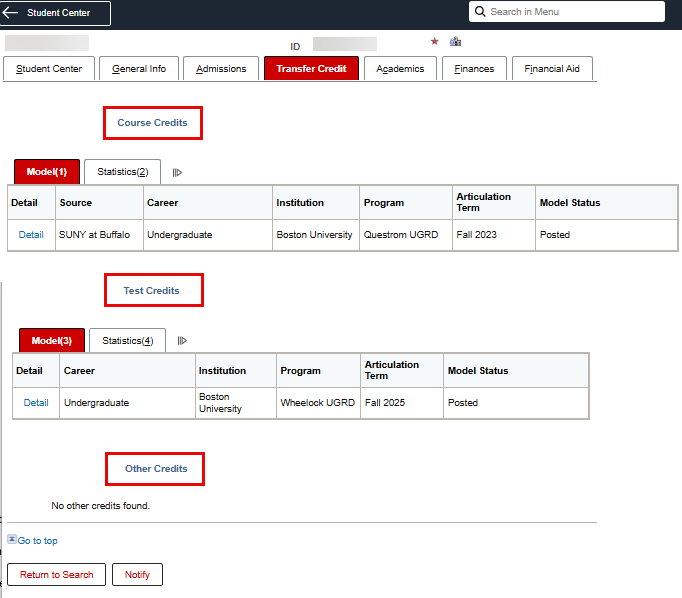
The Transfer Credit tab displays three different types of credit: Course Credit, Test Credit, and Other Credit.
Please refer back to this image to review the content layout for all three display sections.
Course Credit: BU Credit awarded for qualified classes completed successfully at non-BU institutions.
Test Credit: BU credit awarded for exams completed successfully, such as Advanced Placement (AP) and International Baccalaureate (IB).
Other Credit: BU credit awarded for personal experiences. BU is considering whether this functionality will be leveraged.
Credit data is listed with the relevant source, career, program, term, models, applied units, and GPA stats.
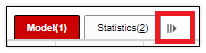
TIP! Selecting the double arrows to the right of these tabs opens an extended display that combines all data columns from the Model and Statistics tabs into a single row.
DETAIL
For central staff with security access, additional information can be found by selecting Detail on either the tabbed or extended display. This opens the Data Entry for Transfer Credit page that displays a detailed view and the ability to manage model actions. If staff need additional support with a student’s transfer/test/other credit, please contact OUR.
Academics Tab
For detailed instructions, please refer to the SSC: Academics Tab resource.
The Academics Tab compiles a significant amount of student data including:
Student Career(s), Program(s), Plan(s), and Subplan(s) of enrollment, also known as the “Program/Plan Stack.”
Term Data, statistics, and information including class enrollment, and Term and Cumulative course and GPA statistics.
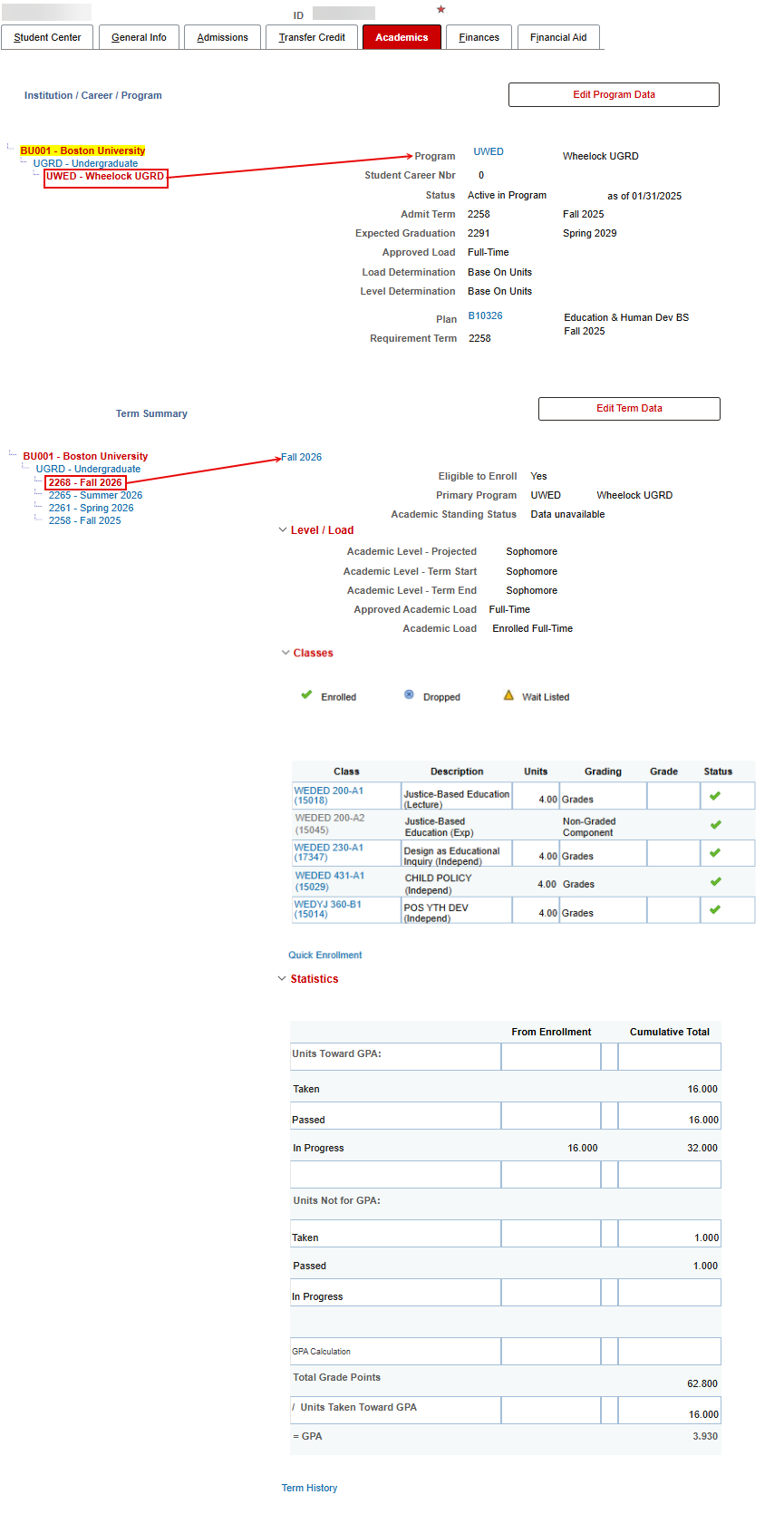
Please refer back to this image to review the content layout for all sections of the Academics tab page:
Click on the graphic above to view larger (then click the browser ‘Back’ button to return to this page).
Access to the Edit Program Data and Edit Term Data buttons are mostly restricted.
INSTITUTION/CAREER/PROGRAM SECTION
The Institution/Career/Program section displays a view of the student’s Program/Plan stack. It shows the student’s current Career(s), College(s), Plan(s), and Subplans(s).
A hierarchical outline of the student’s Career(s) and Program(s) displays on the left. The selection on the left dictates the related Program/Plan information on the right. When students are in multiple Careers or Programs, all will display in this hierarchy.
Upon selection on the left, data for that Career/Program will be listed on the right, indicating:
Admit Term
Expected Graduation Term
Program Approved Load & Load/Level Determinations
Plan(s)
Requirement Term
TERM SUMMARY SECTION
The Term Summary portion of the Academics tab provides detailed information regarding coursework and corresponding credit and grade information. It is divided into four sections: Term Data, Level/Load, Classes, and Statistics.
The top part of the Term Summary section displays terms for which a student has been Term Activated. Select the desired term on the left to see related term and cumulative data on the right.
Upon selection on the left, data for that Term will be listed on the right, indicating:
Projected, Term Start, and Term End Academic Level information
Approved Academic Load and Academic Load (actual) for the term
Class details: including grades, units, and enrolled/dropped/waitlisted status
GPA Statistics: includes enrollment and transfer credit stats
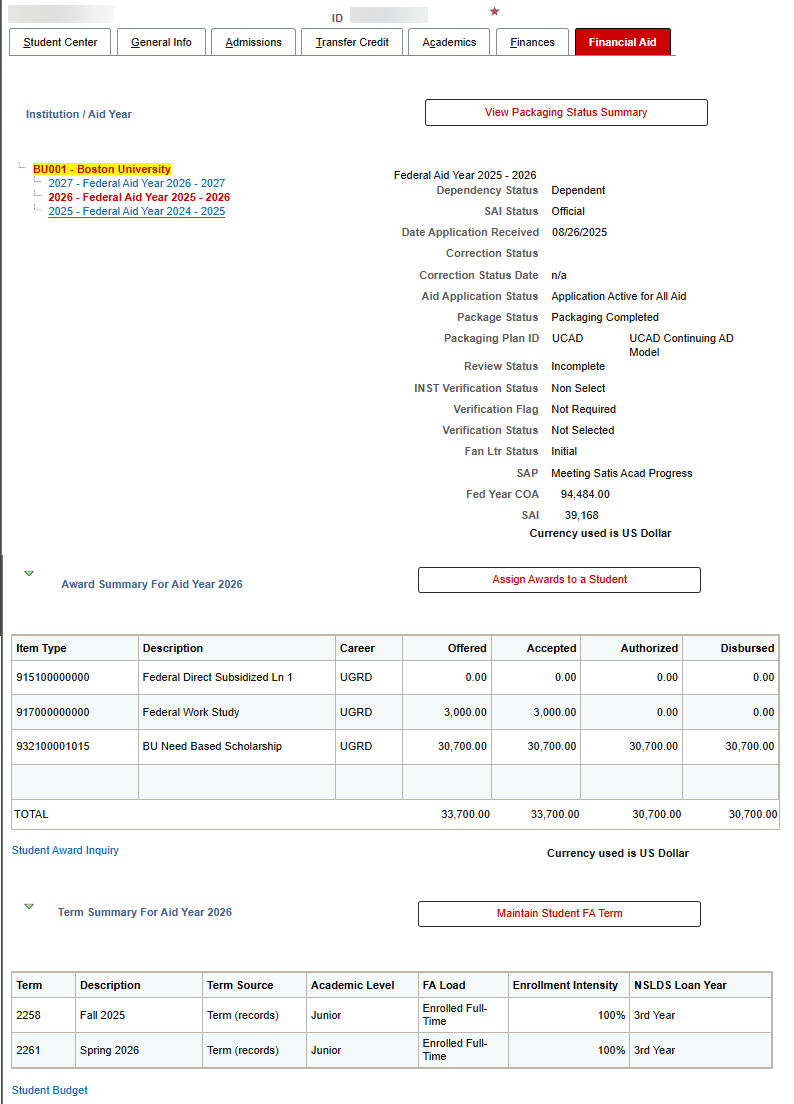
The Financial Aid tab in displays information regarding student aid. This includes Aid Year applications & packaging information, Award Summary item types & amounts, and Term Summary academic data.
Please refer back to this image to review the content layout for all three display sections in the Financial Aid tab.
AID YEAR SECTION
When multiple aid years exist, select the desired aid year on the left in order to see the data related to that aid year on the right.
Data and functions displayed in the Institution/Aid Year section include:
The View Packaging Status Summary button highlighted above links out to the Packaging Status Summary, providing additional information regarding packaging progress, if access allows.
FA Application Information: Dependency Status, SAI Status, Date Application Received, Correction Status & Date: Populated when there has been a correction, Aid Application Status.
Packaging information: Package Status, Packaging Plan ID Review Status, INST Verification Status, Verification Flag, Verification Status, FAN Ltr Status, SAP, Fed Year COA.
AWARD SUMMARY FOR AID YEAR SECTION
The Award Summary for Aid Year section provides detailed information regarding the student’s aid.
TIP! The award data that displays here is associated to the Aid Year selected in the previous section.
Data and functions in this section include:
Assign Awards to a Student Button: This button links to the Multi-Career Award Entry Panel, if access allows.
Item Type & Description
Career
Aid Amount Offered, Accepted, Authorized, & Disbursed
Student Award Inquiry: Selecting the Student Award Inquiry link displays the Award Summary page, if access allows.
TERM SUMMARY FOR AID YEAR
The Term Summary for Aid Year section provides additional information.
TIP! The award data that displays here is associated to the Aid Year selected in the first section.
Data and functions in this section include:
Maintain Student FA Term button: This button provides access to the Maintain Student FA Term page in MyBU Student for those with security access.
Academic Level, FA Load, Enrollment Intensity, NSLDS Loan Year
Student Budget link: Selecting the Student Budget link at the bottom of the page results in the display of the Budget Maintenance-Term page for those with access.
Page last updated June 2026. For a PDF copy, print this webpage as a PDF. Other resource formats can also be accessed via the relevant icons below.