Advisee & Student Lookup and Student Details Processes
These instructions cover two advising pages: Advisee & Student Lookup and Student Details. The Advisee & Student Lookup page is one streamlined page to view assigned advisees and search for students. Student Details can be accessed from that list to review more detailed data for a student.


Introduction
This resource provides information on the Advisee & Student Lookup and Student Details pages that support advising responsibilities. These processes are for advisors and those assigned advisor functionality. Security does vary amongst different types of advisors. Please be aware that processes and pages identified here may differ from your views.
⚠︎ Screen options and menus will vary by user; please note that displays may differ for you based on access that has been granted.
All screens shown are for training purposes only.
Advisee & Student Lookup Summary & Navigation
SUMMARY
The Advisee & Student Lookup page is one streamlined page to view assigned advisees and search for students – access does require appropriate security.
Advisees
- Advisors can view their assigned advisees and associated academic and demographic data. Activities such as releasing holds, Acting As, managing notes, and adding to Student Lists can also be performed from the Advisees & Student Lookup page.
Student Lookup
- Searching for other students (if access allows), or Student Lookup, can also be performed here.
Please note that MyBU Student has a Student Lookup page and a Lookup Student page. Lookup Student is a page that allows staff who cannot access advising functions to navigate to the Act as Student function; Lookup Student only includes the Act as function. For steps outlining that process, please refer to the Act as Student guide.

This resource provides instructions for the Student Lookup function (not Lookup Student). Student lookup allows for advisors to open the Student Details page, which includes academic and profile information, notes, and more.
NAVIGATION & INITIAL PAGE VIEW
- Upon logging into MyBU Student, the Dashboard will appear.
- The widgets that display may vary (widgets are configurable, interactive components of MyBU Student that display important information chosen by the user, such as a list of advisees for an advisor or a class schedule for a student).
- Click the Advisor tab at the top of the main area of the Dashboard. Click the Go to Icon or View More link on the My Advisees widget. Or, click Advisor, then Advisee & Student Lookup from the left menu.
Advisor Tab: 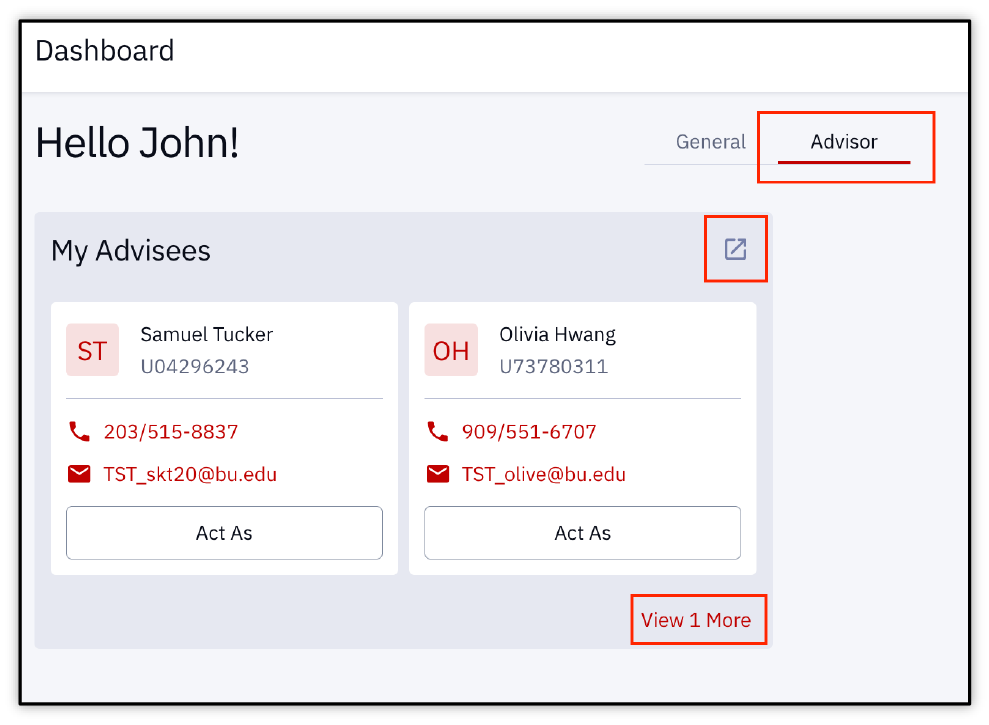
Advisor > Advisees & Student Lookup: 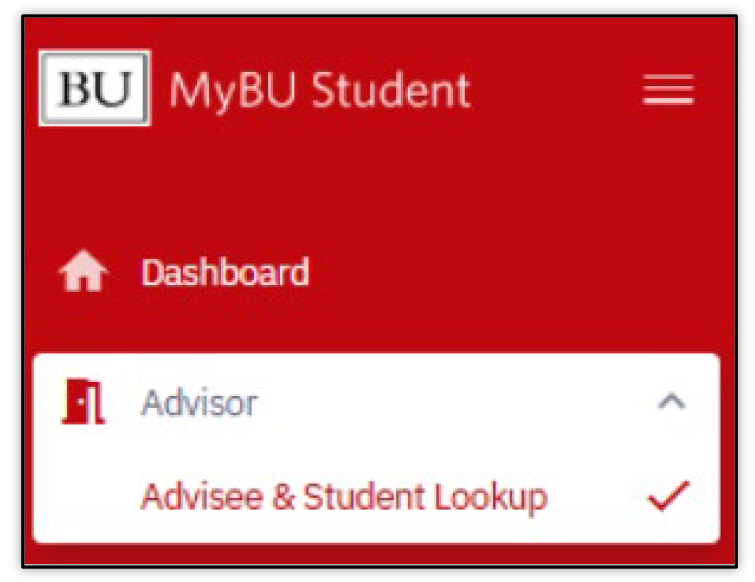
The Advisee & Student Lookup page will launch.
- If advisees are assigned: then the page will display a list of active assigned advisees. Those default filters can be seen at the top of the page.
- The Active filter can be adjusted if needed to view students who have a different status. Additional Filter information is below.
- Use the Clear option to remove filters or Default option to set list back to initial active/assigned defaults.
- If there are no advisees assigned: then a Select Filters button will display in the center of the page. This allows the desired criteria to be entered, performing a Student Lookup. Additional searching and filter information is described below in the Filters & Student Lookup section.
A compiled list of students will include the student’s UID, First & Last Name, Career, Program/Plan/Sub-Plan, Admit Term, Expected Graduation Term (scroll to the right if needed), and a Hold notification if applicable. The star icon indicates the student is an assigned advisee.
- ⓘ NOTE: Students may be listed more than once if there are multiple Program/Plans associated to them. Each row would identify each set of Program/Plan information.
- The Total Students and Total Rows at the top of the list may differ because of how this student data compiles.
The Download CSV button will export the list of students to a CSV file.
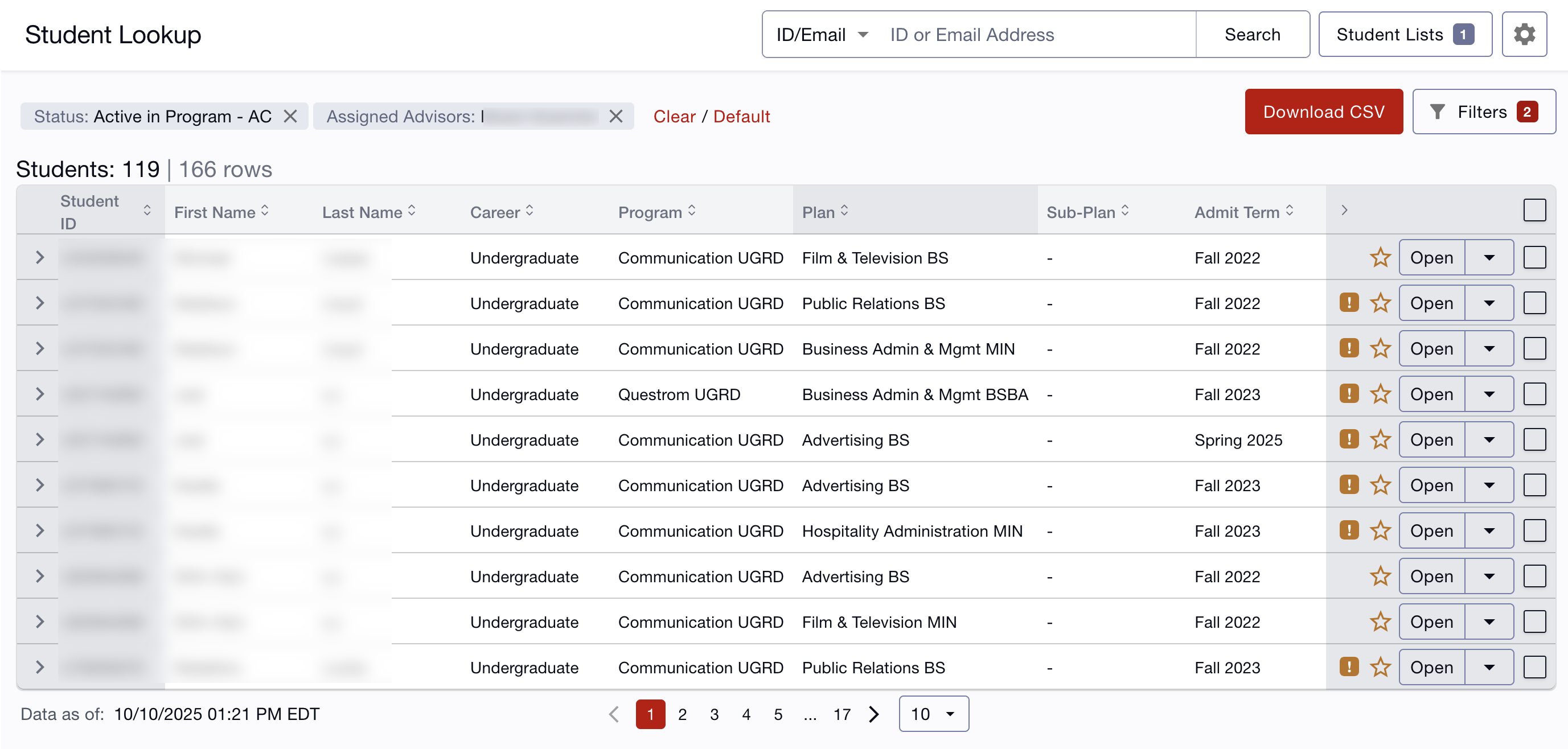
- ID/Email will be the default search, but Name can be selected by clicking the dropdown menu.
Advisee & Student Lookup Filters
If assigned advisees populate the page but different criteria are desired, click the Filter button in the top right.
If there are no assigned advisees, then click the Select Filters button in the center of the page to enter additional criteria in which to search. The right filters pane will open.
The available categories and fields display. For example, results can be compiled by Student Name, UID, Student Groups, Advisors & Advisors Roles associated, Status (to look for inactive/graduated students), Career, Program, Plan/Subplan, Admit Term, Expected Grad Term, Holds, and more.
Filters view is vertical by default. To view the Filters menu horizontally, toggle the switch at the top of the vertical filter display. Toggle the switch at the bottom of the horizontal display to return to vertical view.
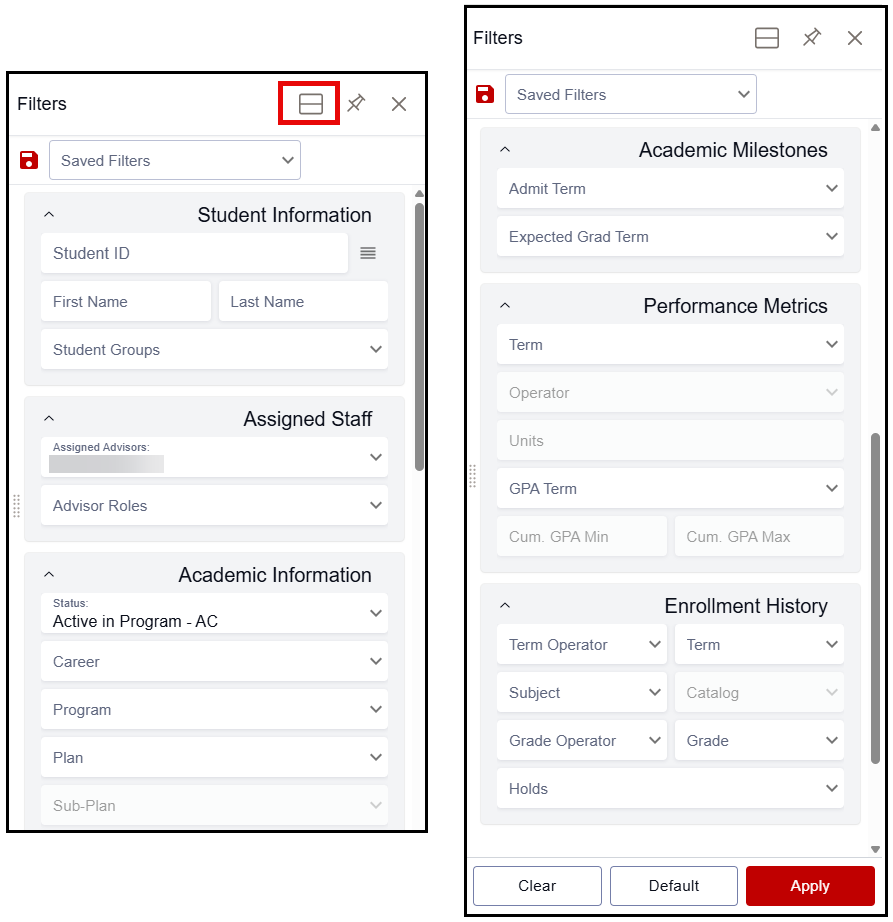
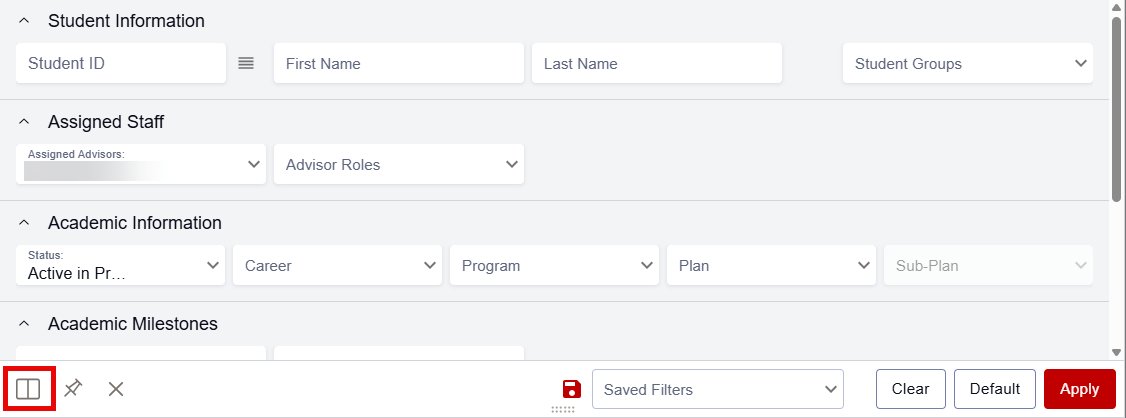
Click the Apply Filters button after selecting a population of students.
- To clear a filter, click Reset Filters then Apply Filters.
- To save a filter, click the save icon to the left of the Saved Filters drop down menu.
Tips on some of the filters:
- Student ID: click the Multiline icon to expand the textbox to add multiple UIDs. IDs can be copied into this box.
- This filter can be used to search and add multiple students at once to a list, which then can be used to apply batch notes to. Refer to the Batch Notes resource for instructions.
- Status: this filter allows the search to narrow down the results to a particular status. Use this if looking for students who are not in an active status, such as Completed Program, Suspended, or on LOA.
- A search will only look for active students unless other values are selected in this field.
Once the desired criteria are entered or selected, click the Apply Filters button at the bottom of the Filters window.
- Click the Reset Filters button to enter new criteria.
SAVING A SEARCH FILTER
If a set of criteria is used frequently, it can be saved so searches can be performed more quickly. To save:
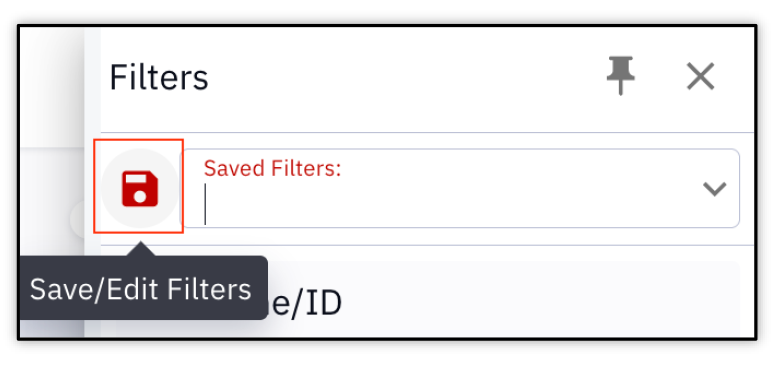
- Select the desired criteria.
- Click the Save icon next to the Saved Filters field.
- Enter the name of the Filter and Save (existing saved filters can be updated here as well).
- A confirmation message will appear.
To return to a saved filter later, click the dropdown menu on the Saved Filters field and select.
Advisee & Student Lookup Page Actions
Back on the Advisees & Student Lookup page, additional actions include:
- Select one or multiple checkboxes on a student and click the Actions button that displays at the top of the page for more actions:
- Add Note: refer to Notes section below for the process to manage Notes.
- Add to Student List: refer to the Student List resource for more information.
- To take action an individual student, click the down arrow button on the far right of the student line:
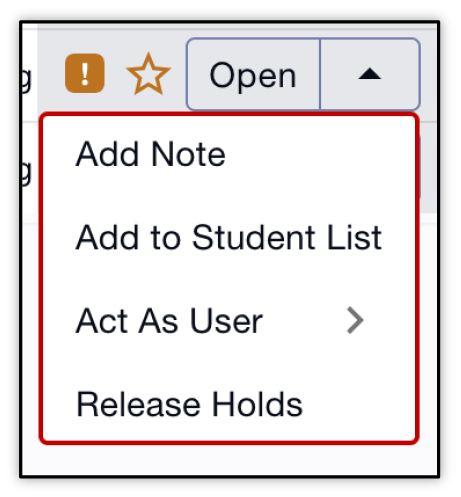
- Add Note: refer to Notes section below for the process to manage Notes.
- Add to Student List: refer to the Student List resource for more information.
- Act as User: refer to the Act as Student for Advisors resource to learn more.
- Release Holds: will display if applicable, refer to the Holds section below for the process to release holds, if the proper security has been granted.

To expand and see more information, click the ‘>’ arrow at the far left of the student line.
- The student’s picture and contact information will be listed. Additionally, all of a student’s Academic Plans will display with the associated Career, Program, Requirement Term, and Expected Graduation Term.
- ⓘNOTE: Students may be listed more than once if there are multiple Program/Plans associated to them. Each row would identify each set of Program/Plan information.
- Upon expanding a row, all Program/Plan information data will display, regardless of the row selected.
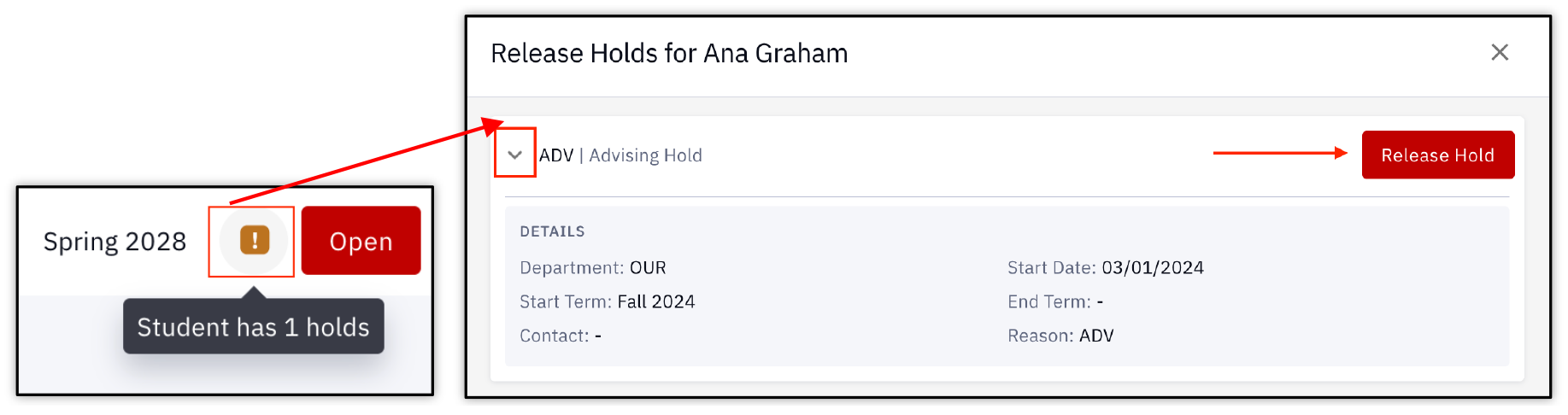
TIP! An exclamation icon indicates the student has a hold on their record. Hover to view or click to learn more.

- To see more details, click the Open button on the student. The Student Details page opens onto the Overview tab.
Student Details Overview Tab
Upon clicking the Open button, the Student Details pages launch. The tabs are Overview, Academics, Appointments, Notes, and Profile.
- Appointments information is not included here, please refer to the Managing Appointments resource.
At any time, select the back arrow link at the top of the page, next to the ‘Student Lookup’ title to return to list of compiled students.

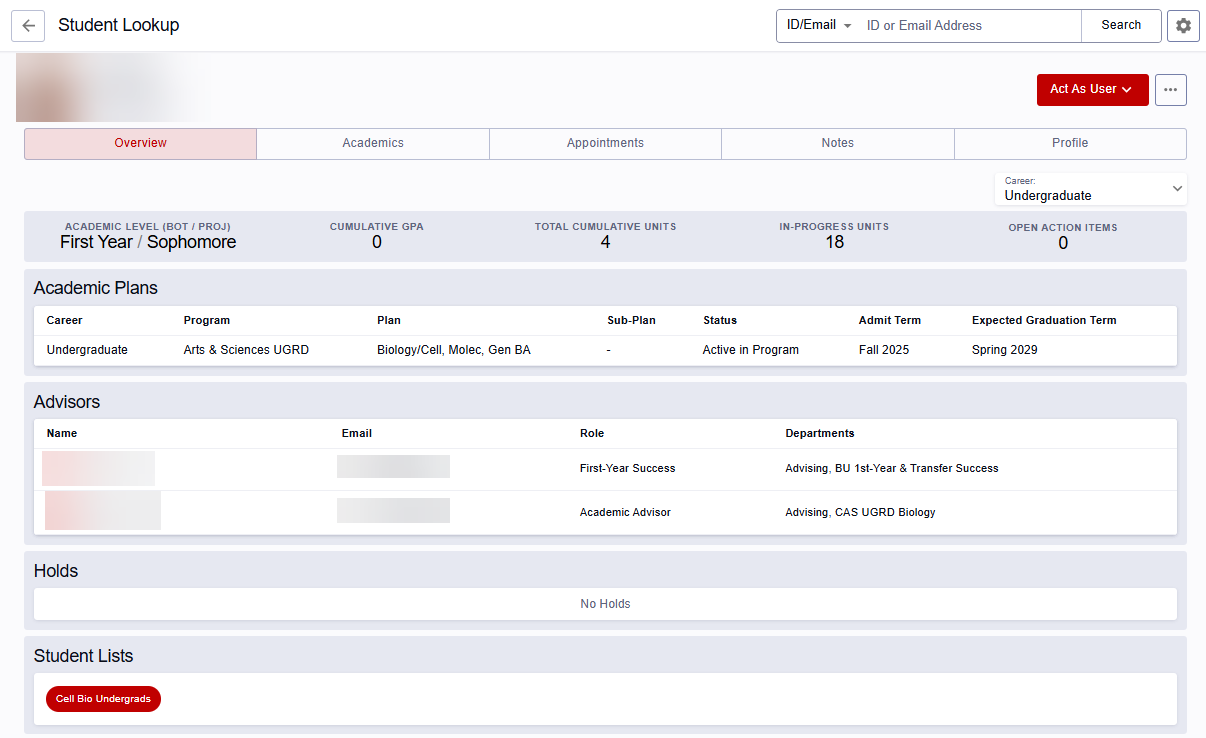
Please reference this image example for the following information described in this section.
STUDENT DETAILS ACTIONS
Initial actions available at top the of the Student Details pages are:
- Click the Act As User button to go into the Act As mode for this student.
- Refer to the Act as Student for Advisors resource to learn more.
- The 3 dots menu allows advisors to add the student to a Student List or Add Appointment.
- Refer to the to the Student List resource for more information.
- Refer to the to the Managing Appointments resource for more information.
ACADEMIC STATS
The Overview page displays the student’s summary academic information. This includes:
- A Career selection will display if a student has more than one career.
- To view the Academic data associated with another Career, that selection must be made from the dropdown. Be sure to verify which value is selected as data is being reviewed.
- High-level summary of Academic Level, GPA Statistics, and In-Progress Units
- Academic Level: classification referring to a specific stage for a student. The value on this page accounts for both beginning-of-term and projected Academic Levels. In cases where these differ, both values will display, as in the example above.
- It is used to track a student’s Term progression in their BU Degree Program and potentially impacts eligibility for certain courses, FA, and other important processes (E.g., first year, second year, sophomore). Please refer to the Student View of Academic Level section of the appendix for more details on how students interact with this information.
ⓘNOTE: The summary stats section depends on data from the current term. If viewing the Overview tab between terms, this section will not display. For example, if viewing after the Spring Term End Date, but the Term Start Date for Summer has not yet occurred, there will be no Academic Level, GPA, and Units summary information at the top of the page. Come back and review upon the Term Start Date.

PLANS AND ADVISORS
- Academic Plans section lists each Career, Program, Plan, Sub-Plan if applicable, Status, Admit Term, and Expected Graduation Term.
- Assigned Advisors will display with their email, role in relation to the student (e.g., Faculty Advisor, Minor Advisor, etc), and the advisor’s member department.
HOLDS
Best practice in academic advising is for students to meet with an advisor at least once per semester to discuss academic plans and goals. Some Schools & Colleges require students to meet with an academic advisor for pre-registration advising. An Advising Hold means that a student will be unable to register for future courses until they meet with an advisor and the hold is “released.”
If access has been granted, a hold can be released from this section.
- Click the arrow to expand for more information.
- Click the Release Hold button to remove the hold.
- Click Release to complete the process.
TIP! The list in this Advising page may include more Holds (or Service Indicators) than what the student sees in their pages. Some Service Indicators are set up as administrative only, so it’s possible Advisors will see a different list than what the student sees. This is ok – it will vary with the type of Hold. Use the Act As function to review what a student sees.
Releasing holds can also be performed from the first My Advisees page by clicking directly on the exclamation icon. Click Release Hold and confirm.
STUDENT LISTS
This section displays any lists the advisor has created that include this student. Refer to the Advising Student Lists resource for information on creating, managing, and adding students to lists.
Student Details Academics Tab
The Academics page displays more detailed academic data for the student. This includes Class Schedule, Grades, Student Groups, and Honors/Awards
Please reference this image example for the following information described in this section.
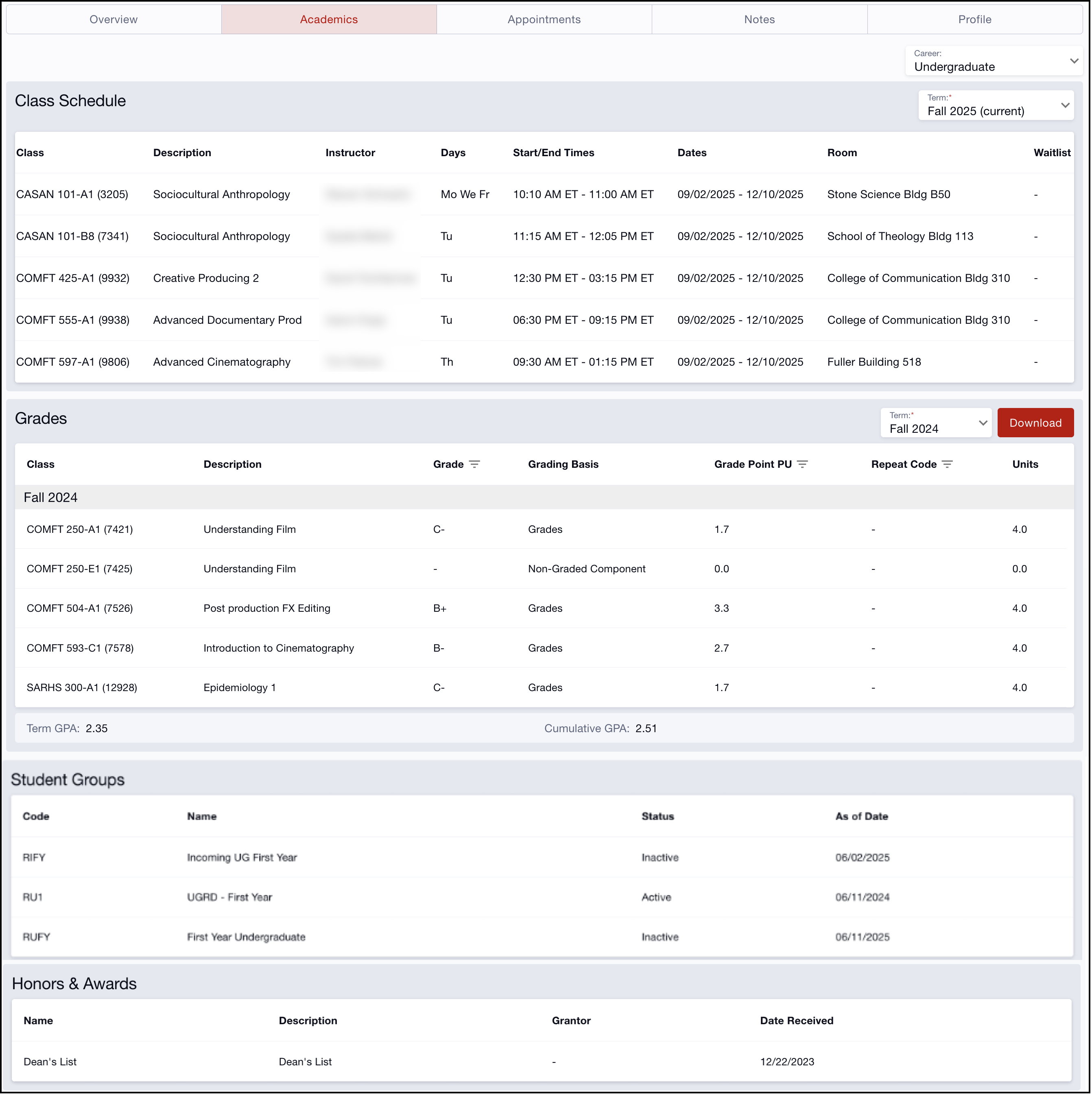
TIP! Remember that the academic data displaying here is associated to the Career selection on the Overview tab. Go back to that tab to select a different Career to view that academic data. This applies to students with multiple careers.
CLASS SCHEDULE
Class Schedule details can be viewed by Term, using the drop-down menu selection.
GRADES
Grades will be listed. The Grades section includes the Class and its associated Grade, Grading Basis, Grade Point PU (per unit), Repeat Code, and Units. Term GPA and Cumulative GPA also display.
- Grading Basis defines a group of grades that can be used for the class and can vary by Career. Examples: Graded, Transfer, Audit. Converted records are indicated with the Conversion/Historical label.
- Click the Term dropdown menu to view information specific to a Term or choose to see ‘All Terms’ together.
- Click the Download button to download the list that is displaying on the page to a CSV file.
Grade, Grade Point PU, and Repeat Code can be filtered to narrow down the list. An indicator icon will display on the column if filtering has been applied.
- To clear the filters, click on the header, and use the ‘x’ to remove. Or, delete the value if GPU is the filter.
STUDENT GROUPS, HONORS & AWARDS
Any associated Student Groups and Honors & Awards (with associated statuses and dates) for the student’s Career will be listed.
- Student Groups identify a group of students of similar affiliations, e.g., an athlete, ROTC, Kilachand Honors.
- Honors & Awards include honors such as Dean’s List or relevant Scholarships.
Student Details Notes Tab
Click on the Notes tab to view existing notes or appointment summaries; add new or update notes; or view and manage Action Items. To add Notes in batch to multiple students, refer to the Batch Notes resource for instructions.
- The Notes section is listed first, including the associated Department, Category, Description, Created By, and Created On information. Advisors can create, view, and update notes for a student here.
- Action Items for the student are provided as a summary list. From the three dots menu, click to View full details, Close the Action Item, or Reassign it to another advisor. Refer to the Action Items for Advisors resource for more information.
- Appointment Summaries are also available on this tab (students can see these summaries). For help with the appointments tab and appointment summaries, refer to the Managing Appointments resource.
- To view just one of these on the page, click on the red labeled chip of the type you’d like to remove.
Notice that icons display to indicate visibility to the student. Notes are listed with a ‘No Visibility’ icon and Appt Summaries are listed with a ‘Visible’ icon.
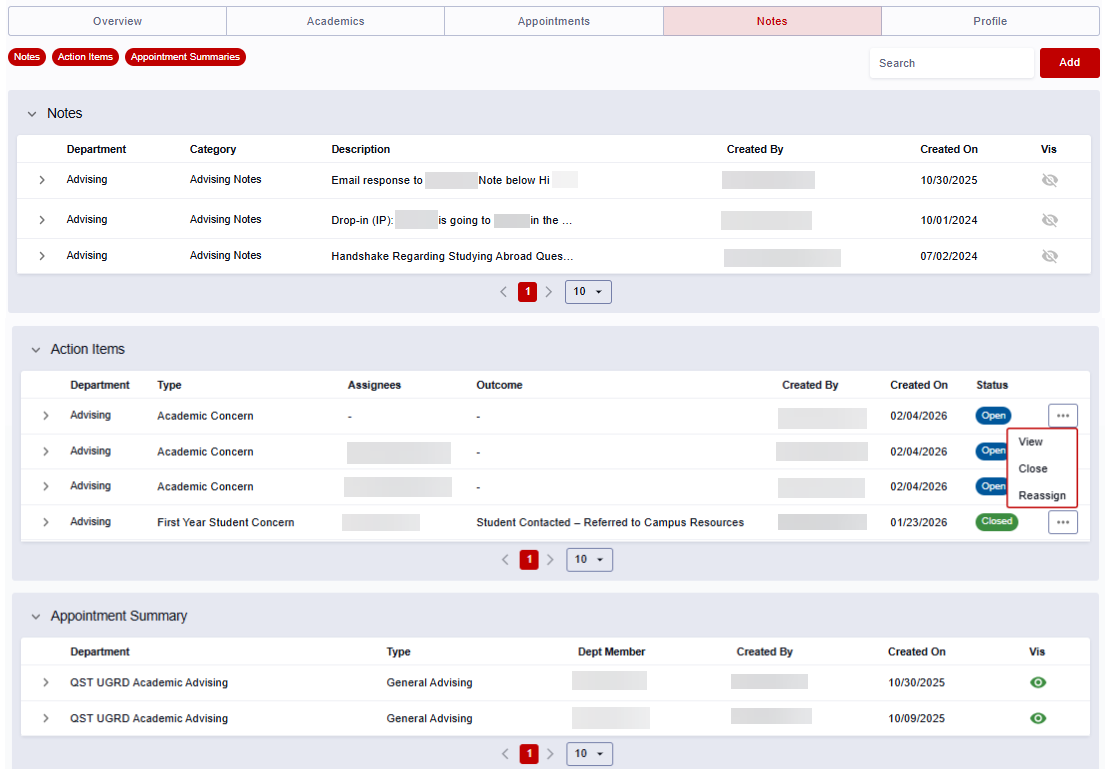
ⓘ Students can view Appointment Summaries. Students cannot see either Notes or Action Items. However, Notes and Action Items are part of the student’s official record—they are not confidential, and the student could request access through the University Registrar.
ADD
- Click the Add button (seen in previous image), select Note. The Add Note window will open. Use the Toggle Fullscreen icon in the top right corner of the window to expand the Note page for a full view.
- Department: select the appropriate option from the dropdown field; the ‘Advising’ value will default and may be the only option.
- Depending on the Department defined, there may be Topics associated. If relevant, select the Topics related to this note. Not all Departments will have Topics.
- Category: ‘Advising Notes’ will default as the selection (this may change in the future).
- Description: enter the note text, and any Attachments.
- Click Save.

- If successfully added, a confirmation message will appear in the top right of the page and the note will be viewable in the list.

If the Note screen is exited before completing, a draft of the Note will be autosaved until the cache is cleared in the browser. Upon returning to the Notes tab of the student and clicking the Add button, the text previously entered will display in the Description and a Draft label will be indicated.
VIEW
Notes will display by all advisors for that student. This list will not be limited to the advisor currently viewing the Notes tab.
- Search: Enter a keyword to look for a particular note.
- Searching will look through the Note text, Category, Department, and Created By data.
- Click the Arrow ‘>’ to expand the note details.
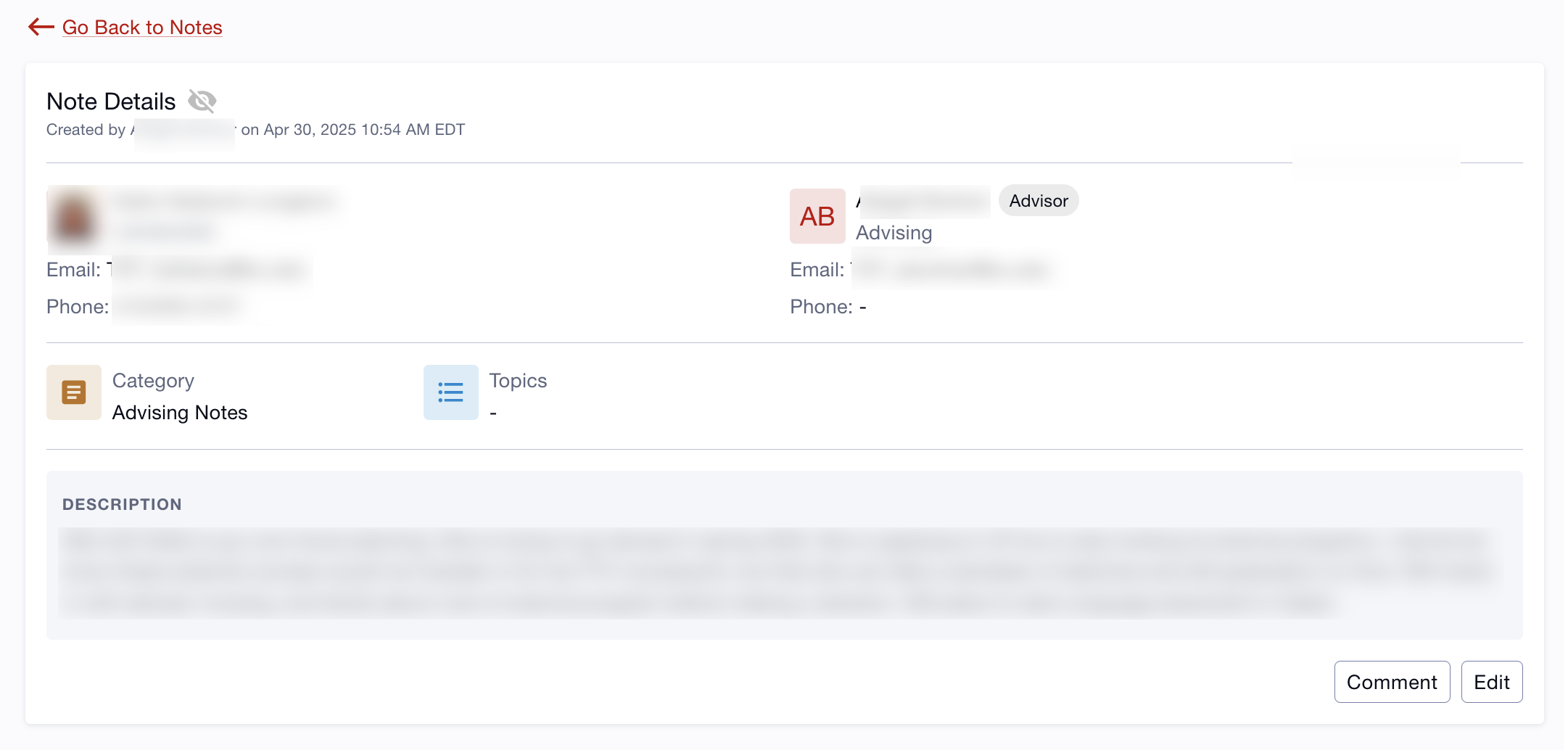
- Click the View button to open additional Note Details.
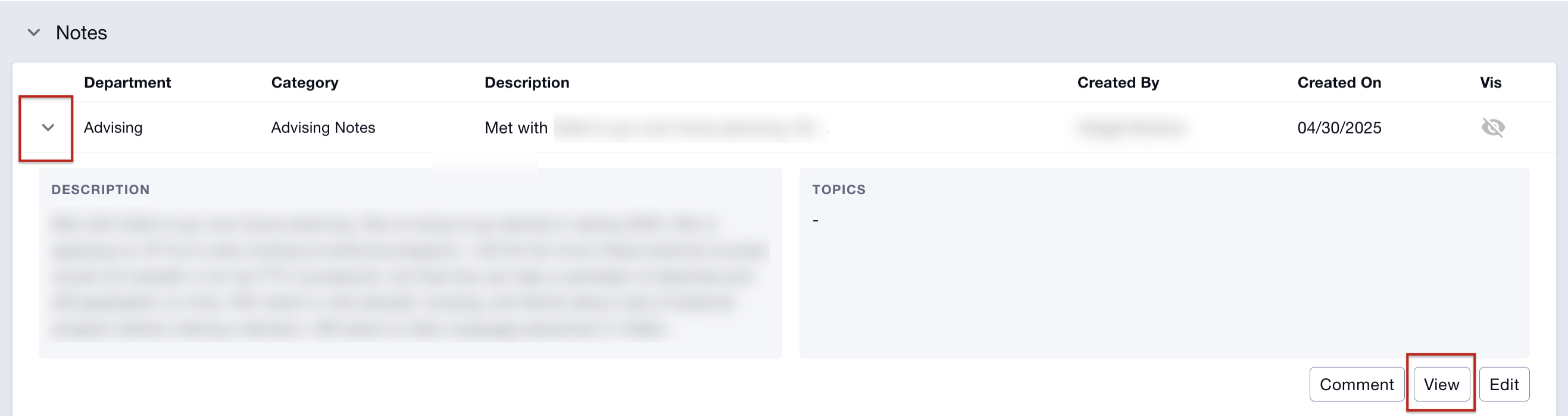
The page and information that displays is similar to the Appointment details view.
EDIT & ADD COMMENTS
Notes can be directly edited by the person who created it. Comments can be added to any note; this includes notes by other advisors who have access to that student’s information.
Refer to this example image for the following edit and comment functions.

To edit own entered note:
- Expand the desired note or open the Note Details page; click the Edit button.
- The text box will open up for entry. Edit the note text as appropriate and click Save when finished.
To add comment to own note or another advisor’s note:
- Expand the desired note or open the Note Details page; select the Comment button.
- A Comment Box will appear. Enter the comment text needed and click Save.
- If saved successfully, a confirmation message will appear and it will be recorded under the original note with a timestamp and the person who entered it.
- The comment can be edited by the person who entered it. Click the pencil icon to re-open Comment Box and modify as needed.
Student Details Profile Tab
On the Profile page, Advisors can view some bio-demographical data for a student. This includes Names, Biographical Information, Emergency Contacts, Home and Local Addresses, Phones, and Emails.
Appendix
STUDENT VIEW OF ACADEMIC LEVEL
- Academic Level tracks a student’s Term progression in their BU Degree Program.
- This potentially impacts things like eligibility for classes, Financial Aid, reporting, and other important processes.
- The Academic Level displaying in the pages below indicate the student’s stage as of the beginning of the current Term.
- Classes currently in progress this Term or any enrolled classes in future Terms will not yet be reflected.
NAVIGATION FOR STUDENTS
Enrollment > Enrollment Dates > Expand Term > Displays on Enrollment Appointments Section
- Staff/Advisors with access to ‘Act As’ can also see this data on the student’s Enrollment Dates page.
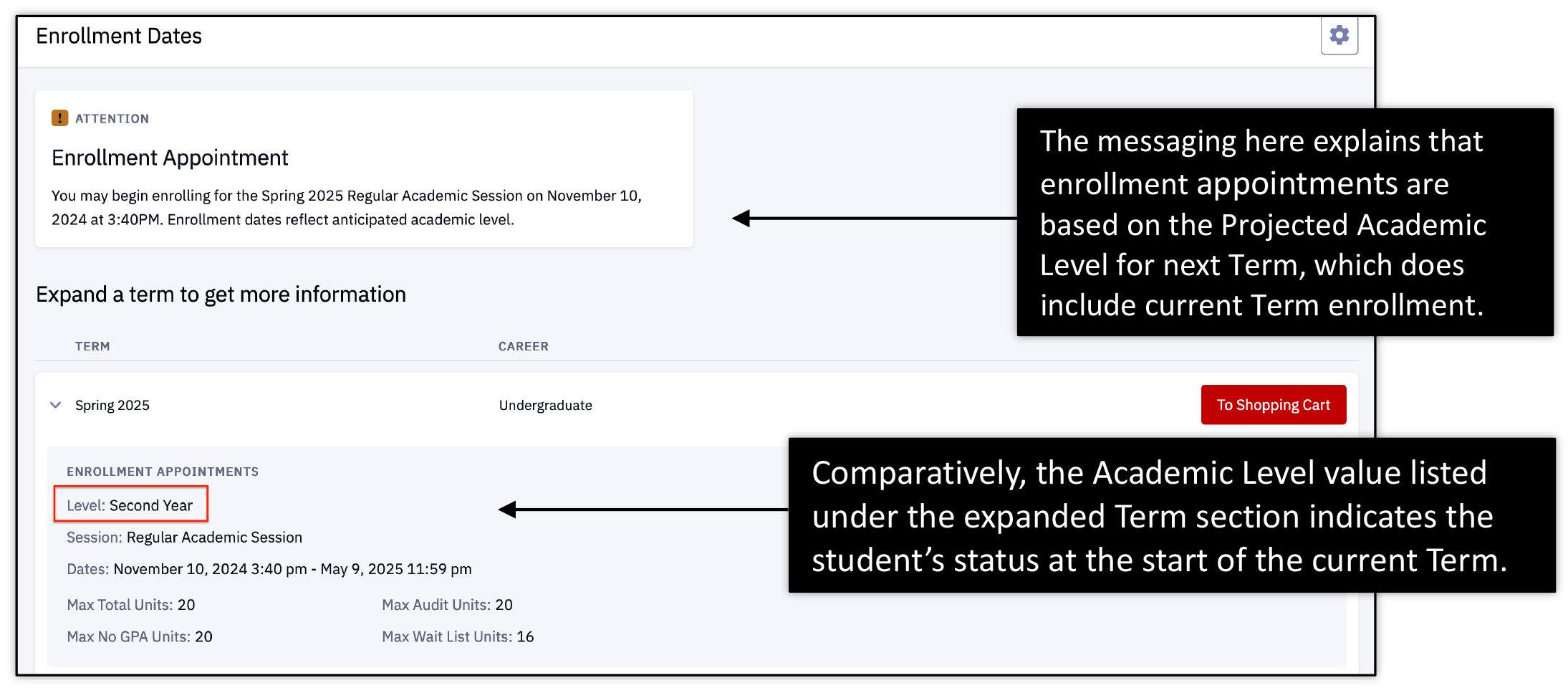
Students should go to their advisor with any Academic Level questions. Advisors/Staff can submit possible issues to ithelp@bu.edu.
Page last updated February 2026. For a PDF copy, print this webpage as a PDF. Other resources can also be accessed via the relevant icons below.