Student Services Center – General Info Tab
This resource explains the various sections of the General Info tab within the Student Services Center pages in MyBU Student. This resource is for staff across schools and colleges to see student data, such as Service Indicators, Students Groups, demographic, and contact information.

Introduction
The General Info tab in the Student Services Center provides an overview of student characteristics including Service Indicators, Initiated Checklists, Student Groups, Personal Data, Names, Addresses, Phone Numbers, and Email Addresses. The types of student data viewable will be dependent on security access; some information included here may reflect access for roles with higher level permissions in this area.
Student Services Center (SSC) consolidates student data from various areas of MyBU Student in one page. Please refer to the Introduction to Student Services Center resource for a general overview, or if detailed instructions are needed for one of the other tabs, please refer to that resource: Student Center, Admissions, Transfer Credit, Academics, and Financial Aid.
⚠︎ Screen options and menus will vary by user; please note that displays may differ for you based on access that has been granted. All screens shown are for training purposes only.
Navigation
- Navigate to Student Services Center:
- From the Dashboard left menu, scroll to Student Services Center.
- From the Full Site homepage, navigate to: Compass at top right of Nav Bar > Menu > Campus Community > Student Services Center.
- To find a student, enter the student’s available data in the Find an Existing Value window that displays, and select Search.
- The student’s Service Center page will open. Click the General Info tab to view available data, based on security.
The General Info Tab is divided into two display areas: use the links at the top of the page to jump directly to the categories of student data that are displayed at the bottom of the page as expandable, editable sections. Please refer back to this image to review the content layout for all display sections on the General Info tab page:

Service Indicators
Navigate to the Service Indicators section by either clicking the link at the top of the page or scrolling to the expandable section further down the page.
Service Indicators, or “holds,” are:
- Applied to student records and, when configured to do so, can prevent students from taking specific actions such as enrolling in classes (typically a negative SI).
- Also used to identify particular student characteristics (typically a positive SI).
- Configured to display, or not display, in Student Services Center.
The Service Indicators data section provides information regarding all positive and negative Service Indicators applied to a student. When a Service Indicator is released, it will no longer impact the student, and it will no longer display here.

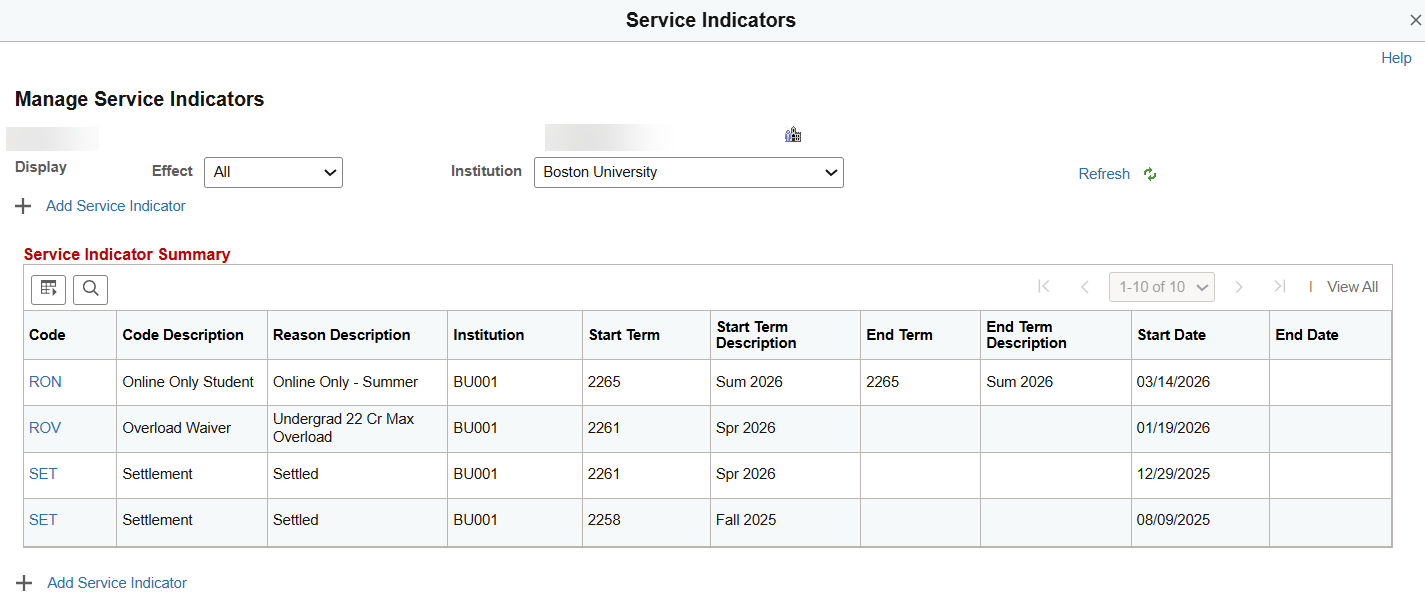
Users with the security to edit or release service indicators will be able to click the Edit Service Indicators button (see previous image) to access the Manage Service Indicators page:

Refer to the Service Indicators resource for more information about editing Service Indicators.
Initiated Checklists
Navigate to the Initiated Checklists section by either clicking the link at the top of the page or scrolling to the expandable section further down the page.
The Checklists data section displays Checklist to-do’s and due dates:

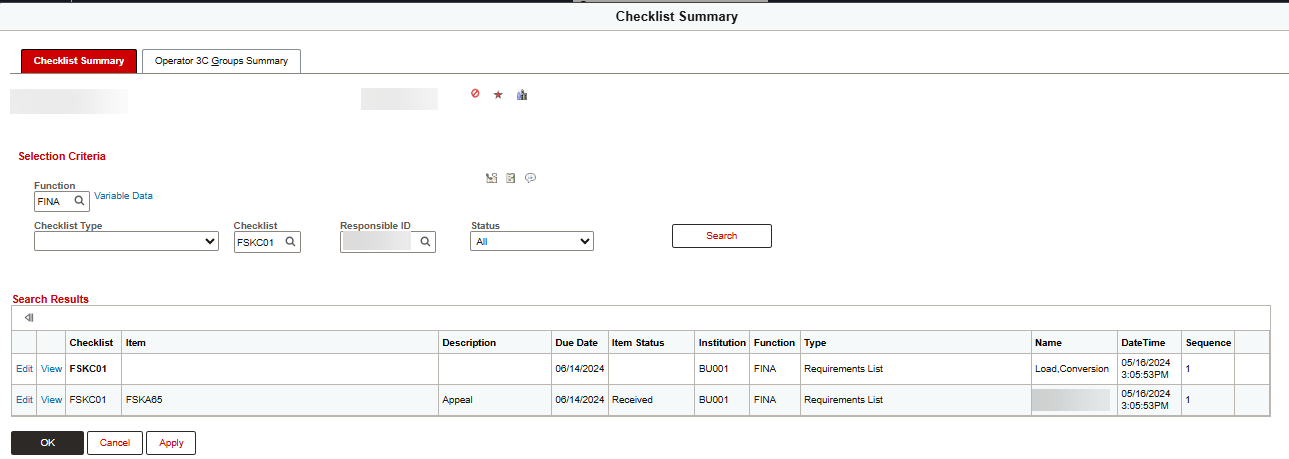
Users with the security to update checklists will be able to click the Review Checklist Summary button (see previous image) to access the Checklist Summary page.
- Data will display the Checklist Code, Checklist Item, Description, Due date, Item Status (definitions below), Function, Type, Name of who added, and Date/Time.

With appropriate security, staff can use the Edit or View links for additional information.
- Edit displays the Checklist Management page, allowing for updates to the Checklist and Checklist Item data.

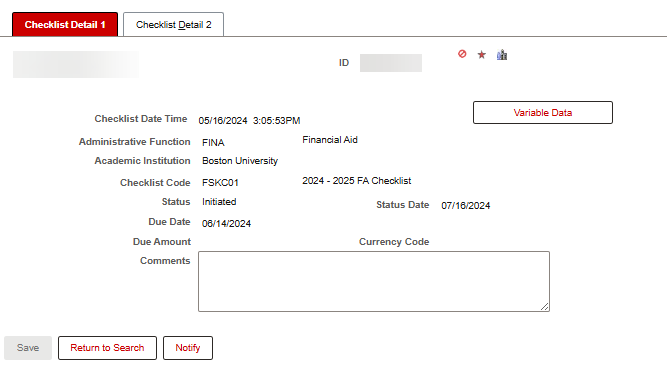
- View displays the Checklist Detail page, listing similar information to the list on the SSC General Info tab, but in the MyBU Student Checklist page view. This pop-up is still view only.

See Financial Aid Checklists (student resource) to understand how To-Do’s display for students and Adding and Updating Financial Aid Checklists Items (staff resource) for FA support information.
CHECKLIST ITEM STATUSES
BU uses the following checklist item statuses, which are displayed in the data tables in the Checklist Data sections:
- Initiated: Most documents come onto the checklist in Initiated status. This usually means that this document is required from the student and no action has yet been taken by the student. The CSS Profile and FAFSA, among many others, come in as Initiated status.
- Notified: Indicates that a student has been sent additional notification regarding the checklist requirement beyond the posting of the document in Initiated status. Some documents that may move to Notified status are Student and Parent Tax information and Federal Verification requirements.
- Received: Indicates that the student has been notified and has submitted (or submitted prior to being notified) the required item, which is pending review by the Financial Aid office. Nearly all documents will move to Received status at some point.
- Cancelled: Indicates that the document has not been approved to move forward, or that the student’s request has been denied. This status is used for only three documents: Noncustodial Parent Waiver Request, Parent Income Information Waiver, and Appeal for reconsideration.
- Completed: The end status for most documents. This status indicates there is no further action needed by either staff or the student on this document.
- Waived: Used for only one document: the Noncustodial Parent Profile. This is marked as Waived if the office determines that the Noncustodial Parent Profile does not need to be reviewed.
Student Groups
Navigate to Student Groups by either clicking the link at the top of the page or scrolling to the expandable section further down the page.
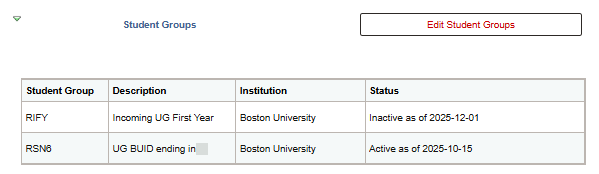
Students can be added to one or more Student Groups to identify different student characteristics. Effective dating indicates when the group is Active and Inactive.
The Student Groups data section provides a Description and Status (Active or Inactive) for each Student Group listed.

Examples of Student Groups include Athletes, High School Student, and MET International.
Users with role and row-level security can click the Edit Student Groups button (shown above) to edit details applied to a student’s record in the Student Groups page:

To learn more about concepts referenced in this section, review the Student Groups resource and the “Data Rows and Effective Dates” section of the Introduction to Using MyBU Student resource.
Personal Data, Names, Addresses, Phones, Emails
Navigate to the Personal Data section by either clicking the link at the top of the page or scrolling to the expandable section further down the page.
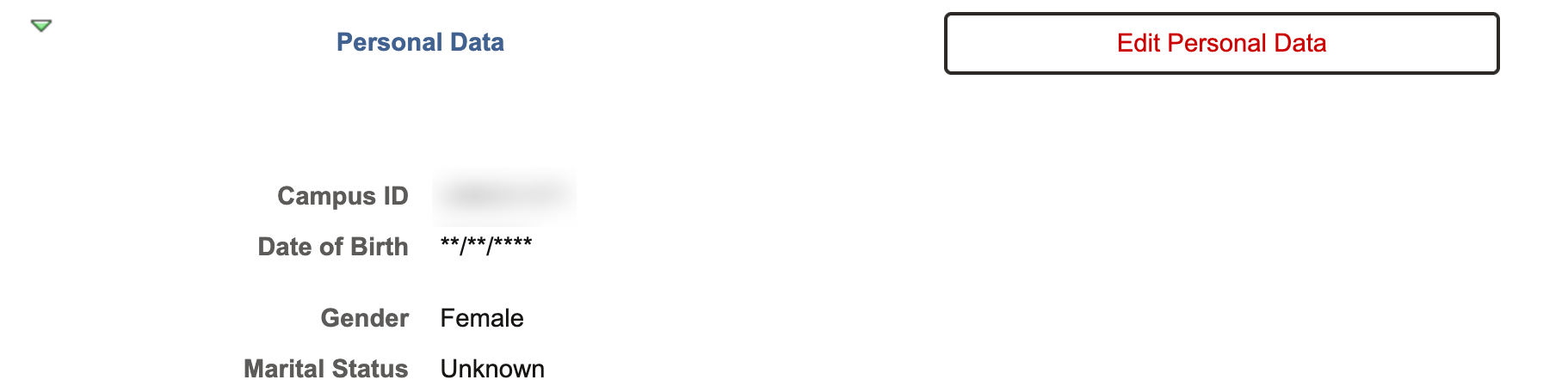
The Personal Data section displays information including Campus ID, Date of Birth (Month and Day), Gender, and Marital Status:

Those with security can click the Edit Personal Data button (shown above). This allows staff to access pages to update some bio-demo information in the Person Maintenance page’s Biographical Details tab.
NAMES
Navigate to the Names section either by clicking the link at the top of the page or scrolling to the expandable section at the bottom of the page.
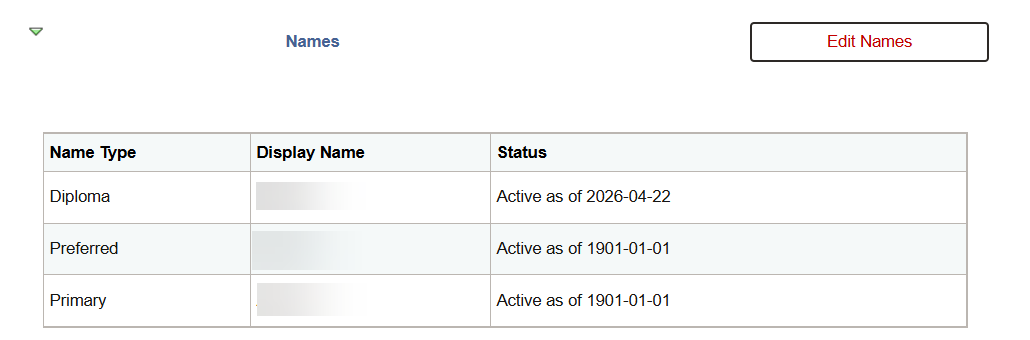
The Names section displays a table of name types, such as preferred, primary, and diploma. The affiliated name with each type is also listed with its Active/Inactive status and date:

Those with security can click the Edit Names button (shown above) to update the student’s name and related data in the external Names page.
ADDRESSES
Navigate to the Addresses section either by clicking the link at the top of the page or scrolling to the expandable section at the bottom of the page.
The Address data section displays address types, addresses, and Active/Inactive address statuses:

Those with security can click the Edit Addresses button (shown above) to view and edit the student’s address(es) data in the external Address Maintenance page.
PHONES
Navigate to the Phones section either by clicking the link at the top of the page or scrolling to the expandable section at the bottom of the page.
The Phones data section displays phone number types and related data, such as extension number and preferred status:

Those with security can click the Edit Phones button (shown above) to view and edit the student’s phone number(s) data in the external Phones page.
EMAIL ADDRESSES
Navigate to the Email Addresses section either by clicking the link at the top of the page or scrolling to the expandable section at the bottom of the page.
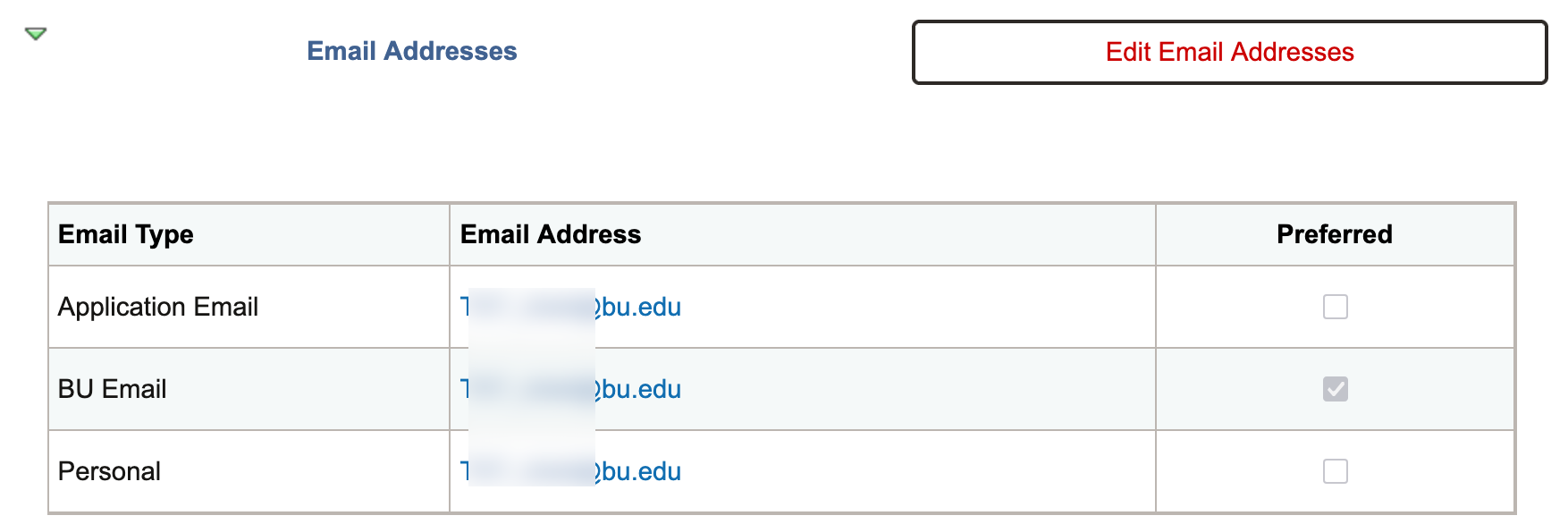
The Email Addresses data section displays email types (i.e. Application Email, BU Email, Personal), email addresses, and preferred indicator:

Those with security can click the Edit Email Addresses button (shown above) to view and edit the student’s email and URL data in the external Electronic Addresses page.
Page last updated June 2026. For a PDF copy, print this webpage as a PDF.