Act as Student
This information outlines how staff and advisors can lookup and ‘Act As’ a student in MyBU Student. This enables support for students with their Academic and Enrollment processes.


Introduction
The Lookup Student page can be used by staff, advisors, and faculty (with appropriate security) who support students to view student information. This resource focuses on student Enrollment and Academic processes.
Please note the pages covered in this resource may not be an exhaustive list of the available pages in the Act As mode. For instructions on the Student Account, please refer to the Staff View of the Student Account resource.
⚠︎ Screen options and menus will vary by user; please note that displays may differ for you based on access that has been granted. All screens shown are for training purposes only.
Navigation to Lookup Student
Advisors are able to use the navigation steps outlined here, but can also refer to navigation functionality specific to advising pages in the Advising Navigation to Act as Student resource.
- Log into MyBU Student.
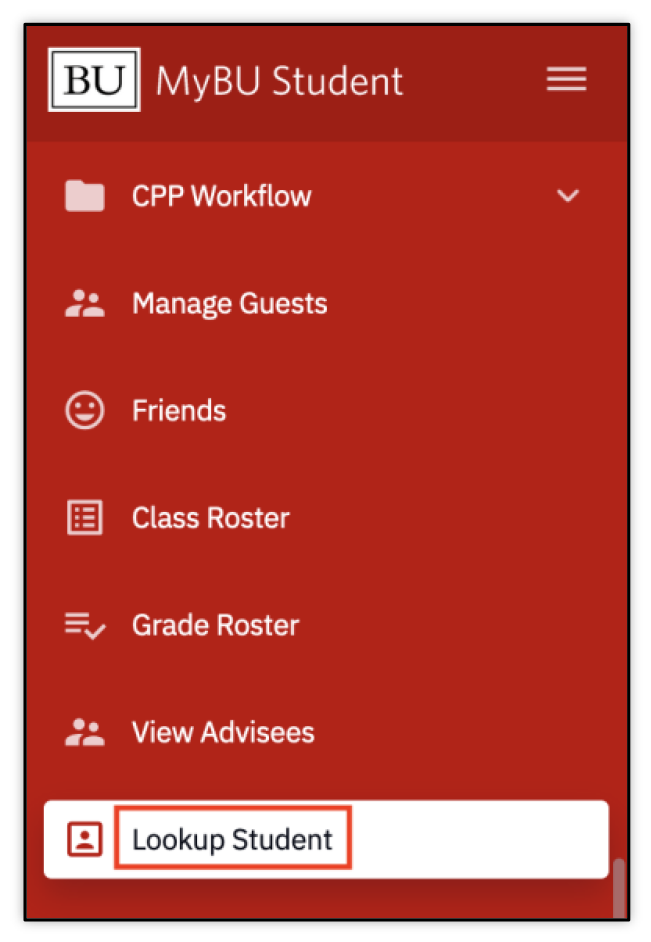
- In the left menu, navigate to Lookup Student.
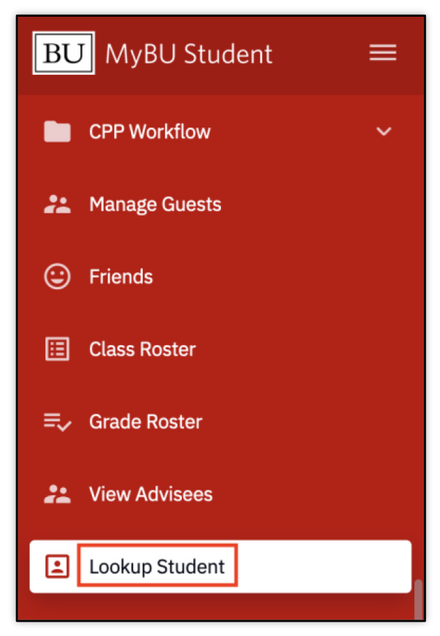
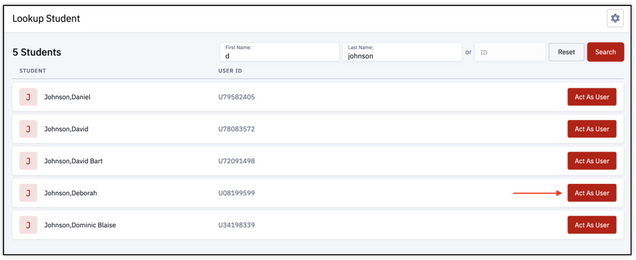
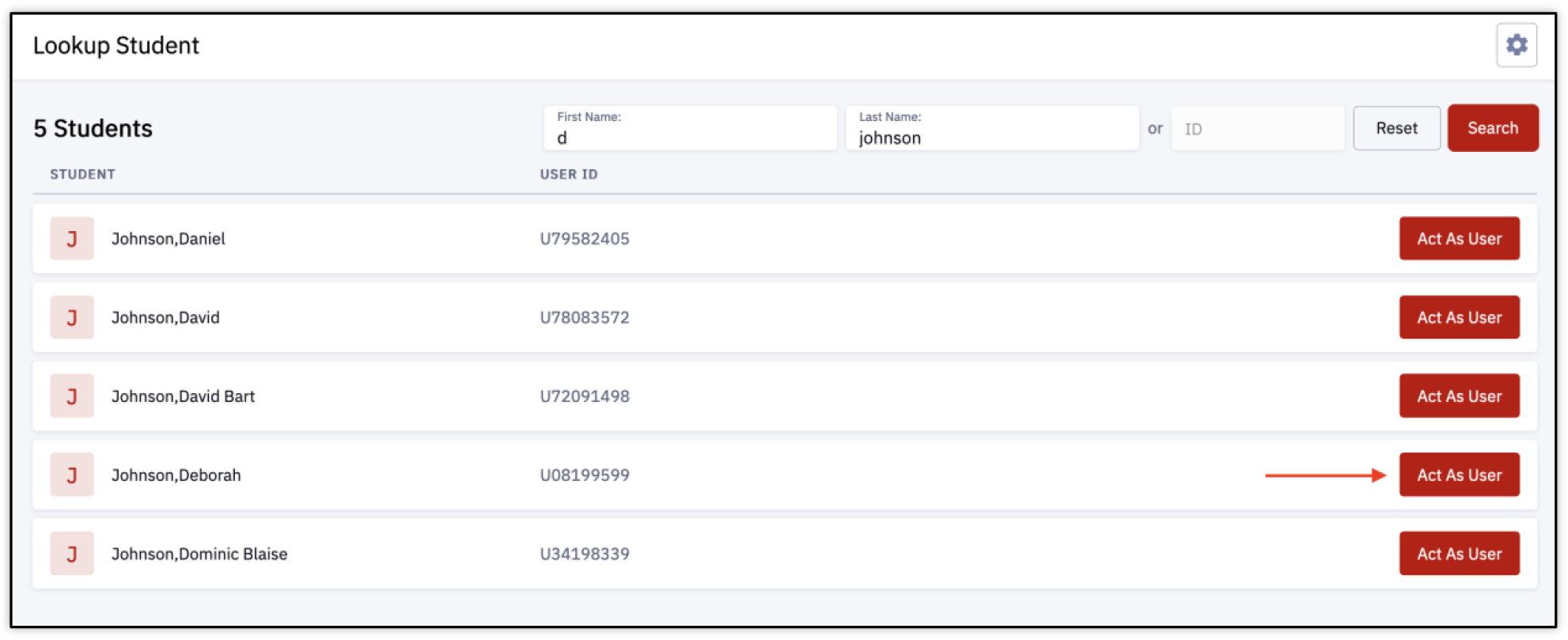
- The Lookup Student search page will open. Enter full or partial First and Last Name, BUID, or email for the student.
- Click Search.

- Results matching the criteria entered will display.
- If there are no students matching the criteria entered, a message will display, No students found.

Act As Student
The Act As function allows staff and faculty (with appropriate access) to view student information similarly to how a student would view their information:
- The available pages and activities that can be performed by students will differ slightly for staff/advisors.
- The functions identified in this guide may not be comprehensive of all pages that can be accessed while in the Act As mode.
ⓘ If access to Act As has been granted, security to view specific pages may still vary.
- Click the Act as User button for the correct student needing to emulate.
- A message will display asking for confirmation and acknowledgement of FERPA compliance. Verify the correct student was selected and click Continue.
- Otherwise click Cancel to return and search again.
- The MyBU Student dashboard for the selected student will display.
- Notice the highlighted banner at the top of the page.
- Tip! The banner at the top of the page will remain for the entire Act As session.

- To stop acting as the student, click the Exit button in the banner.
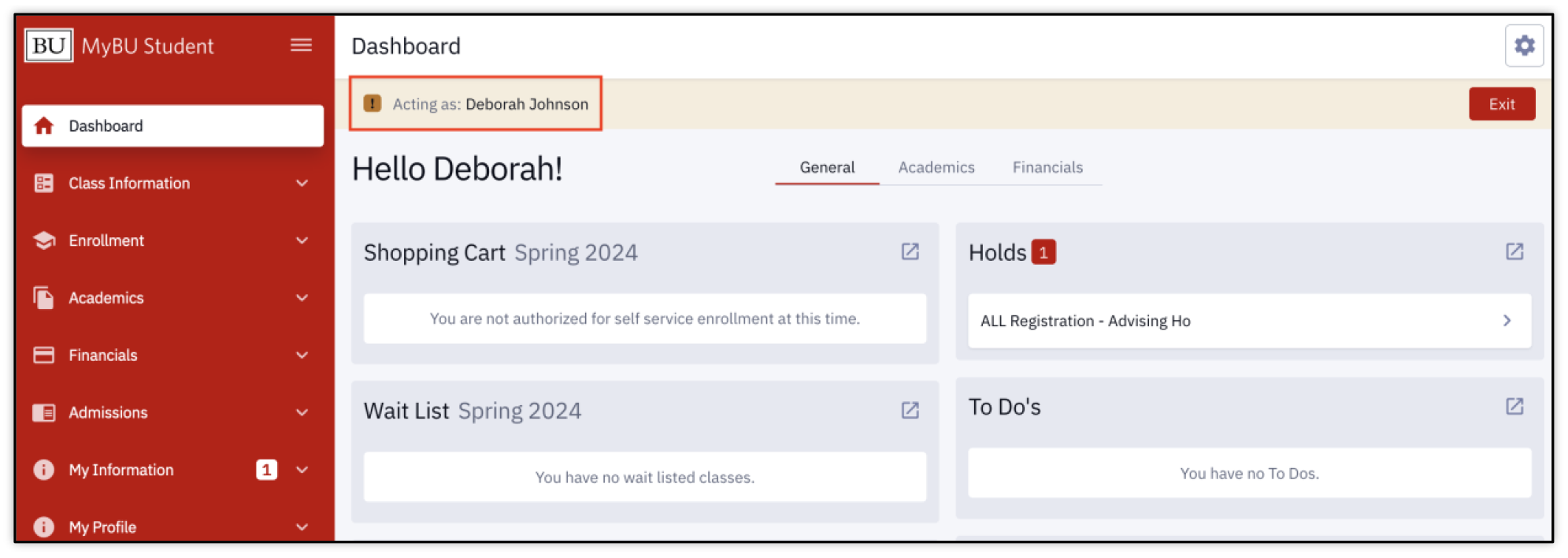
The following academic/enrollment sections can be accessed from the left menu: Schedule, Enrollment, and Academics. Refer to the sections below for details on the available pages.

Schedule
The Schedule feature provides a view of the student’s enrolled or waitlisted classes, and exam schedule.
Navigation: Left Menu > Schedule
The list of enrolled classes will open.
- Select or verify the Term.

- Click the Class Schedule or Class Exams tabs to view relevant schedule.
- Click the Print icon in the top right to download/print the schedule.
- Click on class to expand for more details.
Shopping Cart & Wait List
SHOPPING CART
Shopping Cart is a space where desired classes can be saved and ready for the time enrollment opens.
To view the classes the student has added to their Shopping Cart, Navigate to Enrollment > Shopping Cart.

ⓘ NOTE: Class details can be reviewed here, but no actions can be performed while acting as a student.
Additional process details can be accessed from the Supporting Resources section below.
View Wait List
If a student is on a Wait List for any classes, they can be viewed by navigating to Enrollment > View Wait List.
The View Wait List page shows the details of any classes the student is waitlisted for, including the student’s place on the Wait List. In instances where a student must enroll in multiple components (e.g., a lecture and a lab), these joined components will appear linked together, as in the example below.
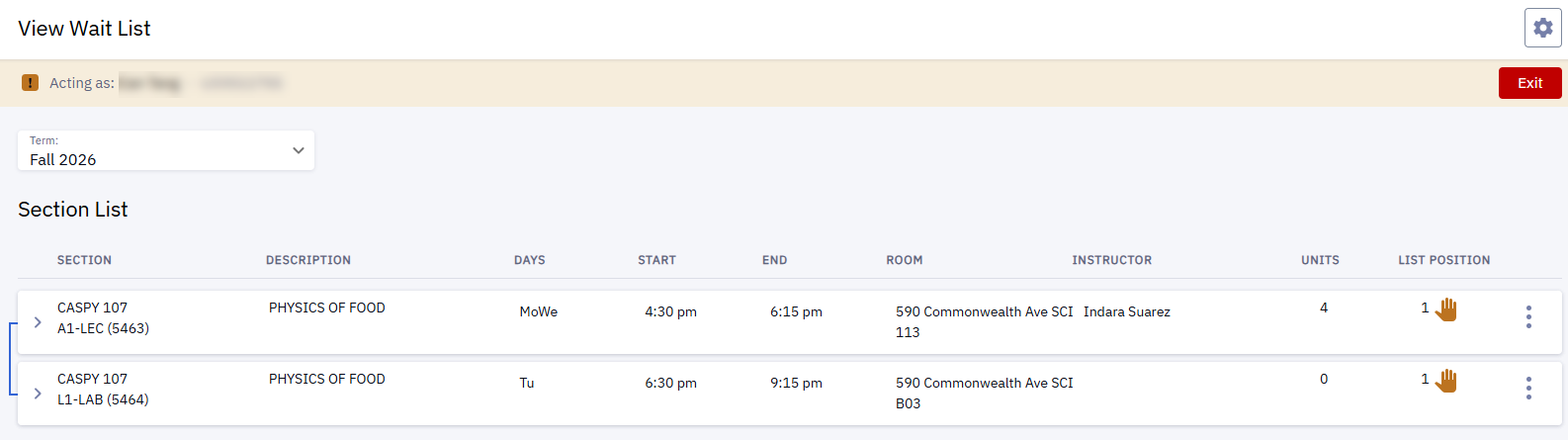
ⓘ NOTE: Waitlisted classes can also be seen on the student’s Schedule.
For more information about class Wait Lists, refer to the Class Status & Wait Lists resource.
Enrollment Dates
To view the student’s enrollment appointment information, navigate to Enrollment > Enrollment Dates.
Before a specific enrollment date and time has been assigned to a student, the general registration period dates will display. Once a student has been assigned a specific enrollment appointment date and time, that will display at the top of the Enrollment Dates page.
Notice that the enrollment appointments are based on the Projected (or anticipated) Academic Level for next Term. This Level does include the current Term enrollment.

Schedule Builder
Schedule Builder allows students to plan classes before registration and compiles various schedule permutations to determine what options might be preferred for enrollment.
- To view the classes the student has added to the Schedule Builder, navigate to Enrollment > Schedule Builder.
- While acting as a student, the following actions can be performed to compile schedules in the Schedule Builder:
- Importing classes using the Import Courses button.
- Using Filters and adding classes directly to the schedule builder list.
- Selecting Sections for classes that have been added.
- Viewing a student’s Favorites.
- Saved favorites will indicate the user who saved it.
- Generating schedule permutations using the Build Schedules button.
Additional process details can be accessed from the Supporting Resources section below.
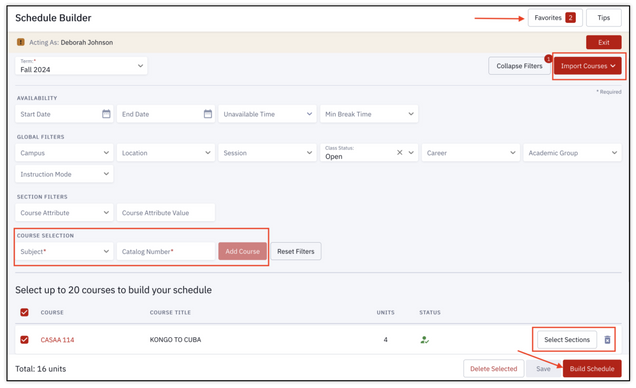
- Once schedules have been generated, the following actions can also be performed while acting as a student:
- Saving a schedule to Favorites.
- Pinning classes to a schedule.
Use the Calendar and List view toggle to view preferred schedule format.

Additional enrollment process details can be accessed from the Supporting Resources section below.


Program/Plan
There are two methods of viewing the high-level academic program and plan information when acting as a student:
- Academics > Programs
- My Profile > General Information
- From the left menu, navigate to Academics > Programs.
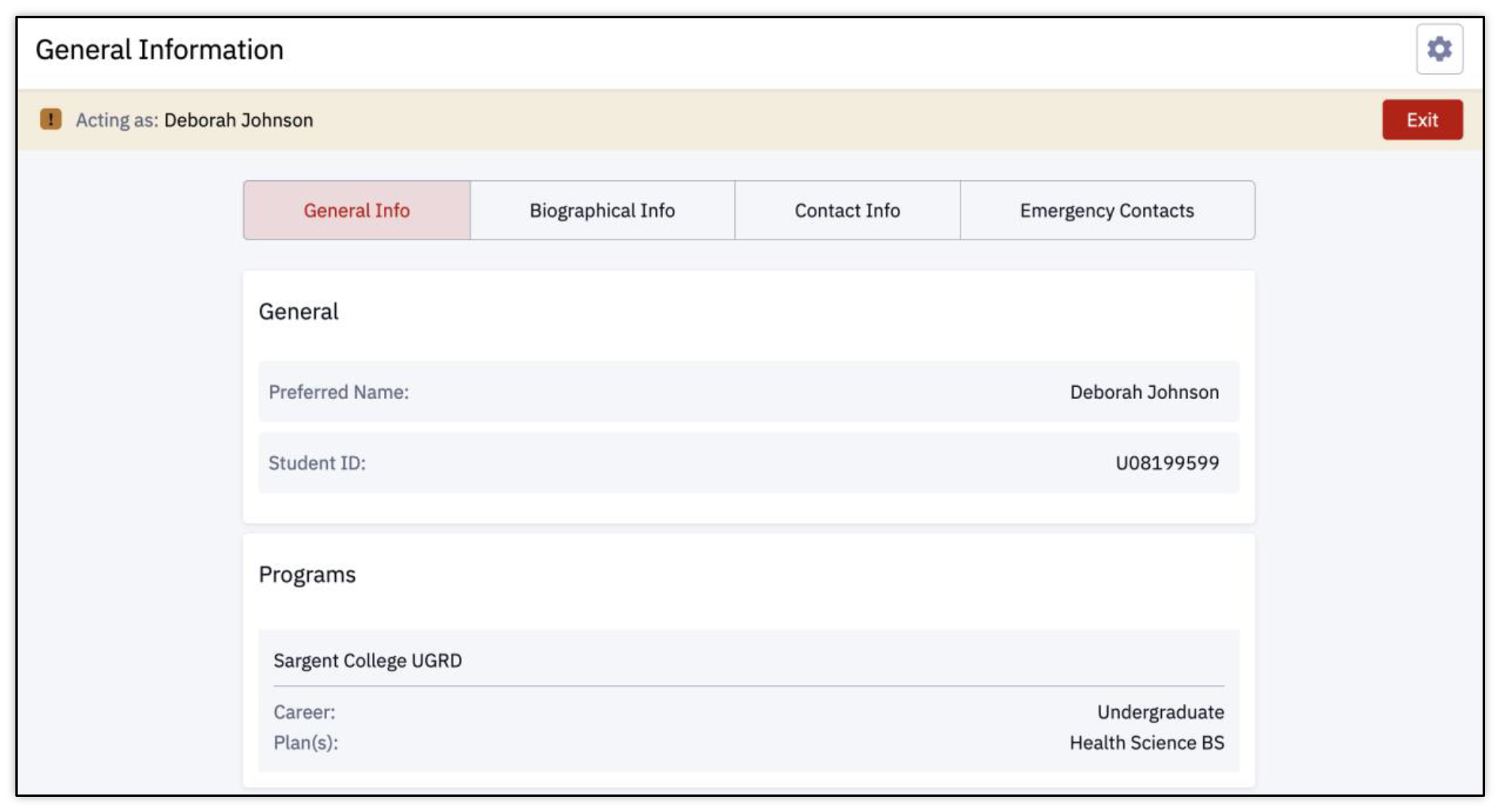
- The student’s program/plan and status overview will display:
- Career: All the course work undertaken by a student that is maintained in a single record (e.g., Undergraduate).
- Program: Entity to which a student applies to and from which they graduate; it includes a student’s degree status at a school (e.g., Sargent College UGRD).
- Plan: area of study such as a major or minor (e.g., Health Sciences BS).
- Admit Term: term, or semester, the student is officially admitted to (e.g., Fall 2022).
- Alternatively, in the left menu, navigate to My Profile > General Information.
- On the General Info tab, the Career, Program, and Plan information will display.
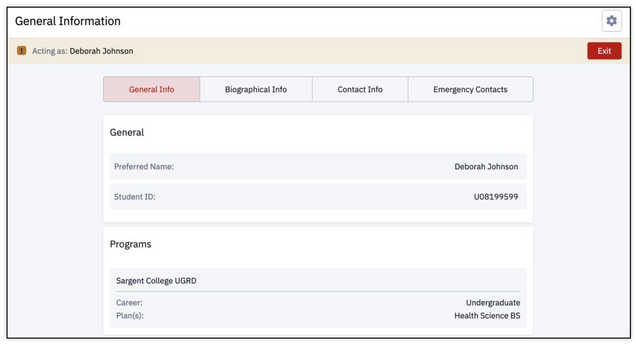
Additional information on the components that make up a student’s academic record can be accessed from the Supporting Resources section below.

Test Scores
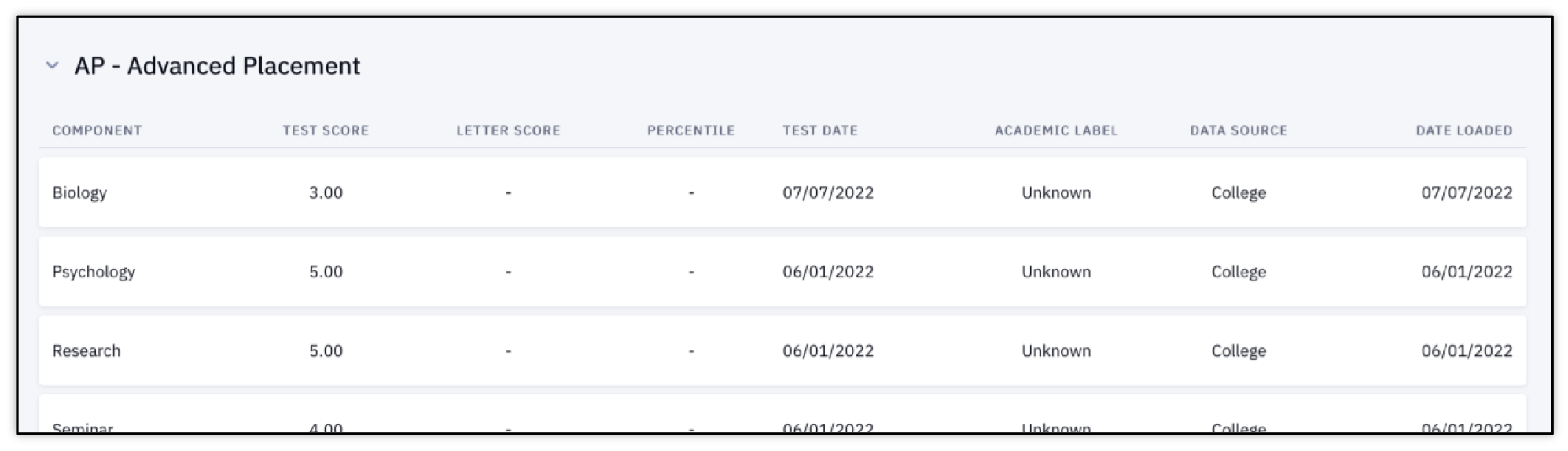
The Test Scores feature provides a view of the student’s recorded test scores (e.g., SATII, ACT, AP, GRE).
Navigation: Academics > Test Scores
Where applicable, each test lists the Components with the associated Test Score, Letter Score, Percentile, Test Date, Academic Label, Data Source, and Date Loaded.
Course List
The Course List feature provides a view the student’s BU course list. This includes courses that have already been taken, courses in which they are currently enrolled, transfer courses, tests taken for course credit, and courses in the Shopping Cart.
Navigation: Academics > Course List
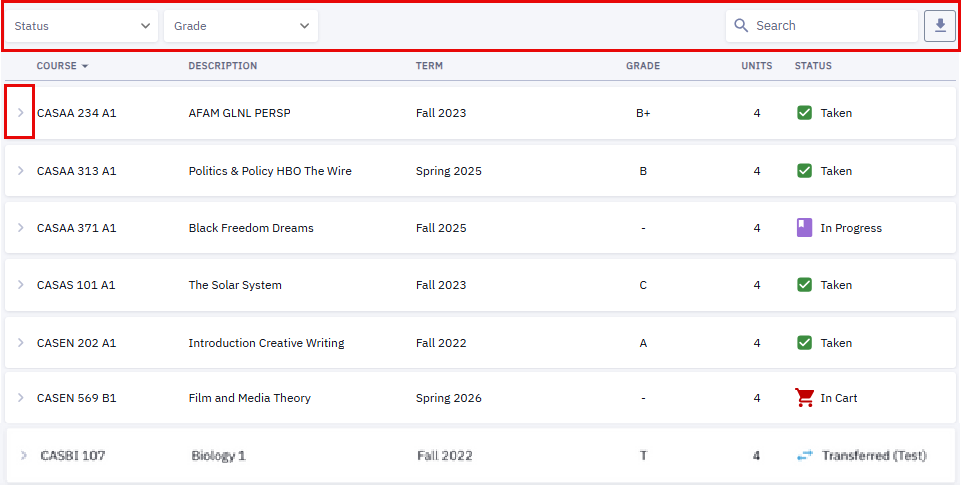
The list displays with the Course Description, the Term when the course activity took place, a Grade if applicable, the number of Units, and the current Status.
- Select a Status or Grade value to filter the courses that display.
- To further narrow down the list, enter a keyword in the Search field.
- Click the arrow next to the course to expand additional course details.
- Click the download icon to export a .CSV file of all data in the Course List.
Milestones & Graduation Status
STUDENT MILESTONES
The Student Milestones feature provides a view of the milestones on the student’s record (e.g., KHC – Honors College status, Historical Certificates, Thesis/Project/Dissertation)
Navigation: Academics > Student Milestones
The Milestones list can be filtered using the Status dropdown or the Search field. Click on the arrow on the milestone row to expand to see more information.

VIEW GRADUATION
View Graduation feature provides a view of the expected graduation and degree status for a student’s associated program.
Navigation: Academics > View Graduation
Identified will be all Programs associated to the student, the Expected Graduation Term, and Degree Status. Click on the arrow next to the program name to expand additional degree, program, and plan details. The Degree Status will remain blank until the external processes for review, approval, and awarding are complete.

View Unofficial Transcript
The Unofficial Transcript is a helpful tool for understanding a student’s overall academic experience and trajectory. It includes summaries of programs, milestones, enrollment, degrees, transfer credit, test credit, and GPA data.
Navigation: Academics > View Unofficial Transcript
- Select or verify the Transcript Type and Career fields.
- For students who are not Med, Dental, or Law students, select the BU Grade Report and associated Career.
- Click the View PDF button to view, download, or print a PDF version of the Unofficial Transcript.
- Review Enrollment, Transfer, and Combined Credit Totals and GPA Statistics.
- Click Expand All to view the details of all sections or click each section individually to expand.

Each section includes the following information:
- Degrees: Degree (if applicable), Date, Associated Plan
- Milestones: Milestone & Level, Associated Program, Status
- Enrollment: Per Term, Courses Enrolled, Credits Attempted & Earned, Grades (if applicable), Points, Term Credit Totals & GPA
- Programs: Program/Plan, Date, Status
- Transfer Credit: Source Institution, Associated Program, Courses. Term Taken, Status, Units, Grade
- Test Credit: Term, Test ID & Component, Date, Score
- Other Credit
Grades & Special GPA
Grades
The Grades feature provides a view of that student’s grades list by term.
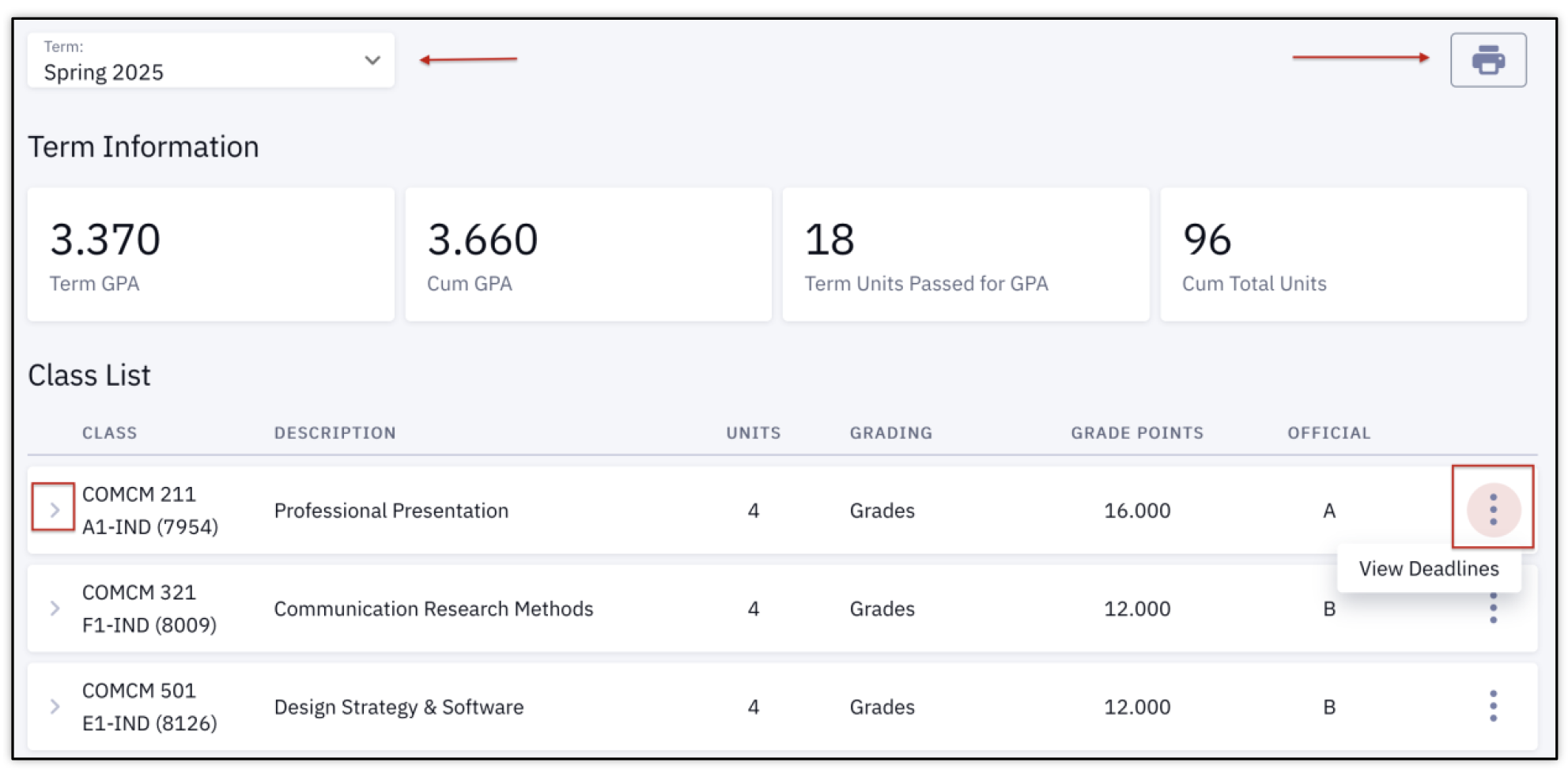
Use the Term dropdown to verify or select the desired Term.
- The Term Information section shows the overall grade related data for that term as well as some cumulative information:
- Term GPA
- Cumulative GPA
- Term Units Passed for GPA
- Cumulative Total Units
- The Class List section shows each class with its Units, Grading type, Grade Points, and Official Grade.
- Click the arrow next to the class to view more details.
- Click the three dots menu for the View Deadlines page. This will display important Academic Calendar dates for the class, including session, drop, and withdrawal dates.
- To print the Grades page, click the Print icon in the top right corner.
ⓘ NOTE: Depending on the Term selected, it’s possible that some of this information may not be complete and not ready for display at the time of viewing.
Special GPA Display
Depending on the student’s career/program/plan history, a specialized Academic Year GPA or Institutional GPA may be available. For current students, this applies primarily to students in the School of Dental Medicine and School of Law.
All other students (and staff using Act As) may still see the Special GPA Display menu item, but if no Special GPA applies, the page will simply display a disclaimer message like the one shown below.

Transfer Credit
The Transfer Credit feature provides a view of the student’s credits recorded from external sources. This includes Course Credits and Test Credits (Other Credits is not currently used).
Navigation: Academics > Transfer Credit
Click a credit type to expand and view additional details. If applicable, click a listed item to further expand.
The information that displays is determined by the type of credit listed.
Course Credits: For the identified Source Institution and Program, the Term, Source Term, Incoming Course, Units Taken, Grade Input, Equivalent Course, Units, Grade, and Status values will be populated where applicable.
- Source Institution is where the student took the courses. (In the example shown below, it’s Cornell University.)
- Source Term is when the student took the course at the Source Institution.
- Units Taken are the number of units/credits associated with the Source Institution’s course.
- Grade Input is the grade the student earned in that Source Institution’s course.
- Equivalent Course is the Boston University course that has been determined to be equivalent to the Source Institution’s course, if any.
- Units are the number of BU units the student was awarded for the transfer course. A “T” grade means Transfer and indicates that the Grade Input will not be counted into the student’s BU GPA.
Test Credits: For each credit, the Program it’s applied to will be listed along with the Term, Test ID, Test Component, Score, Course, Units, Grade, and Status.

Advisor Information & Student Groups
ADVISOR INFORMATION
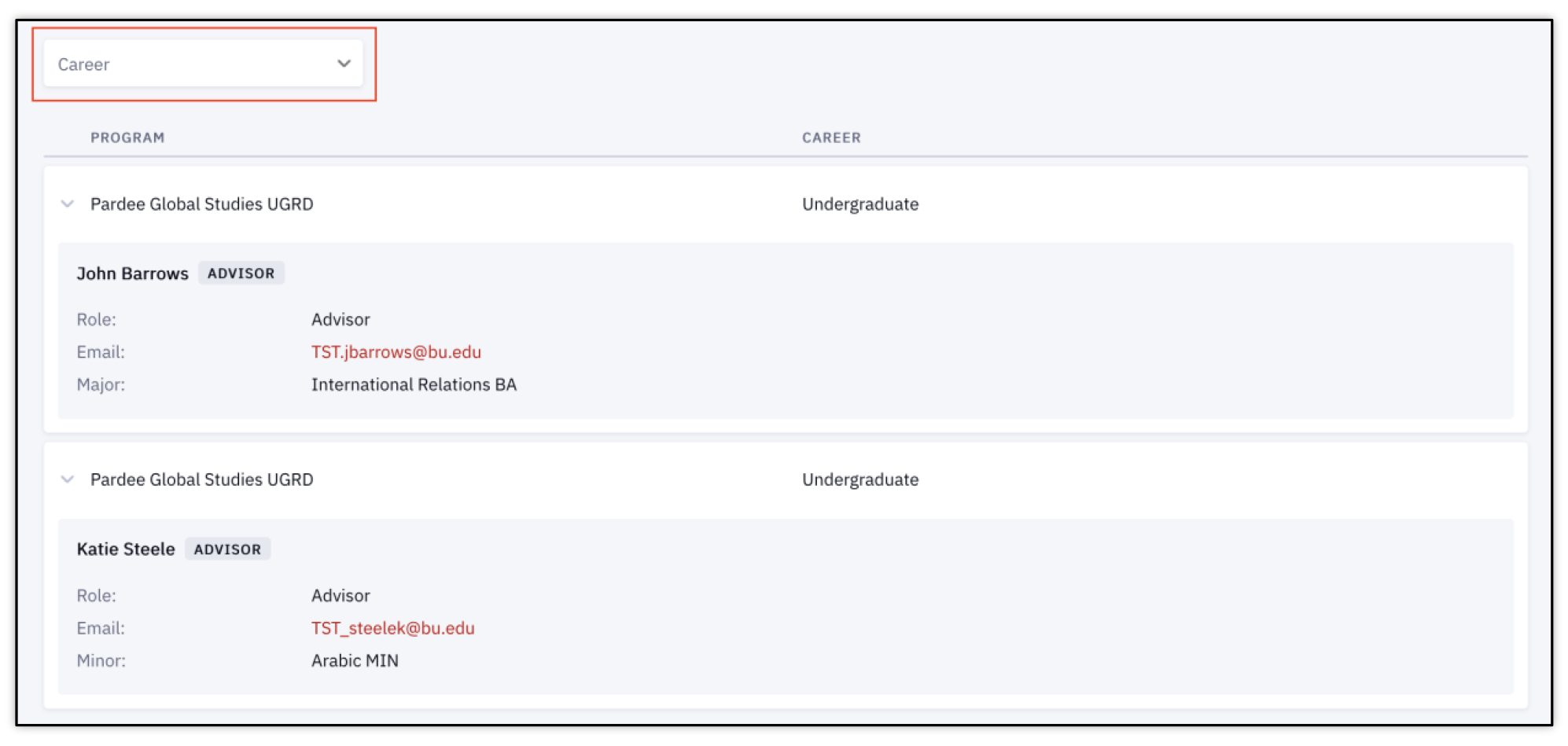
The Advisor Information feature displays the student’s assigned advisors.
Navigation: Academics > Advisor Information
If there are multiple Academic Careers, use the Career dropdown menu to select the desired Career.
Selecting the advisor’s email address will open the the browser’s default email application with a pre-addressed message to the advisor.
STUDENT GROUPS
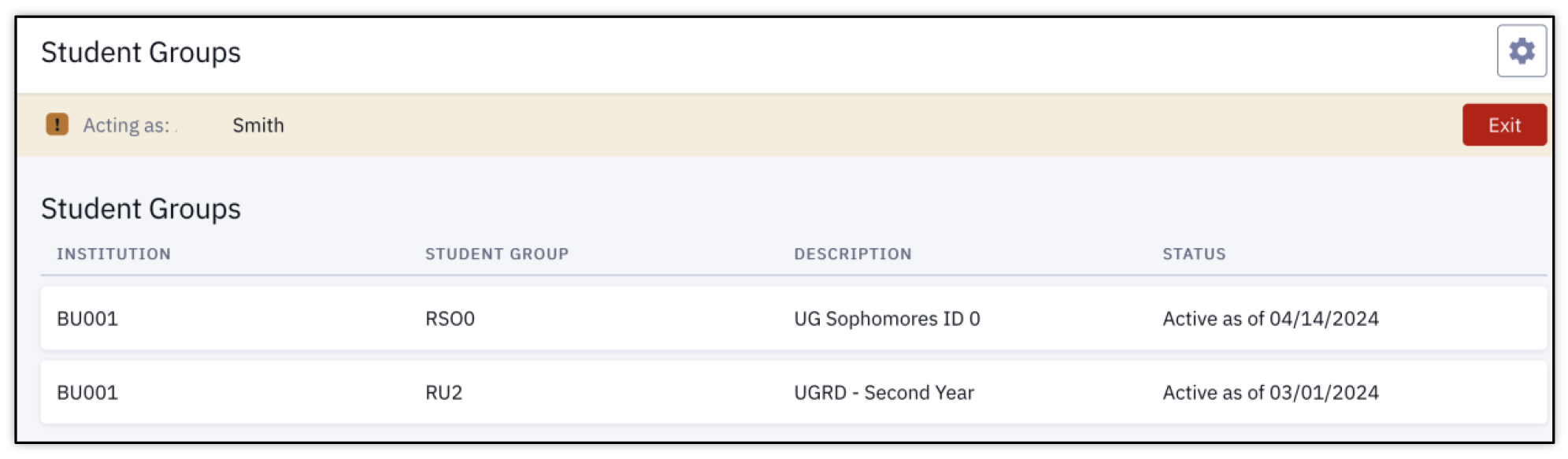
The Student Groups feature provides a view of the Student Groups that the student is associated to (e.g., athlete, ROTC).
Navigation: Academics > Student Groups
For all groups that the student has been associated to, a description and status will be listed.
Click here to learn more about Student Groups.
Supporting Resources
Advising
- Advisors can refer to navigation functionality specific to advising pages in the Advising Navigation to Act as Student resource.
- DPR information can be reviewed in the Advisor Degree Progress & What-If resource.
Billing
- For instructions on the Student Account, please refer to the Staff View of the Student Account resource.
Registration
- To review the full set of processes that a student can perform from the Shopping Cart page, refer to the Preparing for Registration resource.
- For steps detailing how to perform Schedule Builder actions, refer to the Schedule Builder or Preparing for Registration resources.
Page last updated June 2026. For a PDF copy, print this webpage as a PDF. Other resource formats can also be accessed via the relevant icons below.