Class Status & Wait Lists
A class’s Status indicates whether a class/section is open for registration and how many seats are available, including any seats on a Wait List, if applicable. This resource explains how a class’s enrollment and waitlist status can be discerned at a glance. It also provides additional context and details about class Wait Lists.

Introduction
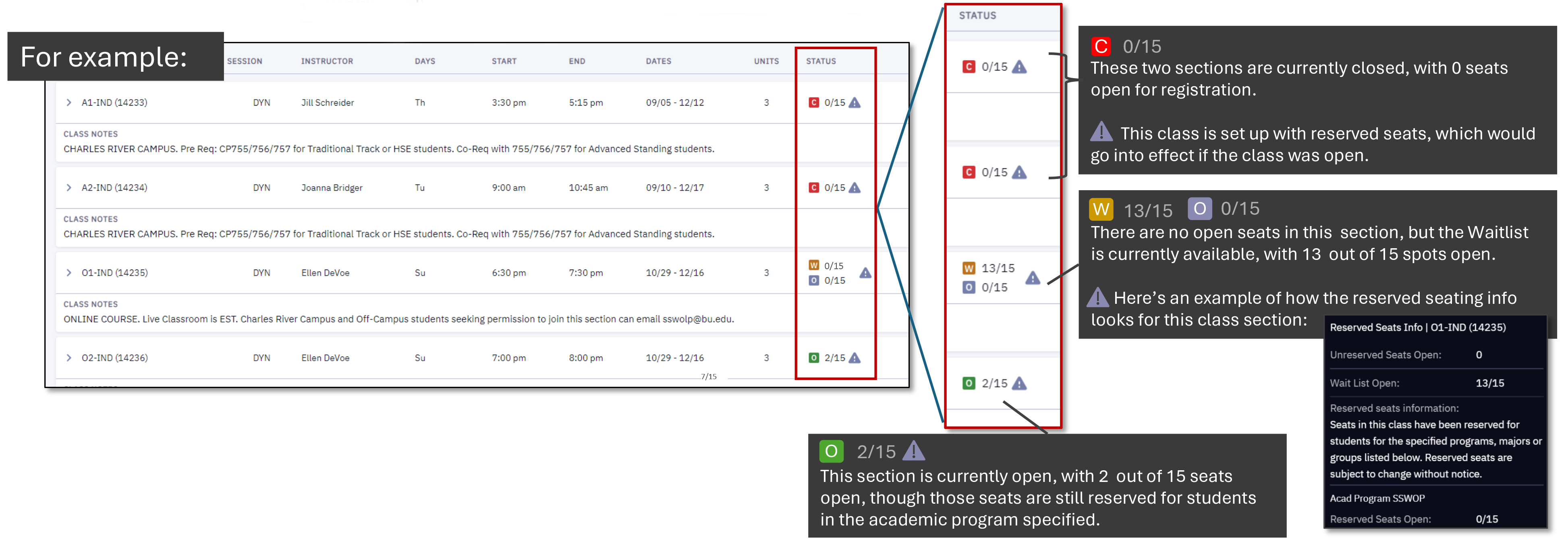
The Status of a class can be seen on Class Search, Shopping Cart, Schedule Builder, etc. In addition to showing a class’s current enrollment status, the Status column also displays the status of the class’s Wait List, if any. For both general enrollment and Wait List, open seats are shown out of a total number of available seats.
⚠︎ Screen options and menus will vary by user; please note that displays may differ for you based on access that has been granted. All screens shown are for training purposes only.
Class Status Icons Explained
The numbers beside an icon in the Status column show open seats out of total seats. For example, “24/30” would indicate that 24 seats are currently open for a class section with 30 total seats.
Status icons:
 Class is open. Those who are eligible to enroll in this class may do so in MyBU Student.
 Class is closed for enrollment in MyBU Student.
 Class has gone to Wait List for MyBU Student enrollment. The numbers beside this icon show number of open spots on the Wait List out of total number of spots on the Wait List.
 The numbers beside this icon show open seats (including reserved seats) after a class has gone to Wait List.
 Some or all seats in this class are reserved for a specific Requirement Group. Hover over this icon to view more details.
Click on the example below to expand (then click the browser ‘Back’ button to return to this page):
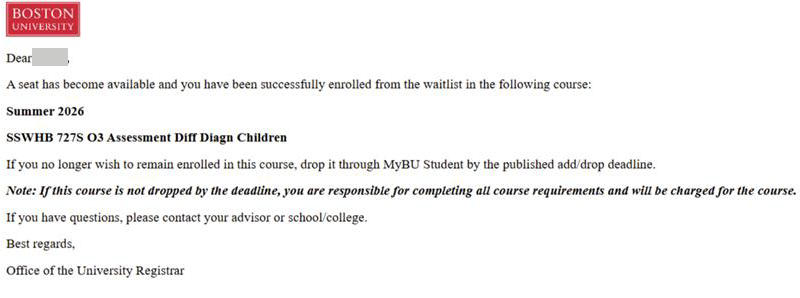
Understanding Wait Lists
Wait List FAQ
This page was last updated April 2026. To download a PDF copy of this resource, print this webpage as a PDF.