This resource outlines advisors’ Midsemester Review processes in MyBU Student. It includes steps for sending Requests for Review to instructors, and for viewing instructor updates on both Requested Reviews and instructor-initiated reviews. It also includes steps for advisors to document and track their outreach to students.
Introduction
ⓘ For Fall 2026, Midsemester Review opens Monday, October 5 and closes Wednesday, November 4.
Midsemester Review is a support tool available in MyBU Student designed to strengthen instructor/advisor communication around student wellbeing and academic success.
Midsemester Review occurs during a designated 4-5 week period in the middle of Fall and Spring semesters. The process enables instructors and advisors to provide targeted academic support to students who, at midterm, may be at risk of not successfully completing a course. Through Midsemester Reviews, students are identified who would benefit from advisor outreach, including connecting students with appropriate academic resources and providing advice about time-sensitive options such as:
dropping a class with a W grade.
designating a course Pass/Fail.
taking a Leave of Absence.
The Midsemester Review process allows for both instructor- and advisor-initiated reviews, and for instructor communication with multiple advisor types:
Advisors can send instructors Requests for Review for specific students, including those on academic probation or any other student of interest to the advisor.
Instructors can provide updates on students Requested for Review. They may also review their course roster(s) to initiate their own update to advisors on any student who may be at risk of not successfully completing a course.
Instructors’ updates can be accessed by advisors with the following role types: Academic Advisor, First Year Success, Kilachand Advisor, Student Athlete Support, and Transfer Success.
This comprehensive resource explains the advisor processes in MyBU Student for sending Requests for Review, accessing instructor updates, and documenting outreach.
Advisors already familiar with Midsemester Review may refer to the Advisor MSR Quick Reference resource for a brief overview.
Staff with appropriate access should refer to the Queries: Advising resource for information on Midsemester Review-related queries.
ⓘ NOTE: The Midsemester Review process is currently available only for undergraduate students.
⚠︎ Screen options and menus will vary by user; please note that displays may differ for you based on access that has been granted. All screens shown are for training purposes only.
TIMELINE
Specific dates for the Midsemester Review process vary by semester. The general cadence of the process follows this schedule, occurring over a 4-5 week period around midterm in Fall and Spring:
Event
Typical Semester Schedule
Last day to add a class
Week 3
Midsemester Review Pages open (instructors and advisors can view)
Week 6
Last day to drop a class
Week 6
Instructor “Priority” deadline (instructors encouraged to complete reviews by this date)
Week 9 (Fall) / Week 10 (Spring)
Midsemester Review Process closes (all pages become view-only for instructors, and no new Requests for Review/updates can be started)
Week 10 (Fall) / Week 11 (Spring)
Last day to withdraw
Week 10 (Fall) / Week 11 (Spring)
ⓘ NOTE: After the Midsemester Review pages close/become view-only, advisors will typically have a few more days before the withdrawal deadline to complete their outreach.
SEND REQUESTS FOR REVIEW
Advisors can send instructors Requests for Review for specific students, including those on academic probation or any other student of interest to the advisor. Advisors should not submit their entire caseload for review. See Action Items & Midsemester Review: When to Send for guidance.
CREATE A NEW REQUEST
To create a new Request for Review to send to instructors:
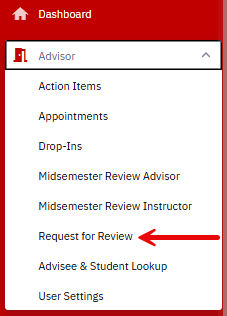
In the MyBU Student Dashboard, navigate to Advisor > Request for Review. Other options available in this menu will vary by user.
In the Request Student for Review window that opens, enter the student’s UID and press Search.
Refer to the top of the page for instructions.
If the student has not already been requested for review, the user will be prompted to Create a Request. Choose Yes.
Select View to see the student’s advisors and course enrollment.
In the Request Review column, uncheck any sections for which feedback is not needed, such as discussion, laboratory, or pre-laboratory sections.
Select Save to submit the request.
Instructors of classes for which Reviews were requested will receive an email notification. Emails are sent once per day, in the evening, to alert instructors that one or more students has been Requested for Review.
VIEW EXISTING REQUESTS
To view existing Requests for Review:
In the MyBU Student Dashboard, navigate to Advisor > Request for Review. Other options available in this menu will vary by user.
In the Request Student for Review window that opens, either:
Enter an Academic Program code to view a list of all students enrolled in a particular Academic Program with existing requests.
Or, enter an Advisor BUID to view a list of all students assigned to a particular advisor with existing requests.
Select Search.
Once the students’ information loads, select View to see the students’ advisors and course enrollment.
Scroll to the bottom of the page and select Save to submit any changes to the request.
ACCESS MIDSEMESTER REVIEWS
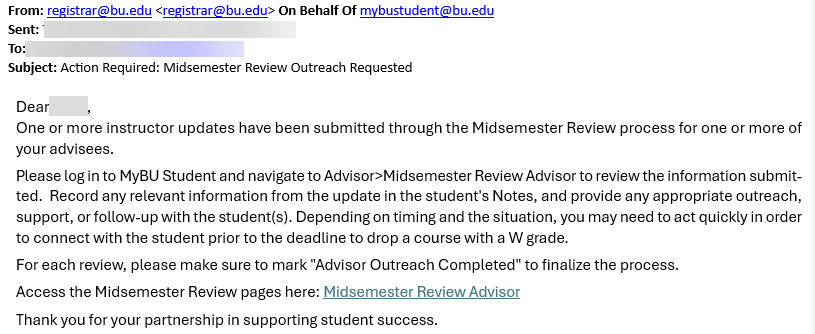
Advisors will receive up to one email per day during the Midsemester Review period, alerting them if they have received any new updates from instructors that now need advisor attention and outreach:
An email is sent to an advisor on each day an instructor completes one of the advisor’s Requests for Review. Reviews for a single student may trigger inclusion in notification emails across multiple days, depending on instructor turnaround.
Daily advisor emails also account for any instructor-initiated updates sent to the advisor.
Reviews awaiting advisor outreach may be easily accessed through the My Outreach to Complete dropdown menu option, as explained below.
After receiving a notification email, advisors access their Midsemester Reviews in MyBU Student, where they can sort their Reviews into lists organized by different stages in the Midsemester Review process.
To access the advisor’s different available Midsemester Review lists:
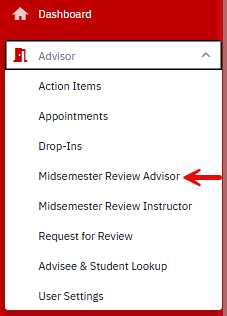
In the MyBU Student Dashboard, navigate to Advisor > Midsemester Review Advisor.
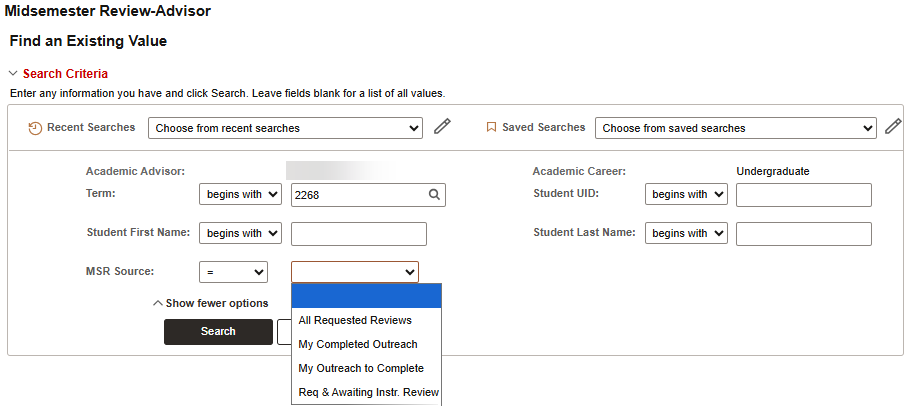
A Midsemester Review-Advisor window opens, populated with the Advisor ID and Career and the current Term. Refer to this image for the rest of this step:
Apply the appropriate criteria to adjust the search results:
First, check and adjust the Term, if necessary.
Select an option from the MSR Source dropdown menu as explained in the table below, then press Search:
Dropdown Menu Item
Students Displayed in Search Results
Review Requested
Instructor Review Completed
Advisor Outreach Completed
All Requested Reviews
All students in the selected Term assigned to the advisor who had a review requested, regardless of whether the instructor has completed a review, and regardless of whether the advisor has completed outreach.
Yes
Yes or No
Yes or No
My Completed Outreach
All students in the selected Term assigned to the advisor, whether or not they had a review requested, for whom the instructor has completed a review and the advisor has completed outreach.
Yes or No
Yes
Yes
My Outreach to Complete
All students in the selected Term assigned to the advisor, whether they had a review requested or not, for whom the instructor has completed a review, but for whom the advisor has not yet completed outreach. TIP! Select to view a to-do list of outreach tasks.
Yes or No
Yes
No
Requested Students Awaiting Instructor Reviews
All students in the selected Term assigned to the advisor who had a review requested, but for whom the instructor has not yet completed a review.
Yes
No
No
To see only the Midsemester Reviews for a particular student of interest, enter Student First Name/Last Name/BUID, then press Search.
In the list of search results generated at the bottom of the page, click the arrow to select the desired student’s row and open that student’s Midsemester Review page, where the advisor can review information provided by an instructor and document outreach. Depending on the search choices made in the previous step, the search results may include advisor-initiated and/or instructor-initiated Reviews.
An example search result for a Request for Review sent by the advisor and completed by the instructor, now ready for advisor review and outreach (see next section for those steps):
An example search result for an instructor-initiated update sent to the advisor, now ready for the advisor’s outreach (see next section for those steps):
PROVIDE & DOCUMENT OUTREACH
In the advisor’s Midsemester Review-Advisor search results list, once a student’s row shows the status for “Instructor Review Completed” is Y (Yes), the advisor can read instructor updates and decide about outreach and next steps.
Follow the instructions in “Access Midsemester Reviews” section above, selecting My Outreach to Complete to access a list of Reviews ready for advisor outreach, then:
Click the desired student’s row to open the student’s Midsemester Review page.
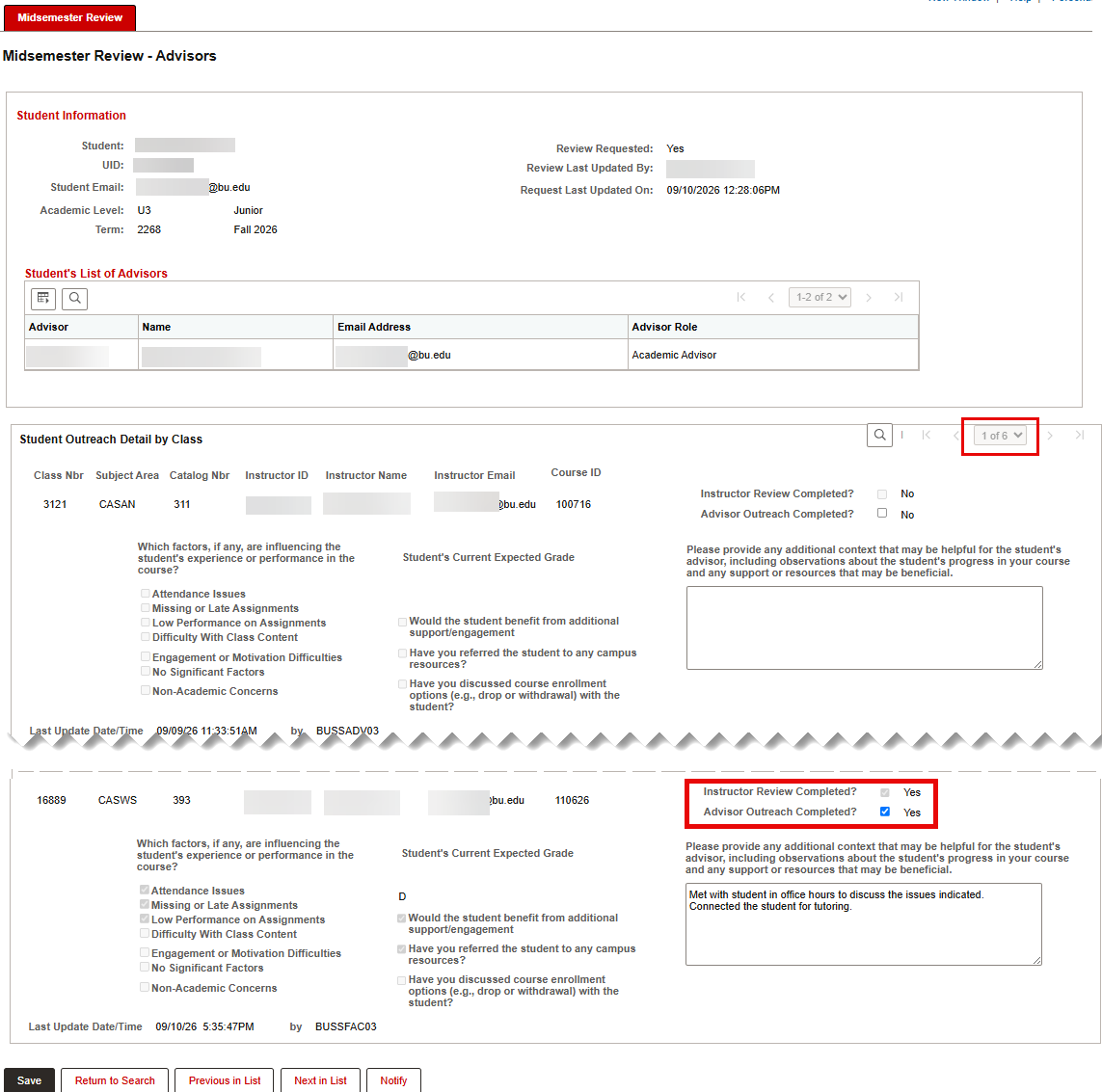
In the example student Midsemester Review page below, the advisor has 6 Midsemester Review updates from this student’s instructors to address. Refer to this image for the remaining steps in this section:
Click on the graphic above to view larger (then click the browser ‘Back’ button to return to this page).
Review details in the Student Information section at the top of the page to confirm the correct student was selected for viewing.
Read information provided by the instructor in the Student Outreach Detail by Class section and decide the appropriate outreach for the student.
Remember that when the advisor sends a Request for Review to multiple instructors, the instructors’ responses may come in at different times (as in the image above).
Not every instructor update will require an advisor to provide outreach to a student—some updates may come back with neutral or positive information that does not require advisor intervention. If this is the case, mark Advisor Outreach Completed and note that intervention was not required in the student’s Notes.
For students with multiple advisors, each advisor on the student’s record will receive an email to review instructor updates as they come in, but not every advisor needs to reach out to the student. In the event that there are multiple advisors on a student’s record, the advisor with the primary responsibility for responding to the student (where necessary) is dependent on both the category of student and who the initial requester was:
Category of Student
Requester
Responder
Academic Advisor-initiated ad hoc students of interest
Academic Advisor
Academic Advisor
Instructor-initiated
Instructor
Academic Advisor
New and Continuing Academic Probation
Advising Steering Committee lead
Academic Advisor
First Year and New Transfer Athletes
Student Athletics Lead
Student Athlete Support Advisor
Select Other Athletes
Student Athletics Lead
Student Athlete Support Advisor
How Are You Doing Survey respondents of concern
First Year/Transfer Success Team
First Year/Transfer Success Advisors with a handoff to Academic Advisor if necessary
Before reaching out to a student, check the Notes page on their Student Details page to see if another advisor has already reached out.
If another advisor has not reached out, the designated responder should make a note of the relevant details of the instructor’s update and their email response to the student in the student’s Notes page.
If an advisor with an existing relationship or advising role wishes to provide additional support to a student after another advisor has already reached out to the student and marked that outreach in Notes, the advisor should make sure to also note that outreach in the student’s Notes page.
ⓘ NOTE: All advisor outreach happens outside of MyBU Student.
Check the Advisor Outreach Completed box(es) on the student’s Midsemester Review page as relevant.
Checking the box switches the Midsemester Review’s status from No to Yes. This in effect concludes the advisor’s Midsemester Review process for that particular student’s particular course. The instructor updates for that particular student and course will be removed from the My Outreach to Complete MSR Source list.
ⓘ NOTE: Advisors may determine, after reviewing an instructor’s update, that no further outreach is needed. They should still check this box to indicate the Midsemester Review process for the student has been closed and note this in the student’s Notes page.
Click Save to update the student’s Midsemester Review record.
A popup warning will alert the advisor if they try to leave the page without Saving.
Once a Student Outreach Detail by Class page is Saved by an advisor, the relevant instructor will be able to see in MyBU Student that the student’s Midsemester Review process is concluded for their course.
After Saving, the advisor can either:
Press Return to Search to go back to the previous search results and either select another student from the list, enter a new search, or exit the system.
Press Next in List to advance to the next student in the results list without returning to the search page.
This page was last updated September 2026. To download a PDF copy of this resource, print this webpage as a PDF. Other resource formats can also be accessed via the relevant icons below.