Advisor Midsemester Review Quick Reference
This resource highlights the key steps advisors follow to perform two common Midsemester Review tasks in MyBU Student: “Send a Request for Review” and “Complete Reviews with Advisor Outreach.” For the full user guide, refer to the Midsemester Review for Advisors resource.
SEND A REQUEST FOR REVIEW
To create a new Request for Review to send to instructors:
- In the MyBU Student Dashboard, navigate to Advisor > Request for Review. Other options available in this menu will vary by user.
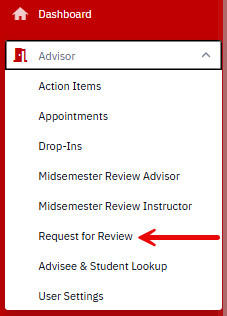
- In the Request Student for Review window that opens, enter the student’s UID and press Search.
- Refer to the top of the page for instructions.
- If the student has not already been requested for review, the user will be prompted to Create a Request. Choose Yes.

- Select View to see the student’s advisors and course enrollment.

- In the Request Review column, uncheck any sections for which feedback is not needed, such as discussion, laboratory, or pre-laboratory sections.
- Select Save to submit the request.


Complete Reviews with Advisor Outreach
After receiving an email notification that instructor update(s) are available:
- Navigate to Advisor > Midsemester Review Advisor.
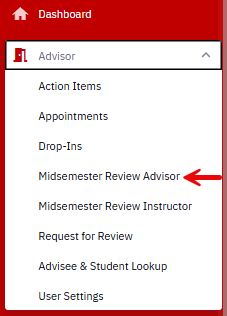
- To view a list of updates on students that now need advisor response, go to the MSR Source dropdown and select My Outreach to Complete.

- Press Search.
- In the list of search results at the bottom of the page, click the desired student’s row to open that student’s Midsemester Review page.

- Read information provided by the instructor in the Student Outreach Detail by Class Section (as shown in Step 5a below), then document any outreach provided by adding it to the student’s Notes.
- See Advisee & Student Lookup resource for information on managing Notes.
- Check the Advisor Outreach Completed box(es) on the student’s Midsemester Review page, even if no outreach was deemed necessary due to neutral/positive information shared by instructor(s).
- Checking the Advisor Outreach Completed box changes the status from NO to YES, as shown in the highlighted examples in the image below.

Click on the graphic above to view larger (then click the browser ‘Back’ button to return to this page). - Click Save at the bottom of the page to update the student’s Midsemester Review record.
- Press Next in List to advance to the next student in the results list without returning to the search page.



Page last updated October 2026. For a PDF copy, print this webpage as a PDF.
