This resource outlines the process for instructors to submit Midsemester Reviews through MyBU Student. It includes steps for instructors to respond to advisors’ Requests for Review, and for initiating their own updates on students to send to advisors.
Introduction
ⓘ For Fall 2026, Midsemester Review opens Monday, October 5 and closes Wednesday, November 4.
Midsemester Review is a support tool available in MyBU Student designed to strengthen instructor/advisor communication around student wellbeing and academic success.
During the Midsemester Review period, instructors may participate in Midsemester Review by two pathways:
Providing updates on students in response to advisors’ Requests for Review.
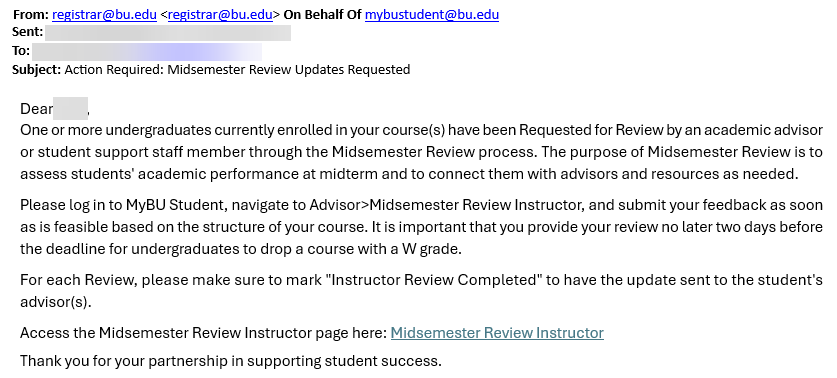
During the Midsemester Review period, instructors will receive no more than one notification email per day alerting them that new Requests to Review await their response.
Initiating their own updates on students who were not Requested for Review, but who may benefit from advisor support at this point in the term.
This resource explains the steps for instructors to follow in MyBU Student for responding to advisors’ Requests for Review and for initiating their own updates to send to advisors.
ABOUT MIDSEMESTER REVIEW
Midsemester Review occurs during a designated 4-5 week period in the middle of Fall and Spring semesters. The process enables instructors and advisors to provide targeted academic support to students who, at midterm, may be at risk of not successfully completing a course. Through Midsemester Reviews, students are identified who would benefit from advisor outreach, including connecting students with appropriate academic resources and providing advice about time-sensitive options such as:
dropping a class with a W grade.
designating a course Pass/Fail.
taking a Leave of Absence.
The Midsemester Review process allows for both instructor- and advisor-initiated reviews, and for instructor communication with multiple advisor types:
Advisors can send instructors Requests for Review for specific students, including those on academic probation or any other student of interest to the advisor.
Instructors can provide updates on students Requested for Review. They may also review their course roster(s) to initiate their own update to advisors on any student who may be at risk of not successfully completing a course.
Instructors’ updates can be accessed by advisors with the following role types: Academic Advisor, First Year Success, Kilachand Advisor, Student Athlete Support, and Transfer Success.
ⓘ NOTE: The Midsemester Review process is currently available only for undergraduate students.
⚠︎ Screen options and menus will vary by user; please note that displays may differ for you based on access that has been granted. All screens shown are for training purposes only.
TIMELINE
Specific dates for the Midsemester Review process vary by semester. The general cadence of the process follows this schedule, occurring over a 4-5 week period around midterm in Fall and Spring:
Event
Typical Semester Schedule
Last day to add a class
Week 3
Midsemester Review Pages open (instructors and advisors can view)
Week 6
Last day to drop a class
Week 6
Instructor “Priority” deadline (instructors encouraged to complete reviews by this date)
Week 9 (Fall) / Week 10 (Spring)
Midsemester Review Process closes (all pages become view-only for instructors, and no new Requests for Review/updates can be started)
Week 10 (Fall) / Week 11 (Spring)
Last day to withdraw
Week 10 (Fall) / Week 11 (Spring)
ⓘ NOTE: After the Midsemester Review pages close/become view-only for instructors, advisors will typically have a few more days before the withdrawal deadline to complete their outreach.
GENERATING LISTS FOR UPDATES/REVIEWS
This section explains the first step in the Midsemester Review process for instructors: generating lists of students for whom Requested Reviews and instructor-initiated updates are needed. To do this, instructors sort and narrow down a list of results (e.g., list of student names) in a search page.
Search parameters applied on this page determine the list of students the instructor uses to start the second step in Midsemester Review: providing updates for names that appear in the generated list. The second step is explained in the “Send a Student Review/Update” section below.
See “Search Tips” below for guidance on setting up search parameters.
To generate and sort lists of students for Reviews/updates:
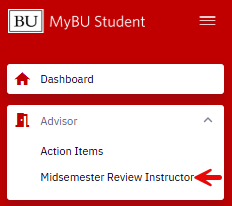
In the MyBU Student Dashboard, navigate to Advisor > Midsemester Review Instructor.
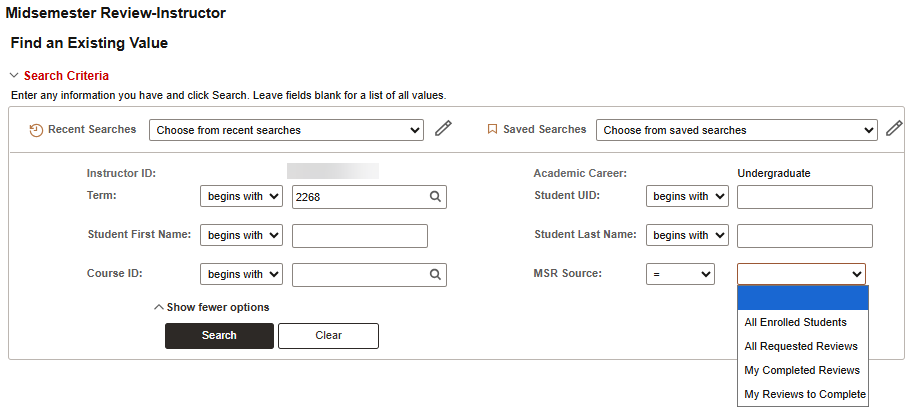
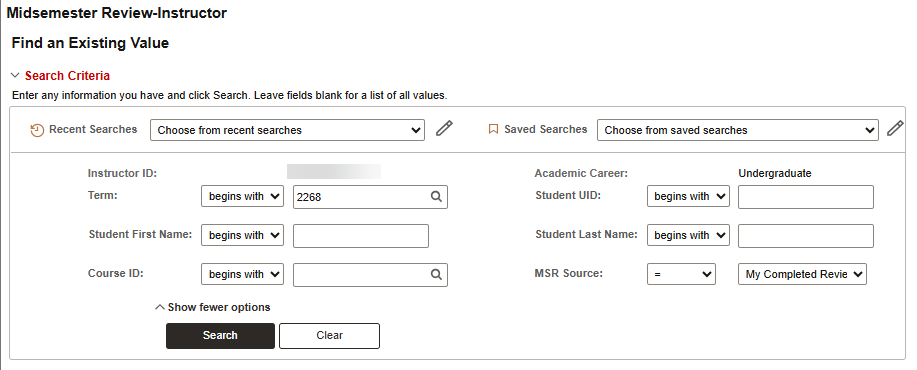
A Midsemester Review-Instructor page opens, populated with the Instructor ID and Academic Career as shown below. Refer to the following image throughout this section:
Adjust the desired 4-digit Term code if needed (e.g., 2268 for Fall 2026). See the Term Concept resource for more information on Term codes.
Click the magnifying glass (highlighted in the image below) to open a menu of Term codes.
Either enter search terms and press Search, or scroll through to click the desired Term code.
Select the preferred option(s) for viewing lists of students for the Term, narrowed to the desired search results.
Use the MSR Source dropdown to select a sorted set of results that show Request statuses and indicate the instructor’s next steps in the process. See the “Search Tips” section below for more information on these menu options.
Select My Reviews to Complete to see a list of all students in any class taught by the instructor in the selected Term who were Requested for Review, for whom the instructor has not yet completed updates. This is the instructor’s minimum “To Do” list.
Instructors may also initiate Midsemester Reviews for students who were not specifically requested for review by viewing their All Enrolled Students list and choosing specific students who may benefit from discussing withdrawal options with their advising team.
To view a Request, or initiate an update, for a specific individual student: enter Student First Name, Last name, and/or BUID in the text fields.
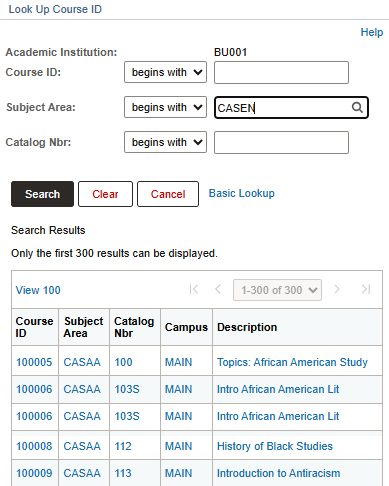
To view all students in a particular class and their Midsemester Review statuses: in the Course ID box, click the magnifying glass to open a Course ID search window.
Enter the Subject Area (e.g., CASEN) and/or Catalog Nbr (e.g., 393) to narrow a list of search results, then click the correct number in the search results to add it to the Course ID box. ⓘ NOTE: Only the first 300 Course IDs will appear in this popup window’s search results.
Press Search.
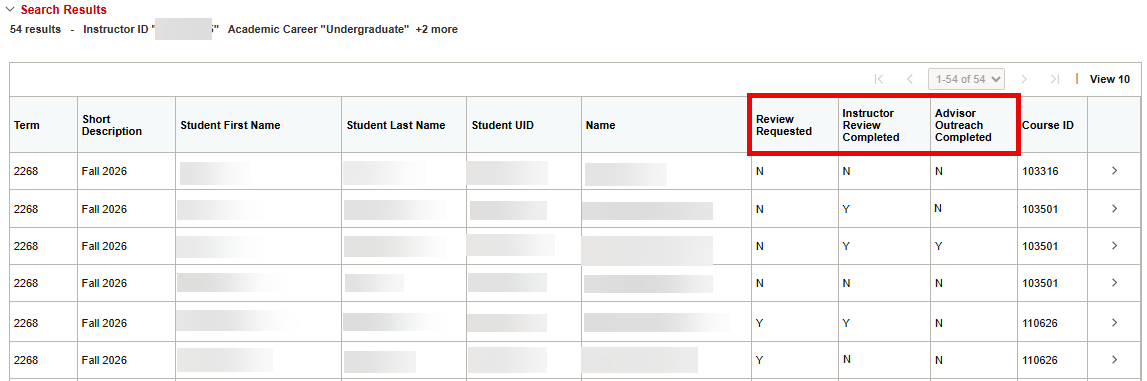
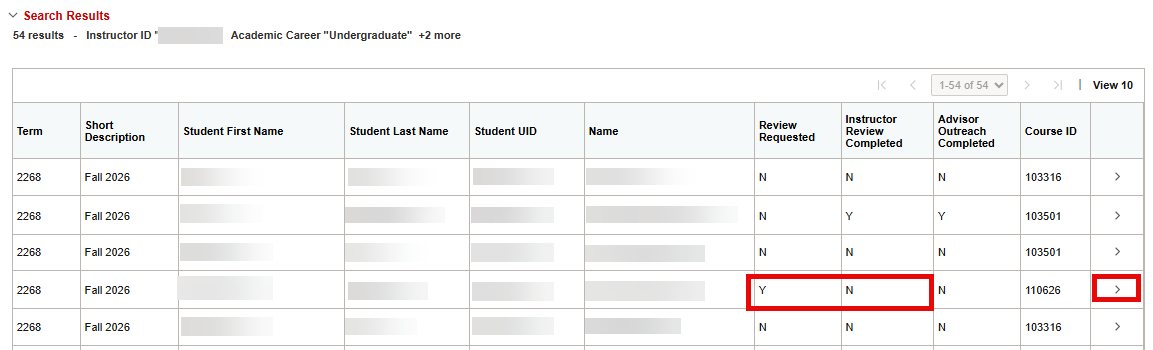
Results appear at the bottom of the page. The Review Requested, Instructor Review Completed, and Advisor Outreach Completed columns indicate the Midsemester Review status for all students in the generated list:
SEARCH TIPS
Follow these tips to ensure the desired list of names appears in the search results:
Instructors who have longer class rosters that are difficult to scroll through may prefer to search by Student First Name/Last name/BUID to open pages for individual students.
Select the appropriate option from the MSR Source dropdown menu to access lists that display relevant details about students’ Midsemester Review status.
All Enrolled Students is useful for instructors whose rosters are relatively short and quick to scroll through.
Use My Reviews to Complete as a to-do list of Requested Reviews.
Choose an item in the MSR Source dropdown menu to display students at different stages in the Midsemester Review process:
Dropdown Menu Item
Students Included in Search Result List
Review Requested by Advisor
Instructor Review Completed
Advisor Outreach Completed
All Enrolled Students
All students in any class taught by the instructor in the selected Term.
Yes or No
Yes or No
Yes or No
All Requested Reviews
All students in any class taught by the instructor in the selected Term who were Requested for Review.
Yes
Yes or No
Yes or No
My Reviews to Complete
All students in any class taught by the instructor in the selected Term who were Requested for Review, for whom the instructor has not yet completed the updates. (Instructor “To Do” list.)
Yes
No
Yes or No
My Completed Reviews
All students in any course taught by the instructor in the selected Term who were Requested for Review for whom the instructor has already completed the updates. (Instructor “Done” list.)
Yes
Yes
Yes or No
SEND A STUDENT REVIEW/UPDATE
This section explains the second step in the Midsemester Review process for instructors: sending Requested Reviews back to advisors or initiating their own updates for advisors on particular students.
Instructors will select names from the search result list generated in the first step. See the previous section, “Generating Lists for Updates/Reviews,” for guidance.
At this point in the process, instructors communicate with advisors about students of interest through two pathways:
Responding to advisors’ Requests for Review for an individual student.
During the Midsemester Review period, instructors will receive no more than one notification email per day alerting them that new Requests to Review await their response.
Initiating their own updates on students who were not Requested for Review but who may benefit from advisor support at this point in the term.
Starting from the search result list previously generated, the instructor will find a student to provide a Review:
Click the intended student’s row. In the example below, the instructor selects a student for whom they received a Request for Review that now needs to be completed:
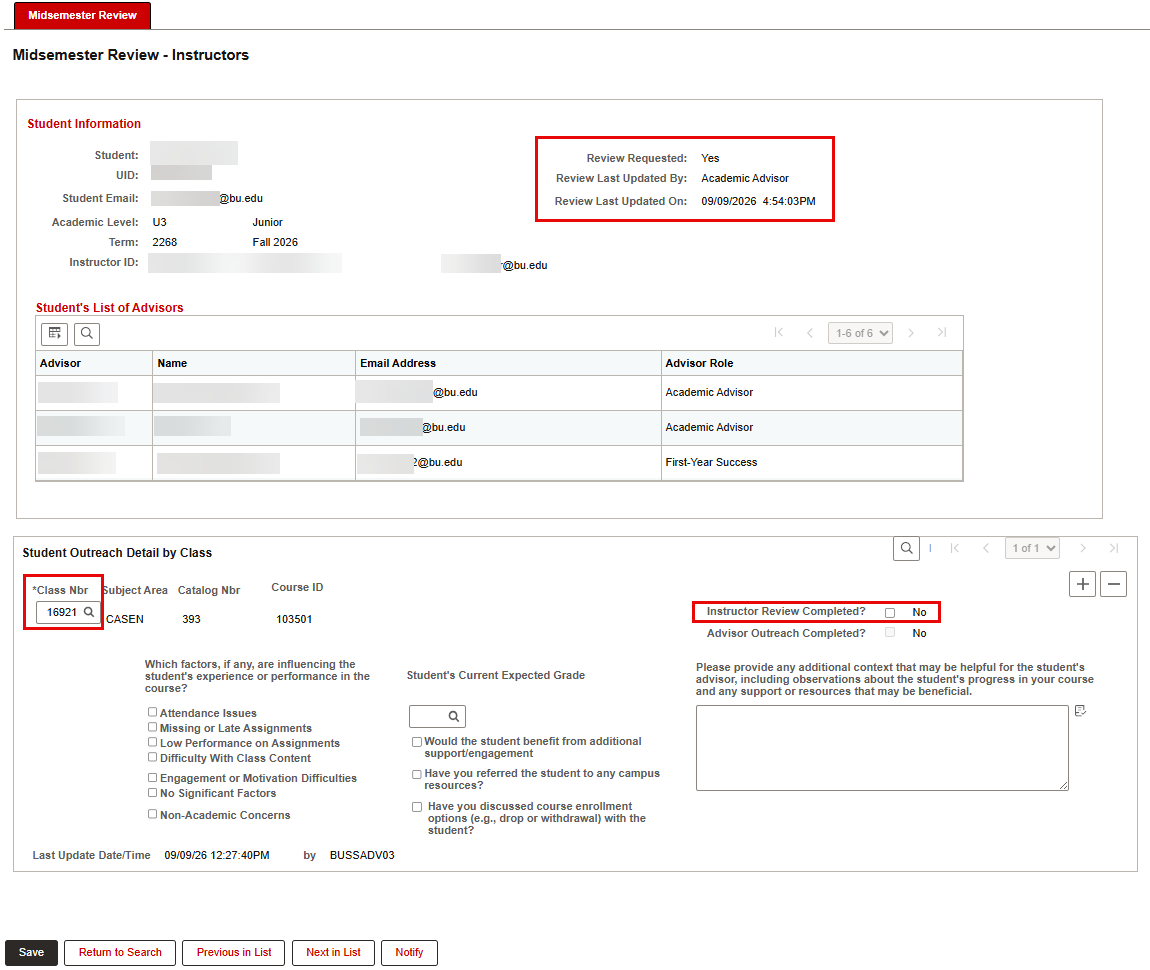
In the Midsemester Review page that opens, review the Student Information at the top of the page to confirm selection of the correct student. Refer to this image throughout this section: Click on the graphic above to view larger (then click the browser ‘Back’ button to return to this page).
The same page display appears whether the instructor is responding to a Request for Review or initiating their own updates. The image above highlights the few details that appear differently when the displayed page is for a Requested Review:
Review Requested shows as YES. (In instructor-initiated pages, this shows as NO.)
Review Last Updated By/On details are provided. (In instructor-initiated pages, this section is blank.)
Class Nbr is pre-populated. (In an instructor-initiated page, this box will be blank.)
The Student’s List of Advisors section displays all of the advisors who will receive email notifications in the Midsemester Review process.
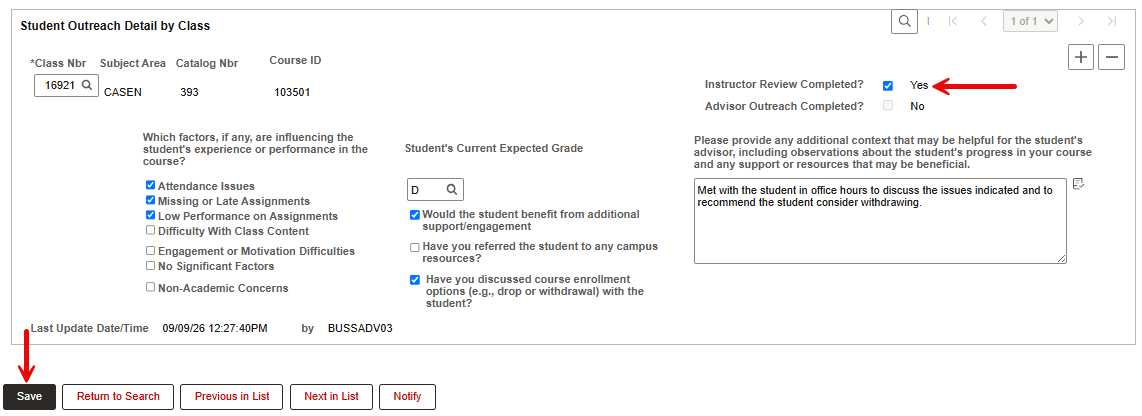
Scroll down to the Student Outreach Detail by Class section and provide details for the Requested Review/update:
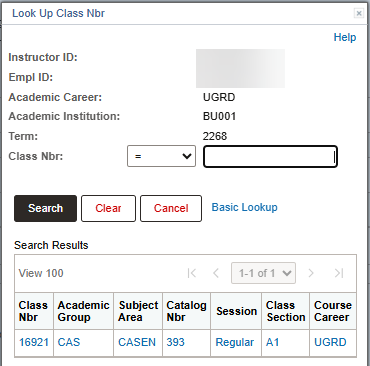
For instructor-initiated updates, first enter the Class Nbr, by clicking the magnifying glass to open a search window where the Class Nbr may be chosen. In pages for Requested Reviews, the Class Nbr pre-populates.
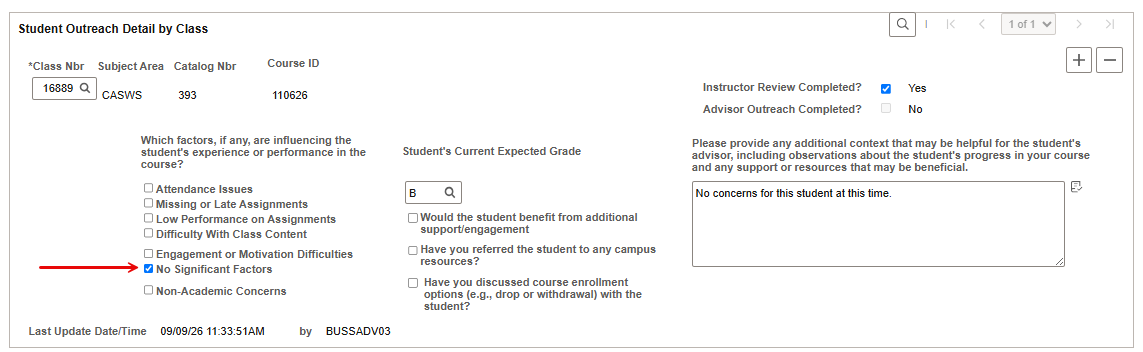
Provide relevant data on the student’s performance at midterm, using the checkboxes, Expected Grade dropdown, and Comment box.
Check boxes to clarify the type of outreach that is being suggested or that should be provided. ⓘ NOTE: If an instructor has no concerns for a student who was Requested for Review, the instructor should check No Significant Factors and provide a Current Grade and Note if possible. This information is useful to the student’s advisor.
Once all information has been added, answer the question “Instructor Review Completed?” by checking the box to change answer to Yes.
Click Save to save the update and send it to advisors.
The system will generate a reminder pop-up if the instructor tries to exit without Saving.
After Saving, the instructor can select from the following buttons at the bottom of the page:
Return to Search: Go back to the Midsemester Review search page, either to view the same search list results or to start a new search. ⓘ NOTE: If returning to a search list immediately after Saving updates, student rows may still show status “N” in the Instructor Review Completed column. It should refresh within a few minutes.
Previous/Next in List: Navigate to a name in the search list previously generated in the main Midsemester Review page. TIP! Use this button while working on a My Reviews to Complete list. Save time by not having to return to the search list to click through individual student rows.
Notify: This button is not available for instructor use at this time.
After an instructor’s Midsemester Review updates have been submitted, all impacted advisors will receive a daily notification email alerting them that there are instructor updates for them to view, at which point the advisor(s) will determine appropriate student outreach.
VIEW COMPLETED REVIEWS
To see an instructor’s completed Requested Reviews:
From the MyBU Student Dashboard, navigate to Advisor > Midsemester Review Instructor.
In the Find an Existing Value page that opens, select the appropriate Term and choose My Completed Reviews from the MSR Source dropdown.
The instructor’s ability to edit/update each student row depends on several factors:
If the answer to the question “Advisor Outreach Completed?” is N (No), the instructor can make changes to the information they previously provided and click Save to send an updated Review on this student to advisors.
If the answer to the question “Advisor Outreach Completed?” is Y (Yes), then the advisor has closed Midsemester Review for this student. ⓘ NOTE: If the instructor wants to provide additional information after advisor outreach, they should either email the advisor(s) or send an Action Item if appropriate. See Action Items & Midsemester Review: When to Send for guidance.
If the closing date for Midsemester Reviews has passed, the instructor will have view-only access to all student rows.
This page was last updated September 2026. To download a PDF copy of this resource, print this webpage as a PDF. Other resource formats can also be accessed via the relevant icons below.