Plan Updates: Students in Auto-Graduation
This resource provides instructions on how to adjust a plan or subplan for students with a Degree Checkout Status who are progressing through the Auto-Graduation process. This is a two part workflow request process.
ⓘ NOTE: It’s imperative for CPP record changes to be finalized before Auto-Graduation batch processing begins. After Degree Checkout Statuses are applied, changes should only be made in rare circumstances. Other important considerations:
- In the event that a change does need to be made, updates can only be submitted up until 2 days before the end of that term. Changes will not be accepted after this deadline.
- The two parts outlined below must be be performed in immediate succession in order for the changes to update successfully.
Part One: Clear Degree Checkout Status
Because students who have a Degree Checkout Status cannot have CPP changes made on their record, the status needs to first be temporarily reset. These steps allow for this without changing the student’s Expected Graduation Term.
- Navigate to Manage Workflow > Request Program/Plan Change.
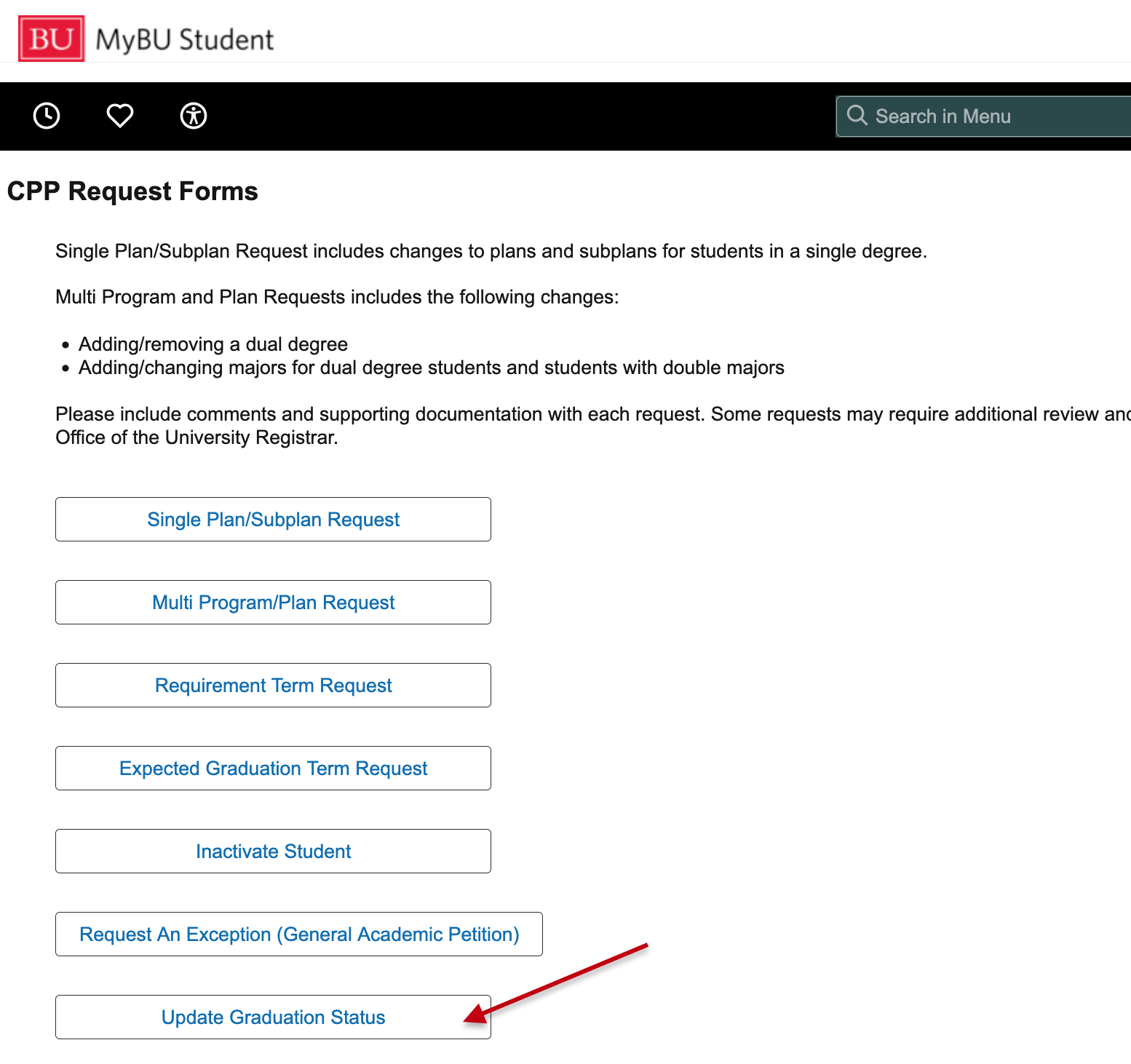
- The CPP Academic Program/Plan Requests page will open. Select the Update Graduation Status button.
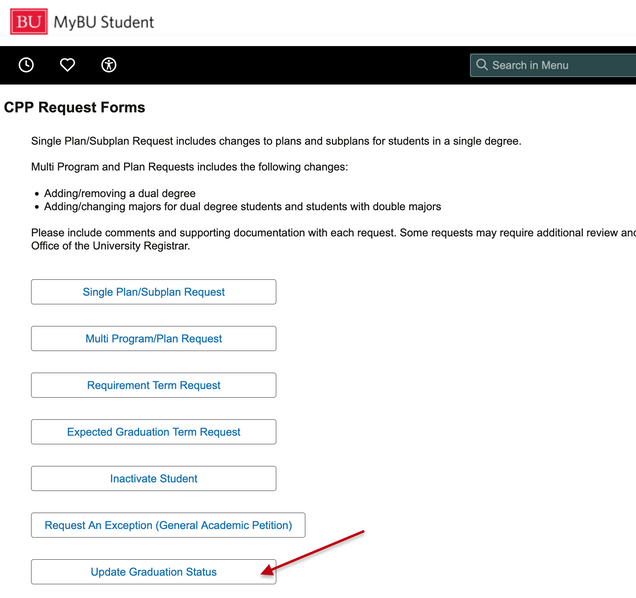
- Enter the student’s UID and click on the desired Current Program/Major/Minor row.
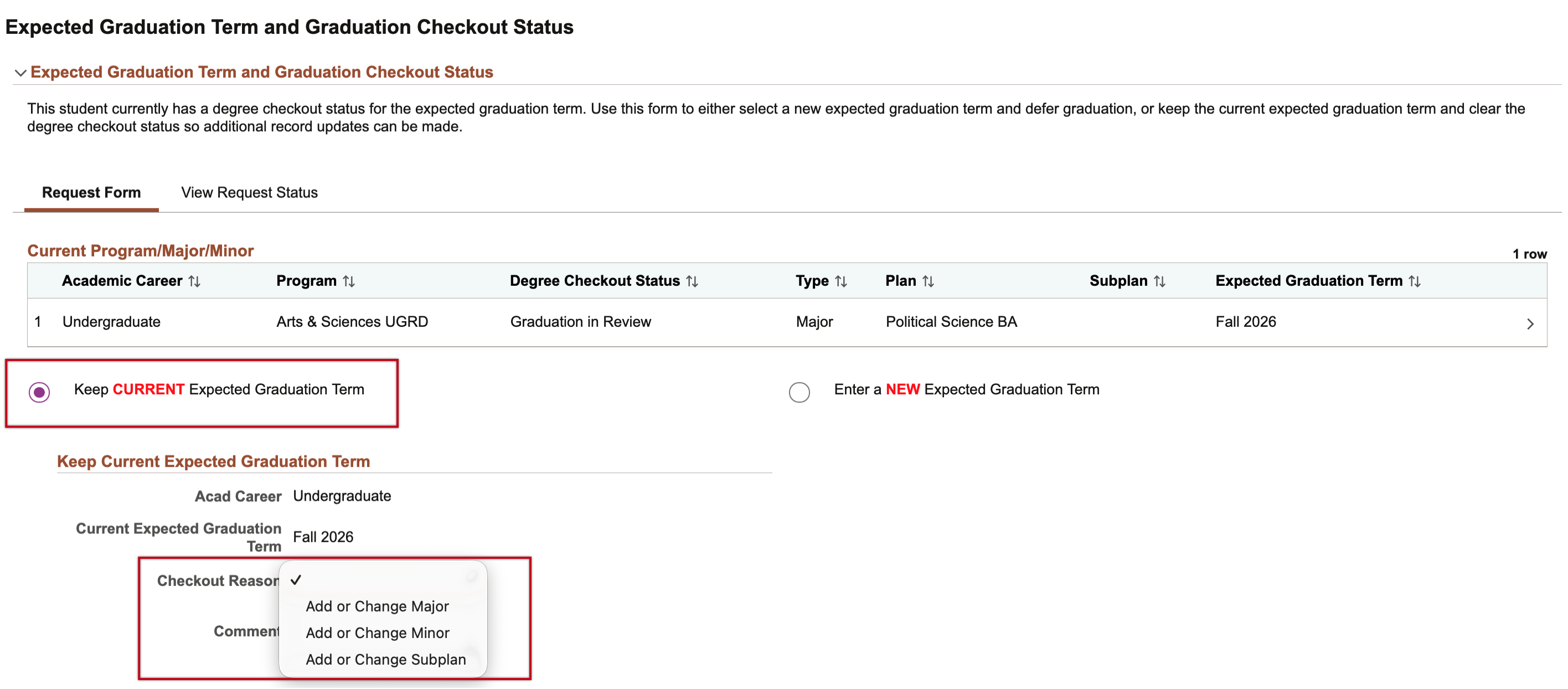
- The Expected Graduation Term and Graduation Checkout Status page opens and the ‘Enter a NEW Expected Graduation Term’ selection will default.
- Select the radio button for Keep CURRENT Expected Graduation Term.
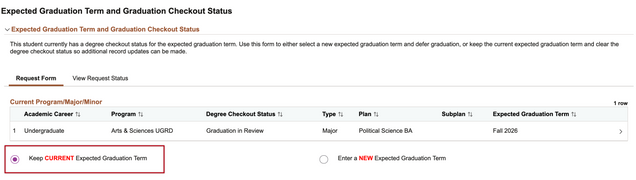
- The needed fields associated to this request will display. The Acad Career and Current Expected Graduation Term will list current values; these are not editable.
- Select the appropriate Checkout Reason. This indicates why the student needs an adjustment to their Auto-Graduation Degree Checkout Status:
- Add or Change Major
- Add or Change Minor
- Add or Change Subplan
- Click the Submit button.
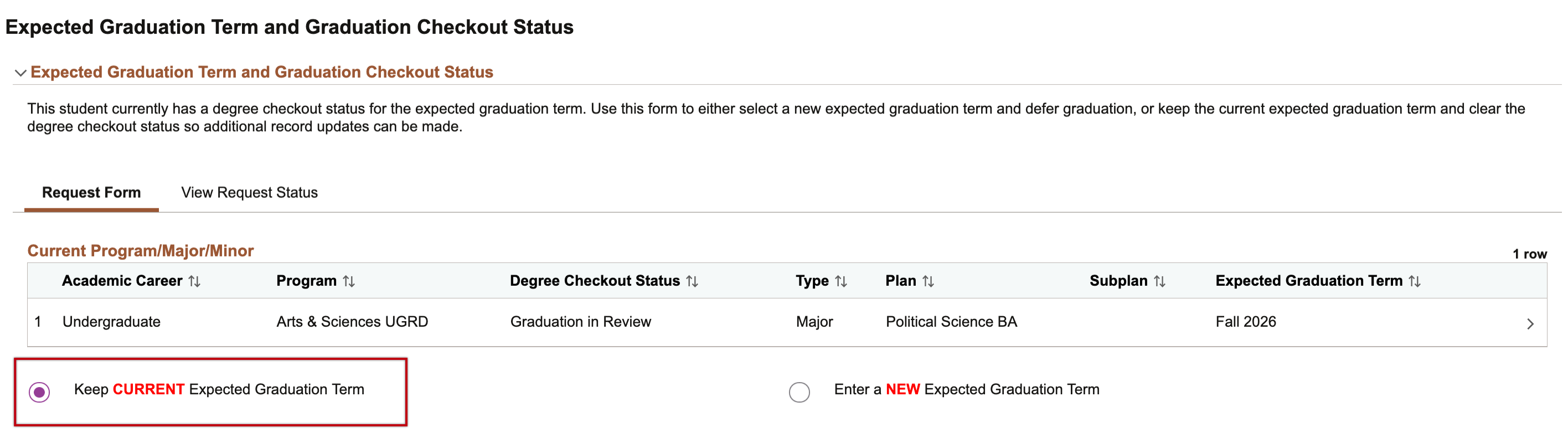
The above set of steps resets the student’s degree checkout status, allowing for the system to accept a change to the plan.
Part Two: Enter the Plan Change
ⓘ This next set of steps must be completed immediately following Part One. If the requestor does not have workflow approval access, please contact a department approver to ensure that approval is processed as soon as possible.
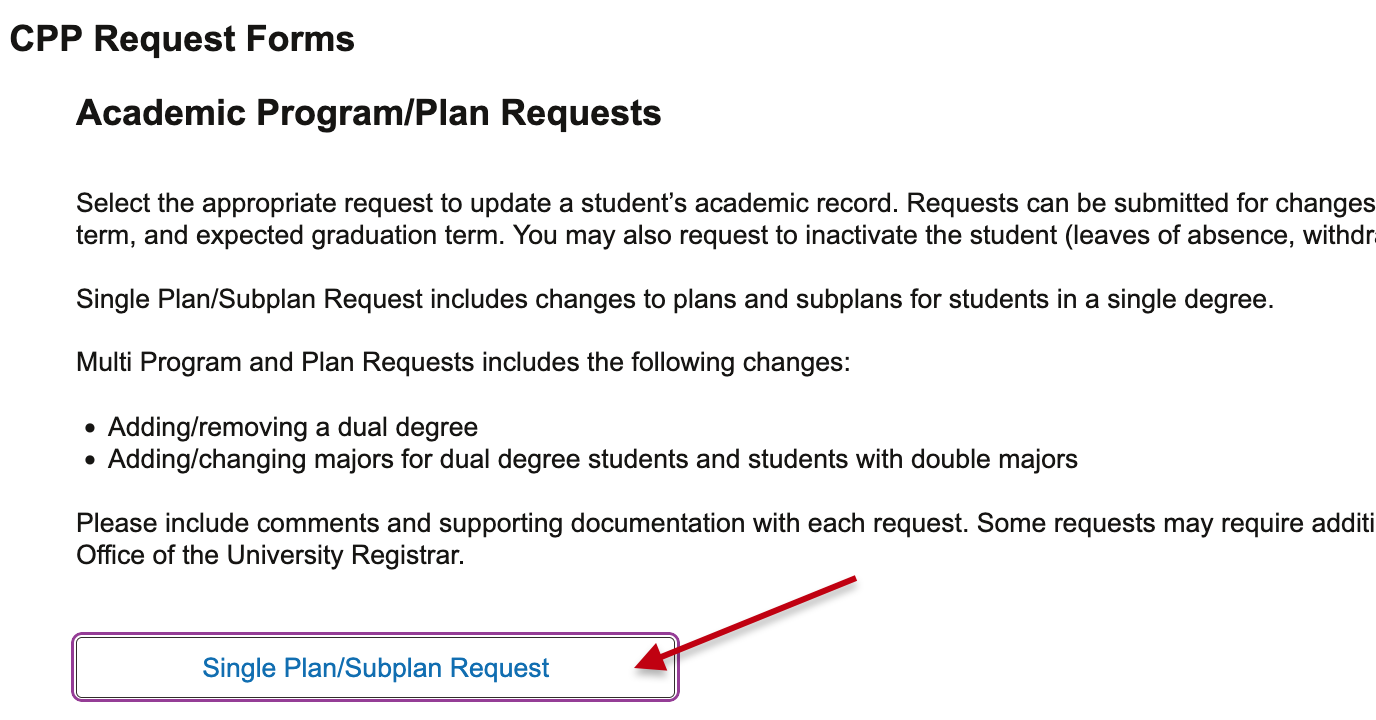
- Return to the CPP Academic Program/Plan Requests page to select the Single Plan/Subplan Request button.
- Enter the UID of the student for whom the previous request action to ‘Keep the Current EGT’ was submitted.
- Click on the desired Current Program/Major/Minor row.
- Proceed with the normal steps to enter a plan change workflow request type. For more details on these steps, please refer to the Program/Plan Workflow Requests resource.
The student will then have the appropriate Degree Checkout Status re-applied the next time the auto graduation batch processing runs (currently, every Monday).
Page last updated October 2026. For a PDF copy, print this webpage as a PDF.
