Navigating Degree Progress
Browse requirements and their statuses with the Degree Progress Report.
- For more detailed instructions, refer to the Advising Degree Progress & What-If Report resource.
- Discuss any questions you may have with your advisor.
NAVIGATION
- Navigate to Dashboard Left Menu > Academics > Degree Progress to open a Degree Progress page.
- To move back to prior pages, use the navigation at the top of the page.
- Clicking the breadcrumbs allows for the selection of the specific Degree Progress page.
- Click the Degree Progress link directly to go back to the main Degree Progress report page.

INSTRUCTIONS
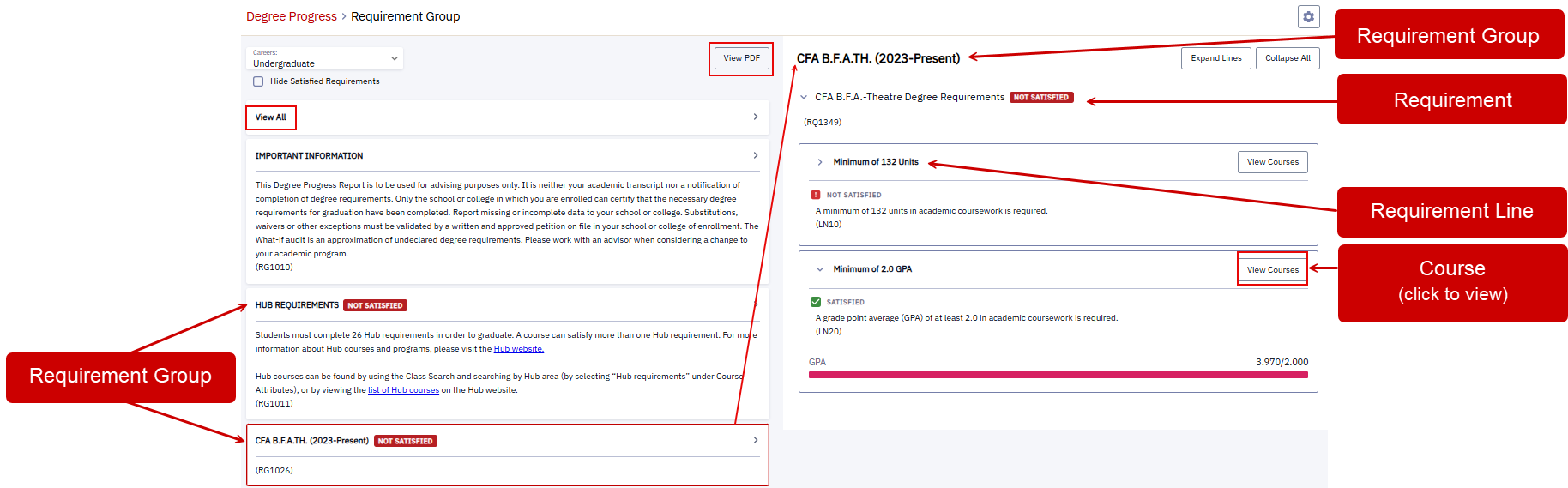
- In the left pane:
- Click View All to see all requirement groups displayed in the right pane. Or, scroll to click a certain requirement group.
- Click View PDF to generate a PDF version of the complete Degree Progress Report.
- In the right pane:
- Click the desired requirement group to expand and view requirements.
- Click the desired requirement group to view individual requirement lines.
- Click desired requirement line to view associated course(s).
VIEWING COURSES FOR INDIVIDUAL REQUIREMENTS
In the right pane, click View Courses (highlighted in the lower right of the previous image) to display the courses that can be, or were, taken to satisfy the individual requirement.
Courses will open in another window:

TIP! If looking at courses for an unsatisfied requirement, sections will only display if they have been scheduled.
VIEWING COURSES FOR ALL REQUIREMENTS
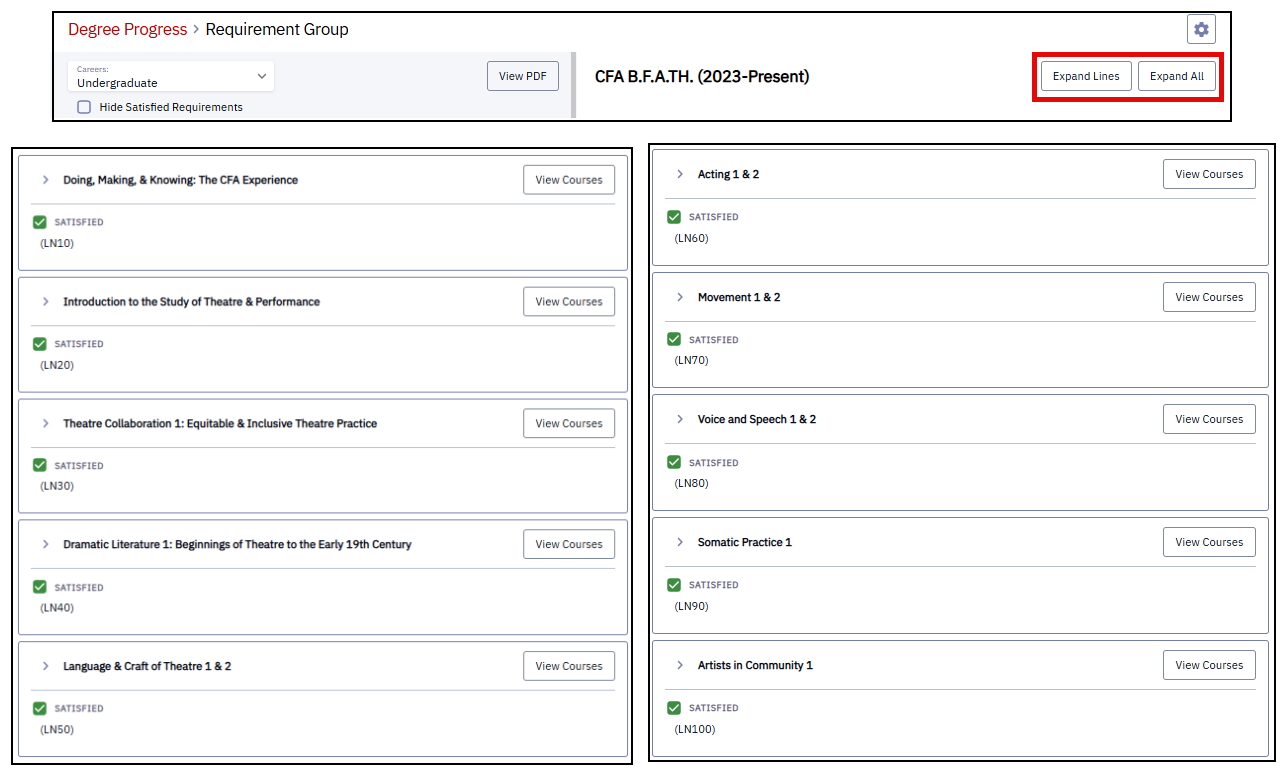
- In the left pane, click View All or a requirement group (major or minor). Notice the requirements display in the right pane with all details collapsed.
- In the right pane:
- Click the Expand All button.
- Click the Expand Lines button to expand the sections of the requirement group, listing the specific requirement lines.

Click on the graphic above to view larger (then click the browser ‘Back’ button to return to this page).
This page was last updated June 2026. To download a PDF copy of this resource, print this webpage as a PDF.
