MyBU Student for Guest Users
This resource has information and instructions for individuals who have been granted guest access by a student. It includes a step-by-step walkthrough of how to access a guest account for the first time, as well as other helpful navigation and support information.

Introduction
OCTOBER 2026 NOTICE: Boston University has recently updated the sign-in process for authorized guests in MyBU Student. To continue accessing an existing guest account, students will need to update the user account, adding a mobile number, and resetting the guest user password (those steps are available via the Managing Guests resource).
- Detailed instructions for how existing guest users (account created before October 20, 2026) can set up their new credentials are included in the Existing Account Setup section below. New guest users can refer to the New Account Setup section.
BU students can grant guest access to family members or other third parties to view certain aspects of their student information in MyBU Student. Depending on the permissions granted by the student, individuals with a guest account can view certain academic and financial details of the student, as well as take certain actions, such as making payments or downloading a copy of the student’s unofficial transcript.
The ability to manage guest users in MyBU Student is in accordance with Boston University’s obligations under the federal Family Educational Rights and Privacy Act (FERPA).
The University policy on the release of student information can be found here: bu.edu/reg/academics/ferpa/release/
ⓘ NOTE: The student has full control over the access granted to their Guest Users. Students may revoke some or all of the Guest User’s permissions at any time.
⚠︎ Screen options and menus will vary by user; please note that displays may differ for you based on access that has been granted. All screens shown are for training purposes only.
Available Permissions
Students may grant any or all of the following permissions to guests in MyBU Student. Available permissions may be subject to change in accordance with policy and/or system updates.
- CONSENT TO DISCLOSURE – This authorization allows the University to communicate with parents/guardians/others in certain limited circumstances, including the following:
- The student voluntarily withdraws or takes a leave of absence
- The student is suspended or dismissed from the University
- The student is required to leave University housing
- The permitted person has questions or concerns about the student’s financial aid or student account
- The student is placed on academic probation (a school or college official may notify parents)
- VIEW/PAY STUDENT ACCOUNT – Allows Guest User to view the student’s current balance and review charges, payments, and credits by Term. This page also provides a direct link to make payments.
- VIEW FINANCIAL AID – Allows Guest User to view student Financial Aid award information
- VIEW UNOFFICIAL TRANSCRIPT – Allows Guest User to view the following academic information:
- Cumulative statistics: GPA, academic units (credits)
- Program/Plan (e.g, major/minor)
- Milestones: non-course related requirements (e.g., thesis), where applicable
- Enrollment by term: Courses, units, final grades
- Degrees earned
- Transfer and Test Credit
EXISTING ACCOUNT SETUP
Boston University has recently updated the sign-in process for authorized guests in MyBU Student. To continue accessing a guest account, students will need to update the guest user account, adding a mobile number, and resetting the guest user password.
ⓘ If a guest user was previously established (before October 20, 2026), please proceed with the following steps. If the guest user account access is new, please skip to the next section, ‘New Account Setup’.
- The first and most important step to access a Guest User account is for the student to add the guest (name, email address, and phone), and select their desired permissions using the Manage Guests page in MyBU Student. It is not possible for a Guest User to create an account unless the student initiates it.
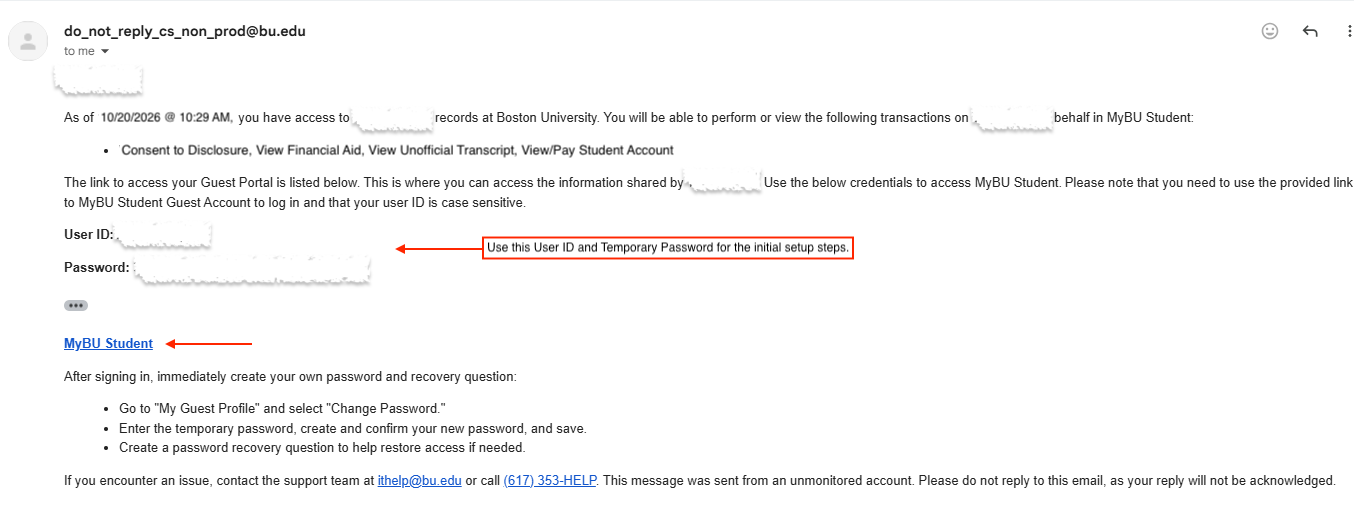
- Once the student has initiated guest access, the Guest User will receive two emails with login credentials.
- This email will come from a do-not-reply “@bu.edu” address, with a subject line that reads “Guest User Credentials Notification to Proxy”.
- The User ID and Temporary Password information will be provided in the second follow up email. Please click the MyBU Student link in either email.
- TIP! If the email doesn’t arrive, be sure to check junk/spam folders, and double check with the student that they entered the correct email address.
- The login page will open in a browser window. Refer back to the email to copy and paste the User ID and Password into the login page.
- The password will be an auto-generated series of characters and may vary in length. Guest users will be prompted to create a new password in later steps.
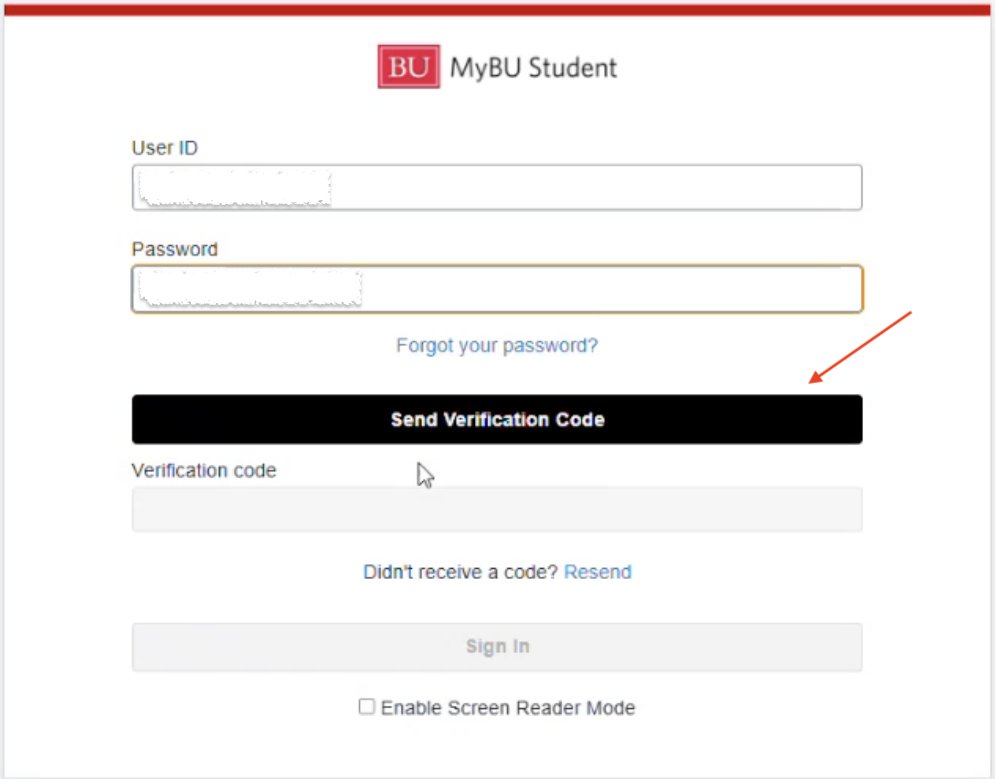
- Click Send Verification Code.
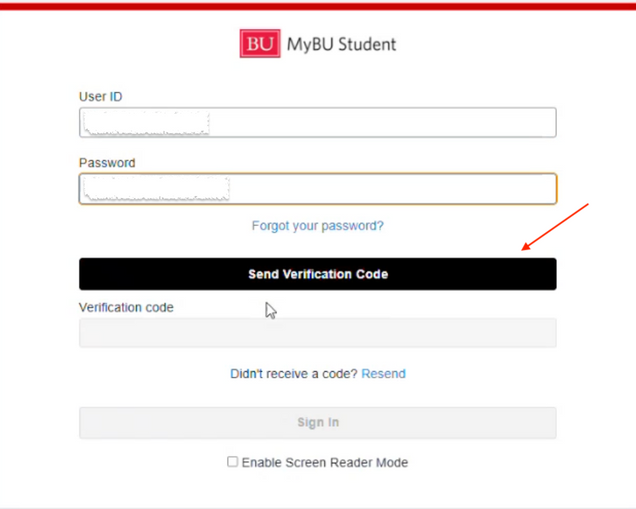
- Enter the code received via mobile phone into the Verification Code field. Click Sign In.
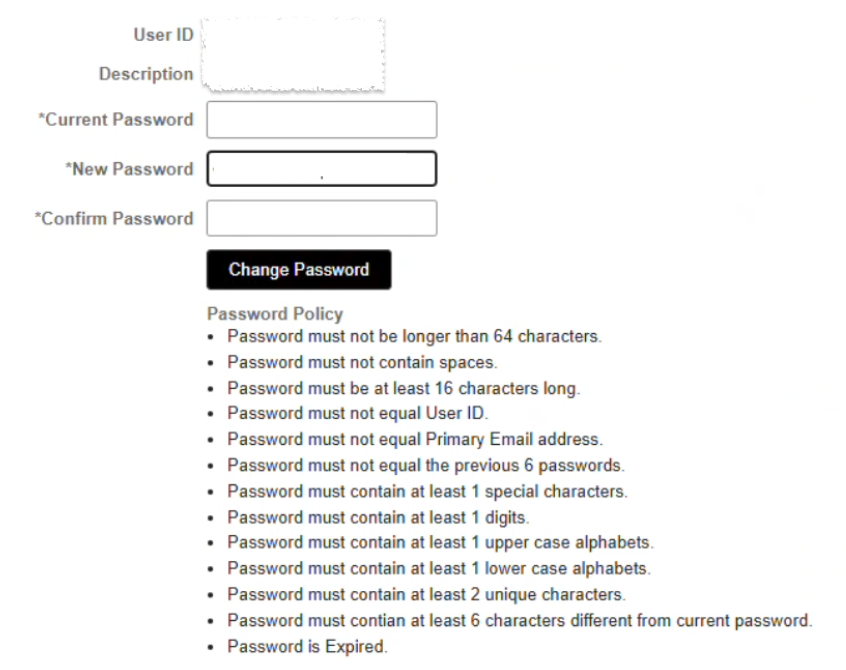
- As the temporary password will then expire upon signing in, the system will prompt for the creation of a new password. Select the Click here to change your password link.
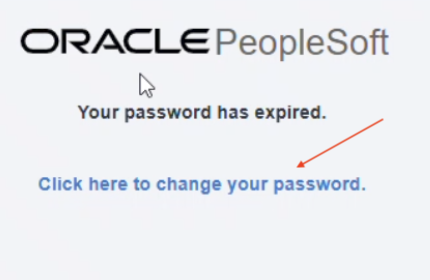
- Current Password: copy the temporary password here.
- New & Confirm Password: enter new desired password. Click Change Password.
MyBU Student Dashboard will display.
TIP! After signing in for the first time, it is recommended to immediately create your own password and recovery question. Refer to the Manage Password section below for more more information.
NEW ACCOUNT SETUP
- The first and most important step to access a Guest User account is for the student to add the guest (name, email address, and phone), and select their desired permissions using the Manage Guests page in MyBU Student. It is not possible for a Guest User to create an account unless the student initiates it.
- Once the student has initiated guest access, the Guest User will receive an email with login credentials.
- This email will come from a do-not-reply “@bu.edu” address, with a subject line that reads “Guest User Credentials Notification to Proxy”.
- The User ID and Temporary Password information will be provided. Please click the MyBU Student link.
- TIP! If the email doesn’t arrive, be sure to check junk/spam folders, and double check with the student that they entered the correct email address.
- The login page will open in a browser window. Refer back to the email to copy and paste the User ID and Password into the login page.
- The password will be an auto-generated series of characters and may vary in length. Guest users will be prompted to create a new password in later steps.
- Click Send Verification Code.
- Enter the code received via mobile phone into the Verification Code field. Click Sign In.
- As the temporary password will then expire upon signing in, the system will prompt for the creation of a new password. Select the Click here to change your password link.
- Current Password: copy the temporary password here.
- New & Confirm Password: enter new desired password. Click Change Password.
The MyBU Student Dashboard will display.
TIP! After signing in for the first time, it is recommended to immediately create your own password and recovery question. Refer to the Manage Password section below for more more information.
NAVIGATION
Once account setup is complete, the MyBU Student Dashboard will display, displaying the student’s name at the top. Any system-wide messages will appear under ‘Message of the Day’.
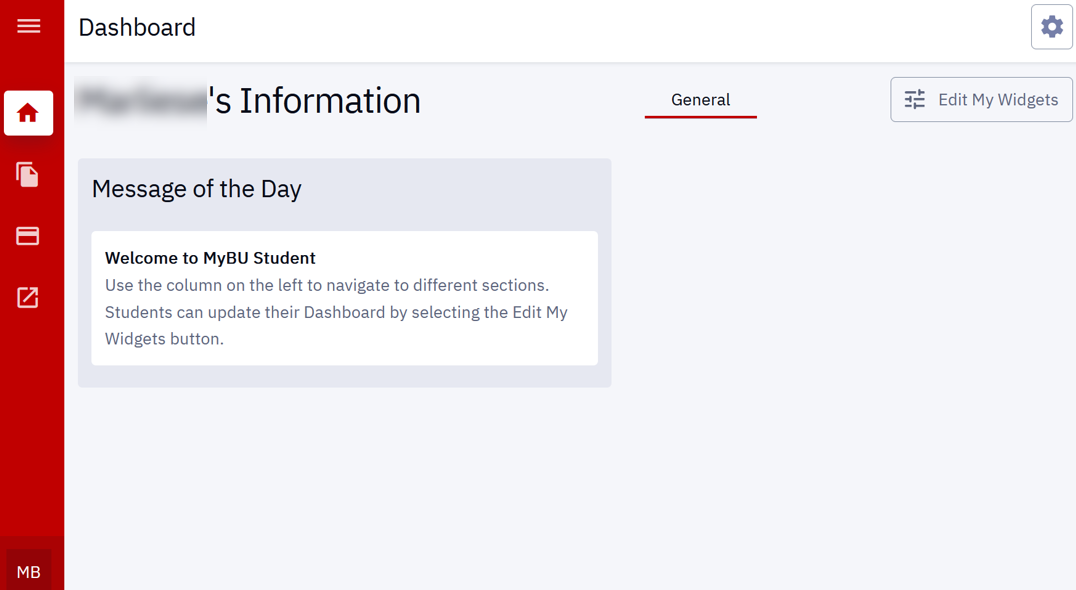
Click the menu icon on the top-left of the Dashboard page to expand/collapse the Menu.
ⓘ NOTE: Guests will only see the pages they have been granted access to by the student.
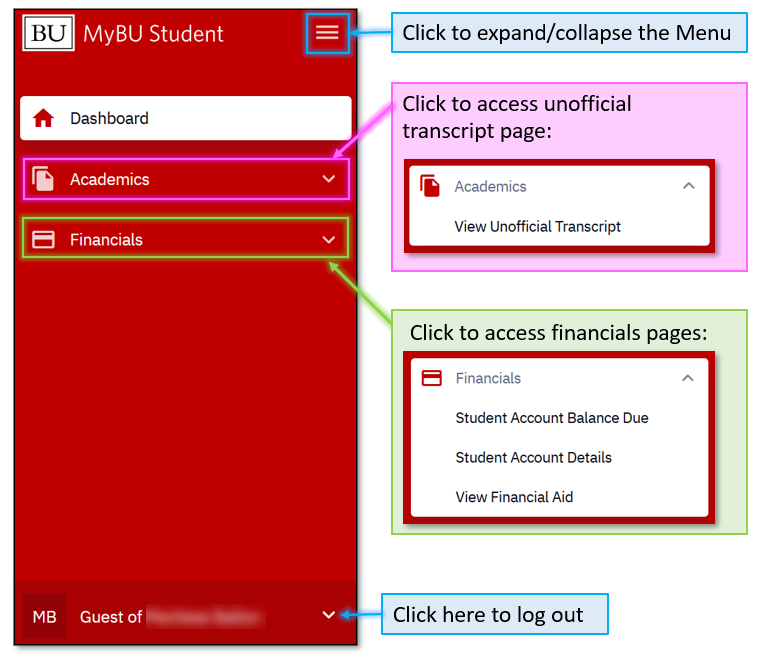
The Guest User view of available pages will will be very similar in both information and appearance to those same pages on the student’s experience. Note that the layout and information available are subject to change in accordance with policy and/or system updates.
Refer to the sections below for an overview of each page.
VIEW UNOFFICIAL TRANSCRIPT
Only Guest Users who have been granted permission to View Unofficial Transcript will be able to access this page.
Depending on the student’s enrollment history, it may be necessary to choose which transcript type and Career (e.g., Undergraduate or Graduate) to display. If the student has only been enrolled in one academic career at BU, that transcript will display automatically.
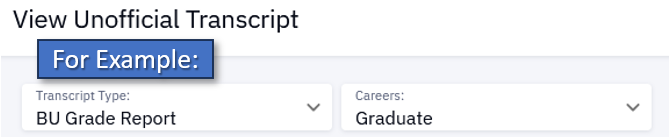
Transcript Types:
- BU Grade Report – for all undergraduate and most graduate/post-grad students
- Unofficial Dental Transcript – for dental students only
- Unofficial Law Transcript – for law students only
- Unofficial Medical Transcript – for medical students only
VIEWING TRANSCRIPT DATA
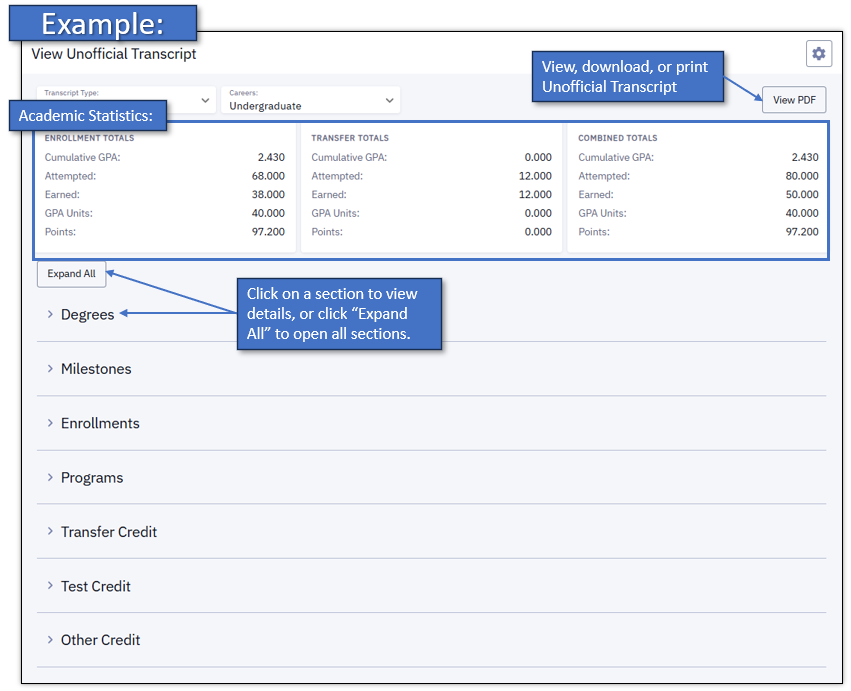
The student’s academic data will display as applicable in the sections described below. The layout and information contained in these sections may vary:
- Academic statistics: This data will display in the boxes at the top of the transcript.
- Enrollment Totals – GPA and units attempted and earned from BU coursework in the applicable program
- Transfer Totals – credit from coursework or tests taken externally (note that per BU policy, transfer and test credit are not calculated into GPA)
- Combined Totals
- Degrees: Record of any degrees/certificates conferred
- Milestones: If applicable for the given academic program, Milestones may be used to document non-course related requirements (e.g., thesis)
- Enrollments: Coursework, grades, and credits by term
- Programs: Record of Academic Program(s) (i.e., degree program), and Plan(s) (i.e., major)
- Transfer Credit: Record of BU credit awarded for qualified classes completed successfully at non-BU institutions
- Test Credit: Record of BU credit earned by successfully meeting requirements on approved tests/exams such as Advanced Placement (AP) and International Baccalaureate (IB)
- Other Credit: Record of any other BU credit earned through external channels
Note that this page accesses the UNOFFICIAL Transcript only. Official transcripts can be ordered only by the students themselves. More information about transcripts can be found on the Registrar’s website.
VIEW/PAY STUDENT ACCOUNT
The Student Account page is used for viewing account details and accessing the payment service. Only Guest Users who have been granted Student Account permission can access this page.
Refer to the letter labels on the example below to learn about the features of the Student Account page.
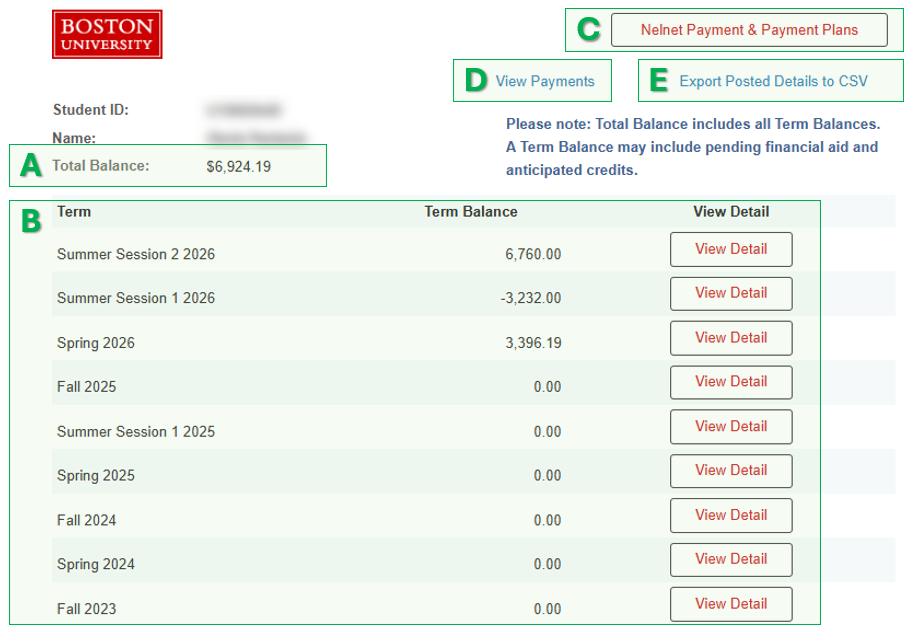
- Total Balance: shows the current total amount owed. The total is comprised of all Term Balances, which may include pending financial aid and anticipated.
- Term Balances: shows any balances from all applicable Terms.
- Terms where the balance has been fully settled will show as 0.00.
- Click View Detail to see the breakdown of that Term’s charges and credits, including any pending financial aid (e.g., loans that have not yet been disbursed) or other anticipated credits. Note that pending/anticipated amounts are subject to change.
- Nelnet Payment & Payment Plans: opens the Nelnet QuikPAY® system, which allows users to make payments using a U.S. bank account. Users can also enroll in/manage payment plans. The Nelnet interface will open in a new browser tab, and will securely carry over the student’s account information so no new login is required.
- For more information about payment options, please visit the Student Financials website.
- View Payments: displays a complete Payment Activity history. Also allows users to view which Term(s) a payment was applied to.
- Export Posted Details to CSV: prompts a CSV download which can be used to view a complete history of charges and payments/credits for all Terms in a spreadsheet.
For more information about tuition/fees and payment options, please refer to the Student Financials website.
VIEW FINANCIAL AID
Only Guest Users who have been granted permission to View Financial Aid can access this page.
This page allows Guest Users to view the details of the student’s Financial Aid award.
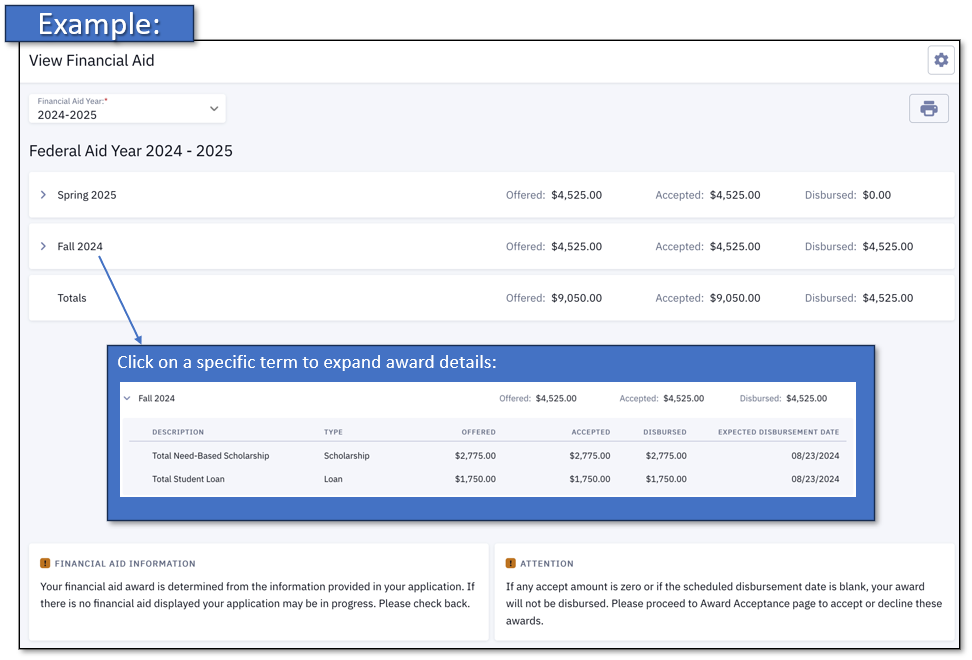
Information about BU Financial Aid can be found at bu.edu/finaid.
Manage Password
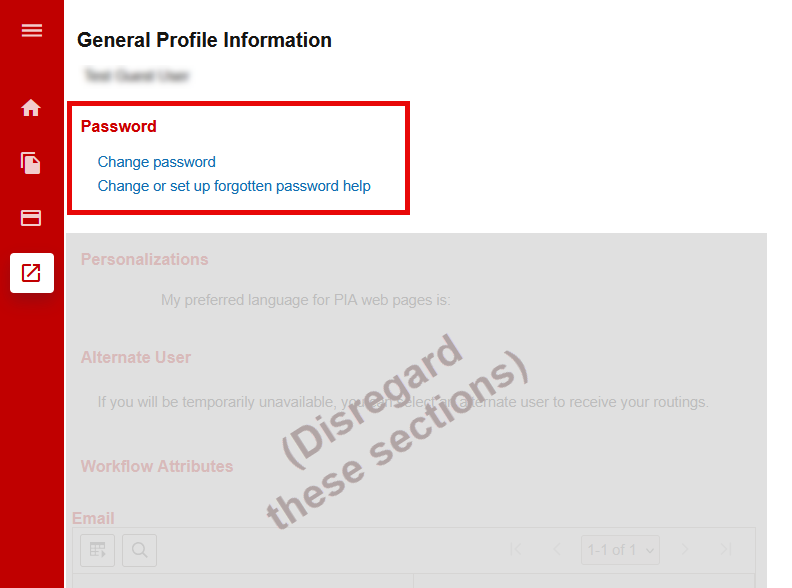
Select My Guest Profile from the menu to change the account password, or to set up/change a password recovery question.
ⓘ NOTE: Below the the Password section of the profile page, additional sections may display with blank or placeholder content. This is related to back-end system configuration and can be disregarded.
Change Password
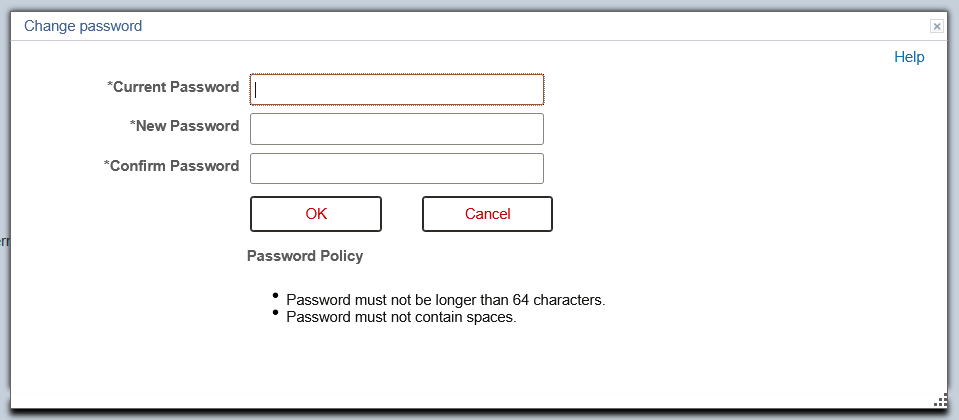
- Click Change Password to create a new password for the account.
- Enter the current password, and then input the new password twice.
- Passwords can use any combination of characters except for spaces, and can be any length not exceeding 64 characters.
- Click OK.
- Back on the Profile page, click the Save button at the bottom of the screen.
Set up/Change Password Recovery Question
It is strongly recommended for all Guest Users to set a password recovery question in order to expedite account access in the case of a forgotten password. If they skip this step they will not be able to use the ‘Forgot My Password’ option on the login screen.
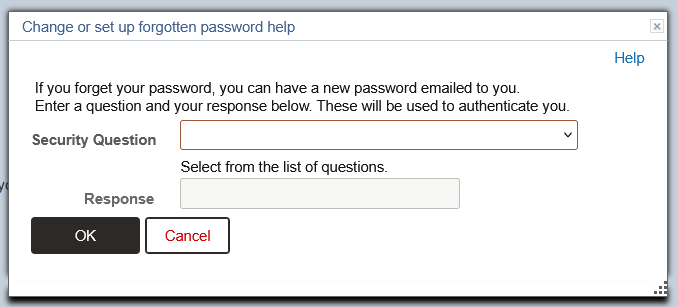
- To set up a password recovery question, click Change or set up forgotten password help.
- Select from the available Security Questions and then input your answer. Note that the Response field is case sensitive.
- Click OK.
- Be sure to also click the Save button at the bottom of the profile screen.
TIP! The student who granted the guest access can also reset the password for a guest, using the Manage Guests page in MyBU Student. This will send a new auto-generated password to the Guest User via email.
- This option may be useful if the Guest User is encountering any issues with password recovery, or if they didn’t set up a password recovery question,
Remember that students can change or revoke Guest User access at any time. When changes are made to their access, Guest Users will receive an automatically generated email notification, but these emails may be directed to spam/junk folders. If a Guest User is experiencing any unexpected access issues, it’s a good idea to check in with the student first.
For other technical assistance, contact BU IT Help. Please specify that the issue is related to a MyBU Student Guest Account.
FAQ
Q: Can I change my User ID?
A: No. Guest User IDs are auto-derived from the student’s User ID and are emailed to the Guest User after the students initiates access. Guest User IDs cannot be changed by the Guest User or the student. When logging in, keep in mind that Guest User IDs are case sensitive.
Q: Can I change my password to something easier to remember?
A: Yes! Refer to the Manage Password section above for instructions.
Q: Can I change the email address on file for my guest account?
A: The Guest User cannot change the email address associated to their account, but the student who granted them access can. Students can use the Manage Guests page to change a designee’s name or email address.
Q: I’m not seeing certain information in MyBU Student that I believe I should see. What should I do?
A: The first recommendation is to communicate with the student who granted your access to make sure you are on the same page about which permissions have been granted.
If you still believe you are experiencing an error with guest access in MyBU Student, contact the BU IT Help Center at ithelp@bu.edu or 617-353-HELP (4357).
Q: Can my Guest User account be used to access information for multiple students?
A: No. A separate Guest User account must be used for each student.
Q: Where can I view/access IRS Form 1098-T?
A: Form 1098-T for BU students is accessed via a vendor called Maximus. Additional information can be found here: bu.edu/studentfinancials/resources/irs-form-1098t.
Q: Can I submit financial aid forms such as a Parent PLUS Loan or Foreign Income Verification form in my guest account?
A: At this time, financial aid information is view-only for Guest Users. Please contact BU Financial Assistance for more information about how to submit various forms.
Q: How do I sign up for a payment plan?
A: Guest Users who have been granted access to the Student Account page can click the Nelnet Payment & Payment Plans button at the top of the page to view available payment plans and complete enrollment. Information about payment plans can be found on the BU Student Financials website: bu.edu/studentfinancials/your-bill/payment-plans
Page last updated October 2026. For a PDF copy, print this webpage as a PDF.