Instructor Midsemester Review Quick Reference
This resource highlights the key steps instructors follow to perform two common Midsemester Review tasks in MyBU Student: “Respond to an Advisor Request for Review” and “Initiate an Update on a Student.” For the full user guide, refer to the Midsemester Review for Instructors resource.
RESPOND TO ADVISOR REQUEST FOR REVIEW
After receiving an email notification that one or more new Requests for Review need a response:
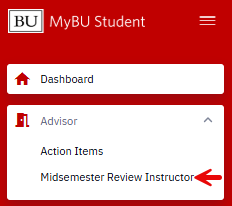
- Navigate to Advisor > Midsemester Review Instructor.
- In the search page that opens:
- If needed, adjust the Term by clicking the magnifying glass and selecting the correct Term Code.
 Refer to the Term Concept resource for guidance on 4-digit Term Codes.
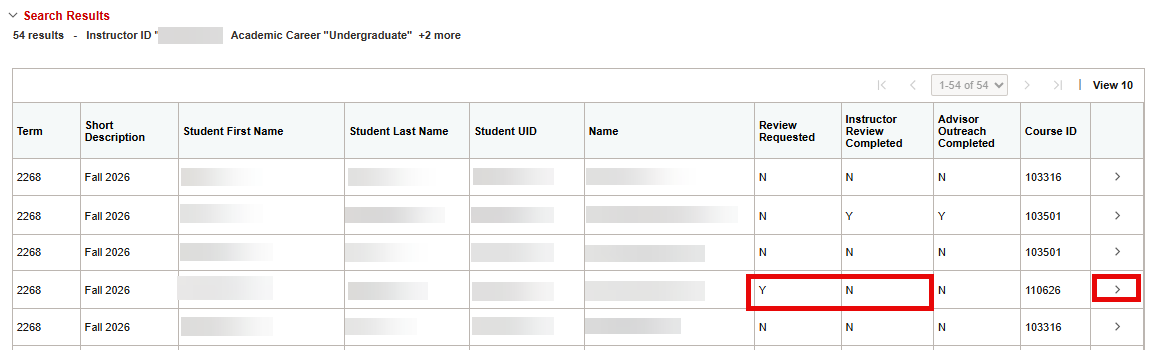
- In the MSR Source dropdown, select My Reviews to Complete to generate a list of new/outstanding Reviews that require attention.

- Press Search.
- If needed, adjust the Term by clicking the magnifying glass and selecting the correct Term Code.
- Click the intended student’s row in the list at the bottom of the page.

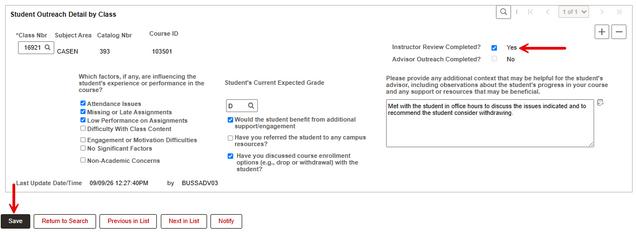
- In the student’s Midsemester Review page, scroll to the Student Outreach Detail by Class section.
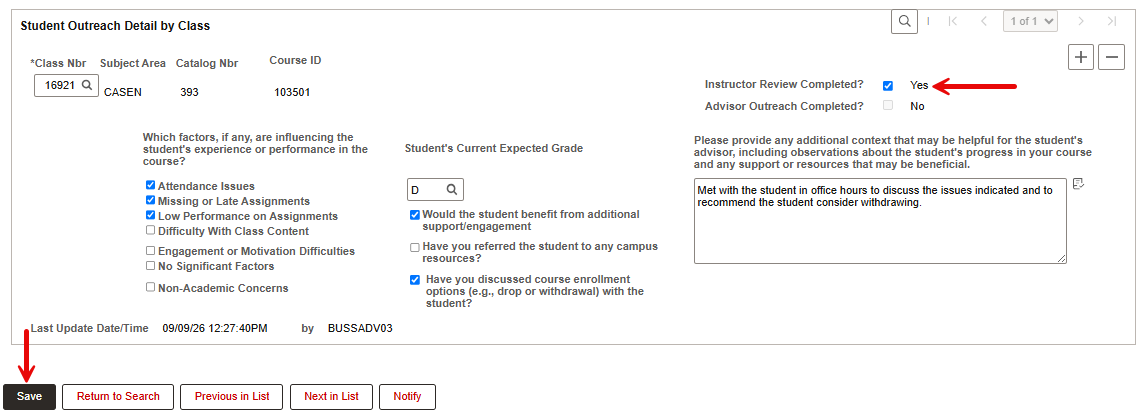
- Check appropriate information boxes, provide Student’s Current Expected Grade (if known), and add any relevant explanation in the text box.
- ⓘ IMPORTANT: Once all information has been provided, be sure to check the “Instructor Review Completed?” box to change the answer from NO to YES.
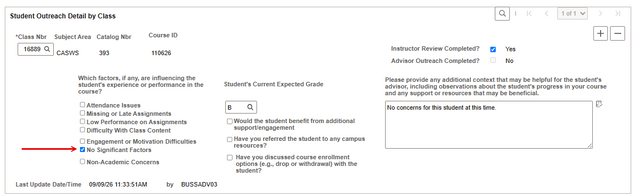
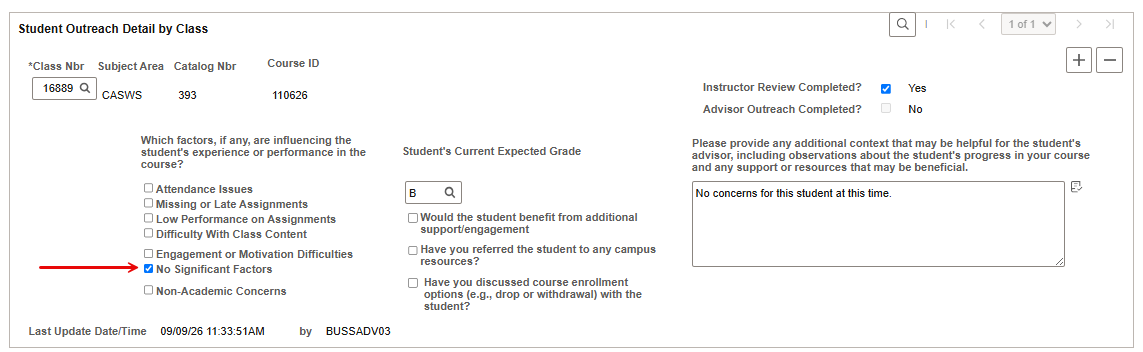
- If the instructor has no concerns for a student who was Requested for Review, check No Significant Factors and provide a Current Grade and Note if possible. Also check the “Instructor Review Completed” box to change the answer from NO to YES.
- Click Save (see image at Step 4b above) to save the update and send it to advisors.
- TIP! The Notify button is non-functioning and will not perform any action. The Save button will save/send the update.


Initiate Update on a Student
An instructor can also initiate a Midsemester Review update for a student who was not Requested for Review by an advisor. The steps are similar to those used for responding to Requested Reviews.
- Navigate to Advisor > Midsemester Review Instructor.
- In the search page that opens, adjust the Term if necessary by clicking the magnifying glass and selecting the correct Term Code.
- Search for the intended student.
- To go directly to a specific student’s Midsemester Review page: enter the student’s First Name/Last Name/BUID then press Search.
- To select a name from a list of all students taught in the Term: choose MSR Source > All Enrolled Students, press Search, then click the intended student’s row in the search results to open their Midsemester Review page.

- In the student’s Midsemester Review page, scroll to the Student Outreach Detail by Class section and enter information.
- For instructor-initiated updates, first enter the Class Nbr, either by typing it into the text box or clicking the magnifying glass to open a search window where the Class Nbr may also be clicked.
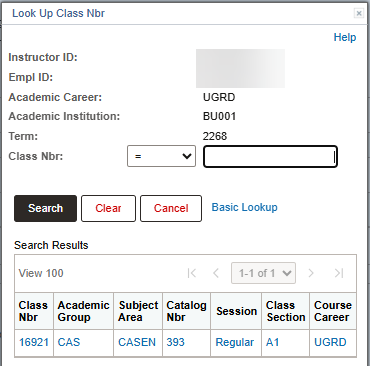 See the Class Numbers Explained resource for more information.
- Check appropriate information boxes, provide Student’s Current Expected Grade (if known), and add any relevant explanation in the text box.
- ⓘ IMPORTANT: Once all information has been provided, check the “Instructor Review Completed?” box to change the answer to YES.
- If the instructor has no concerns for a student who was Requested for Review, check No Significant Factors and provide a Current Grade and Note if possible. Also check the “Instructor Review Completed” box to change the answer to YES.
- For instructor-initiated updates, first enter the Class Nbr, either by typing it into the text box or clicking the magnifying glass to open a search window where the Class Nbr may also be clicked.
- Click Save to save the update and send it to advisors.

Page last updated October 2026. For a PDF copy, print this webpage as a PDF.
