Staff Queries
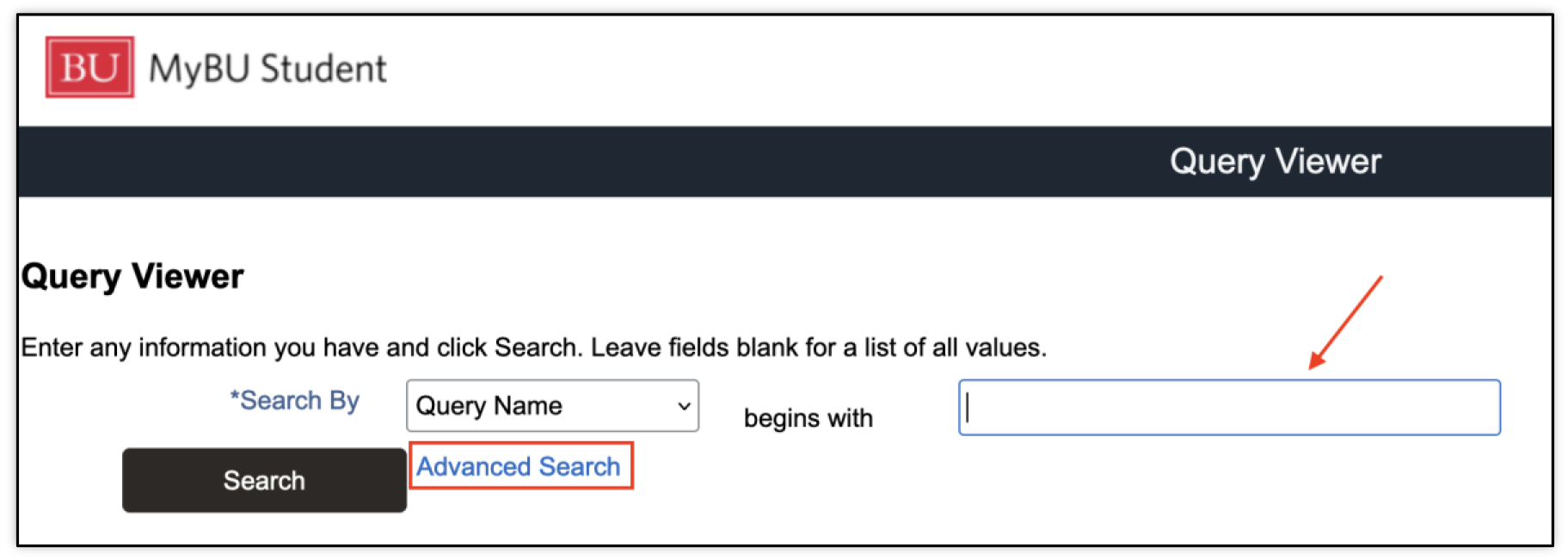
Queries in MyBU Student are reports. This resource provides an overview of running a query from the Query Viewer page, and highlights some of the frequently used staff queries.


Introduction
This resource contains instructions on how to navigate to and run queries. It includes processes originating from the Reporting Center folder in the left MyBU Student menu as well as how to use the Query Viewer page.
Each report in the Frequently Used Reports section lists the prompts used for running the report and the data fields included in the results. This is meant to guide staff in quickly identifying what report might be helpful depending on the search criteria that’s needed and/or the information that’s desired to review.
TIP! Try using the Ctrl+f keyboard shortcut to search this resource for a particular field.
All queries have a unique identifier, called the Query Name. The Query Name is not meant to be a user-friendly title but a system identifier composed of keywords and abbreviations separated by underscores (for example: BU_R0010M_SR_CPP_HIST). Since the Query Name doesn’t always give a clear indication of the full description/scope of the report, it may be helpful to add relevant queries to Favorites. Refer to the Query Viewer section below for more information about running queries and saving favorites.
Please be sure to review the Support Process in the Appendix of this resource if looking for a particular report or encountering an issue.
GLOSSARY & QUERY REPORT LIBRARY
- For system concepts and definitions, please refer to the MyBU Student Glossary resource.
- Query Report Library: this tool compiles all queries (reports) available in MyBU Student. It is meant to function as a way to search the library of reports to find the one that satisfies a particular need. MyBU Student reports cannot be run from here, but direct links are available to easily open to them in MyBU Student. For help with how to use this tool, refer to the Query Report Library Guide.
⚠︎ Screen options, menus, and reports will vary by user; please note that displays may differ for you based on access that has been granted. All screens shown are for training purposes only.
Run a Query


Query Viewer


Frequently Used Staff Reports
The following reports are identified as frequently used for staff needs and processes. They are not comprehensive of all reports that may be available for staff. Proper security access must be granted. This list will continue be updated with additional reports.
Queries Available in Reporting Center:
|
Only Available through Query Viewer:
|
These reports are described in more detail below.
- Upon compiling, all reports can be downloaded. Click on the desired option above the list of results.
- If running a report via Query Viewer, click Rerun Query to enter new criteria for a new search.
For help with field searches and understanding terms and class/course numbers, refer to the Prompt Field Tips in the above Run a Query section, the Term convention overview , and the Course/Class Identifier information.
STUDENT ID LOOKUP
Reporting Center > Student ID Lookup
Query Name: BU_SR_STUDENT_LKUP_SEARCH
About: This report allows the user to look up a student’s UID by searching for them by name, primary program, and/or email address.
Prompts: Institution, Last Name, First Name, Primary Program, Term, *Email Type, Email Address, *Name Type (Asterisks indicate required field)

ⓘ If searching by email address, enter it in ALL CAPS.
Note that Email Type will default to BU Email, and Name Type will default to PRF (Preferred Name). The Email Type and Name Type selected will also be reflected in the results.
Data Fields Displayed In Results:
| ID | Name Type | Last Name | First Name | Middle Name | Term | Academic Program | Type | Term Description |
STUDENT PROGRAM/PLAN HISTORY
Reporting Center > Student Program/Plan History
Query Name: BU_R0010M_SR_CPP_HIST
About: This report displays a particular student’s academic program/plan history, including the Action(s) and Action Reason(s) for the creation of each new data row.
Prompts: The student’s UID is all that’s needed to run this report.

If UID is unknown, try using the Student ID Lookup report. Clicking the magnifying glass for lookup in the prompt field may take a long time to open. However, once open, the Advanced Lookup can be used to look up a student’s UID by first/last name.
Data Fields Displayed In Results:
| BU ID | First Name | Last Name | Career Nbr | Academic Career |
| Academic Program | Descr | Eff Date | Eff Sequence | Program Action |
| Action Reason | Action Reason Description | Admit Term | Admit Term | Req Term |
| Req Term (Catalog Year) | Exp Grad | Exp Grad Term | Joint Program Indicator | Dual Program |
| Plan Sequence | Academic Plan Code | Academic Plan Description | Academic Plan Type | Degree Type |
| Academic Sub-Plan Code | Academic Sub-Plan Description | Academic Sub-Plan Type | Completion Term |
STUDENT TERM ACTIVATED BY TERM
Reporting Center > Student Term Activated by Term
Query Name: BU_R0010H_SR_TERMACT_STUDXPROG
About: This report lists students that are term activated by program, college, or career for a given term. Or, search by ID if looking for an individual student. Optional drilling links are available to view a student’s entire program stack history from the list of results.
Prompts: *Term, Acad Prog or College, *Institution, ID, *Academic Career (Asterisks indicate required field)

In the above example, the prompts entered will result in a list of all undergraduate COM students who are term activated for Spring 2025.
Data Fields Displayed In Results:
| ID | Last Name | First Name | Middle Name |
| BU Email | Preferred Email | Term | Term Description |
| Academic Career | Primary Academic Program | Academic Program(s) | Academic Plan(s) |
| Academic Plan Description(s) | Joint Program Approved | Admit Term(s) | Admit Term Description(s) |
| Academic Level – Term Start | Academic Level – Projected | Academic Level – Term End | Approved Academic Load |
| Academic Load | Certified Load | Eligible to Enroll | Enrollment Status |
| Registration Hold | Term Units In Progress | Total Cumulative Units | Cumulative GPA |
| Withdrawal \ Cancel | International Indicator | Study Agreement | Study Agreement Description |
| Reg Group |
For a brief walkthrough of some of the major data fields in these results, please refer to the Reporting Introduction Using the ‘Student Term Activated by Term’ Report video.
BY CAREER/PROGRAM/ PLAN/SUBPLAN
Reporting Center > By Career/Program/Plan/SubPlan
Query Name: BU_R0010M_SR_CPP_PROG_BY_TERM
About: This report searches for students who are Term Activated for a given Term by Career/Program/Plan/SubPlan.
Prompts: *Academic Institution, *Term, Career, Acad Prog or College, Acad Plan, Sub-Plan, Admit Term (Asterisks indicate required field)

In the above example, the prompts entered will result in a list of undergraduate students enrolled in the Spring 2025 term in the COM Journalism BS plan, who were admitted in the Fall 2022 term.
Data Fields Displayed In Results:
| BU ID | Last Name | First Name | Middle Name |
| BU Email | Academic Career | Academic Program | Acad Program Description |
| Effective Date | Effective Sequence | Admit Term | Admit Term Description |
| Req Term (Catalog Year) | Req Term Description | Expected Graduation Term | Expected Grad Term Description |
| Joint Program Indicator | Dual Program | Plan Sequence | Academic Plan Code |
| Academic Plan Description | Academic Plan Type | Degree | Academic SubPlan Code |
| Academic Sub-Plan Description | Academic SubPlan Type | Term Units In Progress | Enrollment Status |
| Academic Level – Projected | Academic Level – Term Start | Academic Level – Term End |
LIST OF CLASSES W/ ENROLLMENT
Reporting Center > List of Classes w/Enrollment
Query Name: BU_R0010K_SR_ROSTER_FROM_LIST
About: This report lists classes that meet the entered criteria. Classes can then be drilled down into to view enrolled students.
Prompts: *Institution, *Term, Acad Org, Acad Group, Subject, Catalog Number (starting from), Section, Incl Class w/No Enrollment? (Asterisks indicate required field)

In the above example, the prompts entered will result in a list of all classes in the CFA Theatre department for the Fall 2024 term, including classes that didn’t have any students enrolled.
Data Fields Displayed In Results:
| Term | Term | Class | Component | Descr |
| Acad Org | Class# | Location | Mode | Tot Enrl |
| Cap Enrl | Wait Tot | List Students |
ROSTER FOR A CLASS
Reporting Center > Roster for a Class
Query Name: BU_R0010K_CLASS_ROSTER
About: This report lists enrolled, dropped, waitlisted, or all students for a specific class in a given term.
- This report is the result of drilling down into a class from the List of Classes w/Enrollment report.
Prompts: *Term, Class Nbr, Status (Asterisks indicate required field)

In the example above, the prompts entered will result in a list of all the students who are currently enrolled in CFAAR 132 Drawing 1 (Class Nbr 7579). for Spring 2025.
Data Fields Displayed In Results:
| Term | Session | Subject | Catalog Number |
| Section | Component | Status | Student ID |
| Last Name | First Name | BU Email | Academic Program |
| Academic Program Description | Academic Plan | Academic Plan Description | Academic Subplan |
| Academic Subplan Description | Grade | Unit Taken |
ALL PHOTO CLASS ROSTERS
Reporting Center > All Photo Class Rosters
Query Name: n/a
About:This query generates a PDF with a grid format of student photos for a class.
Prompts: *Academic Career, *Term, *Subject Area, *Catalog Nbr, Class Section, Student Enrollment Status, Number of Image Columns, Include BUID? (Asterisks indicate required field)
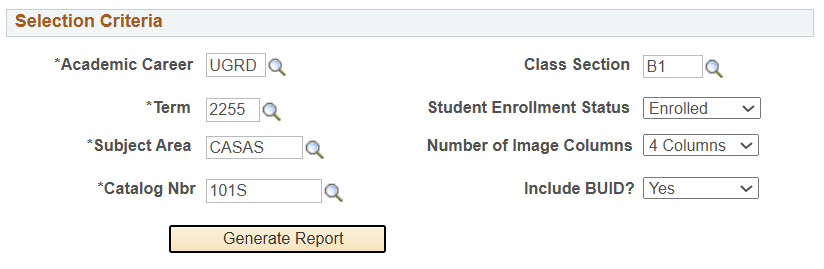
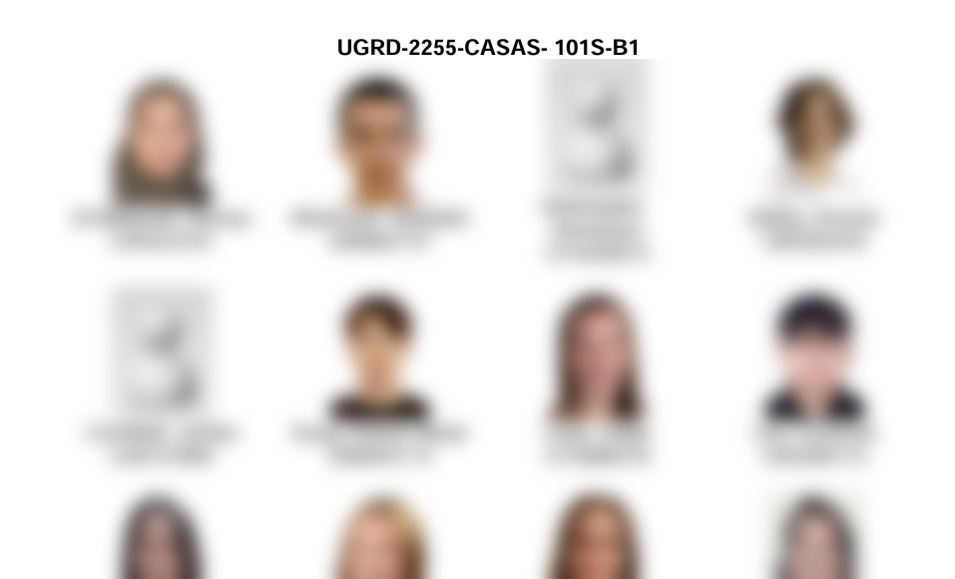
TIP! The Number of Image Columns dictates how many pictures will display across the page (1-4). E.g., ‘4 columns’ will display a row of 4 pictures. If ‘2 columns’ are selected, 2 larger pictures display on a line.
Viewing Results:
The All Photo Class Rosters output is different than the other reports detailed here. Student photos will display in a grid format, adhering to the number of columns indicated in the prompts. For example, the report below illustrates the selection of ‘4 columns’ in the prompts. If ‘2 columns’ were chosen, the pictures would be larger and would only have two students per line. Students without a photo on file will appear with a placeholder image.
UNIVERSITY CLASS SCHEDULE
Reporting Center > University Class Schedule (The query will open in a new browser window.)
Query Name: BU_R0032B_SR_CLASS_SCHD_DOWNLD
About: This report lists schedule information for classes within a particular Academic Group/Subject/Academic Organization (i.e., academic department) and/or assigned to a particular Instructor and/or with a particular Class Status for a given term.
Prompts: *Institution, *Term, Campus, Acad Group, Subject, Instructor ID, Class Status, Acad Org (Asterisks indicate required field)

Data Fields Displayed In Results:
| Course ID | Term | Session | Subject Area |
| Catalog Nbr | Class Section | Class Nbr | Instructor Last Name |
| Instructor First Name | Career | Description | Credit Hours |
| Campus | Days of the Week | Start Time | End Time |
| Facil ID | Meeting Start Date | Meeting End Date | Cap Enrl |
| Waistlist Cap | Min Enrl | Tot Enrl | Wait Tot |
| Academic Group | Enrl Stat | Class Stat | Class Type |
| Mode | Notes | Final Exam |
STUDENT MATRIX
Reporting Center > Student Matrix
Query Name: n/a
About:This query can be used to check when students in a specific class have other classes on their schedule. A version of this query is also used frequently by faculty.
Prompts: *Instructor ID, *Career, *Term, *Course (Asterisks indicate required field)
- TIP!Use the magnifying glass to lookup an Instructor’s ID and Course input. Upon selecting the Course from the lookup, the results will automatically display on the page.
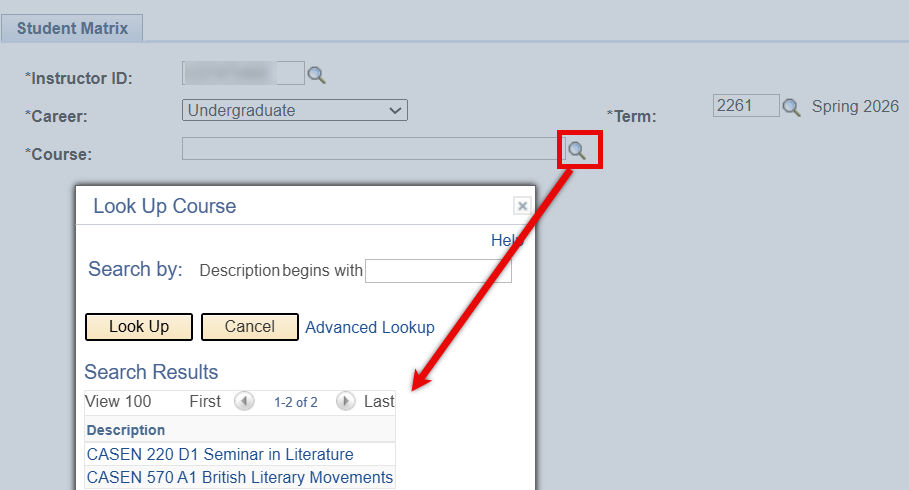
Viewing Results:
The Student Matrix output is different than the other reports detailed here. A table will display with rows that correspond to time blocks for each day. Each cell indicates the number of students who have a conflicting class during that timeframe.
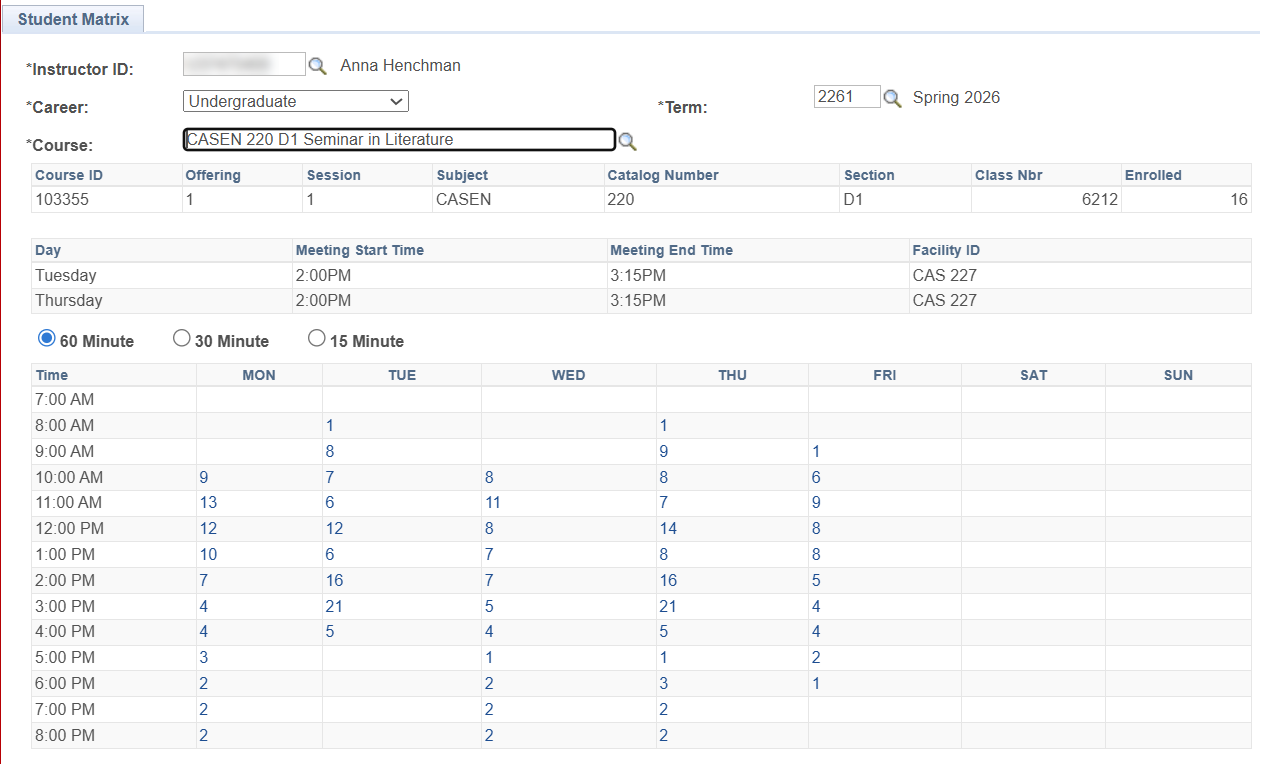
The Student Matrix results can be further drilled down, with additional data appearing below the table:
- Click on the count to see WHICH students are enrolled in other classes during that time.
- From that list, an individual student can be selected to view the details of the class(es) that student has during that timeframe, as well as the rest of their current schedule of classes.
- In the example below, the time block on Monday at 10am was selected. Then, the student who is in 4th Semester French at that time was selected. The details of that French class are shown, as well as that student’s schedule.

PROGRAM/PLAN BY BUID
Reporting Center > Query Viewer (In the Query Name field, search for BU_R0010H_SR_CPP_BUID)
Query Name: BU_R0010H_SR_CPP_BUID
About: This report searches for students by BUID and returns the associated Program/Plan information at the time of the defined Term.
Prompts: ID, *Term (Asterisks indicate required field)

In the example to the right, any student’s BUID entered into the ‘ID’ prompt will pull up that student’s academic Program/Plan information for the Spring 2025 term.
Data Fields Displayed in Results:
| BU ID | Last Name | First Name | Middle Name |
| Career Nbr | Academic Career | Academic Program | Descr |
| Eff Date | Eff Sequence | Admit Term | Admit Term |
| Req Term | Req Term (Catalog Year) | Exp Grad | Exp Grad Term |
| Joint Program Indicator | Dual Program | Plan Sequence | Academic Plan Code |
| Academic Plan Description | Academic Plan Type | Degree Type | Academic SubPlan Code |
| Academic SubPlan Description | Academic SubPlan Type | Completion Term |
CLASS GRADE ROSTER
Reporting Center > Query Viewer (In the Query Name field, search for BU_R0046AS_SR_STUDENT_GRD_ROST)
Query Name: BU_R0046AS_SR_STUDENT_GRD_ROST
About: This query generates a report of a class’s Grade Roster.
Prompts: *Term, *Institution, *Subject, Catalog, Section, Class Nbr (Asterisks indicate required field)

In this example, the prompts entered will result in a list of students enrolled in CFA TH121 in Fall 2025, along with their grades. Since no specific section or class number was identified, the resulting report will include students across all class sections.
Data Fields Displayed in Results:
| Term | Subject | Catalog | Section |
| Descr | Class Nbr | Grd Roster Status | ID |
| Last Name | First Name | Grade Status | Grade In |
CLASS STATUS & RESERVE CAPACITY
Reporting Center > Query Viewer (In the Query Name field, search for BU_R0010A_SR_CLASS_STAT_RESERV)
Query Name: BU_R0010A_SR_CLASS_STAT_RESERV
About: This report searches for classes by academic group and subject (i.e., department) for a given term, and can also allow for a search of classes that have a particular requirement group applied. It returns a list of those classes with class status, waitlist, and reserve capacity details.
Prompts: *Institution, *Term, Acad Group,
Subject, Rq Group (Asterisks indicate required field)

In this example, the prompts entered will result in a list of all the COM Film & Television classes in the Spring 2025 term that have the Requirement Group 001669 (Acad Prog UCOM[or MIN] or UCGS) applied.
Data Fields Displayed in Results:
| Course ID | Term | Session | Subject |
| Catalog | Section | Component | Descr |
| Class Nbr | Cap Enrl | Tot Enrl | Open Seats |
| Wait Cap | Wait Tot | Enrl Stat | ReserveNbr |
| Start Date | Cap Enrl | Rq Group | Descr |
FINAL EXAM SCHEDULE FOR A TERM
Reporting Center > Query Viewer (In the Query Name field, search for BU_R0032C_SR_FINAL_EXAM_SCHDL)
Query Name: BU_R0032C_SR_FINAL_EXAM_SCHDL
About: This report can pull final exam information for a term based on a variety of criteria, such as the exam for a specific academic group/subject (i.e., academic department), instructor, or for one particular class.
Prompts: *Institution, *Term, Academic Group,
Subject Area, Catalog Nbr, Course ID, Instructor, Academic Org (Asterisks indicate required field)

In this example, the prompts entered will pull final exam schedule information for all the classes in the ENG Mechanical Engineering department for the Fall 2024 term.
Data Fields Displayed in Results:
| Academic Career | Academic Group | Course ID | Subject Area |
| Catalog Nbr | Class Section | Description | Session |
| Enrollment Total | Exam Time Code | Exam Date | Exam Start Time |
| Exam End Time | Facility ID(s) | Room Capacity | Combined Exam |
| Instructor(s) | Instructor’s Email(s) |
STUDENTS ON LOA OR W/D
Reporting Center > Query Viewer (In the Query Name field, search for BU_R0010N_SR_LOA_WD)
Query Name: BU_R0010N_SR_LOA_WD
About: This query generates a report of all students across the University who have taken a leave of absence or withdrawn in a particular term. There is not currently an option to narrow the search prompts to a particular school/college or department, but the results can be filtered as needed once exported.
Prompts: Term UID is all that’s needed to run this report.
Data Fields Displayed in Results:
| ID | Last Name | First Name | Middle Name |
| BU Email | Term | Term Description | Academic Career |
| Academic Program | Dual Academic Program | Approved Academic Load | Academic Load |
| Academic Level – Projected | Academic Level – Term Start | Academic Level – Term End | Academic Program Status |
| Program Action | Action Reason | Action Reason Description | Effective Date |
| Withdrawal \ Cancel | Withdrawal \ Cancel Reason | Withdrawal \ Cancel Date | Last Date of Attendance |
GRADUATION REPORT
Reporting Center > Query Viewer (In the Query Name field, search for BU_R0046L_SR_GRADUATION)
Query Name: BU_R0046L_SR_GRADUATION
About: This query generates a report displaying student academic information and graduation related data. Prompts allow for application of specific graduation filters to find desired student populations.
Prompts: Institution, Career, *Acad Prog or %Col%, Exp Grad Term, Grad Review Status, ID, Acad Plan (Asterisks indicate required field)

Data Fields Displayed in Results:
| ID | Last Name | First Name | BU Email |
| FERPA | Intl Student | VisPmtType | Country |
| Career | Acad Prog | Acad Plan | Plan Descr |
| Sub-Plan | SubPlan Descr | Degree | Acad Prog Status |
| Prog Actn | Exp Grad Term | Grad Review Status | Degr Status |
| Confer Dt | Compl Term | Hon Code | Descr |
| Term | Total Cumulative Units | Total Passed for Progress | GPA |
| Dual Prog | Joint Program |
Appendix
Page last updated February 2026. For a PDF copy, print this webpage as a PDF. Other resource formats can also be accessed via the relevant icons below.