Schedule Advising Appointments
Appointment scheduling within MyBU Student is available for students and advisors. The information provided here is for advisors and outlines how they can add a new appointment.


Introduction
This resource details how advisors can schedule a new appointment with a student. Advisors can schedule appointments via the Appointments page or the Student Details page in MyBU Student.
For information on how advisors can view, edit, reschedule, cancel, mark no-show, and complete an appointment, refer to the Manage Appointments resource.
Students can also book appointments with appropriate advisors. To review the student’s process, refer to the Advising Appointments for Students resource.
PREREQUISITES: The following need to be completed in order for advisors to schedule appointments:
- Advisors must be set up in a department that has configured Advising Appointments in MyBU Student. Note that Department settings will impact various aspects of the appointment scheduling options for students and for advisors. For more information, check out the Department Settings section below.
- Advisors must define their schedule availability and sync their Outlook calendar. These instructions are available in the Schedule Setup resource.
MEETING INVITES & CONFIRMATIONS: It is important for an advisor to sync their external Outlook calendar so the appropriate appointment notifications can occur. When an appointment is scheduled by an advisor or by a student:
- A meeting is added to the advisor’s external Outlook calendar.
- That meeting invite is sent to the student’s external email/calendar. The meeting organizer will be listed as the advisor (even when a student schedules the appointment).
- Students will receive a system reminder notification the day before their scheduled appointment.
⚠︎ Screen options and menus will vary by user; please note that displays may differ for you based on access that has been granted.
All screens shown are for training purposes only.
Schedule Appointment via Appointments Page
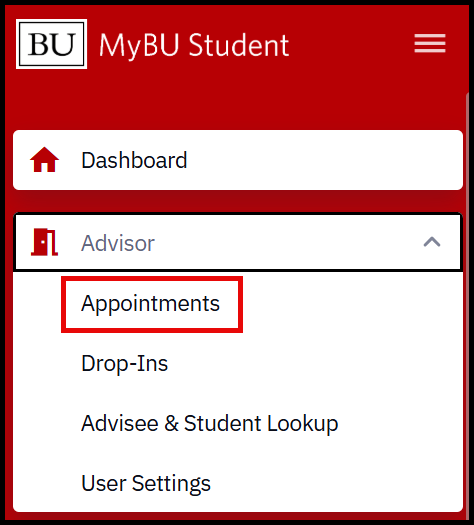
Navigation: Advisor > Appointments
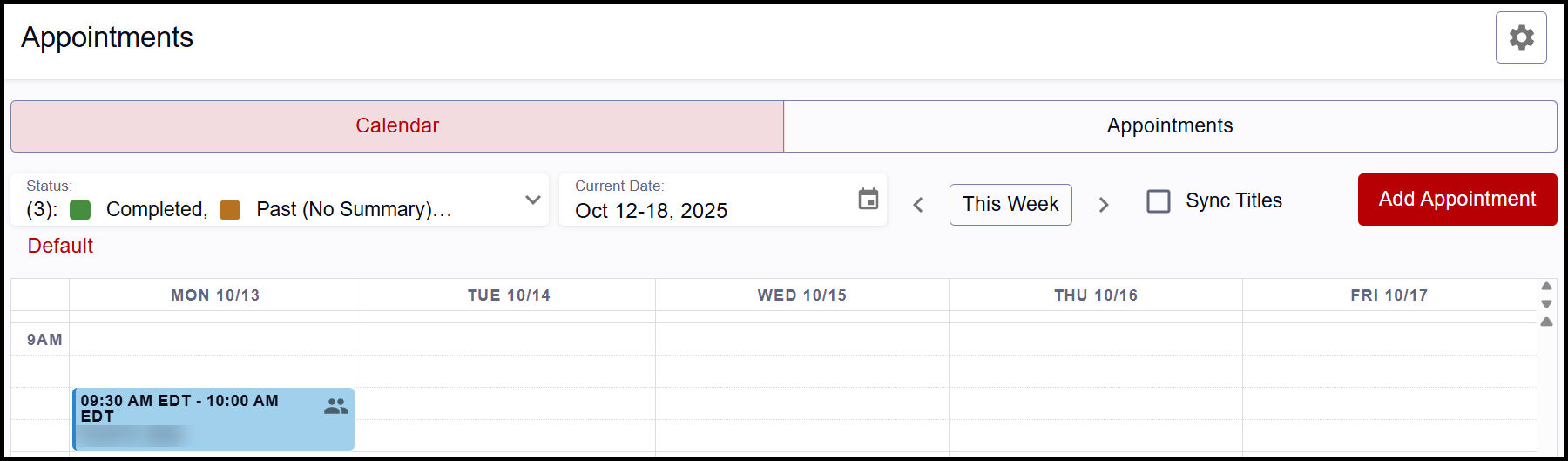
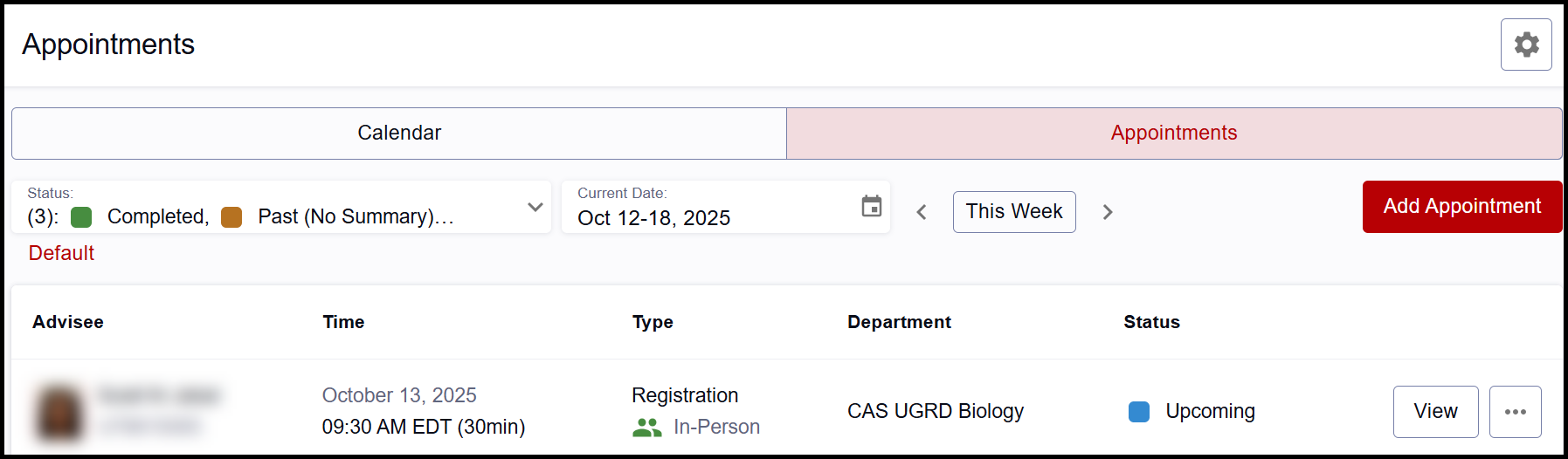
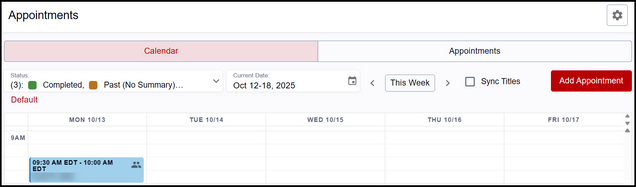
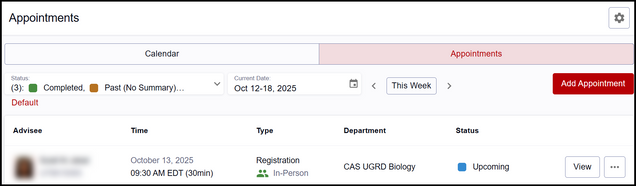
The Calendar tab of the Appointments page will display any existing meetings. To view in a list format, click the Appointments tab.
-
Both layouts provide options to change the display dates, filter by appointment status, and Add Appointments. For details on viewing or modifying existing appointments, statuses, and other page elements, refer to the Manage Appointments resource.
- Sync Titles: On the Calendar tab view, enable this checkbox to sync the meeting titles from the advisor’s Outlook calendar. Toggling this on will display meeting names in the MyBU Student appointment calendar as they are in Outlook. This allows advisors to view calendar details that can help them understand where student appointments fit into their day.
Calendar Tab:
Appointments Tab:
To set up a new appointment:
- Click the Add Appointments button at the top right in either tab. A new appointment can also be created from the Calendar tab by clicking into any un-reserved time block.
- The Appointment options page displays.
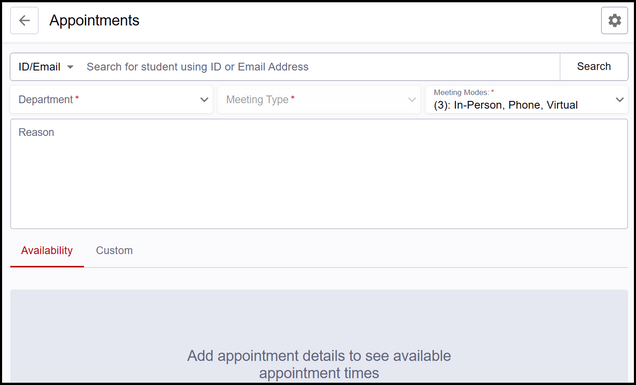
- Search for the student using their ID, Email, or Name.
- To search by name, click the ID/Email dropdown field and select Name.
- Hit enter or the Search button.
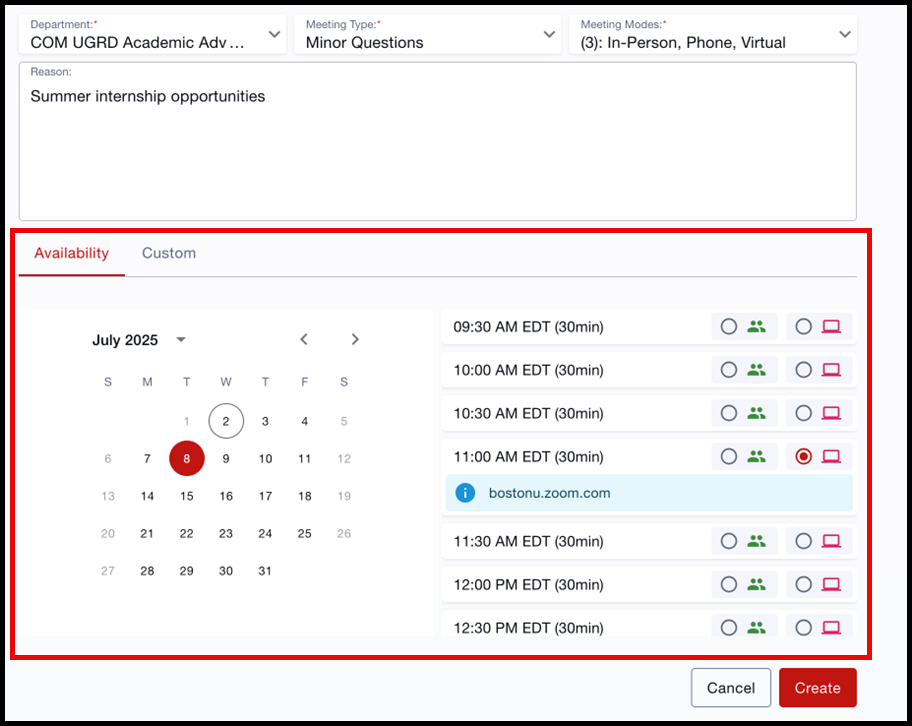
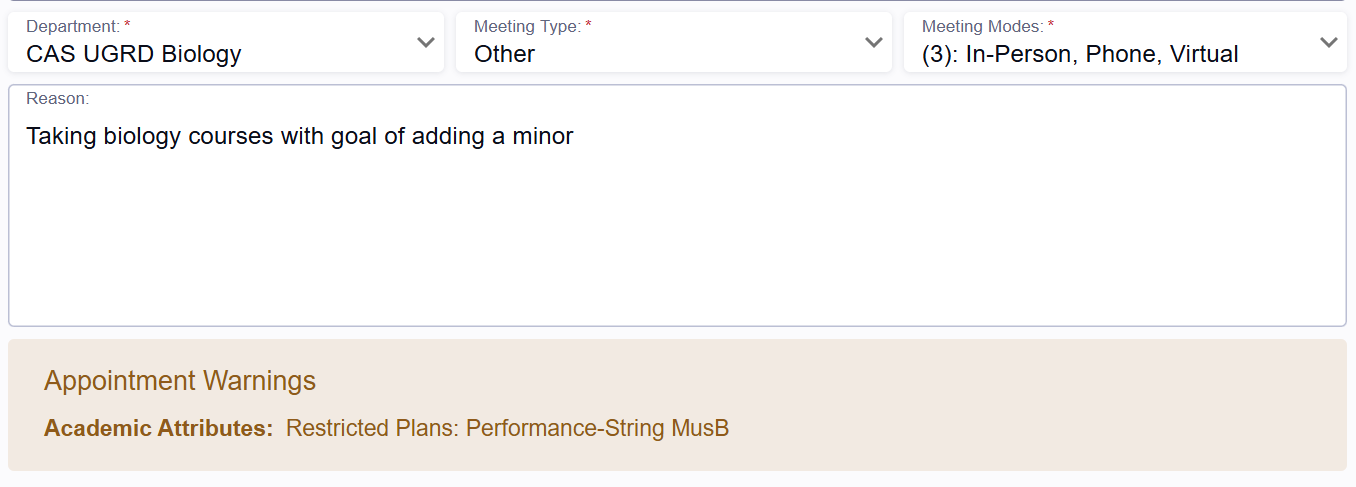
- Enter the appropriate meeting details:
- Department: all departments associated with the Advisor will display in this dropdown field; choose the needed value. Refer to the Department Settings section below regarding department setup for advisors and students and possible warnings.
- Meeting Type: types will display that the department has configured for advisors to select from; choose the needed value.
- Meeting Modes: modes will display that the department has configured for advisors to select from; choose one or multiple values.
- Reason: enter the reasons for the meeting; students will see this text.
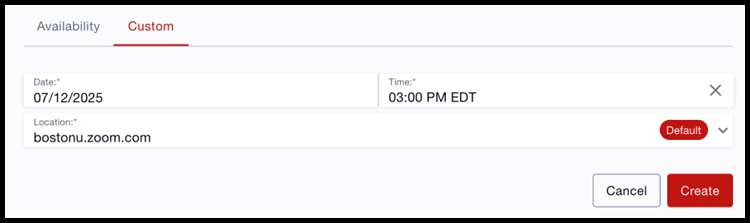
- Identify appointment time using the Availability tab or the Custom tab:
- Availability Tab: the date/time and mode options displayed here are determined by the selected student’s availability within their class schedule, as well as the availability blocks and Outlook calendar sync set up by the Advisor. For information on Advisor availability setup, please refer to the Schedule Setup resource.

- Custom Tab: if a meeting time is needed that falls outside of the pre-defined availability setup, that can be entered here. Available appointment increments are determined by department settings, with options starting at 00, 15, 30, or 45 minutes past the hour.
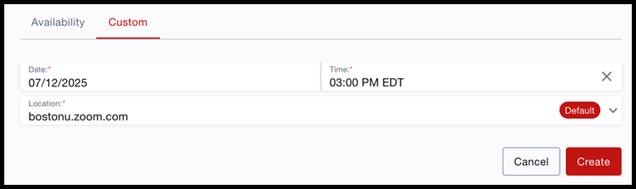
Tip! If you aren’t seeing the option to identify an appointment time, make sure you’ve hit enter or clicked the Search button in the student lookup field.
ⓘ Note: A warning message may appear if the system catches a conflict with the selected time. This alert is for informational purposes only and scheduling can still proceed with the selected time. Possible alerts include:
- “There is an existing appointment at this time.”
- “The student has a class at this time.”
- “The time is outside of the threshold times set by the department.”
- “There is an existing item in the synced calendar at this time.”
- “There is an existing teaching time at this time.”
- Click the Create button when complete.
- A success message will display in the top right corner and the advisor will be returned to the page where the scheduling action originated (the Calendar tab view or the Appointments tab view).
ⓘ Note: For instructions on how to edit, reschedule, cancel, mark no-show, and complete an appointment, refer to the Manage Appointments resource.
Schedule Appointment via Student Details Page
Navigation: Advisor > Advisee & Student Lookup
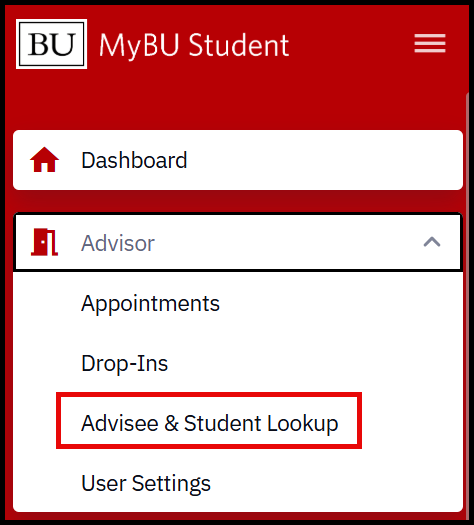
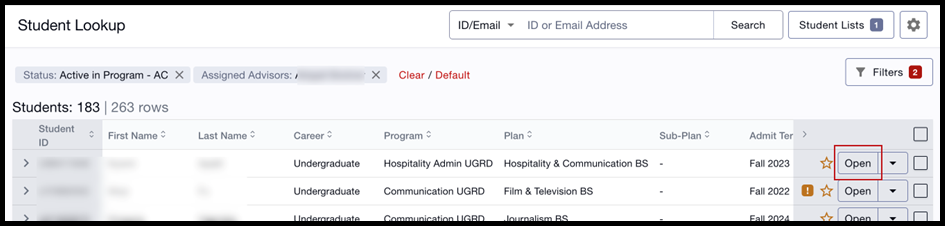
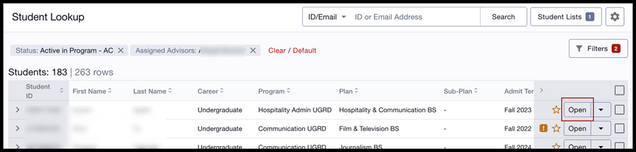
- When the list of students displays, click the Open button on the student to launch their Student Details page.
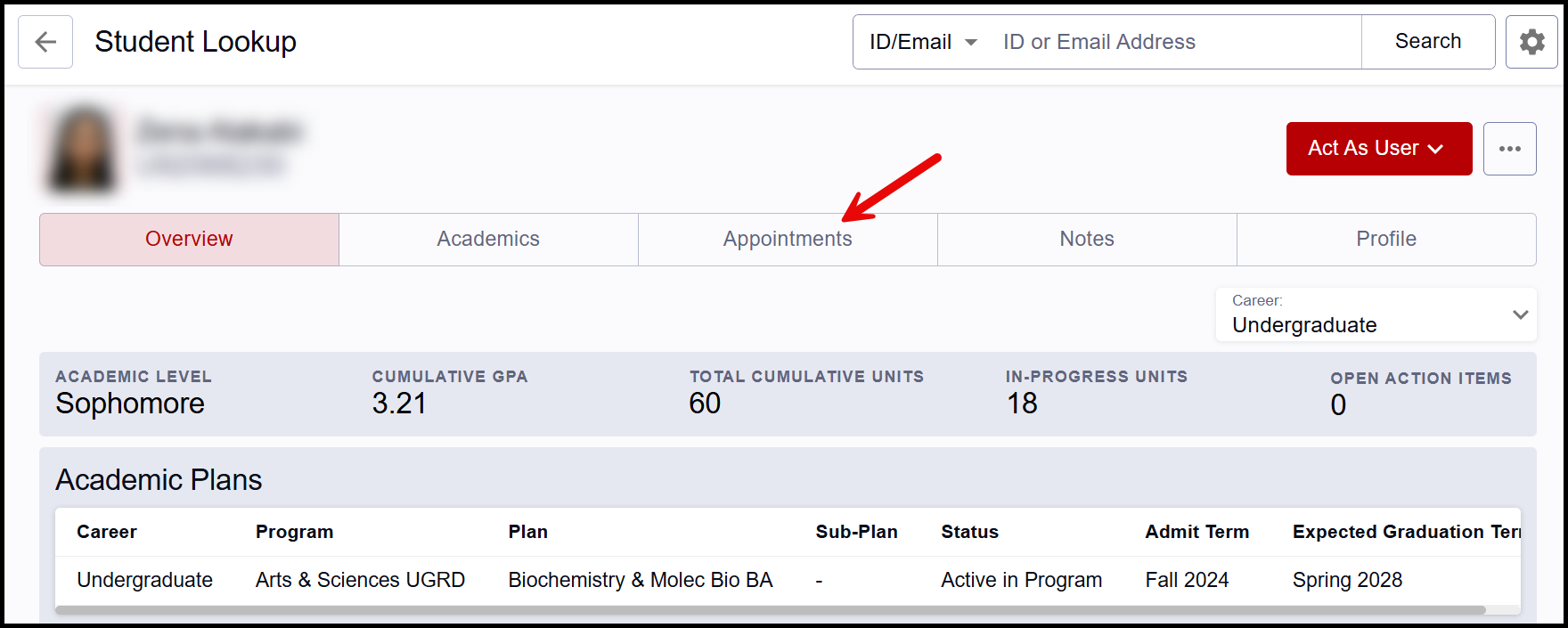
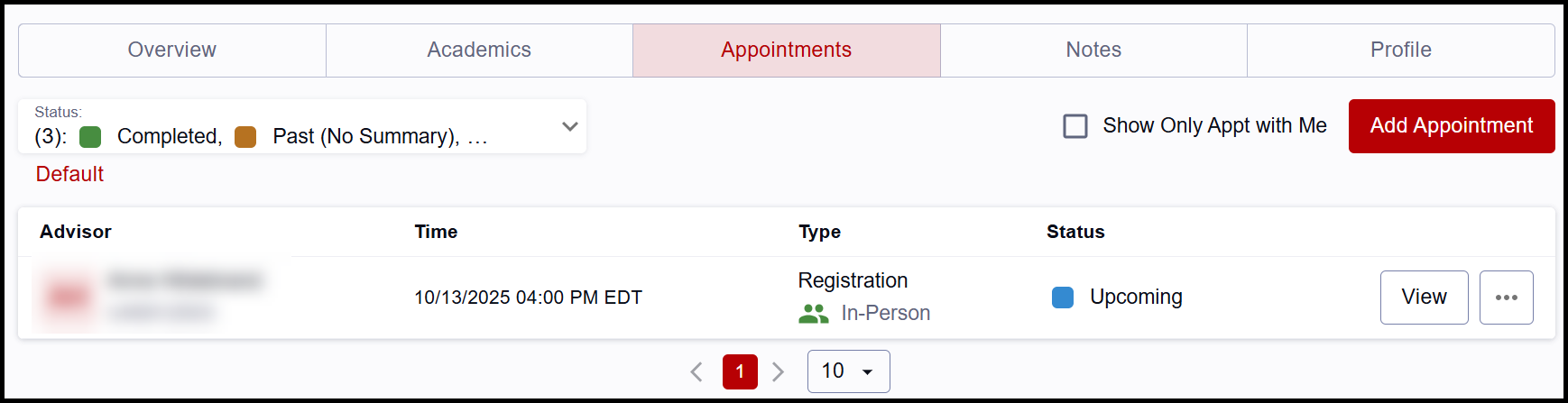
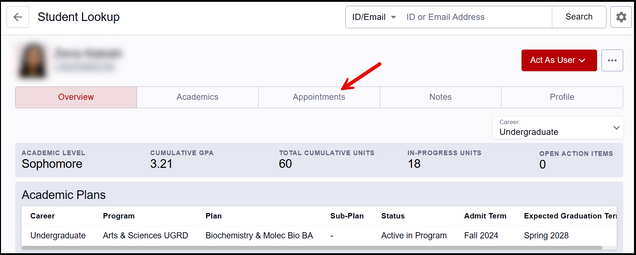
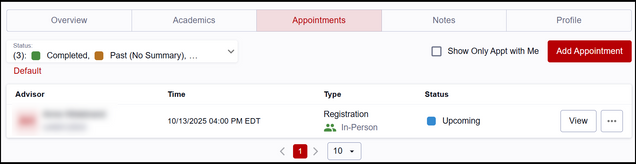
- In the Student Details, navigate to the Appointments tab.
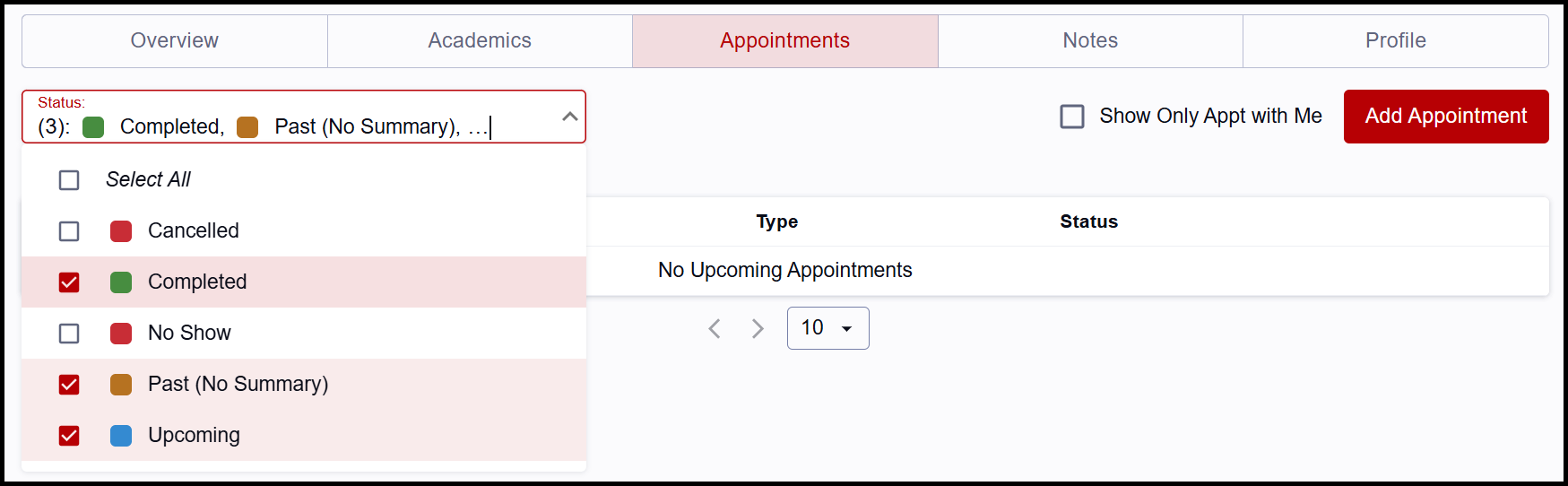
If existing appointments are scheduled, they would be listed here.
- Select the Show Only Appt with Me checkbox to filter out appointments with others.
If no upcoming appointments exist for this student, the list will be blank.
- Cancelled and No-Show appointments will not display by default. To view those, select as needed from the Status dropdown menu.
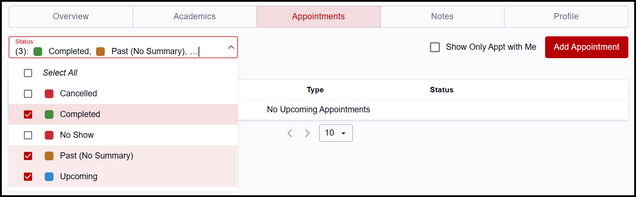
- To set up a new appointment, click the Add Appointment button.
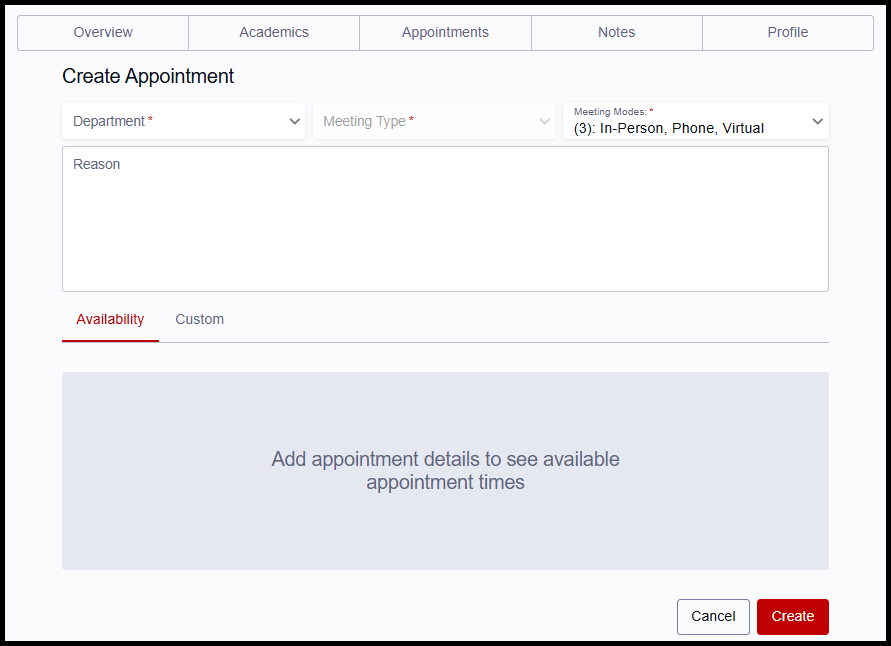
The Create Appointment page displays; the booking options here are the same as the options available when scheduling via the Appointments page.
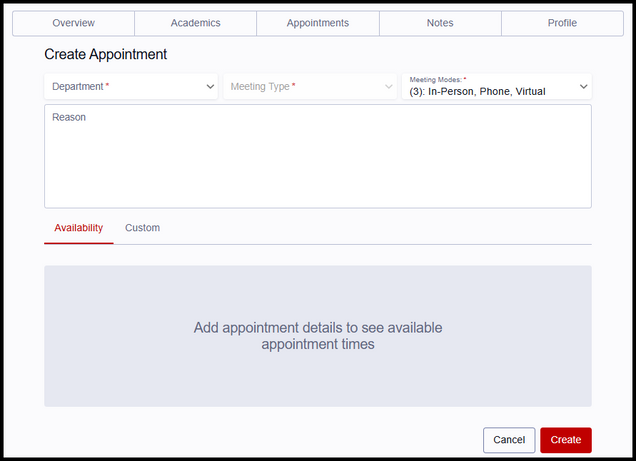
- Enter the appropriate meeting details:
- Department: all departments associated with the Advisor will display in this dropdown field; choose the needed value. Refer to the Department Settings section below for a note on department setup for advisors and students and possible warnings.
- Meeting Type: types will display that the department has configured for advisors to select from; choose the needed value.
- Meeting Modes: modes will display that the department has configured for advisors to select from; choose one or multiple values.
- Reason: enter the reasons for the meeting; students will see this text.
- Identify appointment time using the Availability tab or the Custom tab:
- Availability Tab: the date/time and mode options displayed here are determined by the selected student’s availability within their class schedule, as well as the availability blocks and Outlook calendar sync set up by the Advisor. For information on Advisor availability setup, please refer to the Schedule Setup resource.
- Custom Tab: if a meeting time is needed that falls outside of the pre-defined availability setup, that can be entered here. Available appointment increments are determined by department settings, with options starting at 00, 15, 30, or 45 minutes past the hour.
Tip! If you aren’t seeing the option to identify an appointment time, make sure you’ve hit enter or clicked the Search button in the student lookup field.
ⓘ Note: A warning message may appear if the system catches a conflict with the selected time. This alert is for informational purposes only and scheduling can still proceed with the selected time. Possible alerts include:
- “There is an existing appointment at this time.”
- “The student has a class at this time.”
- “The time is outside of the threshold times set by the department.”
- “There is an existing item in the synced calendar at this time.”
- “There is an existing teaching time at this time.”
- Click the Create button when complete.
- The Appointments tab in the Student Details page will display, listing the booked appointment.
ⓘ Note: For instructions on how to edit, reschedule, cancel, mark no-show, and complete an appointment, refer to the Manage Appointments resource.
Department Settings
To utilize appointments in MyBU Student, a department must determine the advisors to be included and complete a series of configuration steps that will define their scheduling options.
The selections made by the department will impact appointments in the following ways:
- Allowed Meeting Modes: departments indicate which modes an appointment can be: In Person, Virtual, Phone.
-
Example: if only In Person and Virtual meeting modes are defined by the department, these options display to the advisor or student to choose when scheduling. Phone would then not be a selectable meeting mode option for the advisor or the student.
- Appointment Types: departments determine the types of appointments that are selectable for advisors or students in the booking process.
- Example: if departments only define ‘Registration’ and ‘Minor Questions’ as allowable types, only those values will display in the Types lookup when scheduling.
- Date range students are allowed to schedule: departments set how many days before an appointment students can schedule and how far into the future they can schedule.
-
Example: if departments indicate that students have to book at least 1 day before an appointment, they would not be allowed to schedule same day appointments. And if departments set 30 days into the future are bookable, students will not be able to select a date further than 30 days.
PLAN RESTRICTIONS & WARNINGS
Departments also define which students can book appointments with advisors in that department. Appointments in a given department can be:
- Open to any student at the University
- Restricted to students of a certain Careers, Programs, or Plans
- Restricted such that students can only schedule with their assigned advisors in the department
Advisors can override department restrictions and schedule an appointment with any student regardless of if they fall under restrictions. An Appointment Warning may appear indicating the attributes impacted, but the advisor can continue scheduling.

Last updated October 2025. To download a PDF copy of this resource, print this webpage as a PDF. Other resource formats can also be accessed via the relevant icons.