Manage Advising Appointments
The information provided here outlines how advisors can view appointment details and manage/modify existing appointments.


Introduction
This resource details how advisors can view and edit existing appointments, including how to change the status of appointments to reschedule, cancel, no-show, or complete them.
PREREQUISITES: In order for advisors to schedule and manage appointments in MyBU Student:
- Advisors must be set up in a department that has configured Advising Appointments in MyBU Student.
- Advisors must define their schedule availability and sync their Outlook calendar. These instructions are available in the Schedule Setup resource.
Only appointments that have been scheduled in MyBU Student can be managed in MyBU Student.
MEETING UPDATES: It is important for an advisor to sync their external Outlook calendar so the appropriate appointment updates can occur. When an appointment is edited, rescheduled, or cancelled by an advisor or by a student, the meeting details will update as applicable in both the advisor’s external Outlook calendar and the student’s external calendar.
⚠︎ Screen options and menus will vary by user; please note that displays may differ for you based on access that has been granted.
All screens shown are for training purposes only.
View Appointments
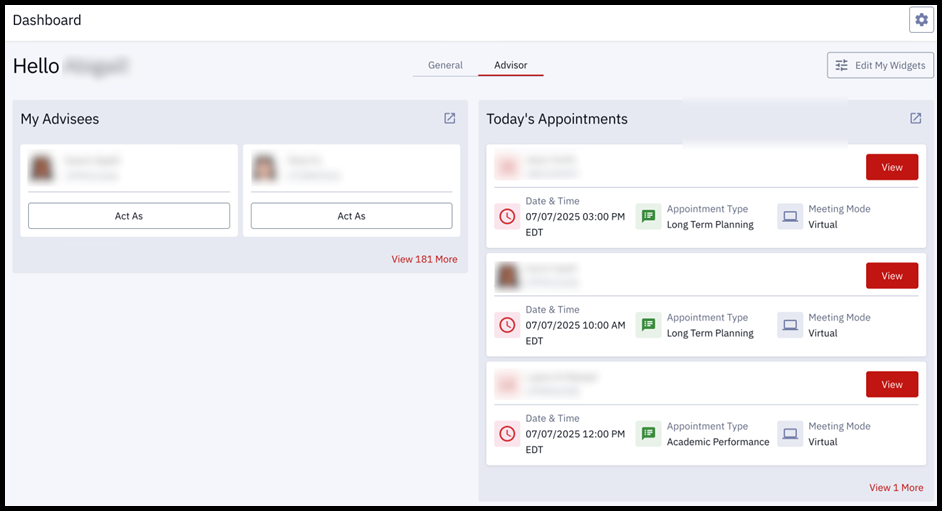
To see a quick view of today’s appointments upon logging in to MyBU Student, toggle to the Advisor tab of the Dashboard. The advisor tab will display the first three meetings of the day. The number of additional meetings will display in the bottom right corner.

 To take further action, click on the top right arrow to open the Appointments page, or click the View button on an individual appointment for those details. Review the following sections for information on associated activities.
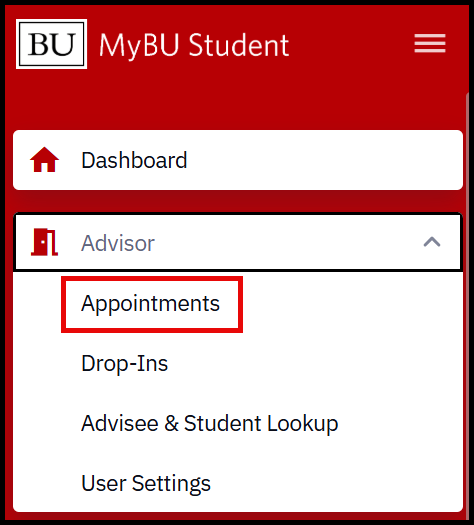
To view all appointments, navigate to the Appointments page. Navigation: Advisor > Appointments
APPOINTMENTS PAGE
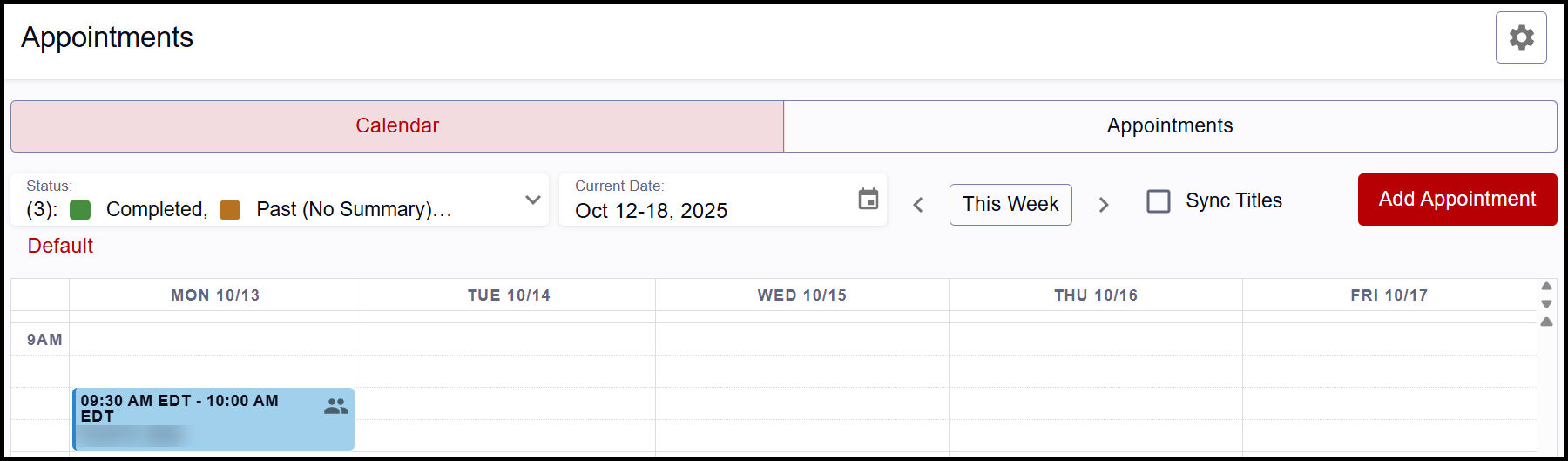
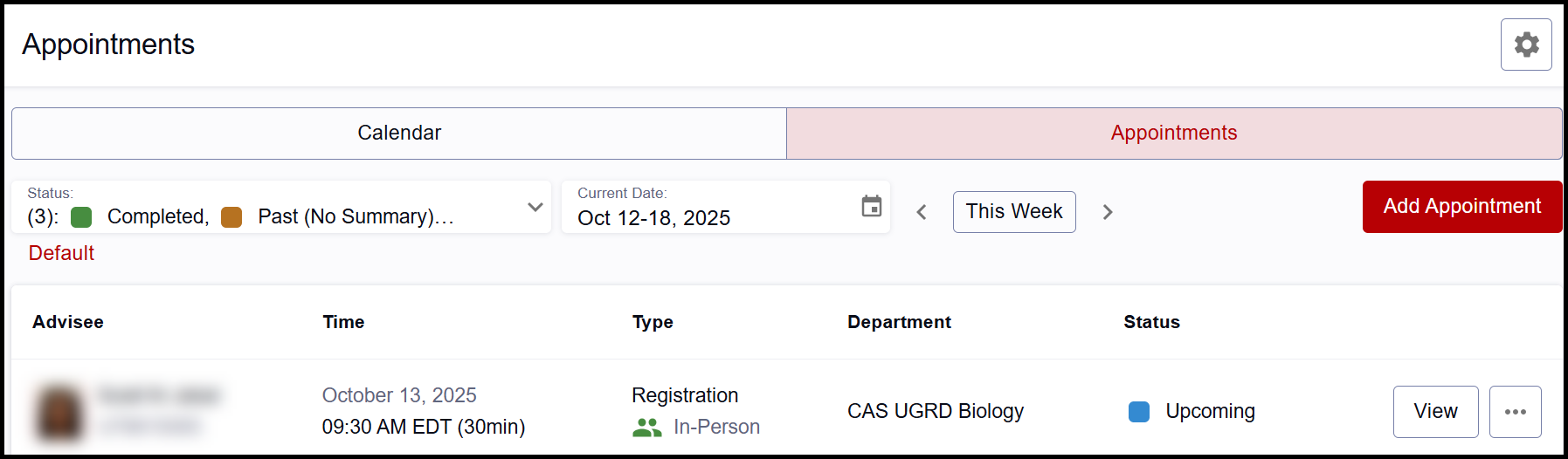
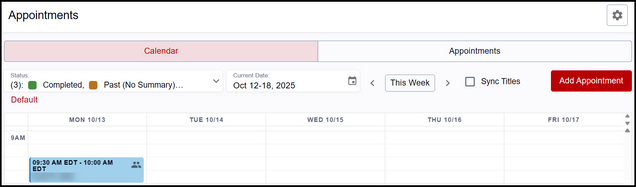
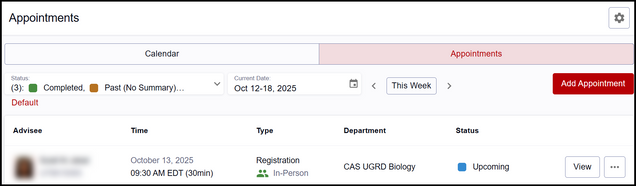
The Calendar tab of the Appointments page displays any existing meetings on a weekly calendar. To view appointments in a list format, click the Appointments tab.
- Both the Calendar tab and the Appointments tab provide options to change the display dates, filter by appointment status, and add appointments.
- Sync Titles: on the Calendar tab view, enable this checkbox to sync the meeting titles from the advisor’s Outlook calendar. Toggling this on will display meeting names in the MyBU Student appointment calendar as they are in Outlook. This allows advisors to view calendar details that can help them understand where student appointments fit into their day.
Calendar Tab view:
Appointments Tab view:
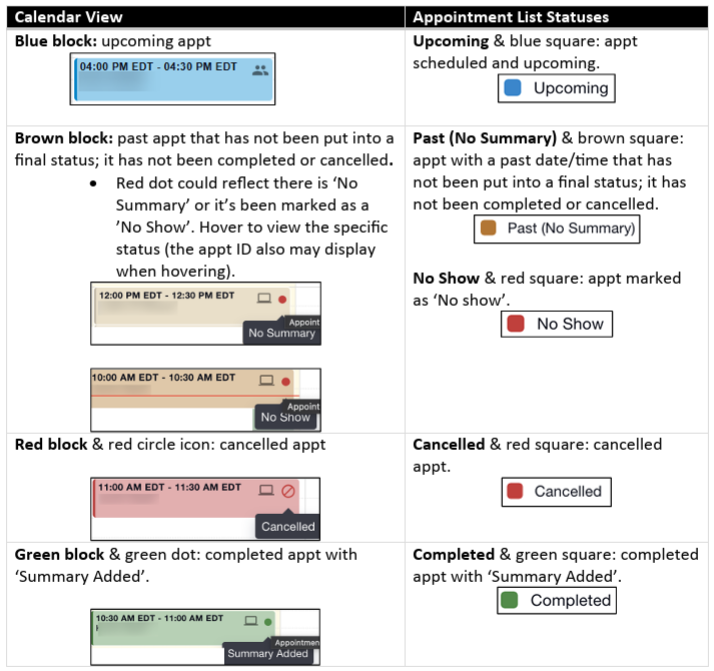
Statuses & Icons:

Appointment Details
To open appointment details,
- From the Calendar tab: click directly on the appointment block;
- From the Appointments tab: click the View button.
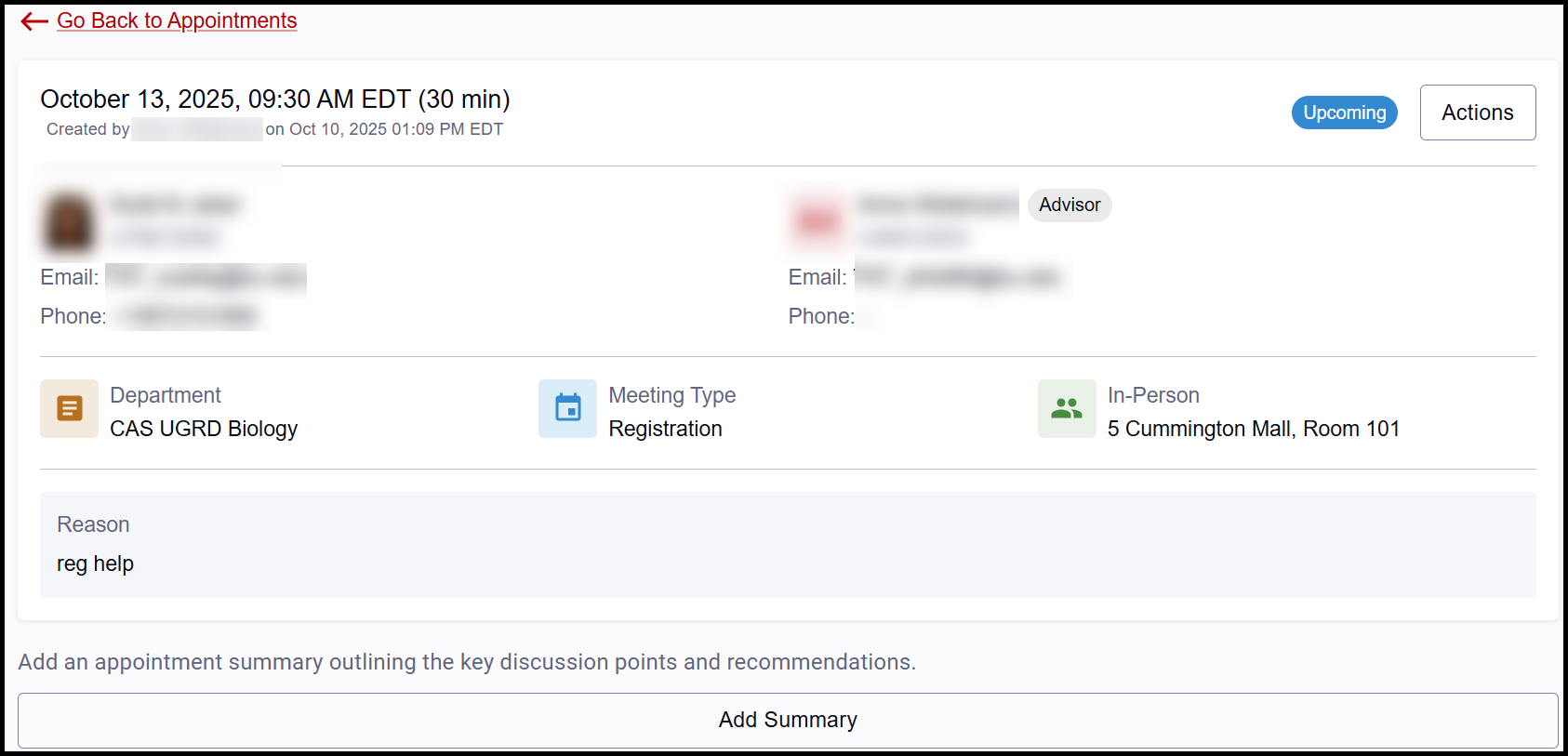
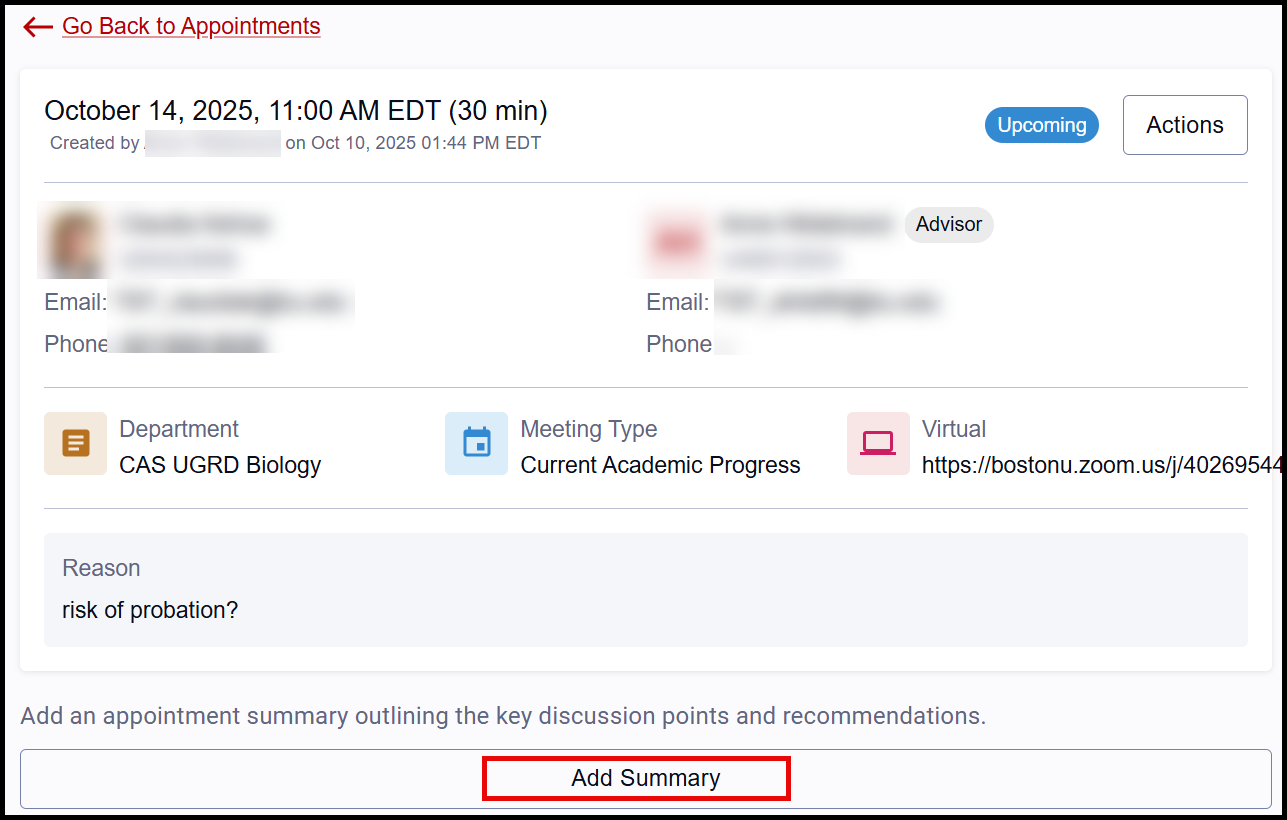
The details of the appointment will display, including:
- Date, time, and scheduled duration
- Who booked the meeting and when
- Student information: picture, name, BUID, email, phone
- TIP! Clicking on the student’s name from this Appointment page will open the Student Details page.
- Advisor Information: name, advisor type, UID, email, and phone if available
- Advisor’s Department
- Meeting Type
- Meeting Mode: virtual, in person, or phone, with Link or Location
- Meeting Reason
Upcoming and past appointments will also include an option to add an appointment summary. (Refer to the Add Summary section of this resource for more information.) Completed appointments will display the completed summary, while cancelled and no-show appointments will display the cancellation/no-show reason.

Edit/Reschedule
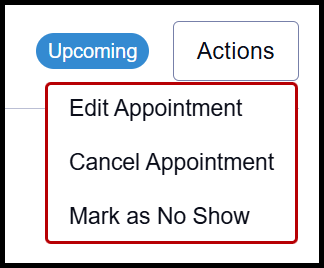
For appointment edit options, click the Actions button from the Appointment details page.
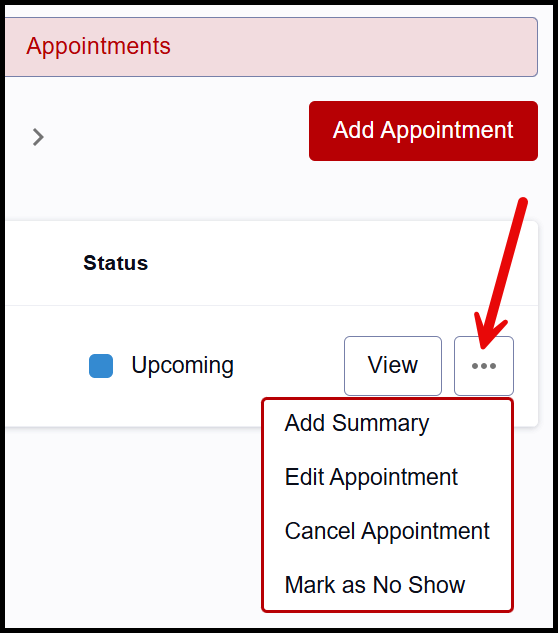
- These actions are also available from the 3 dots menu on the Appointments tab list view of the initial Appointments page.
- Advisors can apply these actions to both upcoming and past appointments.
Appointment Detail:
 |
Appointment Tab List:
 |
Advisors can edit meeting type, meeting mode, location, reason, and date/time of appointments in any status, including upcoming, past, completed, cancelled, and no-show.
ⓘ Note: Students can also edit their own upcoming appointments within the limitations set up by the department. (A common restriction is not allowing students to cancel or reschedule less than 24 hours before the appointment is scheduled to begin.)
- To edit or reschedule, click Edit Appointment.
- If editing Meeting Reason only, enter the changes into the Reason text field. Otherwise, toggle the Reschedule Appointment switch to further modify.
- Make changes as needed to the available components:
- Meeting Type: types will display that the department has configured for advisors to select from; choose the needed value.
- Meeting Modes: the modes available for the department selected will display; choose one or multiple values.
- Meeting Reason
- Meeting Date/Time can be modified using either of the following:
- Availability Tab: the date/time and mode options displayed here are determined by the selected student’s availability within their class schedule, as well as the availability blocks and Outlook calendar sync set up by the Advisor.
- Custom Tab: if a meeting time is needed that falls outside of the pre-defined availability setup, that can be entered here. Available appointment increments are determined by department settings, with options starting at 00, 15, 30, or 45 minutes past the hour.

TIP! The Custom tab may be helpful if rescheduling for a time that has already occurred. This past appointment would then appear with the label of ‘No Summary’. Refer to the Add Summary section of this resource for steps on completing the appointment.
ⓘ Note: When using the Custom tab to reschedule an appointment, a warning message may appear if the system catches a conflict with the selected time. This alert is for informational purposes only and scheduling can still proceed with the selected time. Possible alerts include:
- “There is an existing appointment at this time.”
- “The student has a class at this time.”
- “The time is outside of the threshold times set by the department.”
- “There is an existing item in the synced calendar at this time.”
- “There is an existing teaching time at this time.”
Also, note that advisors cannot reassign the appointment to a different advisor. The Advisor assignment will display on the Edit screen, but the selection can’t be modified.
- To save the edited selections, scroll down and click the Edit button.
- A success message will display in the top right corner and the advisor will be returned to the page where the edit action originated (the Appointments tab view or the individual Appointment details page).
Cancel/No-Show
Advisors can cancel appointments, including past (no summary) appointments and those marked as no-show. Students can also cancel their own appointments, but are limited to canceling future appointments only.
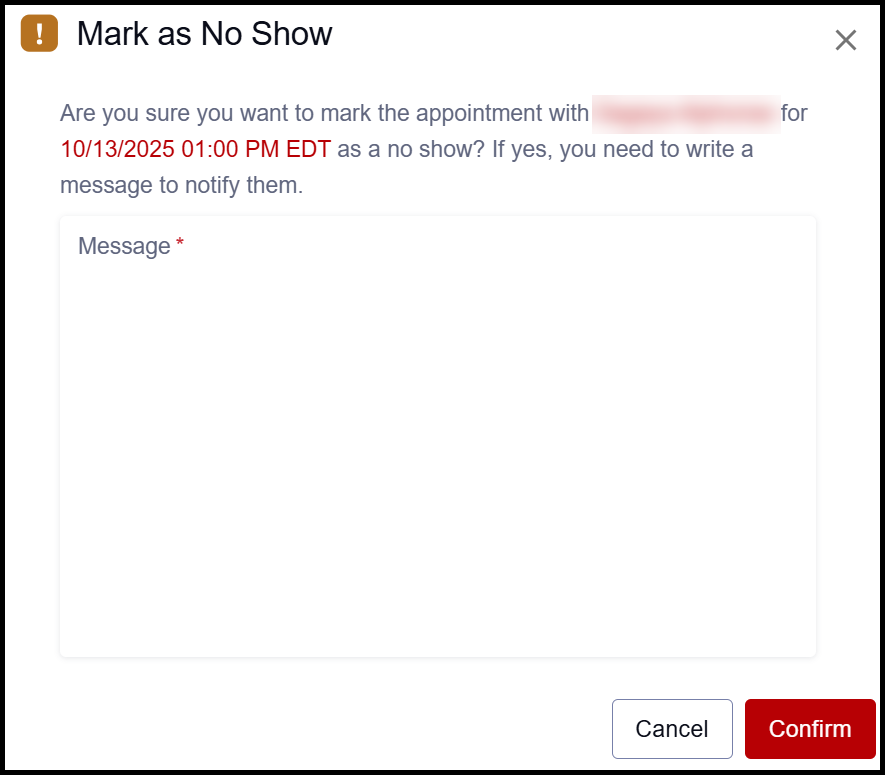
When a student does not show up for a scheduled appointment, the advisor can mark it as a no-show. Advisors can mark past, standing, or canceled appointments as no-shows.
- Click the relevant Cancel or No Show option.
- A confirmation window will display. Enter message text describing the reason for the cancellation or no-show. The message written here will display in the record of the appointment, which is visible to the student.
- Click Confirm.

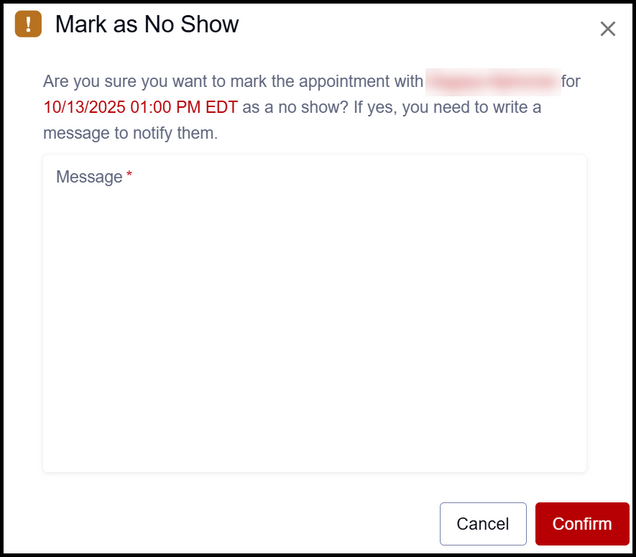
- A success message will display in the top right corner and the advisor will be returned to the page where the action originated (the Appointments tab list view or the individual Appointment details page).
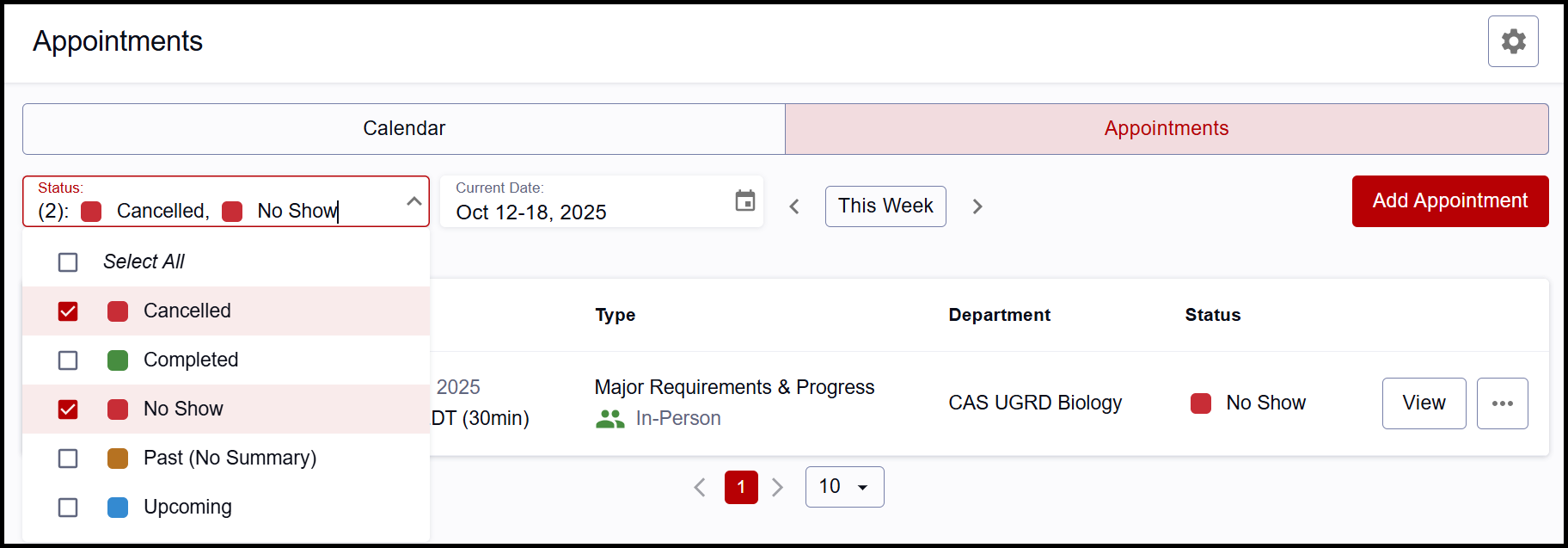
Appointments tab list view: cancelled and no-show appointments will not display in this list unless ‘Cancelled’ and/or ‘No Show’ are selected in the Status dropdown.
- The Status will be in red, labeled ‘Cancelled’ or ‘No Show’.
- The View button is still available to see additional details, and the 3 dots menu can still be used to edit the appointment if needed.

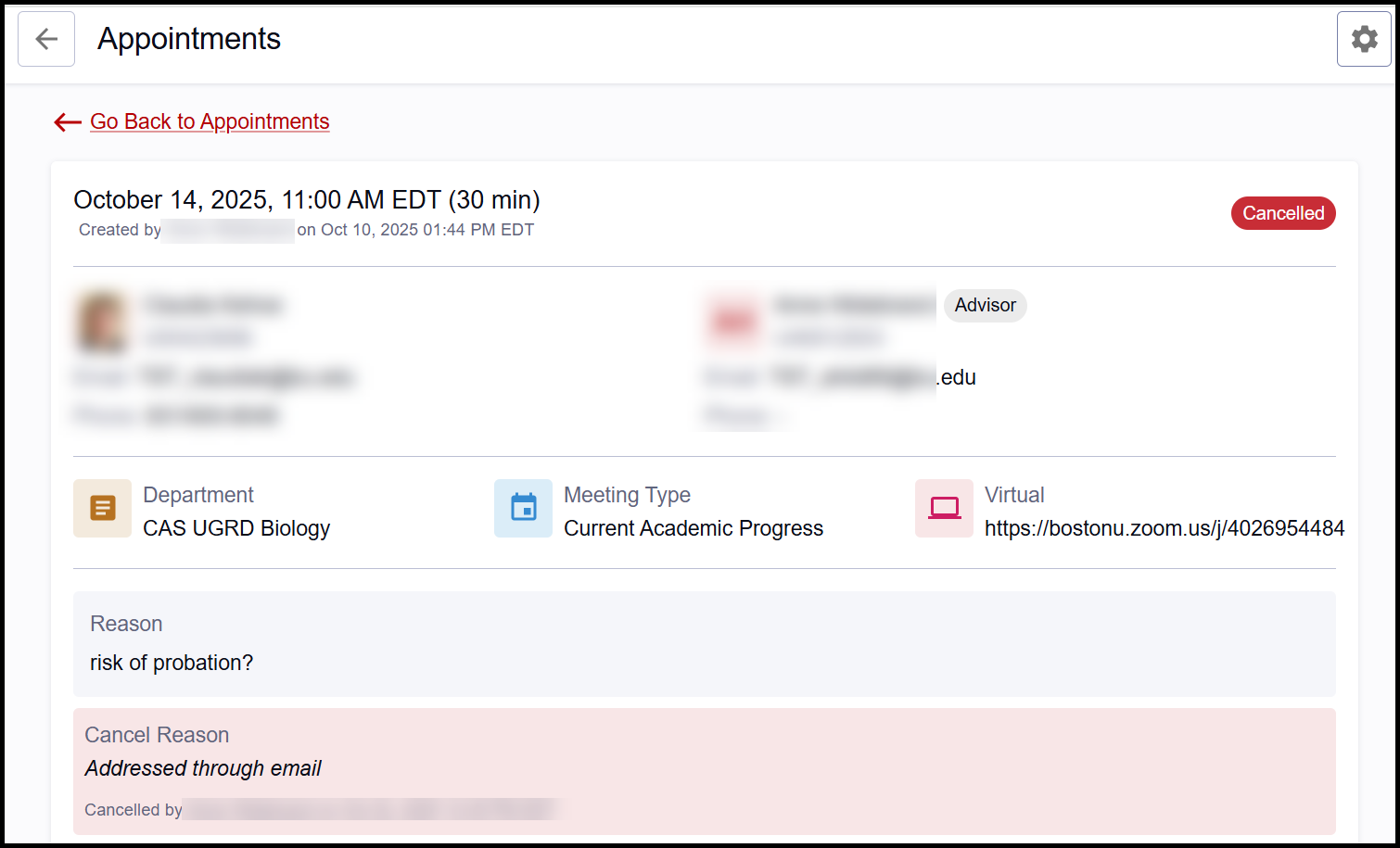
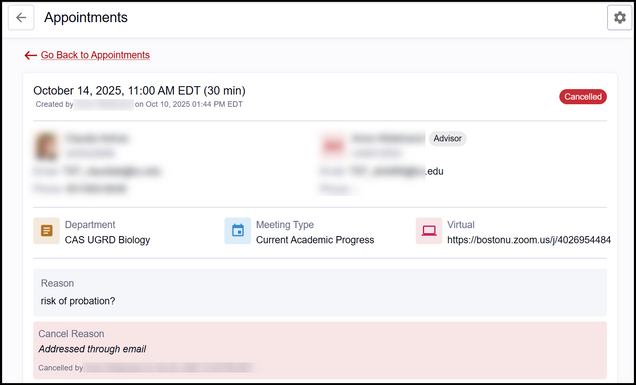
Appointment details page: the ‘Cancelled’ or ‘No Show’ status will display.
- The reason text will also be added to the bottom of the meeting details with who cancelled/marked no-show, and when. This text is visible to the student.
Add Summary (Complete Appointment)
After meeting with the student, add a summary to the appointment. This changes the status to ‘Completed’.
Once completed:
- The date and time of the meeting cannot be changed.
- The summary can continue to be edited.
- Students can view the summary.
Summaries can also be added to an upcoming appointment if needed. This will still change the status to ‘Completed.’
ⓘ Note: Summaries will display for students in their appointment information.
To complete an appointment:
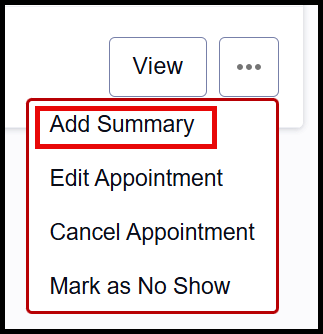
- A summary can be added from the bottom of the Appointment details page or from the 3 dots menu on the Appointments tab list view.
Appointment Detail:
 |
Appointment Tab List:
 |
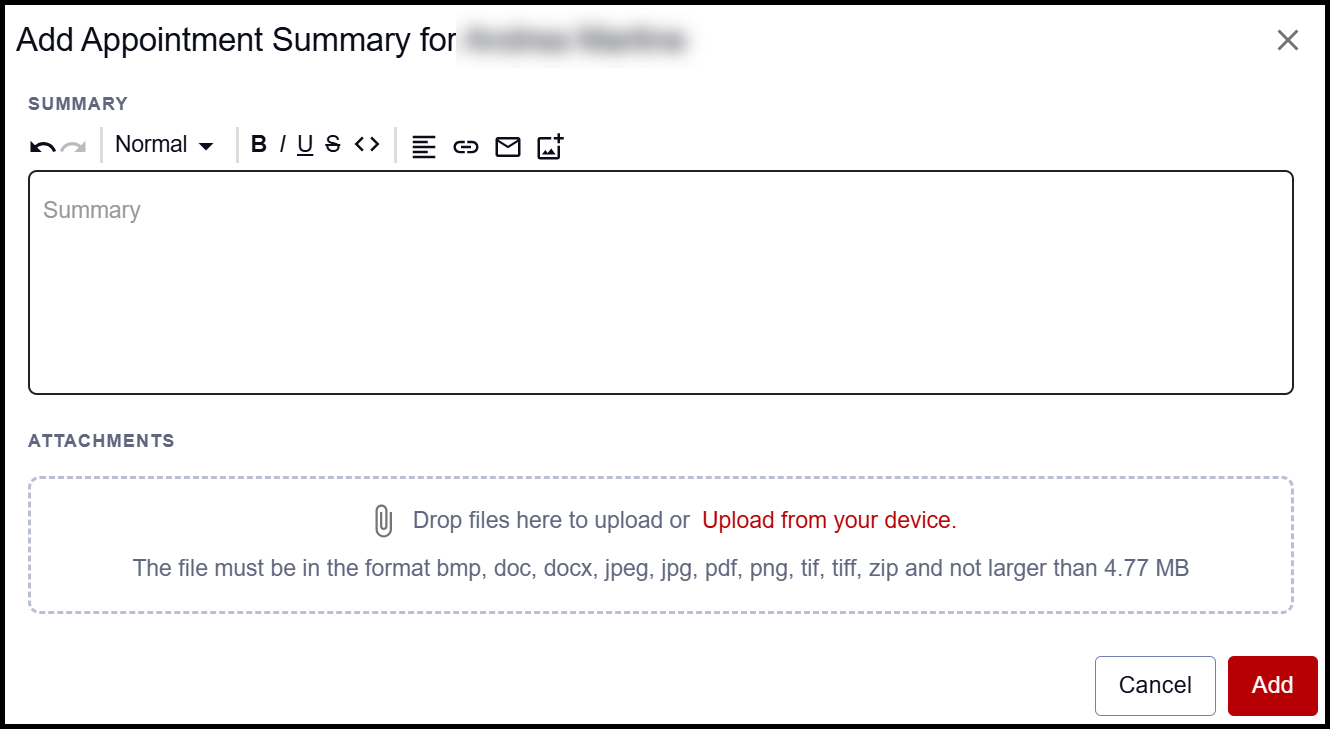
- Enter the summary text, attaching a file if needed. This input will auto-save as a draft if the advisor navigates away or cancels before adding.
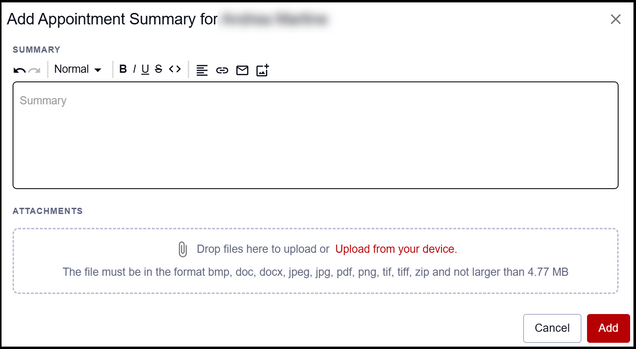
TIP! The appointment summary is a great place to put a link to a post-appointment survey, an attachment or link to a course plan, or the next steps the student should take.
- Click Add.
- The status will change to ‘Completed’ and Summary Text will display in the Appointment details page.

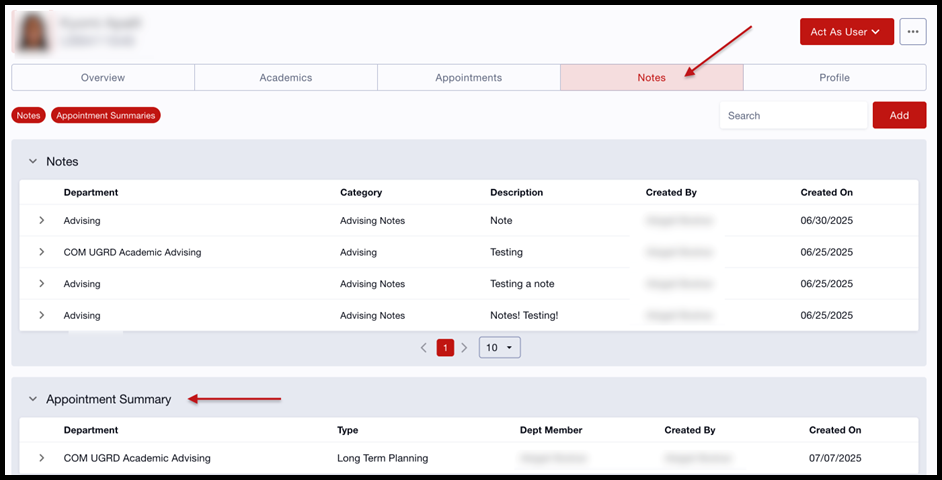
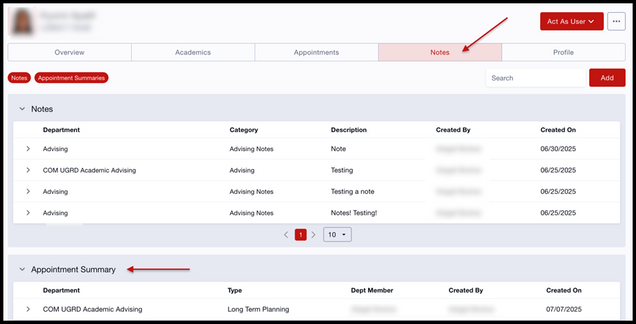
Summaries can be viewed or edited by returning to this details page, or by viewing the Notes tab in the Student Details page.
To modify the summary, click the pencil icon in the Summary field on the Appointment details page. Or, select the Edit Summary option from the 3 dots menu on the Appointments tab list.
This page was last updated October 2025. To download a PDF copy of this resource, print this webpage as a PDF. Other resource formats can also be accessed via the relevant icons below.