Managing Financial Aid Comments
Comments can be added to student financial aid records in several locations within MyBU Student. This information describes the process of adding, viewing, and appending FA comments.


Introduction
The comment function allows authorized employees to enter notes regarding any part of the process involved in developing a student’s financial aid package. In addition to the comment itself, the system records who added the note, when the note was added, and the note category. Comments are coded onto student records but are not visible to students in their own MyBU Student interfaces. Most staff do not delete comments; however, comments can be appended.
ⓘ NOTE: This resource includes information related to Federal Financial Aid policies which are liable to change. Staff maintaining this documentation will update terminology, links, or processes in accordance with new information as it becomes available in conjunction with Student Information System updates. The information here identifies salient details regarding the usage of MyBU Student and is designed to be used in conjunction with Financial Aid Procedures and Processes.
⚠︎ Screen options and menus will vary by user; please note that displays may differ for you based on access that has been granted. All screens shown are for training purposes only.
FA Pages with Comment Function
Financial Aid comments can be added in multiple places throughout MyBU Student:
- View Financial Aid Status
- Assign Awards to a Student
- Maintain Term Budgets
- Person Comment Entry
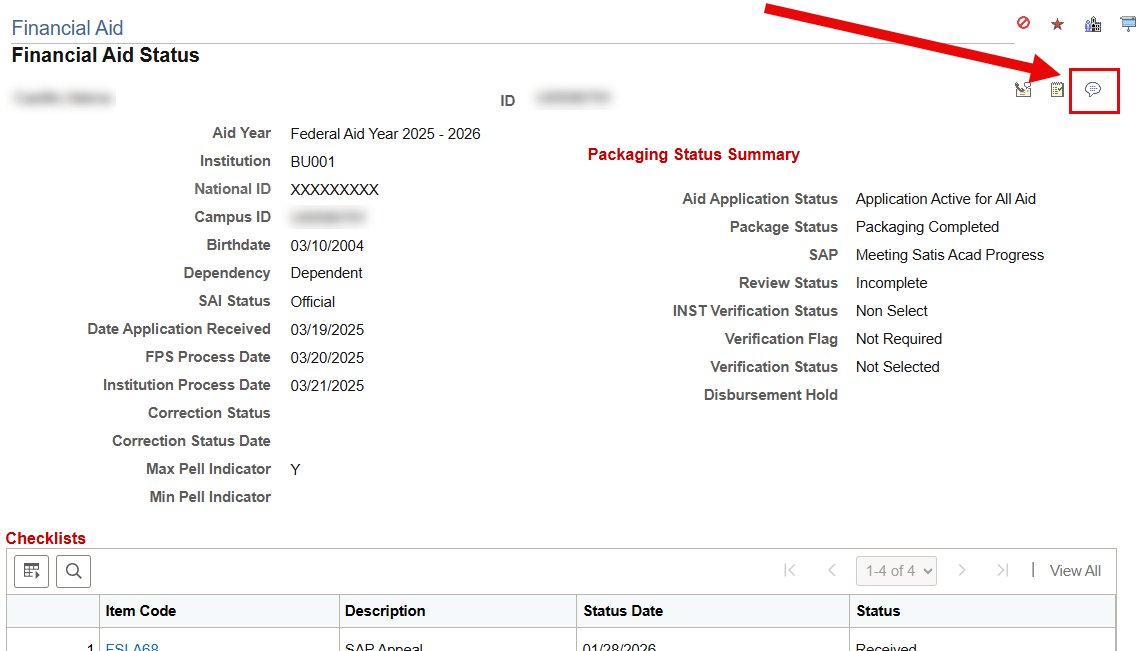
Note the location of the Comment icon on each of these pages.
View Financial Status page
Navigation (Full Site): Menu > Financial Aid > View Financial Aid Status

Assign Awards to a Student
Navigation (Full Site): Menu > Financial Aid > Awards > Award Processing > Assign Awards to a Student

Maintain Term Budgets
Navigation (Full Site): Menu > Financial Aid > Budgets > Maintain Term Budgets

Person Comment Entry
Navigation (Full Site): Menu > Campus Community > Comments > Comments-Person > Person Comment Entry
The Person Comment Entry page directly launches the screen where a comment can be entered. It does not require clicking on the comment icon embedded within another page, as seen in the previous examples.
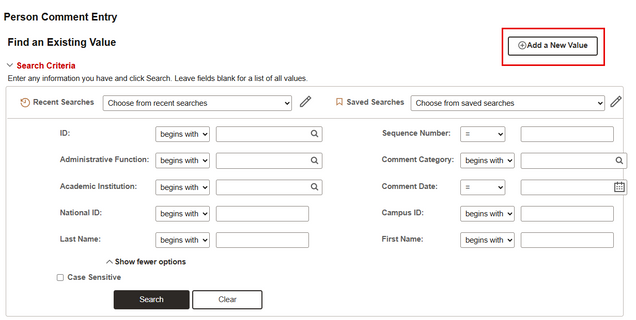
From the search screen, use the Add a New Value button to add a new comment to a student’s record. The Find an Existing Value search can be used to pull up existing comments on the student’s record.
Add a Comment
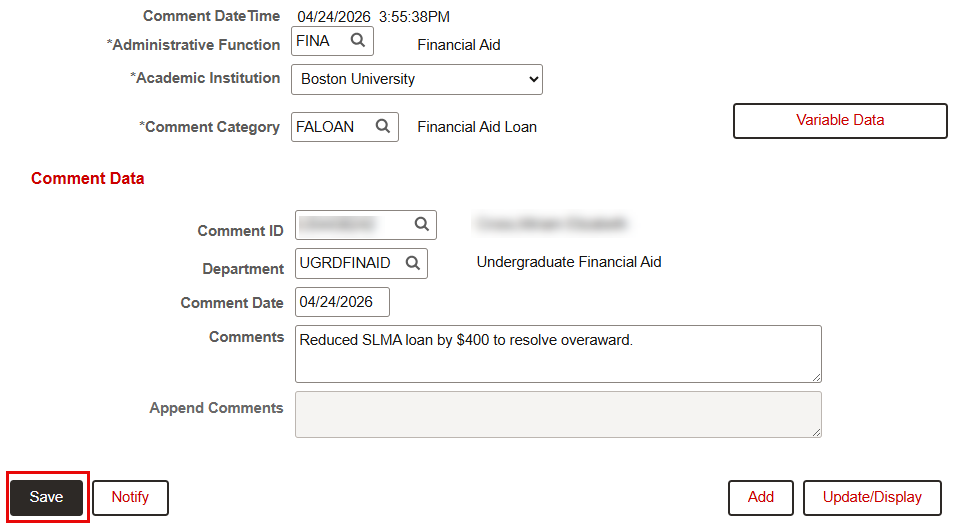
- After clicking the Comment icon on a Financial Aid page, the Person Comment Entry screen will display.
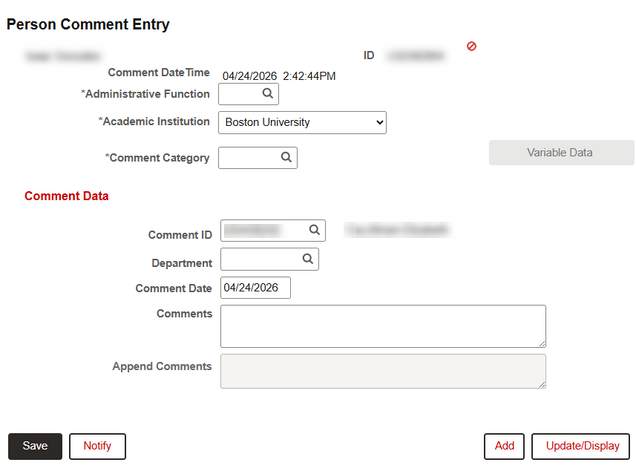
- The date and time at which the page was opened will be recorded for the comment.
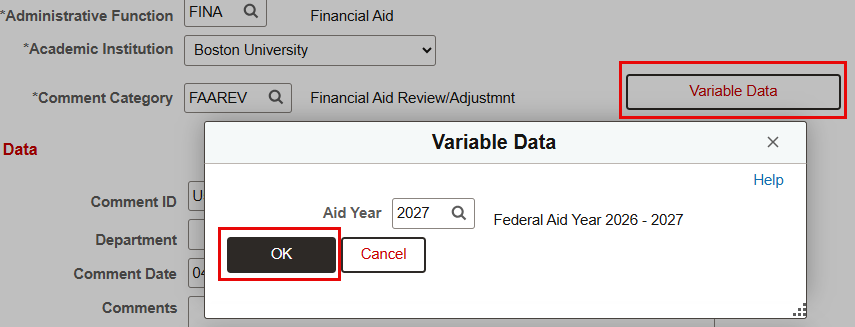
- Administrative Function: Enter ‘FINA’ for Financial Aid.
- Academic Institution: ‘Boston University’ should already be the default selection.
- Comment Category: The Category values available will be dependent on the Administrative Function selected.
- TIP! Click the magnifying glass to look up and select from the Comment Categories associated with the Financial Aid function.
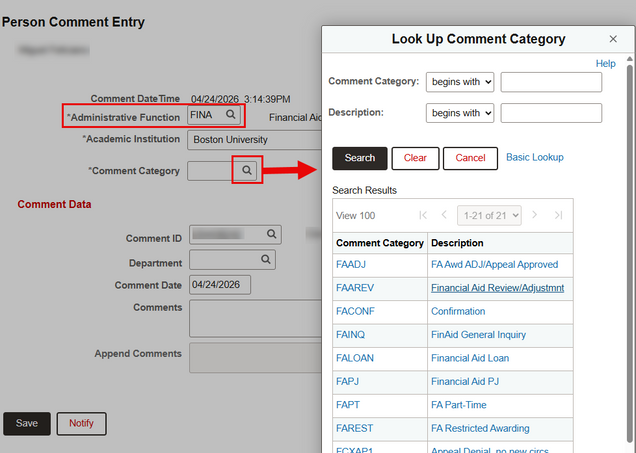
ⓘ NOTE: The Comment Categories configured for Financial Aid are subject to change. Be sure to adhere to any departmental procedures when selecting a Comment Category.
- Select Variable Data to enter the Aid Year. This is required. Click OK to input it into the form.
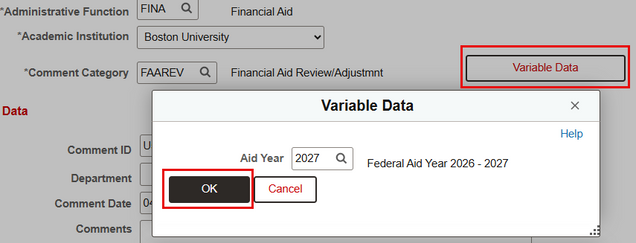
- The user’s Comment ID and Department may auto-populate. These selections can be changed if needed (e.g., if someone else is responsible for this comment).
- Comment Date: This will auto-populate, but can be overridden if needed for record-keeping purposes. The auto-generated date and time captured when the comment was first opened will remain unchanged.
- Enter the comment text, adhering to any departmental procedures regarding format and content.
- TIP! If the comment is lengthy, it may be helpful to expand the text box by clicking and dragging its bottom-right corner.
- Click Save.

Once the comment has been Saved, another comment can be added if needed by clicking the Add button. Be sure to have the student’s UID handy as it may need to be re-entered when adding another comment.
View Comments
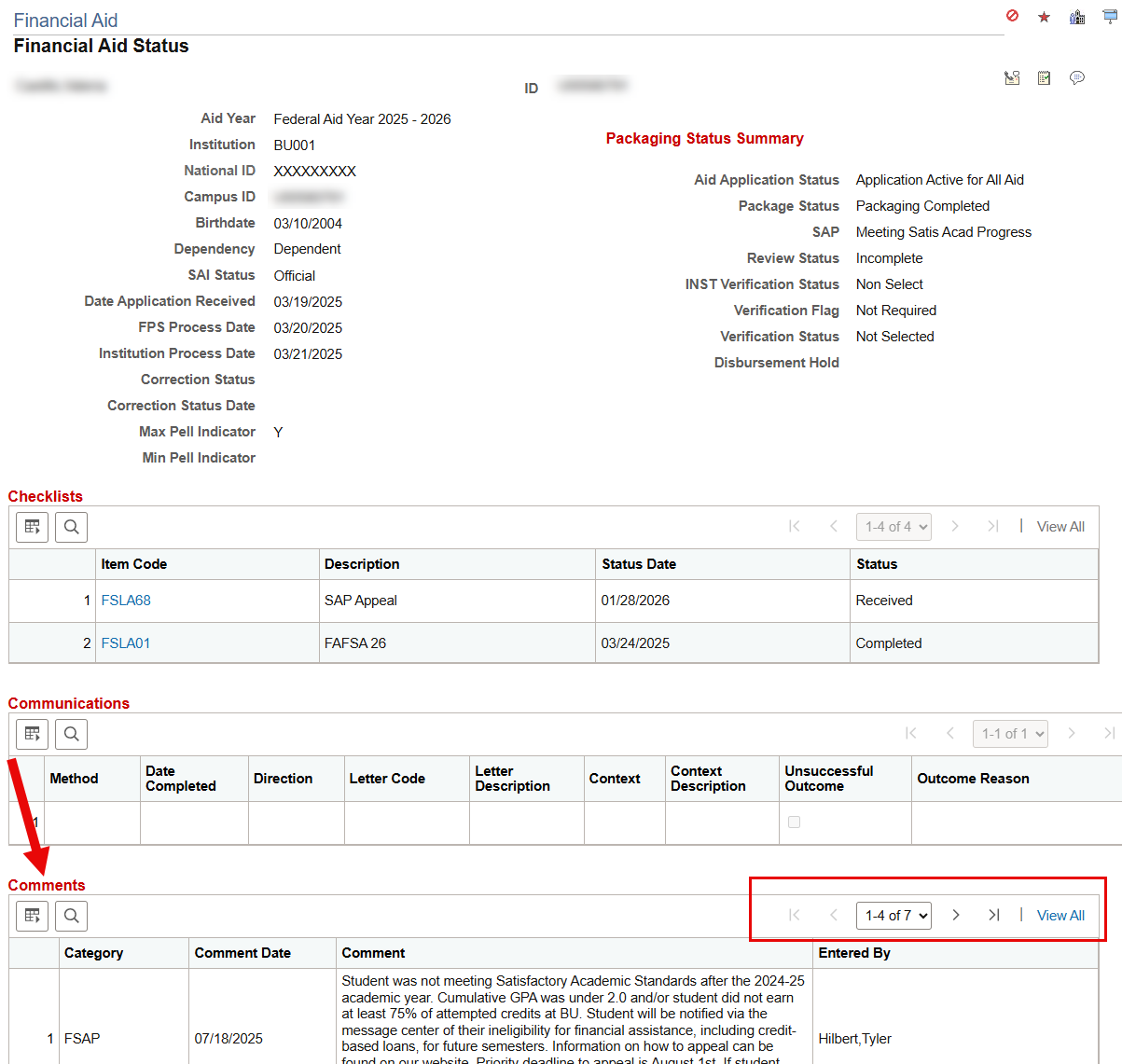
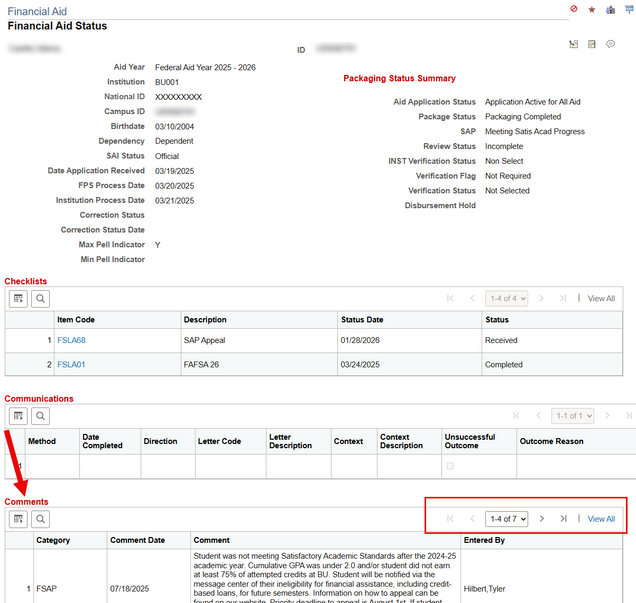
To view existing comments on a student’s financial aid record, search for the student on the Person Comment Entry page or use the Comments section of the View Financial Aid Status page.
View Financial Aid Status page example:
Person Comment Entry page example:
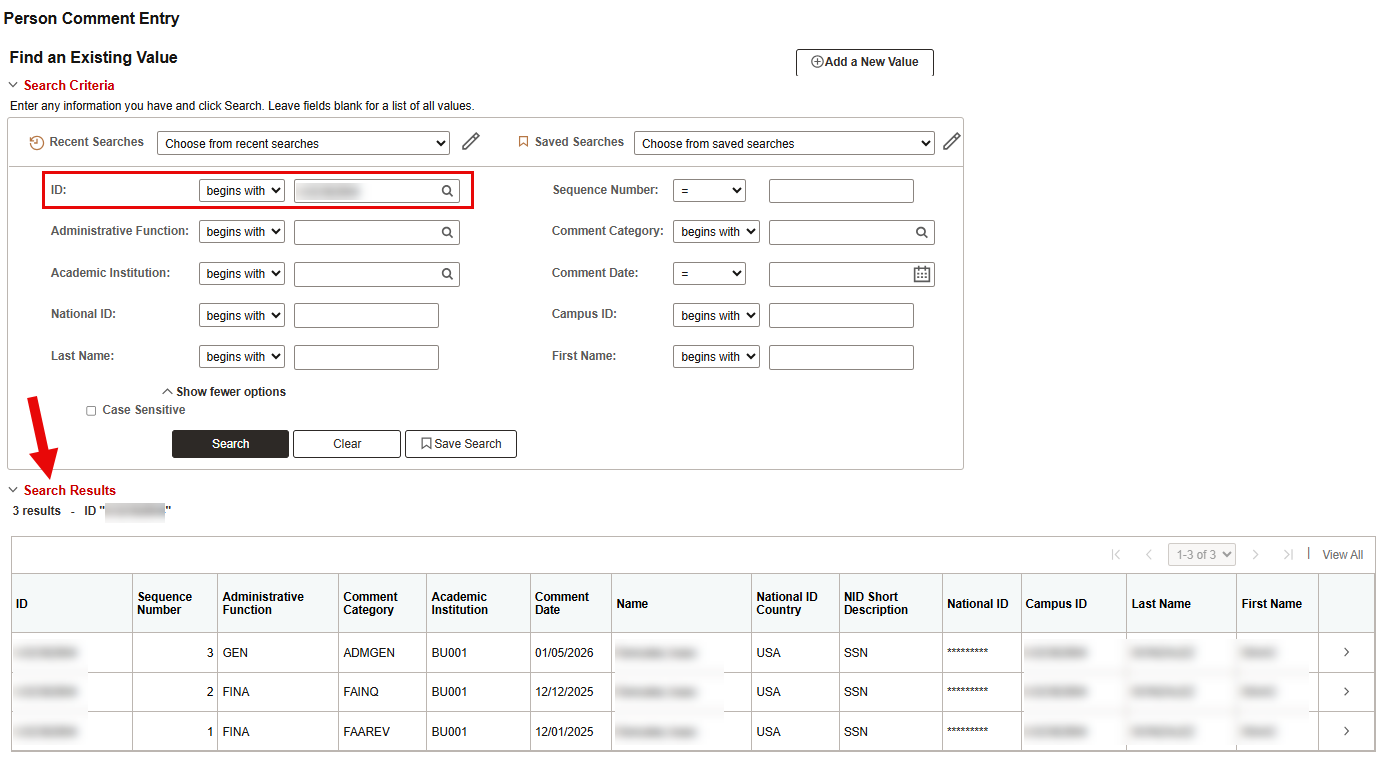
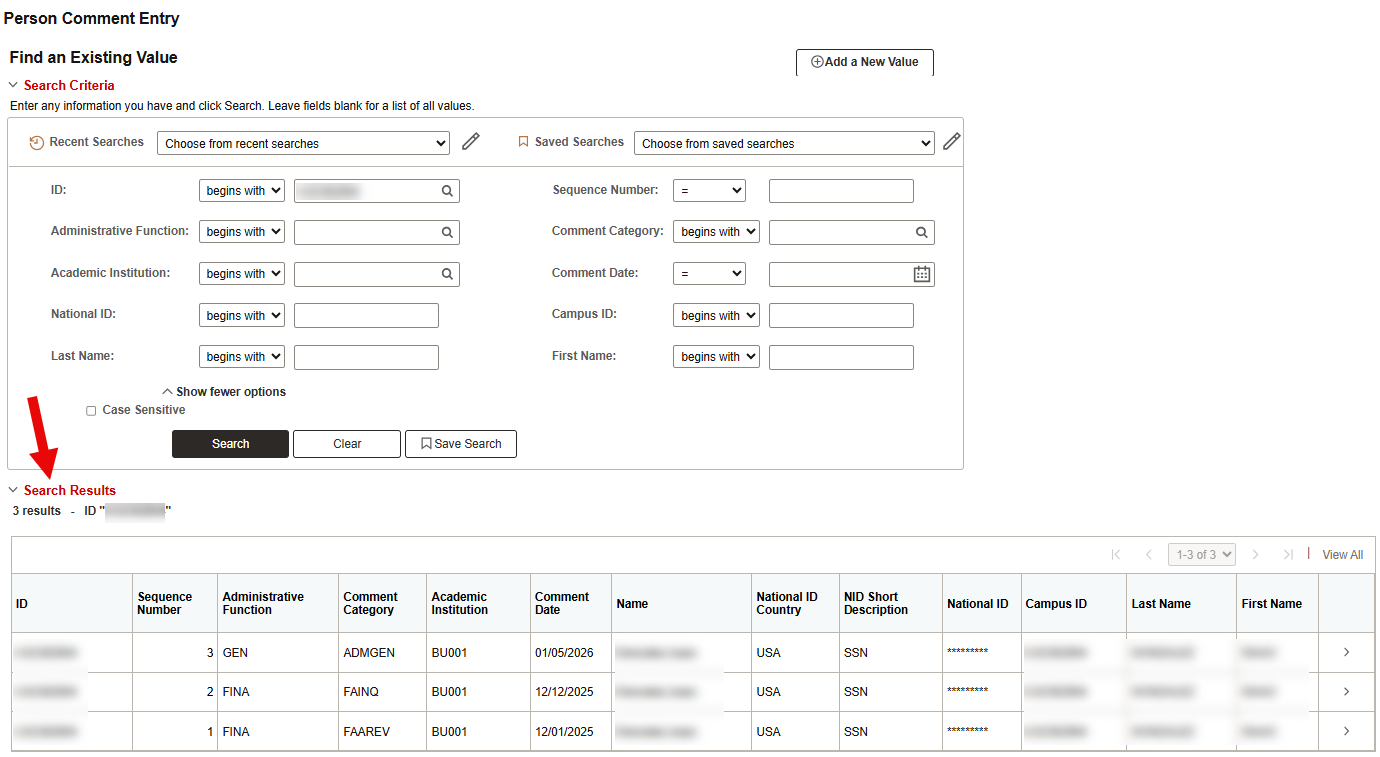
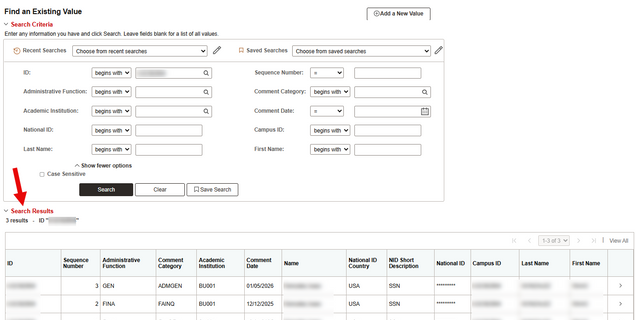
- Search for the student’s UID and scroll down to view the Search Results. The results will show an overview table of all comments on the student’s record, including those in other Administrative Functions that the user has access to view.
- The search fields can be used to search more specifically for a comment, if needed.
- The example shown below is for an incoming recently admitted applicant.
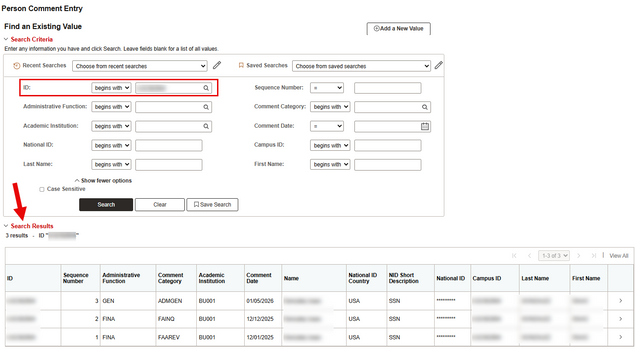
- Click on any row of the table to view that comment.
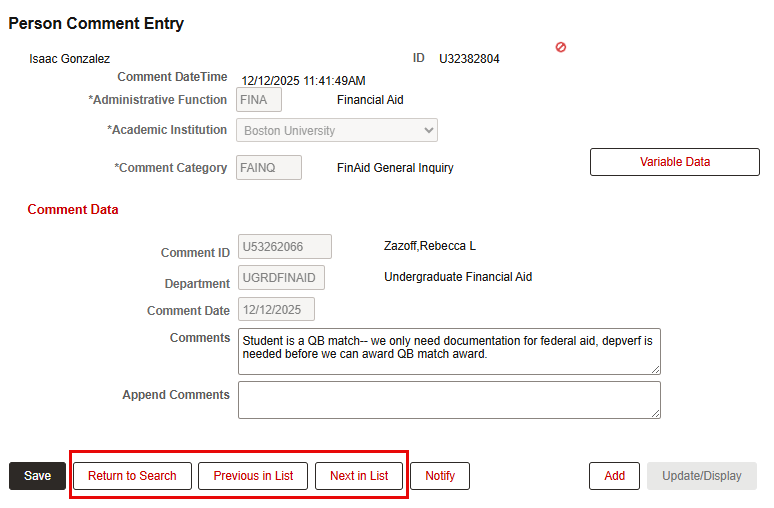
- When viewing a comment, the buttons at the bottom can be used to view the previous or next in the list, to return to the search screen, or to add a new comment.
ⓘ NOTE: No data can be changed on an existing comment. The comment text cannot be edited, but it may be appended if needed. For instructions on how to append a comment, refer to the section below.

Append a Comment
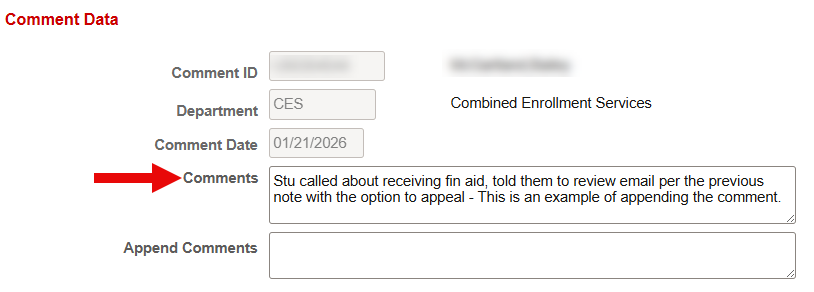
Comments cannot be edited once they have been added, but they can be appended.
- On the Full Site, navigate to Menu > Campus Community > Comments > Comments-Person > Person Comment Entry.
- Search for the student/comment and select the comment to be appended from the search results.
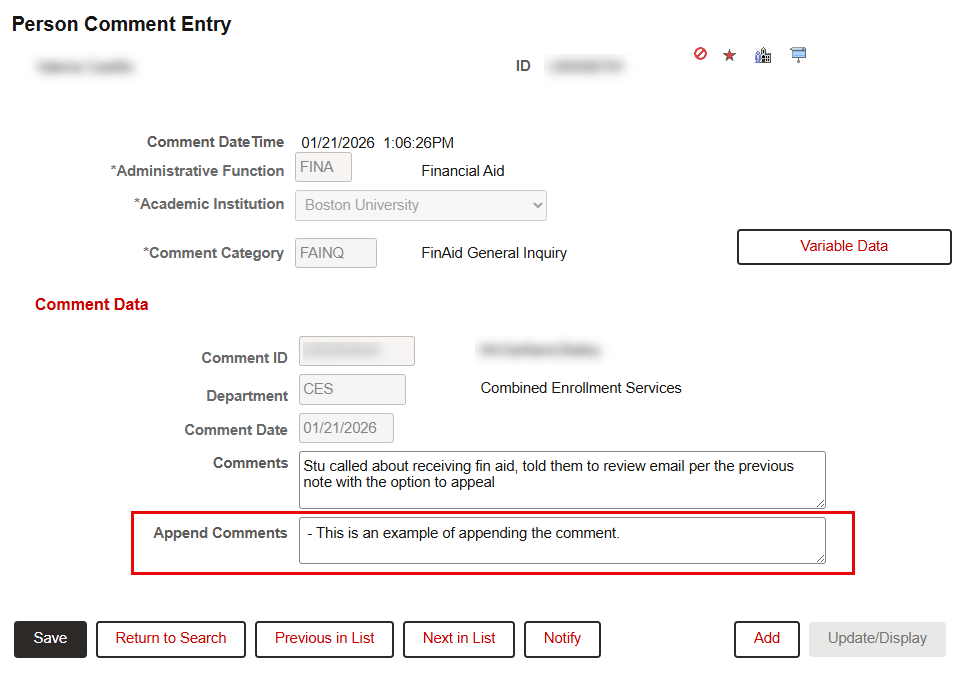
- On the Person Comment Entry page, enter additional information into the Append Comments text box.
ⓘ NOTE: The text entered will be added directly onto the text of the comment so it may be helpful to add punctuation or a distinguishing word/phrase or date to denote the addendum.
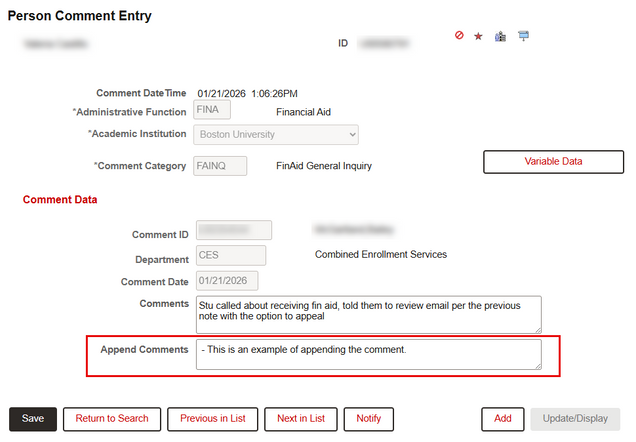
- Click Save.
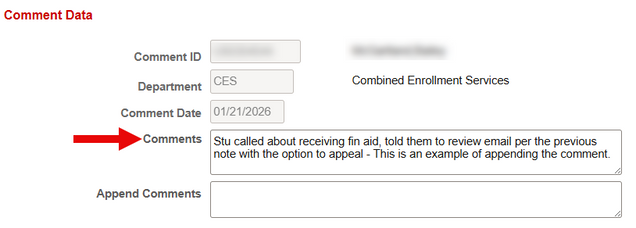
- The new text will now appear directly after the original text in the Comment. The other comment data, including date and time, will remain unchanged.
Page last updated April 2026. To download a PDF copy of this resource, print this webpage as a PDF. Other resource formats can also be accessed via the relevant icons below.