Class Roster
This information provides details and instructions for faculty on how to record grades using the Grade Roster page in MyBU Student.
Introduction
All final class grades must be submitted and approved in MyBU Student in order to be posted to students’ records. This resource provides steps for class instructors on how to record grades using the MyBU Student Grade Roster page.
The availability of a class’s Grade Roster will depend on its session dates. For full-term classes, rosters should become available approximately a week before the last day of the class. For a class ending throughout the semester (Dynamic, 7W1, 7W2 sessions) the Grade Roster will become available after the class has ended; please allow up to a week after that end date. There may be other exceptions for Medical, Law, and Dental programs.
There are three options for assigning students’ grades on the Grade Roster:
- Input grades manually for one or multiple students at a time
- Upload grades from CSV/Spreadsheet
- Import grades from Blackboard
Step-by-step instructions for each of these options are outlined in the sections below.
DON’T FORGET! Grade Rosters must be submitted and then approved in order for the grades to be posted. For more on these steps, read about Submitting, Approving & Posting Grades below.
Screen options and menus will vary by user; displays may differ for you based on access. All screens shown in these resources are for training purposes only and do not necessarily reflect actual enrollment.
Navigation
- Log into MyBU Student.
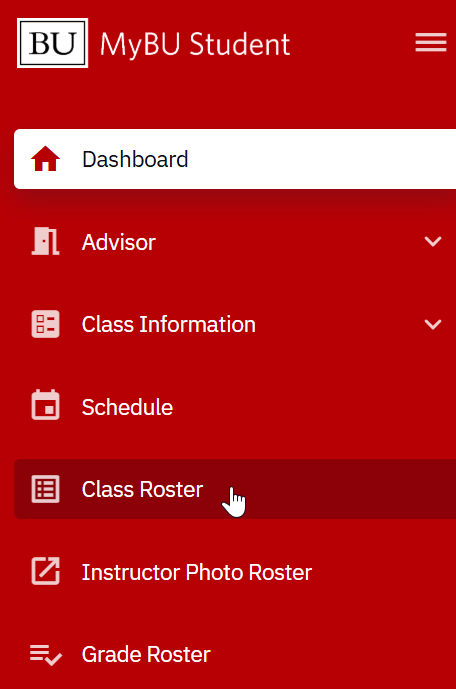
- Upon landing on the Dashboard, click on the Expand/Collapse icon to expand the menu if needed. Then, select, Grade Roster.
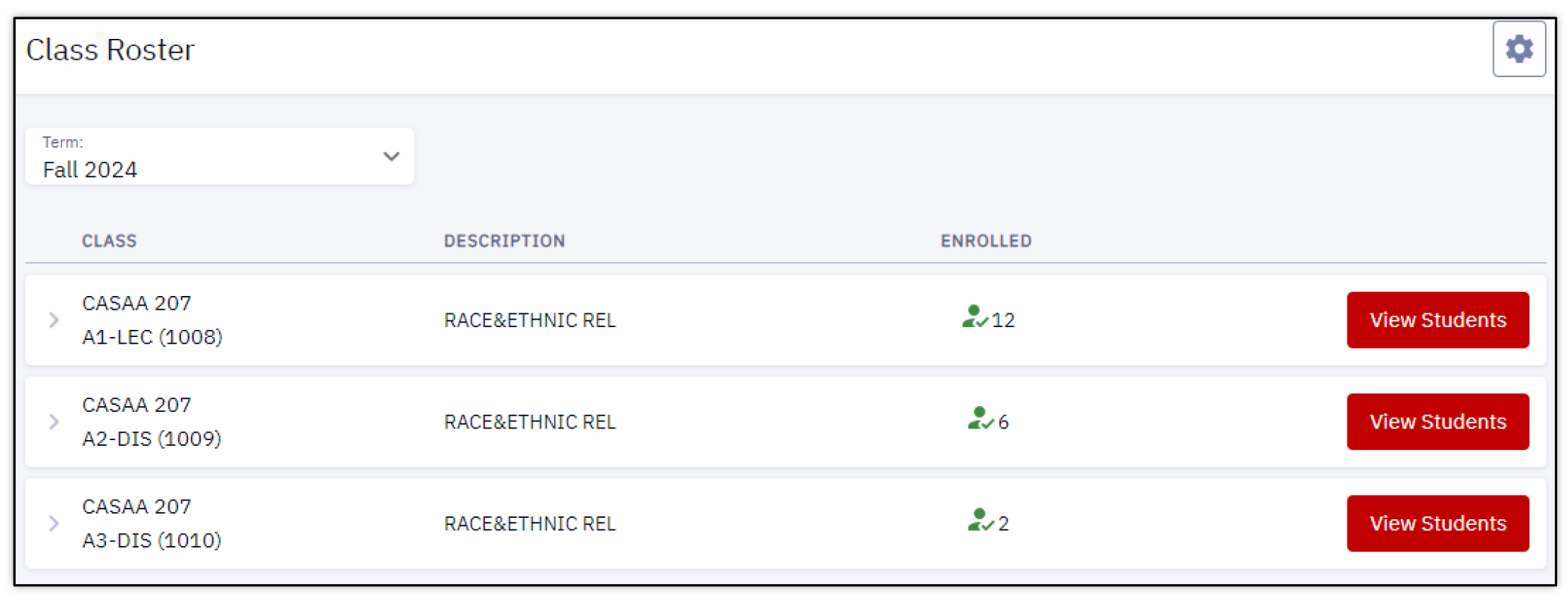
- The Grade Roster landing page will display with a list of all assigned classes by term.
- Click on a class and then select View Details to open the Grade Roster for that class.
If a course has multiple components (e.g., discussions, labs), only the graded component (e.g., the lecture section) will have a Grade Roster.
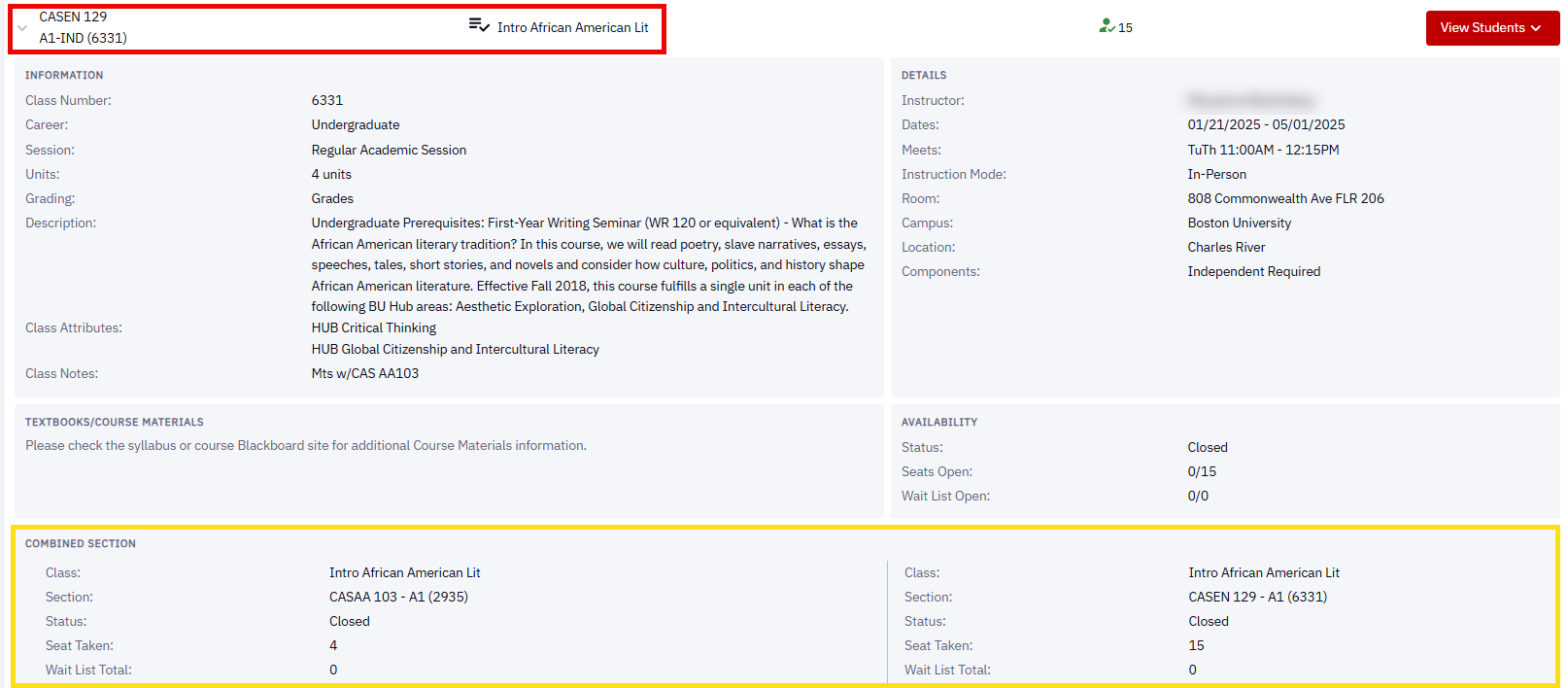
For more information on understanding class numbers, click here.
Grade Roster Overview
Refer to the numbered labels on the screenshot below to learn about key features of the Grade Roster page.
- Approval Status: The Grade Roster will be in “Not Reviewed” status when grades have not yet been submitted. (See below for more information about Grade Roster Statuses.)
- Save: It’s recommended to regularly save progress when inputting grades. Saving the roster will not submit any grades or change the roster’s status.
- Grade Input Options: Clicking the three-dot icon will display various options for entering grades. See Entering Grades below for more information.
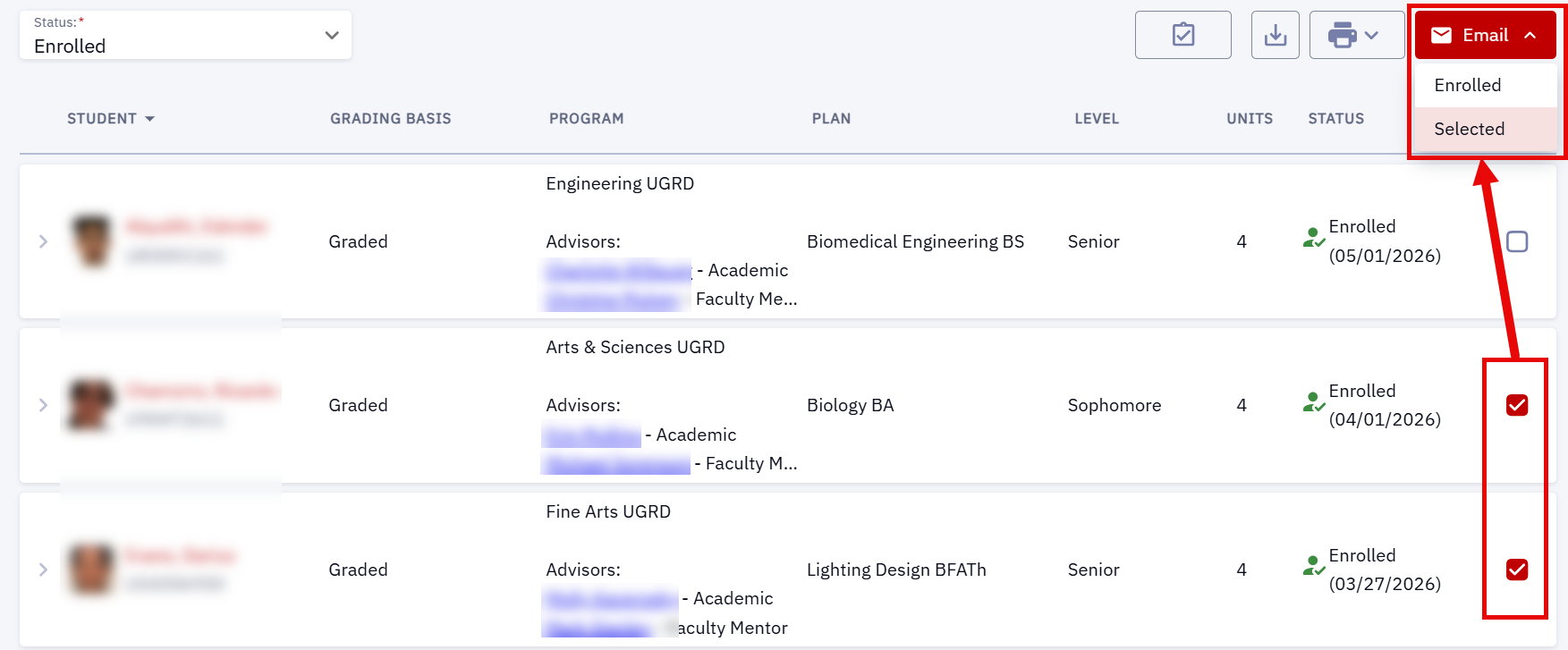
- Email Students: This feature can be used to open an email addressed to the students on the roster, using the default email service for the browser being used. The checkboxes in the right-most column of the roster can also be used to select specific students to email.
- Page View: The Grade Roster will default to display 10 students per page. Use the arrows to scroll to different pages, or use the dropdown to view up to 100 students on one page.
- List of Students: The default view lists the students alphabetically by last name.
- Click on a student’s row to expand and view their academic program and plan.
- Grading Basis: This column displays how the students should be graded for the class (e.g., graded, audit, etc.).
- Grading Basis is attached to a course at the catalog level to define the type of grades that can be used for the class. Grading Basis values may differ by academic career.
- Most students will have a grading basis of “GRD”, indicating that the student should receive a standard grade as set up for that class.
- For classes that are Pass/Fail only, the grading basis will be “PF” for all students taking the class for credit.
- Roster Grade: This is where the student’s final grade is recorded. The grade options configured for the class will display in the dropdown menu.
- Notes: Notes related to a student’s grade can be added for any student on the Grade Roster. These notes are not visible to students.
GRADE ROSTER STATUSES
As grades are input, submitted, approved, and posted, the Grade Roster status will be reflected accordingly. The status can be viewed next to ‘Approval Status’ at the top of a grade roster’s page and also on the Grade Roster landing page by expanding a class’s row.
Statuses:
- NOT REVIEWED – Grades have not yet been submitted. Applies to any Grade Roster that has not yet been started or that has been partially completed and saved.
- READY FOR REVIEW – Grades have been submitted and are awaiting review by an authorized approver.*
- APPROVED – Grades are recorded and have been approved by an authorized approver. Approved grades are not yet visible to students.
- POSTED – Approved grades have been processed through the Office of the University Registrar and are considered official. Posted grades can be viewed by the students in MyBU Student and are reflected on their official transcripts.
*Some instructors are both graders and authorized approvers, meaning they can approve their own Grade Roster(s) after submitting them.
Refer to the Submitting, Approving & Posting Grades section below for more information.
Enter Grades: Manually
Grades can be entered directly on the Grade Roster page. Use the dropdown for each student to select their grade.
Add Roster Grade to Multiple Students: This tool can be helpful for larger classes, or instances where many students have earned the same grade.
- To add a grade to multiple students, click the three-dot icon near the top-right of the page and select Add Roster Grade to Multiple Students.
- A new Roster Grade dropdown menu will appear to the left of the three-dot icon. Use the dropdown to select the grade that multiple students will receive.
- Select the checkbox for each student who will receive that grade.
- Click the Set button to apply that grade to the selected students.

- A confirmation message will appear, and the grade will be entered for the selected students.
- Be sure to click Save, especially if the Grade Roster is not yet ready to be submitted.
- A confirmation message will appear upon saving. Once saved, users can navigate away from the Grade Roster without losing the grades entered so far.
ⓘ Note: It is not possible to submit an incomplete Grade Roster. All grades must be entered into the Grade Roster before it can be submitted.
Enter Grades: CSV Upload
For instructors who prefer to input grades in a spreadsheet, a CSV version of the Grade Roster can uploaded into MyBU Student with some or all grades entered.
- To ensure the correct format, a CSV file of the Grade Roster must first be downloaded from the Grade Roster page. Click the three-dot icon for grade input options and select Download CSV.
- A download dialogue box will open. Save the file to a desired location.
- Open the file in Excel and input the grades for each student as applicable.
- If some grades have already been manually input on the Grade Roster page, they will carry over to the CSV file. They can be edited in the spreadsheet if needed.
- If a final grade has not yet been determined for a particular student, the field can be left blank. The blank entry will be reflected upon uploading the CSV back to the Grade Roster. However, the blank field must be updated in the Grade Roster before the class’s grades can be submitted.
- Once all grades have been entered in Excel, save the CSV file.
- To upload the grades from the saved CSV file into the Grade Roster, return to the Grade Roster page, click the three-dot icon for grade input options and select Add Roster Grades from CSV.
- In the dialogue box, select and open the CSV file from the folder where it was saved.
- The roster grades from the CSV file will instantly populate on the Grade Roster.
- Note that after uploading, some grade inputs may require additional action in the Grade Roster, as with the “I” grade in the example screenshot below. Refer to the Non-Standard Grades section of this resource for more information.
- Be sure to click Save, especially if the Grade Roster is not yet ready to be submitted.
- A confirmation message will appear upon saving. Once saved, users can navigate away from the Grade Roster without losing the grades entered so far.
ⓘ Note: It is not possible to submit an incomplete Grade Roster. All grades must be entered into the Grade Roster before it can be submitted.
Enter Grades: Blackboard Import
For graders who input their final grades in Blackboard Learn, those grades can then be imported into the Grade Roster. The integration from Blackboard to MyBU Student can be used both with both Grade Center for Learn Original courses, or with Gradebook for those using Ultra Course View.
- The integration with Blackbaord is NOT a two-way integration:
- Grades can be “pulled” from Blackboard into MyBU Student; this is initiated by the process within the MyBU Student Grade Roster.
- Grades cannot be “pushed” from within Blackboard to MyBU Student.
- Grades don’t ever flow from MyBU Student into Blackboard.
To import grades from Blackboard:
- Once all final letter grades have been recorded in the “Total” column of the Blackboard course, navigate to the Grade Roster, click the three-dot icon for grade input options, and select Import Grades.
- The system will automatically pull letter grades from the Blackboard Grade Center ‘Total Grade’ column, which will populate into the applicable Roster Grade fields on the Grade Roster. This should happen instantly, though some users may be prompted to log in to Blackboard or make other selections to confirm.
- Be sure to click Save, especially if the Grade Roster is not yet ready to be submitted.
- A confirmation message will appear upon saving. Once saved, users can navigate away from the Grade Roster without losing the grades entered so far.
ⓘ Note: It is not possible to submit an incomplete Grade Roster. All grades must be entered into the Grade Roster before it can be submitted.
Non-Standard Grades
See below for information regarding the following grades that may appear on the Grade Roster: I, MG, W, AU, P*, F*.
ⓘ NOTE: The availability of grade types in MyBU Student is dependent on what has been configured for that academic area. The University Policy on grades and course units is available here.
INCOMPLETE, FAIL, & MG PROCESS
“I” & “F” Grades
When entering an incomplete or failing grade, the instructor will need to input additional information into the Grade Roster.
For Incomplete grades, graders should adhere first and foremost to applicable policies and procedures at the school/college department, as well as the BU Policy on Incomplete Coursework. When entering the “I” on the Grade Roster, the instructor must set up grade lapse terms (i.e., which grade the “I” will change to if the student does not meet the terms of the Incomplete by a certain date). See the steps below for details.
“MG” Grades
A “Missing Grade” value is rarely entered by faculty, and should always be accompanied by a Note in the Grade Roster. Refer to the BU Policy on Missing Grades as well as any policies and procedures at the school/college/department where the class is held before entering an “MG” grade.
Follow these steps for a student receiving an ‘I’, ‘F’, or ‘MG’ grade:
- Upon inputting a grade of ‘I’, ‘F’, or ‘MG’, graders will then be required to add Last Date Attended Info and, if configured for their department, Notes sections.
- The ‘red X’ indicates the information has not been entered.
- Click on the ‘i’ icon to open the Last Date Attended Info details for the student.
- Select the appropriate value for the student in the Attendance field:
- Attended Multiple Times
- Never Attended
- Attended Once
- NOTE: If an ‘F’ grade is entered, an additional option is available: ‘Attended Full Course’.
- In the Last Date Attended field, identify the last date that the student attended class. This field may be greyed out and unavailable depending on the ‘Attendance’ value that was selected.
- Click the Okay button. Back on the Grade Roster, notice a small ‘green check’ confirms the data has been entered.
- Click the Notes button to open the Transcript Note page.
ⓘ NOTE: Even though the page is labeled “Transcript Note”, most note types, including Incomplete Details, are not visible to students.
- For “I” grades, click Incomplete Details to expand the grade lapse fields.
- Enter the applicable date in the ‘Lapse Deadline’ field and select the appropriate grade value in the ‘Lapse To Grade’ field.
- If the “I” grade is not changed to a different grade by the indicated deadline, the “I” will be automatically changed to Lapse To Grade value.
- Add any supporting notes (in keeping with procedures at the applicable school/college/department) and click Okay to save the note.
- Additional notes may be added to a grade if necessary, by clicking the ‘Add Note’ button.
- When the student fulfills incomplete coursework as agreed upon, return to the Grade Roster to change the student’s grade as appliable.
- Refer to the Grade Changes resource for more information.
“W” GRADES
Students who dropped the class with a “W” will display on the Grade Roster with their “W” grade already recorded and unable to be edited.
AUDITING STUDENTS
Students who are enrolled in the class on an audit basis will display on the Grade Roster but will not have an input option for a roster grade. The Grade Basis value will display as ‘AU’ and ‘AU’ should be entered in the Grade field.
PASS/FAIL
In keeping with BU’s Policy on Pass/Fail Courses for Undergraduate Students, some undergraduate students may elect to take a normally graded class on a pass/fail basis.
Graders should enter letter grades (A, B, C, etc) for all students as they normally would. After the proper administrative processes have been completed and the Grade Roster is posted, the final grade for those who have elected pass/fail will automatically display with an asterisk: as “P*” or “F*”.
ⓘ NOTE: If the class is normally graded on a Pass/Fail basis, the “P” and “F” options will be reflected in the roster grade dropdown.
Submitting, Approving & Posting Grades
After all final grades have been input on a Grade Roster, the roster itself must then be submitted AND approved. Once approved, the Office of the University Registrar (OUR) will process and post the grades.
Many instructors will be set up as a grade approver for their class, meaning they can proceed to approve the Grade Roster immediately after submitting it. In other cases, instructors will be attached to the class as a grader but not an approver. This is commonly the case for Teaching Assistants/Teaching Fellows. Users with Grader access but not Approver access to a class in MyBU Student can submit the Grade Roster but will not be able to approve it.
ⓘ Note regarding Teaching Assistants/Teaching Fellows, etc: Schools/Colleges across the University manage TA type roles differently. If a teaching assistant needs access to a course in MyBU Student, including the Grade Roster, they need to be added to the class in MyBU Student as an instructor type. Please reach out to a Department Scheduler or Administrator to discuss this need.
- TA’s do not need to be added to the class in MyBU Student if they are only interacting with the class in Blackboard. However, if a TA has been added in MyBU Student, they will be able to access the class in Blackboard.
- For details about adding a TA to a course in Blackboard only, check out the instructions on BU TechWeb.
The infographic below provides an overview of the Grade Roster statuses and their impact:

SUBMIT GRADES
- Once all grades have been input on the Grade Roster, the roster can be submitted by clicking the Submit button on the top right of the Grade Roster page.
- Keep in mind that an incomplete Grade Roster cannot be submitted.
- A pop-up message will display asking for confirmation to submit. Select Continue to proceed.
Note: It is not possible to submit a partially complete Grade Roster. If the above steps are taken with an Roster Grade fields left blank, an error message will appear and the roster will not be submitted. All students’ grades must be entered before the Grade Roster can be submitted.
If you are having trouble submitting a Grade Roster, refer to the Support & Troubleshooting section below.
APPROVE GRADES
After the Grade Roster has been submitted, it must be Approved. Access to approve is dependent on the system permissions set up for the grader.
- If the grader who submitted is authorized to approve the grades, they can then approve.
- If the grader who submitted is not authorized to approve the grades, the Grade Roster will then need to be approved by appropriate faculty member.
To Approve:
- Click the Approve Grades button.
- If this action is being taken by faculty after a grader has submitted, they can navigate to the class’s Grade Roster page and the button will be available for them (Left Menu > Grade Roster > Select Class).
- A pop-up message will display asking for confirmation to approve. Select Continue.
- The grade roster is now Approved and will be posted as per the process described below.
POST PROCESS
Once grades are submitted and approved, they will enter a queue to be automatically processed and posted by the Office of the University Registrar (OUR).
Timing: Towards the end of each semester, OUR will begin regularly posting grade rosters in Approved status. In the final week of the semester, grade rosters in Approved status will be posted several times a day. This timing may vary for classes with a non-standard schedule or other special circumstances.
It is possible to quickly check where in the approval/posting process a grade roster is by navigating to the Grade Roster page at any time and viewing the approval status.
If a grade is changed after the Grade Roster is posted, the new grade will be reflected in the Official Grade column of the posted roster. The originally submitted Roster Grade will remain visible on the Grade Roster page, but once it’s changed only the new Official Grade will be visible to the student.
For information and instructions on grade changes in MyBU Student, click here.
Support & Troubleshooting
If you do not see faculty/instructor pages in MyBU Student (i.e., Class Roster, Grade Roster), contact your Data Security Administrator (DSA) to ensure you have the appropriate security permissions assigned.
If you can’t see your class on the Grade Roster page, first make sure the correct Term is selected from the dropdown at the top-left. Also, keep in mind that the availability of a class’s Grade Roster will depend on its session dates, with exact timing subject to change.
- For full term classes, rosters should be available approximately a week before the last day of the class.
- For a class ending throughout the semester (Dynamic, 7W1, 7W2 sessions), the Grade Roster will become available after the class has ended; please allow up to a week after that end date.
- There may be other exceptions for Medical, Law, and Dental programs.
If the term and timing seem correct but you still don’t see your class on the Grade Roster page, you likely need to be assigned to the class as a grader. To be added as a grader for a particular class, contact a class schedule administrator at the applicable school/college/academic department.
If you encounter issues submitting a Grade Roster (e.g., a ‘Blank Grades Exist’ error message appears even though all available grade fields have been entered), this is often due to an enrollment issue. To resolve, email ithelp@bu.edu with the following information:
- The class details, including section and Term (e.g., CASCH 101 A1, Fall 2025). It’s also helpful to include the Class Number (e.g., 13809); the Class Number can be found in parenthesis at the top of the Grade Roster.
- The UID(s) of any students on the Grade Roster who are unable to be graded
For Blackboard Learn support, check out the resources on BU TechWeb or contact IT Help.
For a comprehensive downloadable guide, please click the PDF icon below (updated December 2025). Other resource formats can also be accessed via the relevant icons.