This resource outlines the process for instructors to submit Action Items through MyBU Student. It includes steps for submitting, viewing, and managing Action Items.
Introduction
Action Items are one of the student support tools available in MyBU Student designed to strengthen instructor/advisor communication around student wellbeing and academic success.
Action Items are spontaneous, instructor-initiated alerts issued throughout the semester to indicate when a student may need additional support in non-emergency situations. This resource outlines faculty processes to follow in MyBU Student in order to create, view, and manage Action Items.
ⓘ Action Items are not confidential. Although Action Items are not visible to students in MyBU Student, they are part of the student’s official record and thus the student could request access through the University Registrar.
An instructor’s submission of an Action Item triggers an email alert to the student’s assigned academic advisor. The email will prompt an advisor to log into MyBU Student and review details of the Action Item so they can determine the appropriate outreach.
Action Items can only be initiated by instructors to an advisor. At this time, advisors cannot initiate Action Items to instructors.
⚠︎ Screen options and menus will vary by user; please note that displays may differ for you based on access that has been granted. All screens shown are for training purposes only.
WHEN TO SUBMIT ACTION ITEMS
When an instructor observes a student in their class facing academic or personal challenges, the first step is to contact the student about the issue. For example, email or talk with the student about their persistent absences or late assignments. If the student is non-responsive to instructor outreach, or the situation does not improve, instructors can submit an Action Item to notify the student’s academic advisor and request additional support.
Based on information provided by the instructor, the academic advisor can determine what action to take, if any, to support the student. Though academic advisors cannot compel students to go to class, submit their work, or even respond to a instructor’s email, they may be able to connect a student to resources they need or may have other insights that relate to the student’s situation. Academic advisors will endeavor to respond to Action Items in a timely manner (typically within two-three business days) and to keep instructors informed while respecting students’ privacy.
Instructors can send an Action Item in MyBU Student to a student’s Academic Advisor when:
Absences, missed coursework, difficulty with course material, and low scores recur after the instructor’s attempts at outreach and support.
A student’s behavior in class has changed or is mildly concerning (i.e., falling asleep in class, frequent low engagement), and the student is unresponsive to the instructor’s initial outreach.
A student has disclosed mild or moderate concerns related to finances, stress, health, or general wellbeing.
Instructors should NOT submit an Action Item if/when:
A student has been absent once or twice, but the instructor is not otherwise concerned about them.
A student is not performing to their perceived potential, but is not in danger of failing the course.
The student is responsive to instructor outreach, and the instructor already working with them to improve their grades in the course.
If an instructor has a concern about a student in one of their classes, they should create an Action Item to be sent to the student’s academic advisor. To create an Action Item, navigate to Class Roster from the MyBU Student Dashboard.
Locate the class or section for the relevant student(s) and click View Students.
CREATE ACTION ITEM
To create an Action Item for a student, or for multiple students, in the selected class roster:
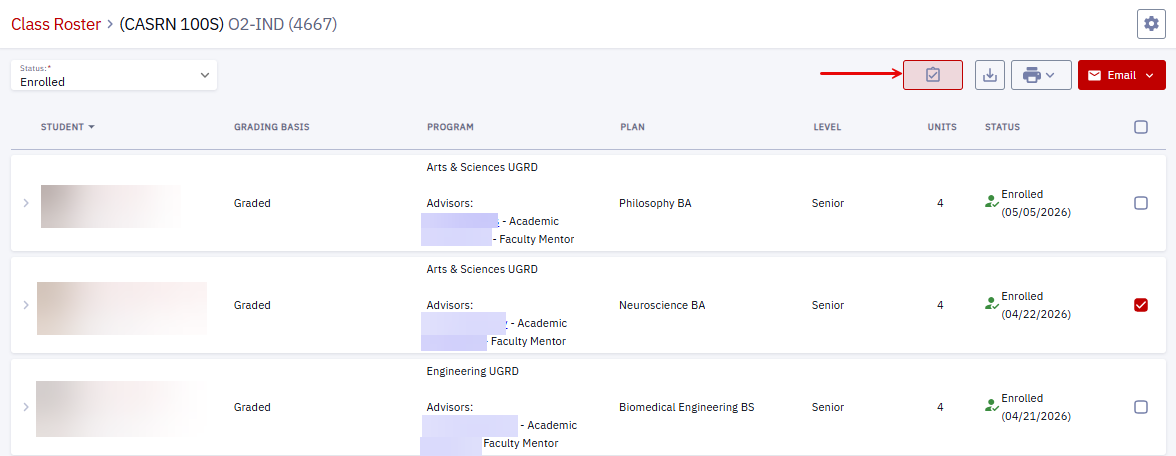
Select the checkbox at the end of the row for the relevant student(s).
ⓘ NOTE: In cases where the same Action Item Type and Comment apply to multiple students (e.g., an Academic Concern for students who failed an exam), save time by checking all their names to attach to a single Action Item submission. In this case, the Action Item Comment sent to all students’ MyBU Student records will be the same, so avoid using student names.
Click the Action Items icon at the top right of the Class Roster window.
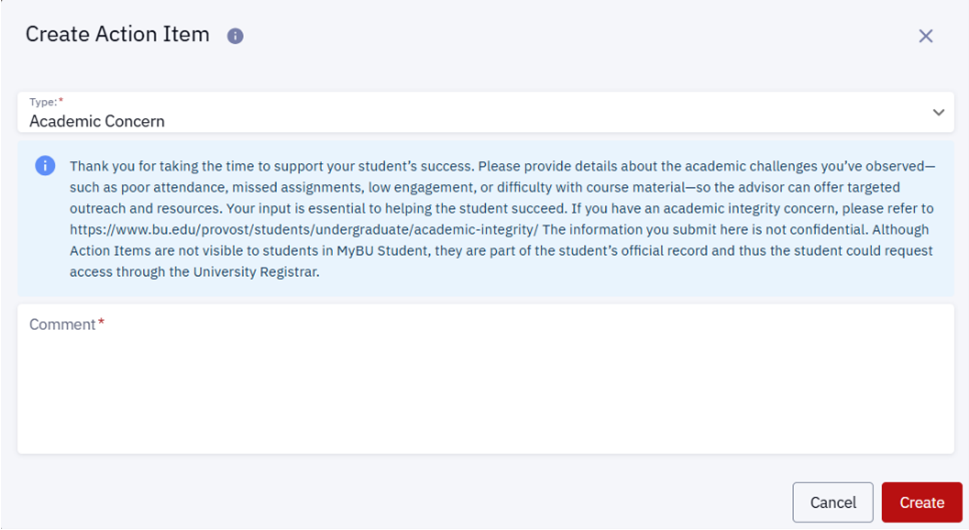
In the Create Action Item window, select the Type of Action Item from the dropdown list.
Read the instructions for the kinds of details needed, then type a Comment to explain the concern for the advisor.
Include any discussions/actions that have already been taken with the student, and any desired steps for the advisor.
For an Action Item created for multiple students, the same Comment will be sent to each student’s Academic Advisor.
Click the Create button to send the Action Item to an advisor.
If the student has more than one advisor, the Action Item will be assigned to the first Academic Advisor listed for the student in the Class Roster and on their Student Details page.
ⓘ NOTE: The expected advisor response time for each Action Item is 2-3 business days, though the period may be longer during high-volume periods of the semester.
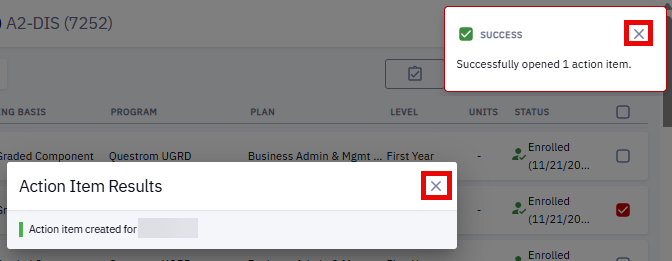
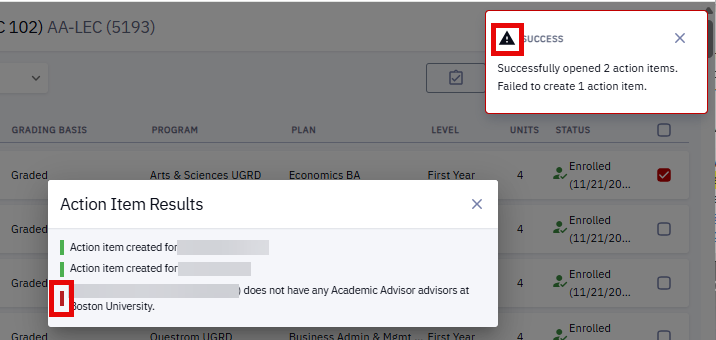
A successful Action Item submission will result in two popups: a Success/Error indicator (with a green checkmark) and an Action Items Results summary (green status bar next to the student’s name). See Error Messages below for information about unsuccessful Action Items submissions.
If the submission was successful, click either of the X marks to exit the Create Action Items window and return to the Class Roster.
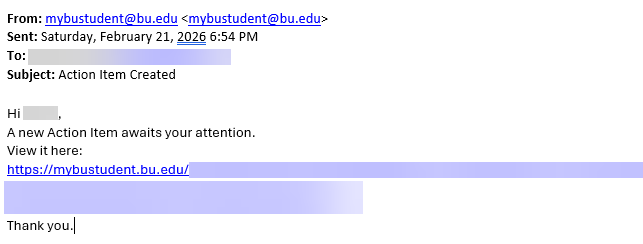
Upon successful creation, the notification email will be generated to alert the advisor that a new Action Item awaits their attention.
The name(s) on the submitted Action Item will still be selected when the Class Roster window reopens. De-select the student(s) if they should not be included in the next Action Item created.
From here, instructors can either repeat the above process to create further Action Items or exit Class Roster if finished.
See View & Manage Action Items below to learn how to check the progress of the Action Item.
ERROR MESSAGES
Unsuccessful Action Items submissions will display indicators in the two popups that appear after pressing the Create button in the Create Action Items window:
A black alert icon in the Success indicator message. The message will indicate how many Action Item submissions failed.
A red status bar next to the name(s) for students whose Action Item submissions failed, along with any known explanation for the failure.
ⓘ NOTE: If a student does not have an Academic Advisor, instructors will not be able to create an Action Item and an error message will be generated, as in the above example. In such cases, instructors should reach out to the Advising Office of the student’s School/College.
VIEW & MANAGE ACTION ITEMS
VIEW ACTION ITEMS
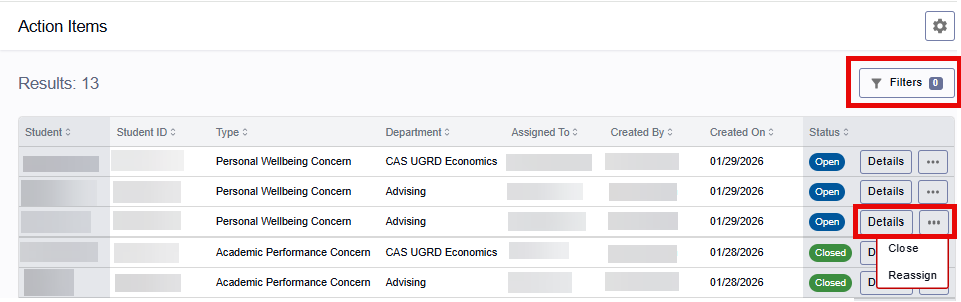
Instructors can review their submitted Action items by navigating to Advisor > Action Items in the MyBU Student Dashboard.
This opens the Action Items page, which displays the total number of Action Items created, a Filters button for narrowing results (explained below), and the following information/functionality for each submitted Action Item:
Student name and ID
Action Item Type
Department that received the Action Item
Advisor assigned to the Action Item
Action Item creator (the instructor)
Date Action Item was created
Status tag (blue for Open, green for Closed)
Details button: displays complete Action Item record (see below).
Three dots: Close or Reassign the Action Item from this menu. (see below).
Use the Filters button to narrow down the Action Item list by Type, Outcome, Student ID, Date range, Assigned Advisor’s Department, Status (Closed/Open), Assigned Member (advisor), Created By name, and Updated By name.
Click the display icon at the top of the list to switch between vertical (default) and horizontal displays
Click the pin icon to save a favorite Filter for reuse.
Click the Apply button when ready to reload search results with Filter(s) applied.
To view more information about an Action Item, click the Details button at the end of the appropriate student’s row. This opens an Action Items Details page which displays:
A status chip (blue for Open cases, green for Closed)
Student’s name and ID
Creator’s (instructor’s) name/ID and date Action Item was opened
Name/ID of Assigned advisor.
Action Item Type
Advisor’s Department
Comment block: threaded history of all comments between the instructor and advisor(s).
Instructor comments can be edited by clicking the pencil icon.
Click Comment to add a new comment to the thread or respond to the advisor.
Class details (Term, Course, Description/Title, Section/Class Number).
Reassign and Close buttons (see below).
REASSIGN ACTION ITEMS
In rare cases (e.g., a student’s assigned Academic Advisor is on leave), instructors may wish to Reassign an Action Item after it was created. Follow these steps to Reassign an Action Item to another advisor within the student’s assigned Academic Advising Department.
Click Reassign, in either the Action Items Details page or the three dots menu, to open a Reassign Action Item Window.
In a Reassign Action Item window, instructors may see an option to Reassign to a Department (e.g., the “Advising” button option shown below). At this time, Reassigning to a department is not recommended: it generates a request that will not be directed to a specific advisor.
Select the Department Member radio button.
Choose the name of the new advisor from the dropdown.
Add a Comment to explain the Reassign request.
Click Reassign to submit.
The Reassigned advisor’s name will populate all Assigned To boxes/rows for the Action Item, and an email notification will automatically be sent to the new advisor.
CLOSE ACTION ITEMS
Instructors can manage Action Items sent in error or where advisor intervention is no longer needed by closing them.
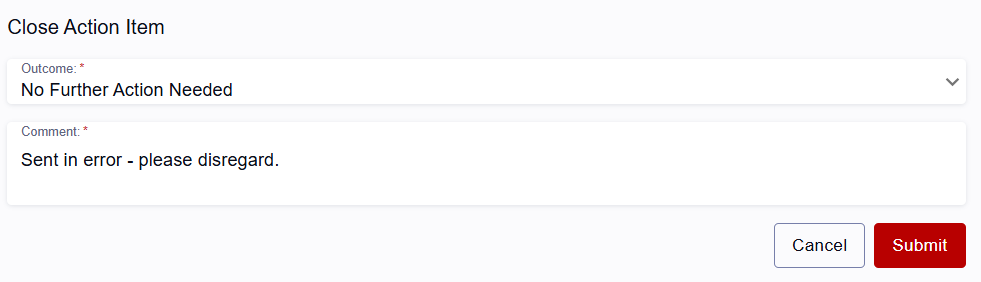
Click the Close button, from either the three dots menu in the Action Items list page or from the Action Items Display window. This opens the Close Action Item window.
From the Outcome dropdown, select No Further Action Needed.
Provide a Comment to explain the error.
Press Submit.
A success message will display before returning to the Action Item Details screen, where the green Closed status chips, new Comment, and Outcome will clarify for the advisor why the Action Item was closed.
Page last updated June, 2026. For a PDF copy, print this webpage as a PDF. Other resource formats can also be accessed via the relevant icons.