Batch Notes for Advisors
These instructions cover methods for how advisors can send a note to multiple students. This includes using the batch search and the option to add them into a student list if preferred.

Introduction
To add a note to multiple students at once, advisors can leverage the search filters from the Advisee & Student Lookup page to retrieve a list of students:
- If the specific students are known, the ID multiline filter is the easiest method.
- If the specific students are not known, use any of the other criteria to retrieve a list of students.
Depending on the needs, a note can then be added, or students can be put into a Student List and the note can be added from there.
To learn more information about the Notes function, refer to the Advisee & Student Lookup and Student Details resource of this guide.
⚠︎ Screen options and menus will vary by user; please note that displays may differ for you based on access that has been granted.
All screens shown are for training purposes only.
Search for Students
- Navigate to Student Lookup page: Left Menu > Advisor > Advisee & Student Lookup.
- If advisors are assigned, click the Filters button in the top right. If no advisors are assigned, click the Select Filters button in the center of the page to open filters options.
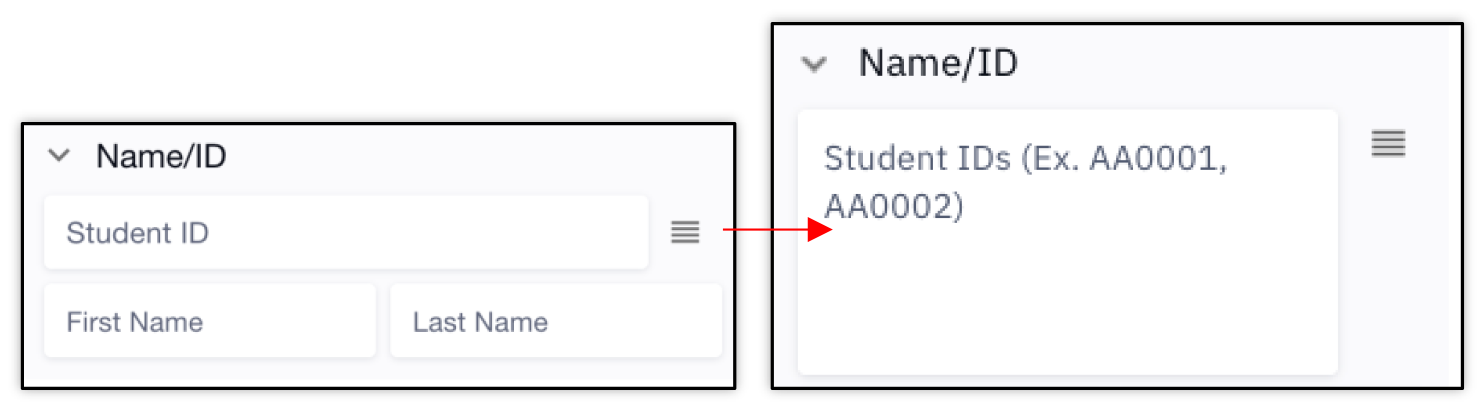
- To enter in specific students, look for the Student ID field and click the Multiline icon to expand the textbox. Add or copy and paste multiple UIDs here.
- If the specific students are not known, use any of the other criteria to retrieve a list of students.

- Click Apply Filters button. The students will be listed back on the Student Lookup page.
- Select the top checkbox to select all students (or select individual checkboxes if not all students are needed).

- If the note is only to be added once to this group of students, that action can be taken right from the list on the Student Lookup page – if this is the case, proceed to the next set of steps titled ‘Add Note’.
- If subsequent notes may need to be added to this same group of students, it is helpful to create a Student List from the search results – if this is the case, skip to set of steps below titled ‘Add to Student List’.
Add Note
-
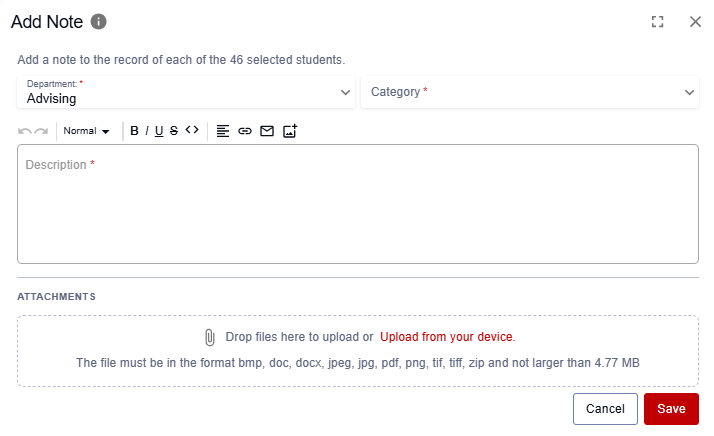
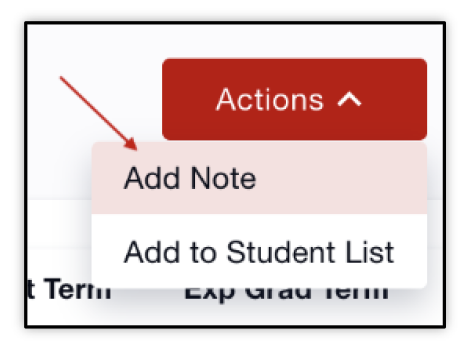
Click the Actions button that displays next to the multi-select checkbox above the student list and select the Add Note option.
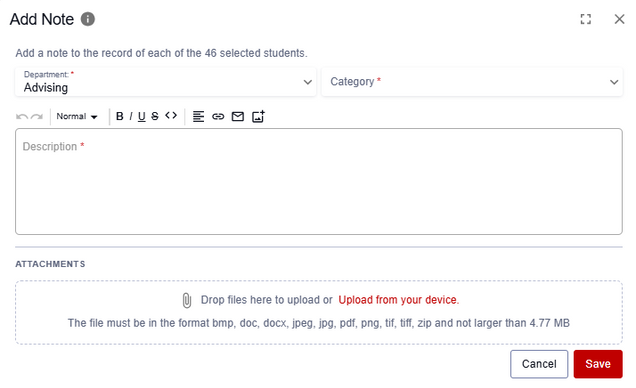
The Add Note window will display. Select the appropriate values in the Department and Category fields (depending on access, there may only be option for each field).
- Enter the note text and any links, images, or attachments needed, then click the Save button. A confirmation message will display.
Add to Student List
This is an optional method. If subsequent notes need to be added to this same group of students, it is helpful to create a Student List from the search results. This allows for the group of students to be accessed more quickly in the future.

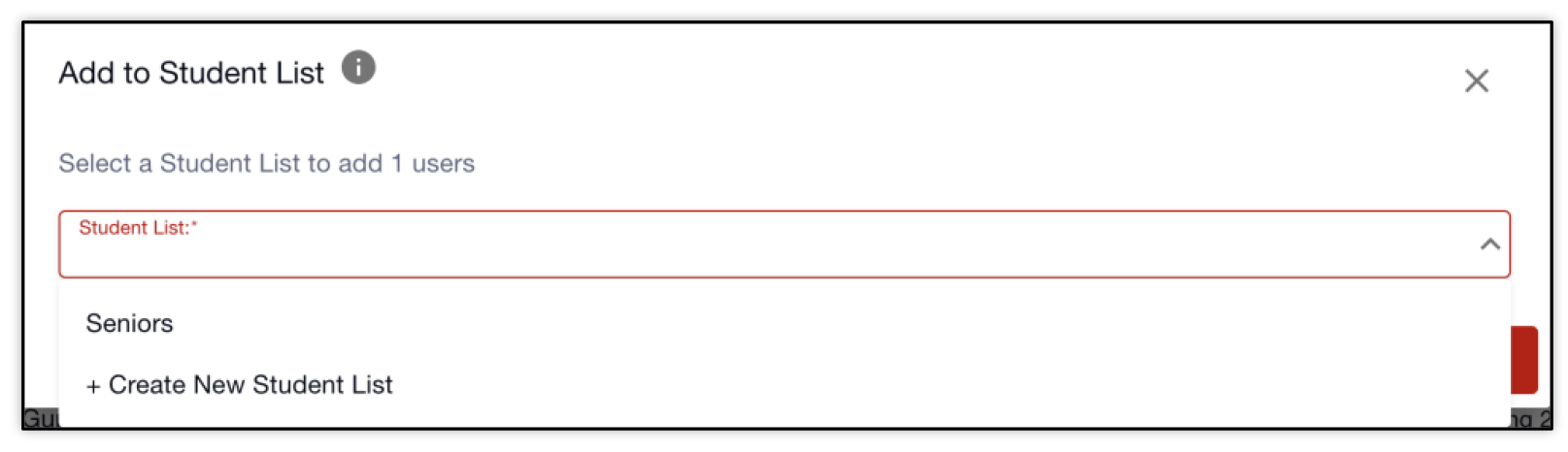
- Click the Actions button that displays next to the multi-select checkbox above the student list and select the Add to Student List option.
- Choose an existing Student List or Create New Student List if a new list is needed (refer to the Student List resource for more details on creating new lists through this method).

- Click the Add button and a confirmation message will display.
- Navigate to this Student List: from the Student Lookup page, click the Student Lists button at the top of the page.

- The Student Lists page will display. Click the View button on the desired Student List.

- Select the top checkbox to select all students (or select individual checkboxes if not all students are needed).
-
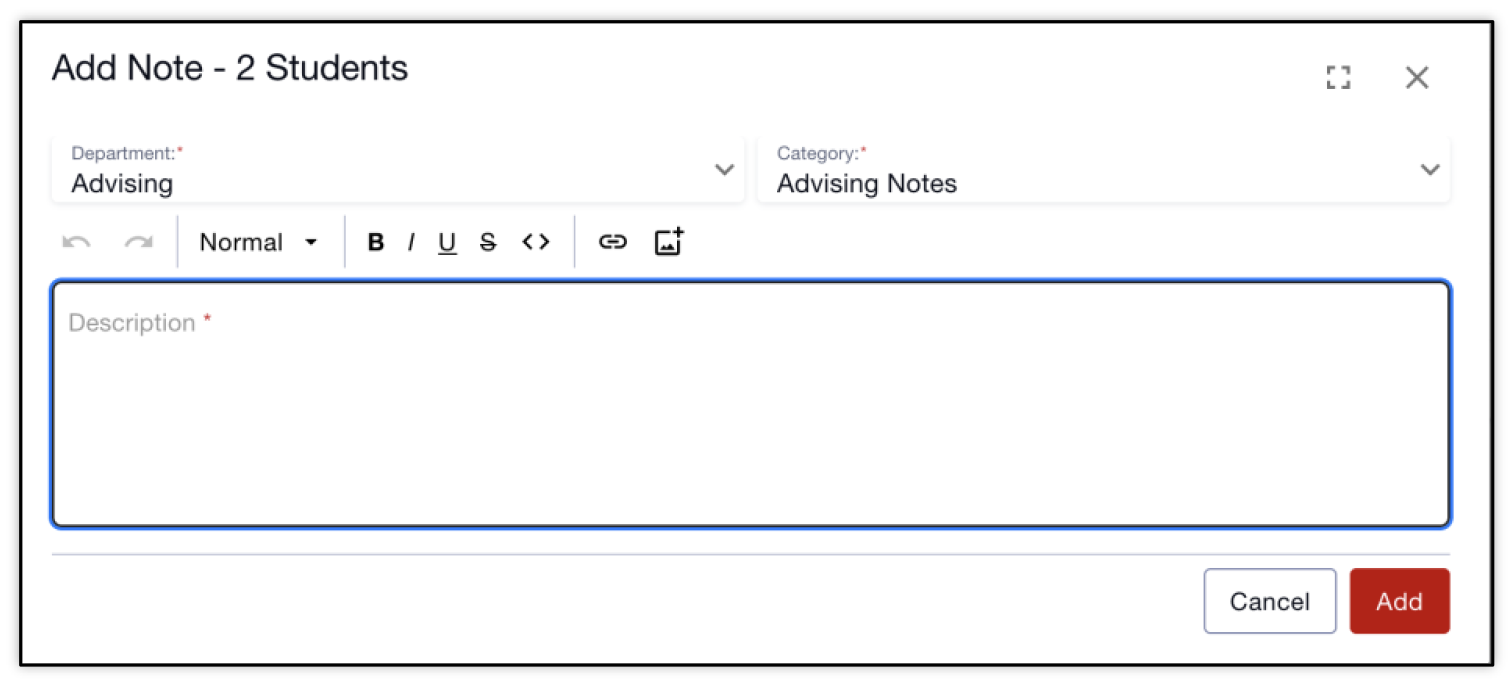
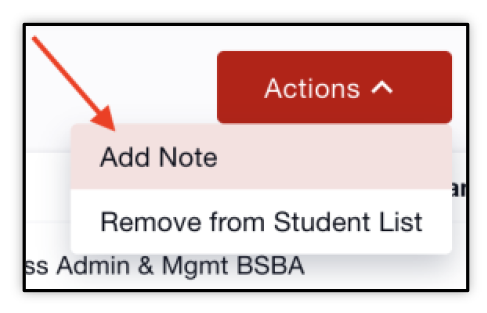
Click on the Actions button and choose the Add Note option.
The Add Note window will display. Select the appropriate values in the Department and Category fields (depending on access, there may only be option for each field).
- Enter the note text and click the Add button. A confirmation message will display.

Page last updated February 2026. For a PDF copy, print this webpage as a PDF.