Add Award to Financial Aid Record
Certain awards can be added for a student outside of Automated Packaging. This resource provides instructions for manual Award Entry in MyBU Student.

Introduction
Staff may have reason to add awards before or after the student is packaged with Automated Mass Packaging. This may include adding an external award, or adjustments made in response to an appeal. In MyBU Student, the Assign Awards to a Student/Award Entry page is used for this process.
Note that awards may also be reduced or canceled based on changes to the student’s eligibility, but the information provided below focuses specifically on adding awards to an individual student’s aid package.
In most cases, users should already know the Item Type and other relevant information for a given award before adding it to a package—refer to departmental procedures/resources if needed. For external/outside awards that don’t already exist in the system, a generic Item Type may be used.
Please note that this resource includes information related to Federal Financial Aid policies which are liable to change. Staff maintaining this documentation will update terminology, links, or processes in accordance with new information as it becomes available in conjunction with Student Information System updates. The information here identifies salient details regarding the usage of MyBU Student and is designed to be used in conjunction with Financial Aid Procedures and Processes.
⚠︎ Screen options, menus, and reports will vary by user; please note that displays may differ for you based on access that has been granted. All screens shown are for training purposes only.
Navigation & Page Overview
Navigation (FULL SITE, right-hand menu): Financial Aid > Awards > Award Processing > Assign Awards to a Student
ⓘ NOTE: Though the navigation refers to the page as ‘Assign Awards to a Student’, the page header will be labeled ‘Award Entry.’
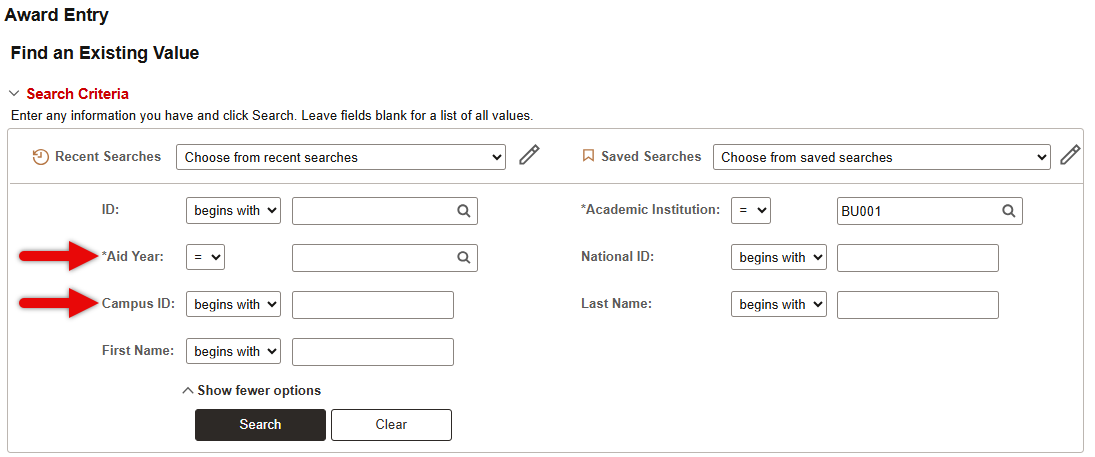
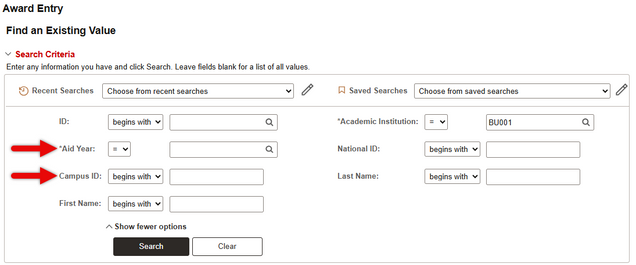
Search for the student by entering their UID in the ID field, and the applicable Aid Year. Use the magnifying glass to look up the Aid Year if needed.
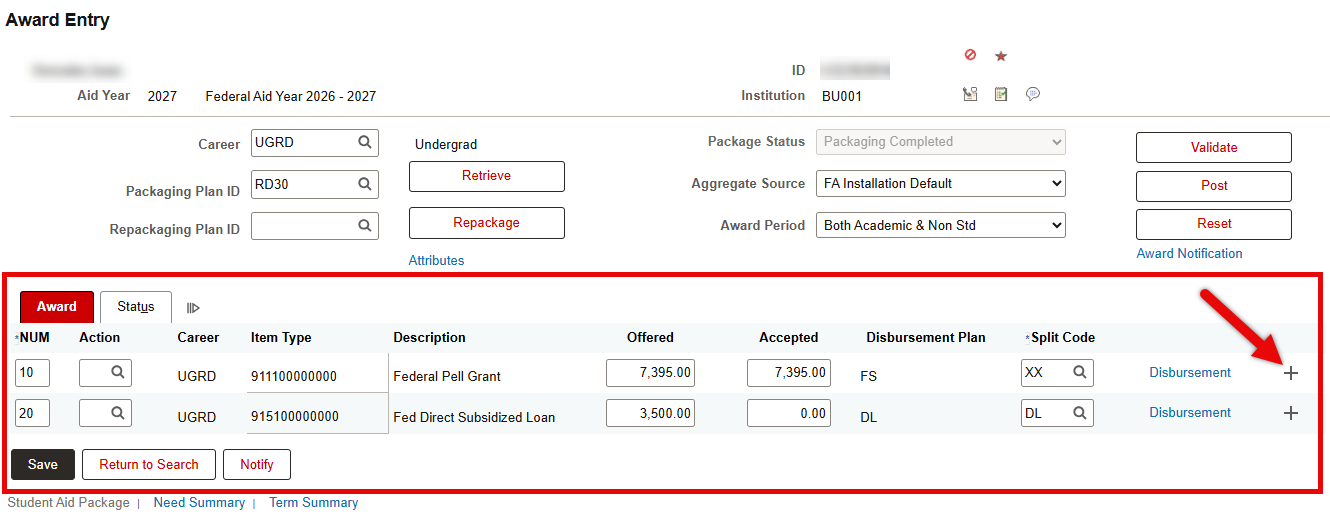
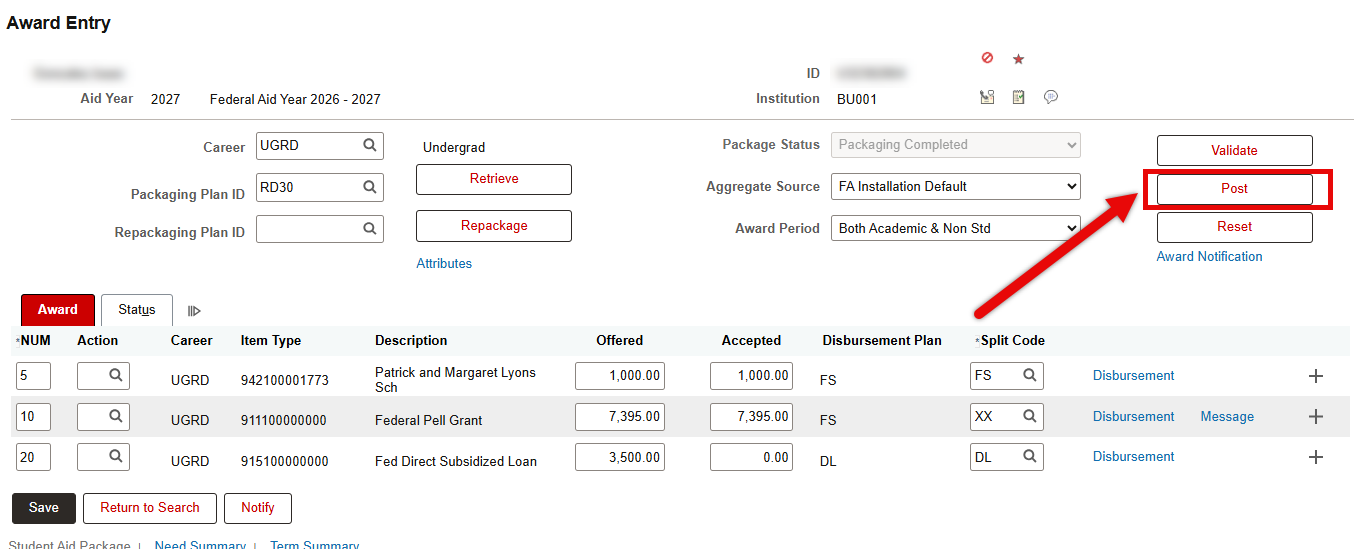
The Award Entry page will open onto the Student Aid Package tab. The top section will display relevant packaging information for the student.
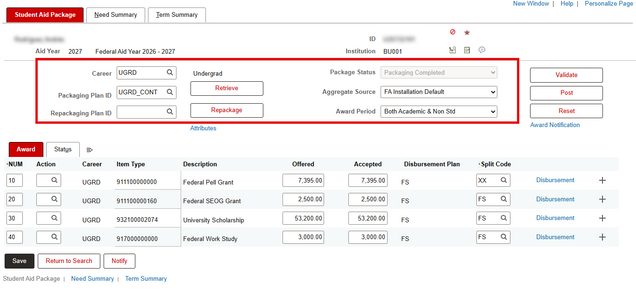
- Career: Displays the student’s Career that FA is using to Package the student.
- Packaging Plan ID: If the student has gone through Mass Packaging, this field is populated.
- Repackaging Plan ID: If the student has gone through Mass Repackaging, this field is populated.
- Packaging Status: Displays ‘Applied’ if the student has an ISIR or Profile Record for the Financial Aid Year being viewed.
- Aggregate Source: This always shows as the FA Installation Default, which is ‘NSLDS.’
- Award Period: Options are to view both Academic and Non-Standard (e.g., Summer) together or separately.
The bottom section is used for adding an award and/or viewing the current award(s) in the student’s package for that Aid Year. Refer to the sections below for more information.
Add an Award
- If there are already any existing awards, click the plus icon on one of the rows to add a new row below it.
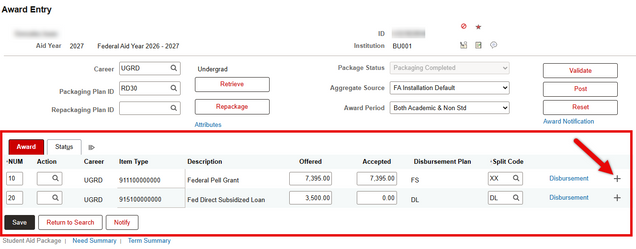
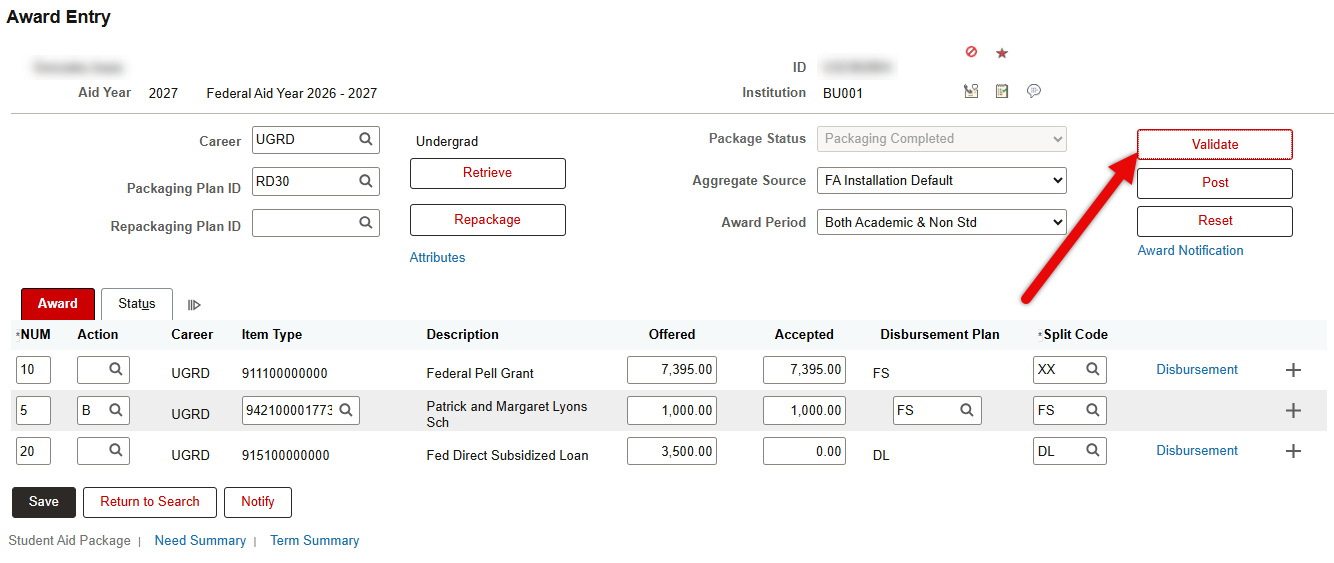
- The example shown above started with two existing awards. Below, notice that the new row has been added with a sequence number (NUM) of 30, even though the new row was inserted between the two existing rows.
- This numbering sequence determines what aid to cancel first when repackaging. Upon saving, the rows shown will adjust to align with the sequence order.
- If adding a new external award, renumber this to a number less than 10, since external awards should not be canceled.

- Determine if the student will need to accept the award, or if the award should be placed in an ‘Offer/Accept’ status.
- Most BU awards (other than Loans) are ‘Offer/Accept.’ For loans, the student is required to either accept or decline, so those must be added with a status of ‘Offer’ only.
- Input the corresponding value into the Action field:
- B = Offer/Accept
- O = Offer
- Input the Item Type for the award.
- The lookup field can be used, but will only display 300 item types. The Description search can help narrow down possible results. Click on the correct Item Type in the Search Results to input the Item Type into the field.
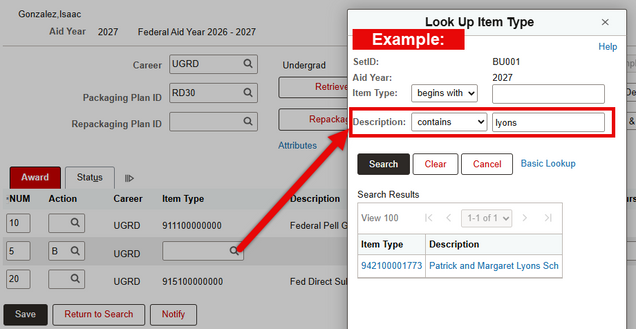
- If adding an external award that doesn’t already exist in the system, input a Generic Item Type “Outside Award” (a student can have up to 12 of these Generic Item Types).
NOTE: If unsure which Item Type to input, please check with the appropriate department.
- Enter the Award Amount in the Offered field. The Accepted amount will automatically populate. (Click into the field to trigger the auto-population if needed.)
- Disbursement Plan and Split Code will also automatically populate based on the Item Type.
- The most common code of ‘FS’ refers to Fall/Spring, with 50% of the award allotted to each term.

- In the upper-right section of the page, click Validate.

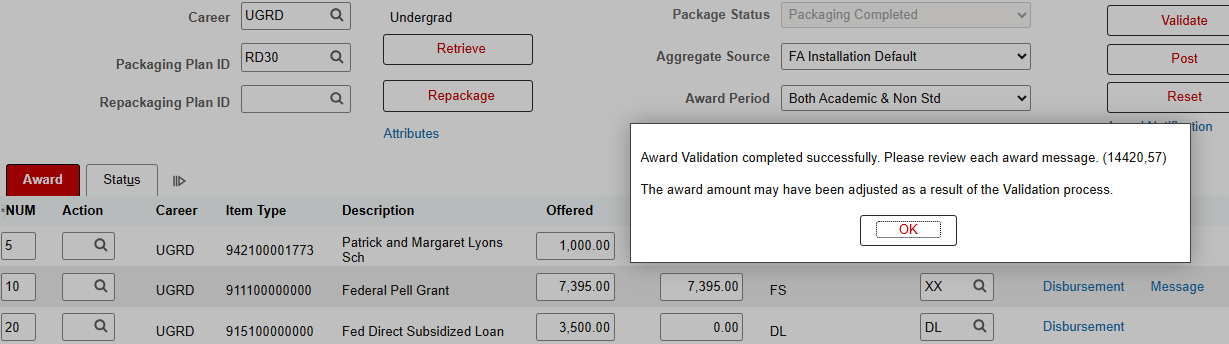
- Review the validation message and click OK.

- Before posting, verify that the amounts and sequence numbering are correct. (Notice in the screenshot below that the re-numbered external award has moved to the top of the list.) If a change is needed, click the Reset button to remove the award that was added and then re-input as needed.
- Click Post.
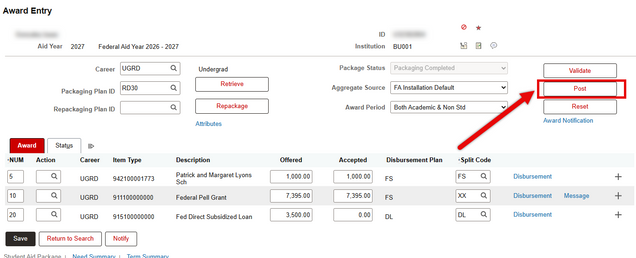
- A confirmation message will appear. Click OK.

- The new award has now been posted to the student’s aid package.
Need Summary tab
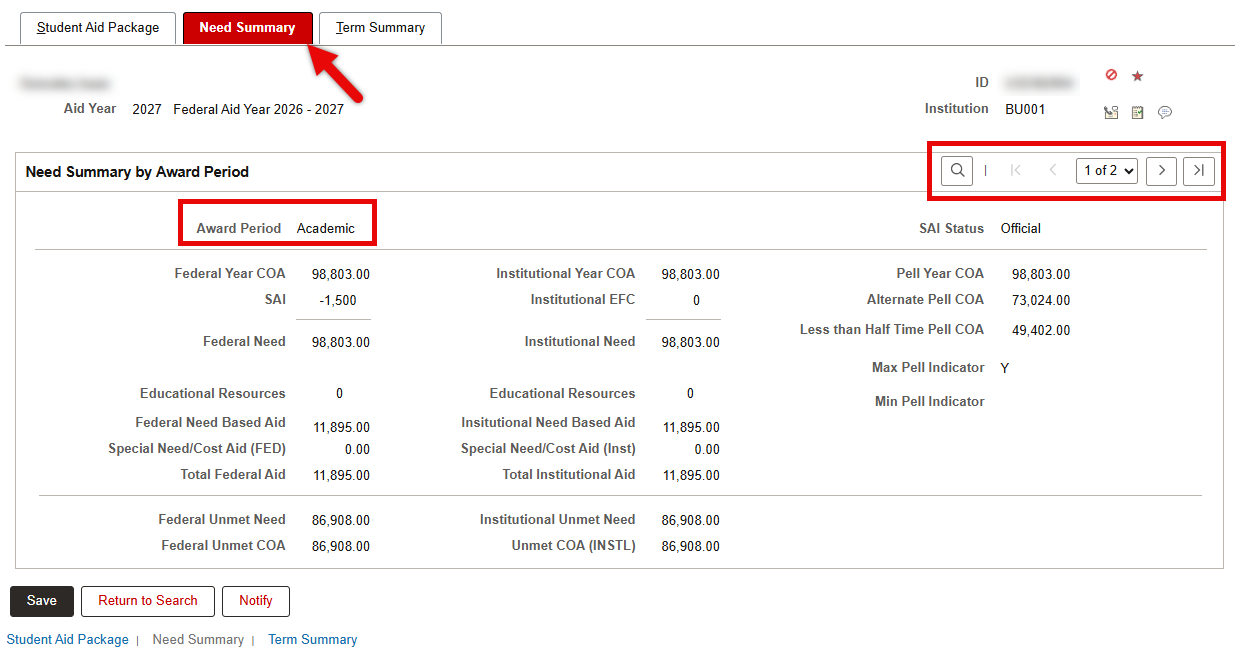
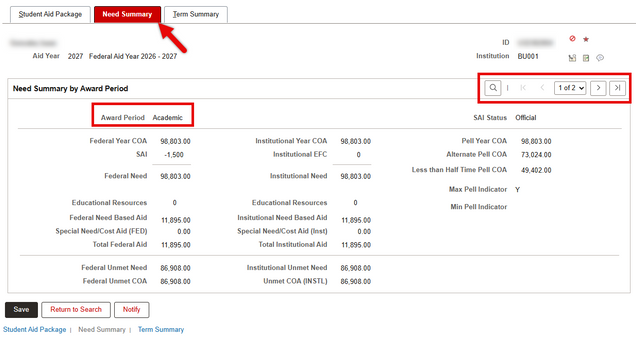
The Need Summary tab provides a view-only display of what the student has been budgeted for, along with both their FM and IM Need. This helps in determining how much need the student has remaining, as well as if they are over-awarded in either FM or IM.
If needed, use the navigation buttons to scroll between Award Periods for that Aid Year (e.g., Academic, Non-Standard/Summer).
Term Summary tab
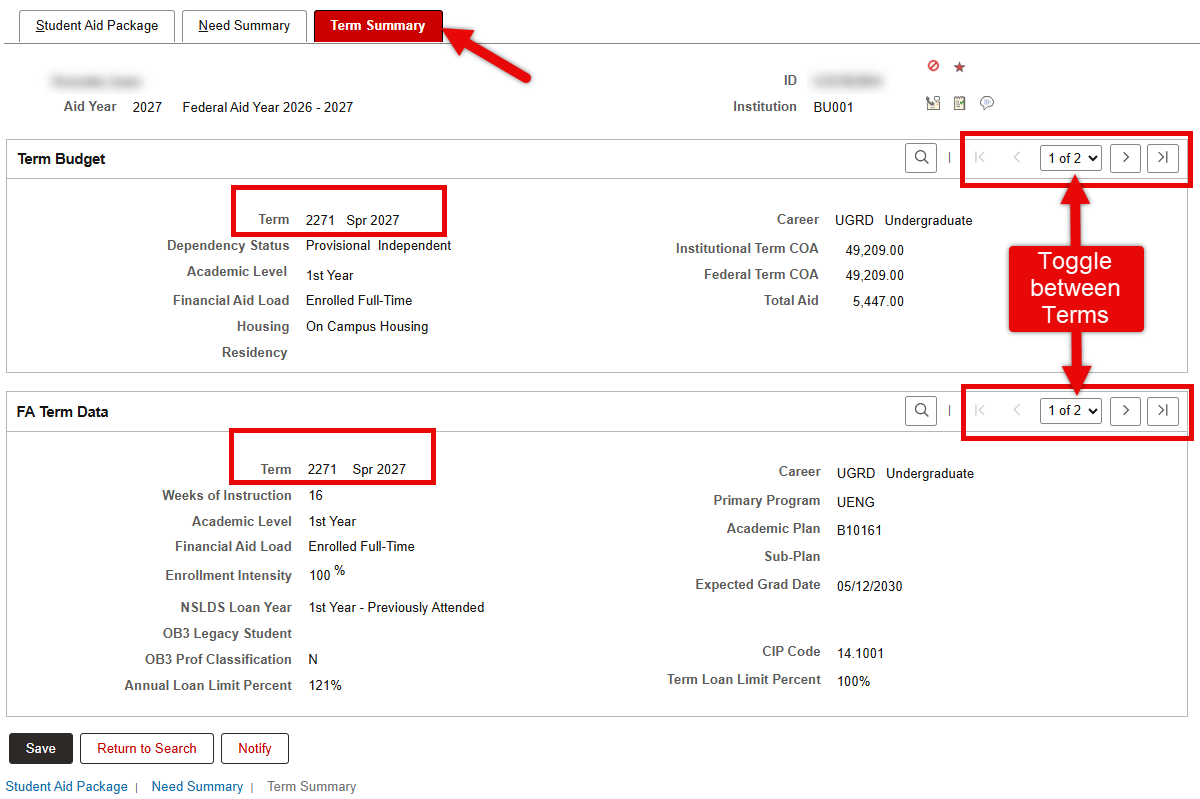
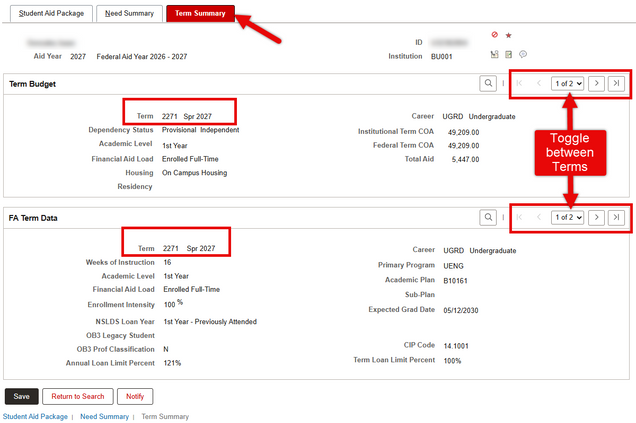
The Term Summary tab provides a view-only display of student information broken out by Term, which may be useful when Packaging the student. The data is displayed across two separate sections: Term Budget and FA Term Data.
Note that the display may default to Spring for both sections, even though it comes consecutively after Fall. Use the navigation buttons to toggle between Terms for each section.
This page was last updated October 2026. To download a PDF copy of this resource, print this webpage as a PDF.