Advising Navigation to Act as Student
These instructions cover how advisors can navigate to the Act as Student mode. See additional information below for reviewing process details.


Introduction
The Act As function allows advisors to view student information similarly to how a student would view their information. Note: there may be some differences in activities that can be performed by a student and by an advisor in the Act As mode.
This resource outlines navigation specific to advising pages only. For information on viewing pages while in the Act As mode, please refer to the Act As Student resource. Those instructions include the following enrollment and academic pages:
|
|
Navigation for Advisors
- Use the Advisor Dashboard widget or go to the left menu and select Advisor, then Advisee & Student Lookup page.
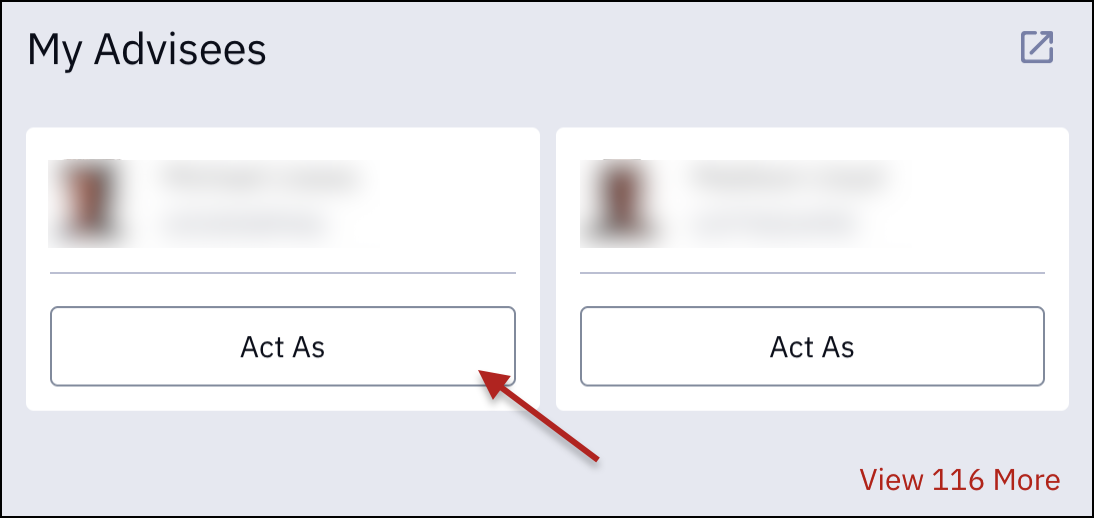
- If the desired student is appearing in the Dashboard My Advisees widget, then clicking the Act As button can be performed from here.
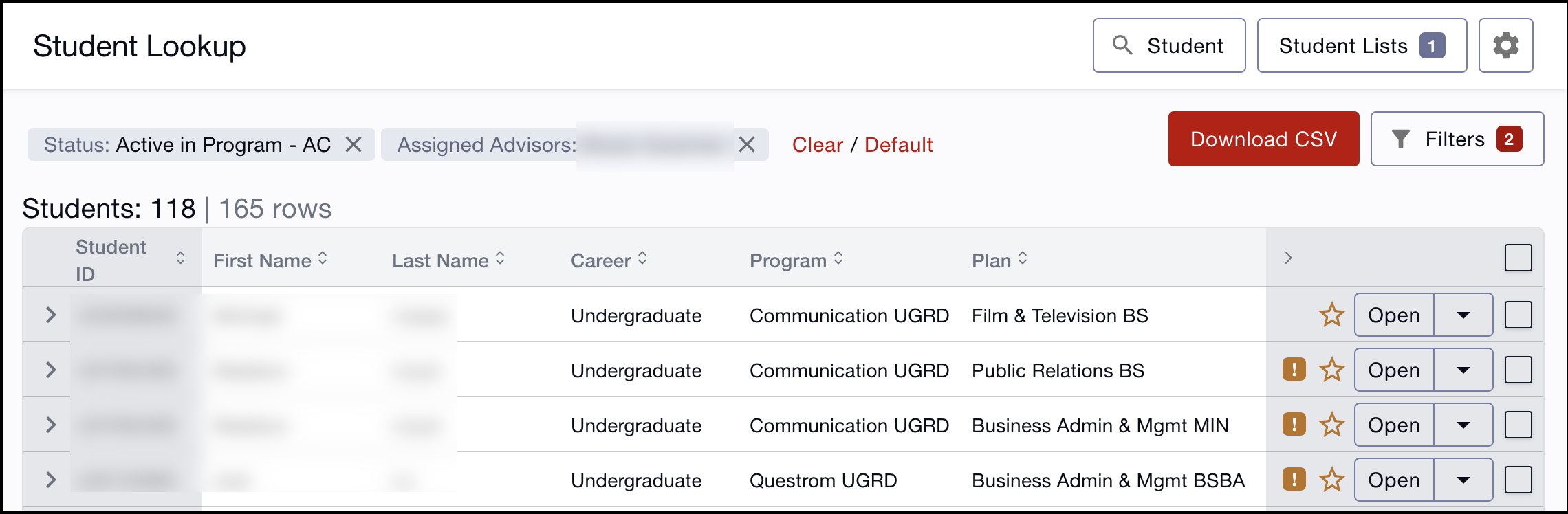
- Otherwise, clicking on the View More link from the My Advisees widget on the Dashboard will open the Advisee & Student Lookup page. Navigating from the left menu will open that same page.
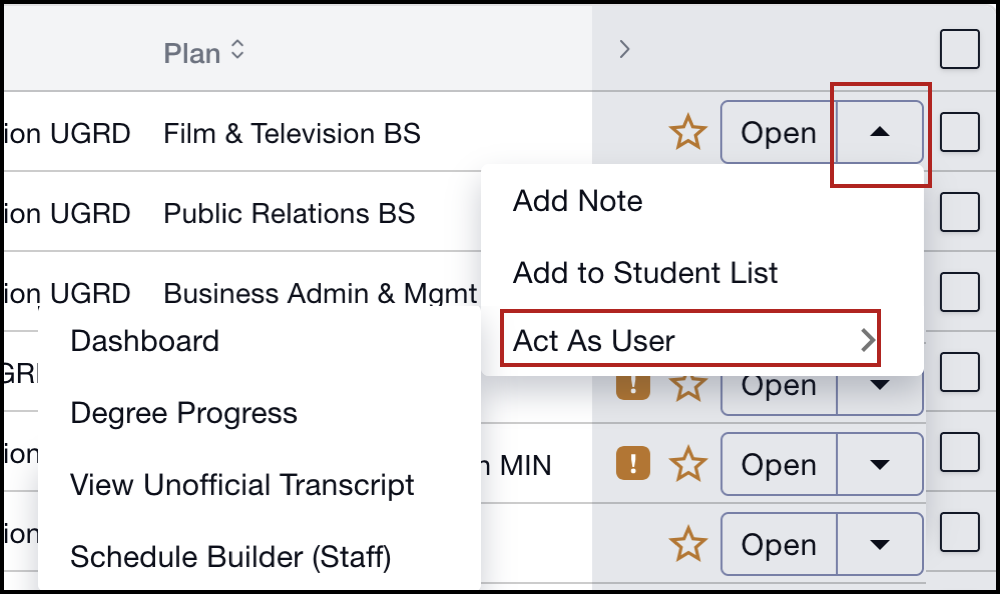
- From the Advisee & Student Lookup page, click on the arrow next to the Open button to view the menu. Select Act as User.
- Choose to launch to the student’s Dashboard, Degree Progress, View Unofficial Transcript, or Schedule Builder page.
- Acknowledge the Family Educational Rights and Privacy Act (FERPA) message by clicking Continue. Visit the BU Registrar’s website to learn more about FERPA.
The desired page will open. Navigation to other pages while Acting as that student is available via the left menu. For guidance on reviewing the allowable information in the Act As mode, please refer to the Act As Student resource.
Click on the PDF icon to open the advising Manual and skip to the ‘Act as Student’ section. (Updated October 2025)