Student: Attendance Verification
The Attendance Verification process confirms whether a student is currently “in attendance” at the University. This resource focuses on the steps that impacted students need to complete when assigned the Attendance Verification Task.

Introduction
Not every student will be prompted to complete a verification agreement. Students will be assigned if:
- The student is enrolled in classes for the term
- AND their bill is not settled,
- AND after a review of their Blackboard, housing and card swipe activity, there is not confirmation of that the student is participating or engaging (in attendance).
For additional workflow details, the Attendance Verification Process Overview provides a written and visual explainer.
ATTENDANCE VERIFICATION TASK
- Login into MyBU Student.
- In the left menu, navigate to My Information > Tasks.
- Click on the assigned Attendance Verification Agreement task.
- The Attendance Verification Agreement page will open in a new window. On the initial Launch page, review the due date and the information provided.
- Click the Next button in the top right corner.
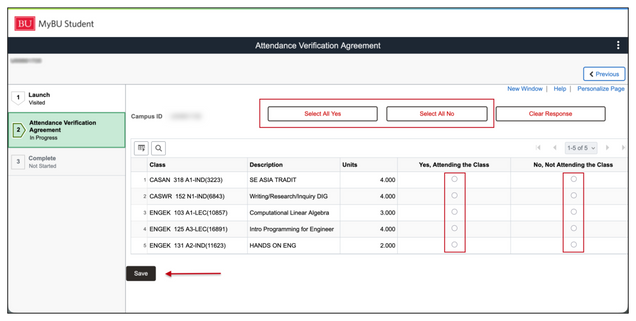
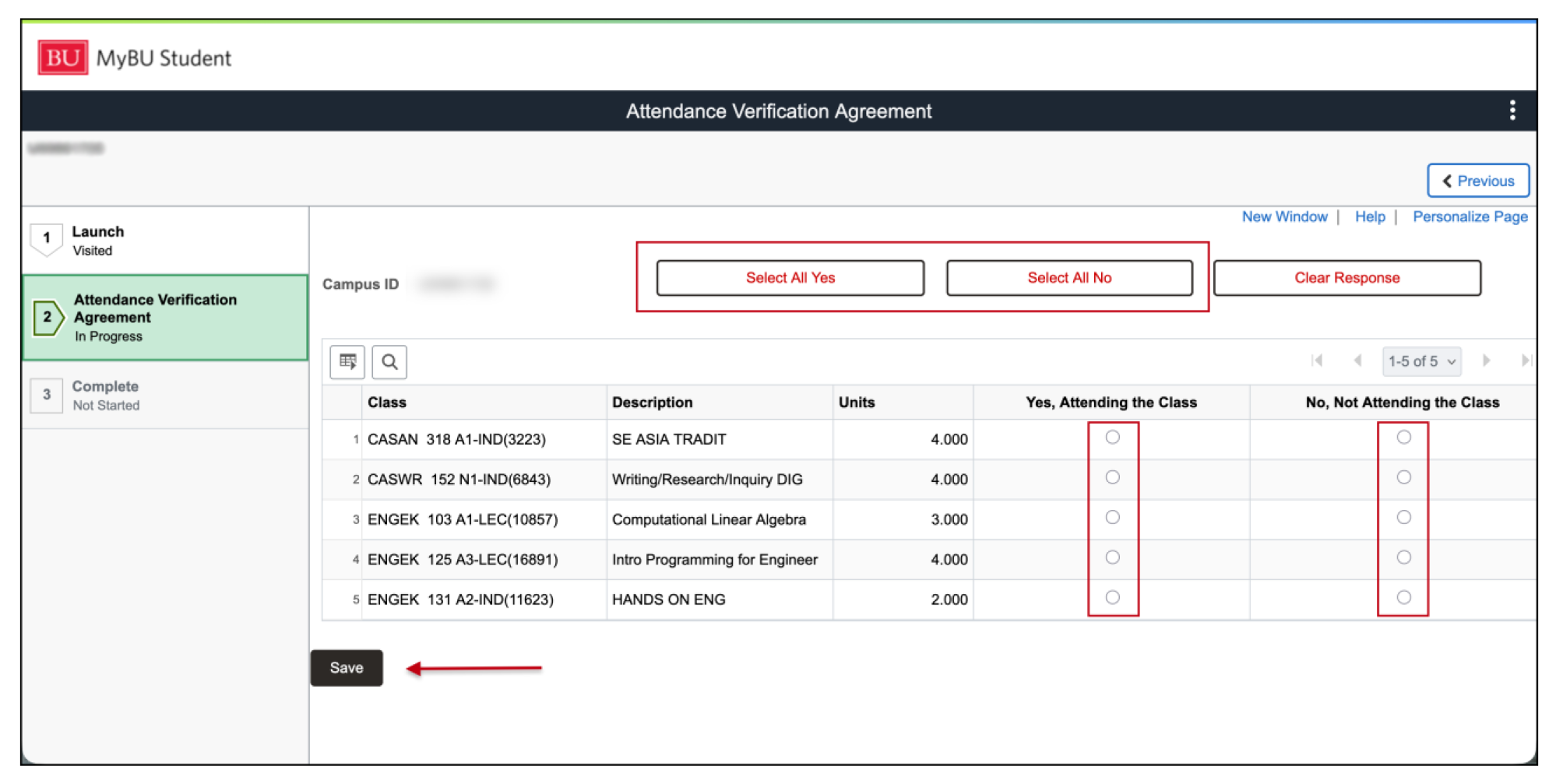
- Enrolled classes for the term will display. Indicate Yes, Attending or No, Not Attending for each class.
- If the response is the same for all classes, this can be performed by using the top buttons to Select All Yes or Select All No.
- Or to perform this individually for each class, indicate the Yes or No response by selecting the appropriate radio button.
- Click the Save button when all responses have been selected. Or use the Clear Response button to de-select and start over.


ⓘ NOTE:
- If ‘No, Not Attending the Class’ is selected for each class, the Registrar Withdrawals website will automatically launch in a new window to provide more information regarding the official LOA and withdrawal process. If the student does not complete the official LOA or withdrawal process, OUR will take the action of withdrawing the student from the term as “confirmed not attending”.
- If attending some classes but not attending a particular class, this action does not automatically drop that class. Students should go drop the class in this instance.
- If ‘Yes, Attending the Class’ is selected for at least one class, the Student Financials website will automatically launch in a new window to provide more information regarding settlement of their account.
- Click on the Complete tab in the left menu, or the Next button in the top right, and review the details provided.
- Click the Finish button to submit and complete the agreement.
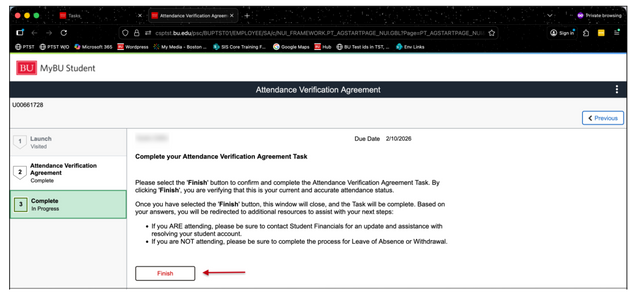
The MyBU Student Dashboard will open and notice the task no longer displays.

Page last updated Feb 2026. For a PDF copy, print this webpage as a PDF.