Queries for Advising
Queries in MyBU Student are reports. This information provides an overview of the Query Viewer page. It also lists the field prompts and the data that displays when running frequently used advising queries.



Introduction
This resource outlines instructions on how to use the Query Viewer page. It also lists common queries in MyBU Student that are helpful in advising processes. The following reports are included in this resource, but they do not represent all queries that advisors have access to:
- Student Basic Info by Advisor
- Advisee Email Download
- Student List with Advisor Info
- Students with Student Groups
- Blocked Registrations
- Legacy Advising Notes
Each report included in this resource lists the prompts used for running the report and the data fields included in the results. This is meant to guide advisors in quickly identifying what report might be helpful depending on the search criteria that’s needed and/or the information that’s desired to review.
TIP! Try using the Ctrl+f keyboard shortcut to search this resource for a particular field.
All queries have a unique identifier, called the Query Name. The Query Name is not meant to be a user-friendly title but a system identifier composed of keywords and abbreviations separated by underscores (for example: BU_R0010M_SR_CPP_HIST). Since the Query Name doesn’t always give a clear indication of the full description/scope of the report, it may be helpful to add relevant queries to Favorites. Refer to the Query Viewer section below for more information about running queries and saving favorites.
⚠︎ Screen options, menus, and reports will vary by user; please note that displays may differ for you based on access that has been granted. All screens shown are for training purposes only.
Query Viewer
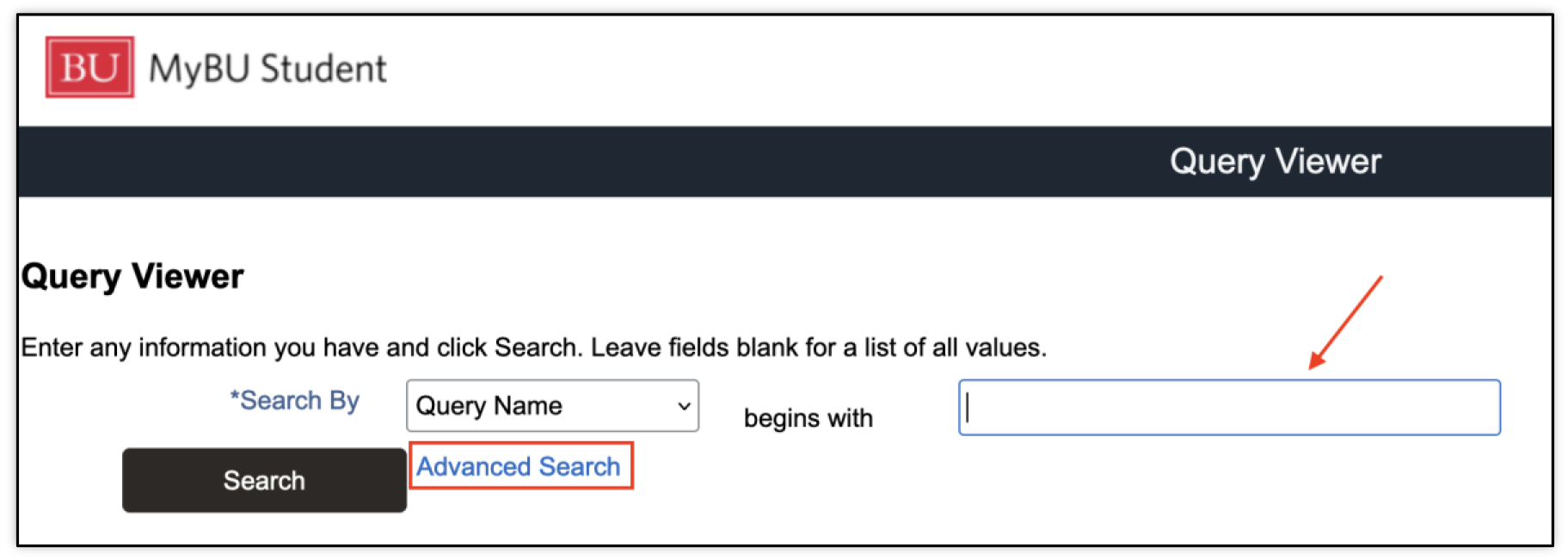
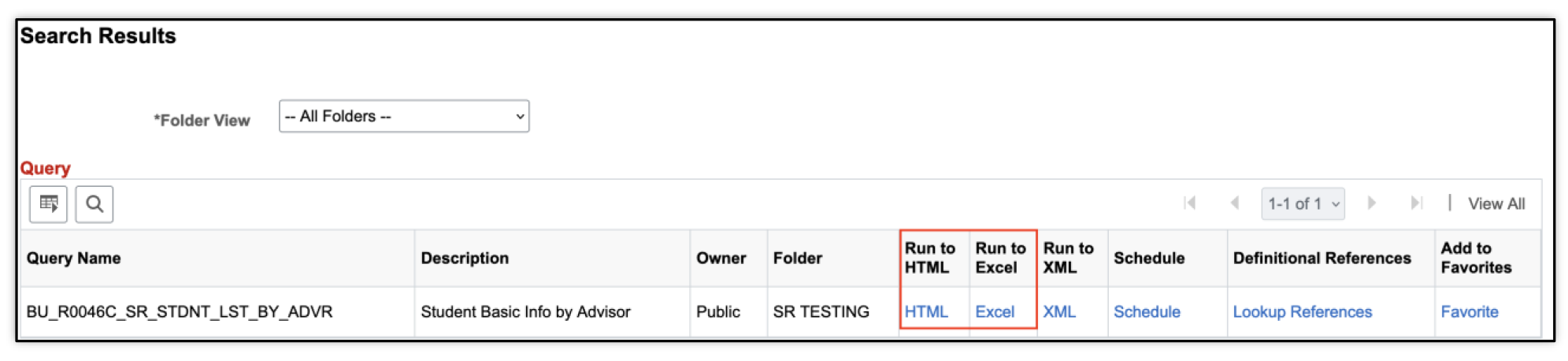
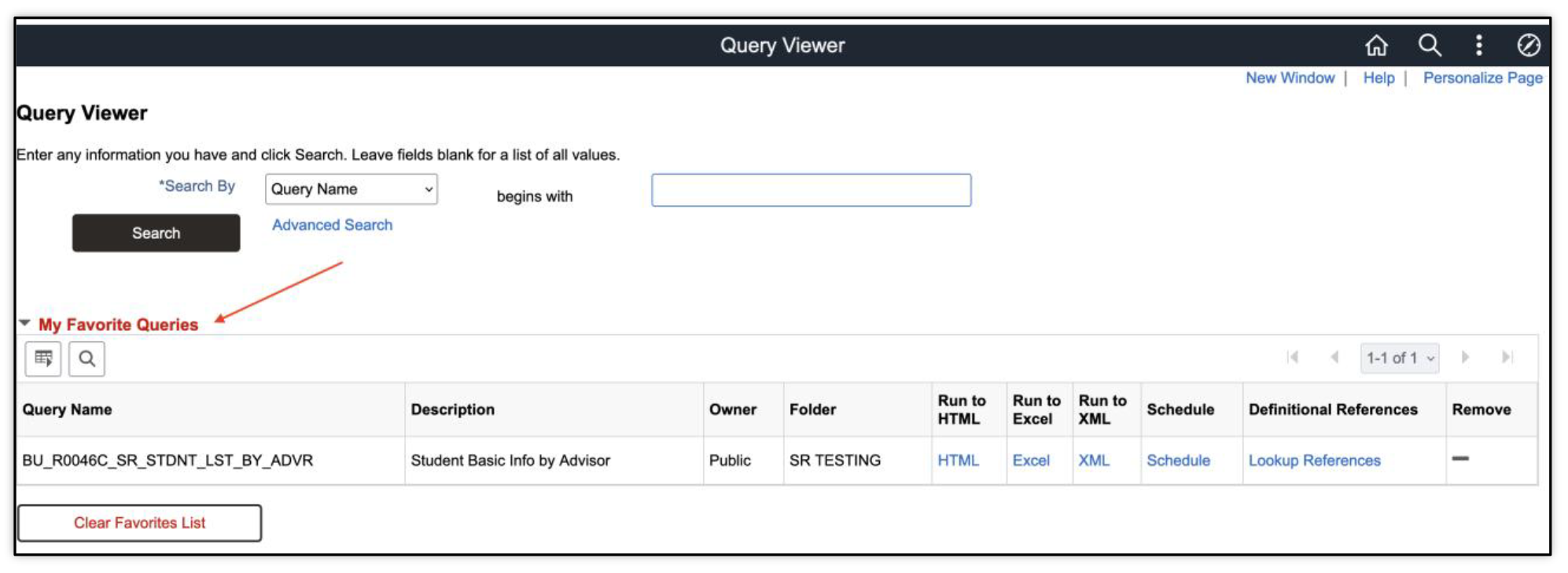
Frequently Used Advising Reports
The following reports are identified as frequently used for advising needs and processes. They are not comprehensive of all reports that may be available for advisors. Proper security access must be granted.
- Upon compiling, all reports can be downloaded. Click on the desired option above the list of results.
- Click Rerun Query to enter new criteria for a new search.
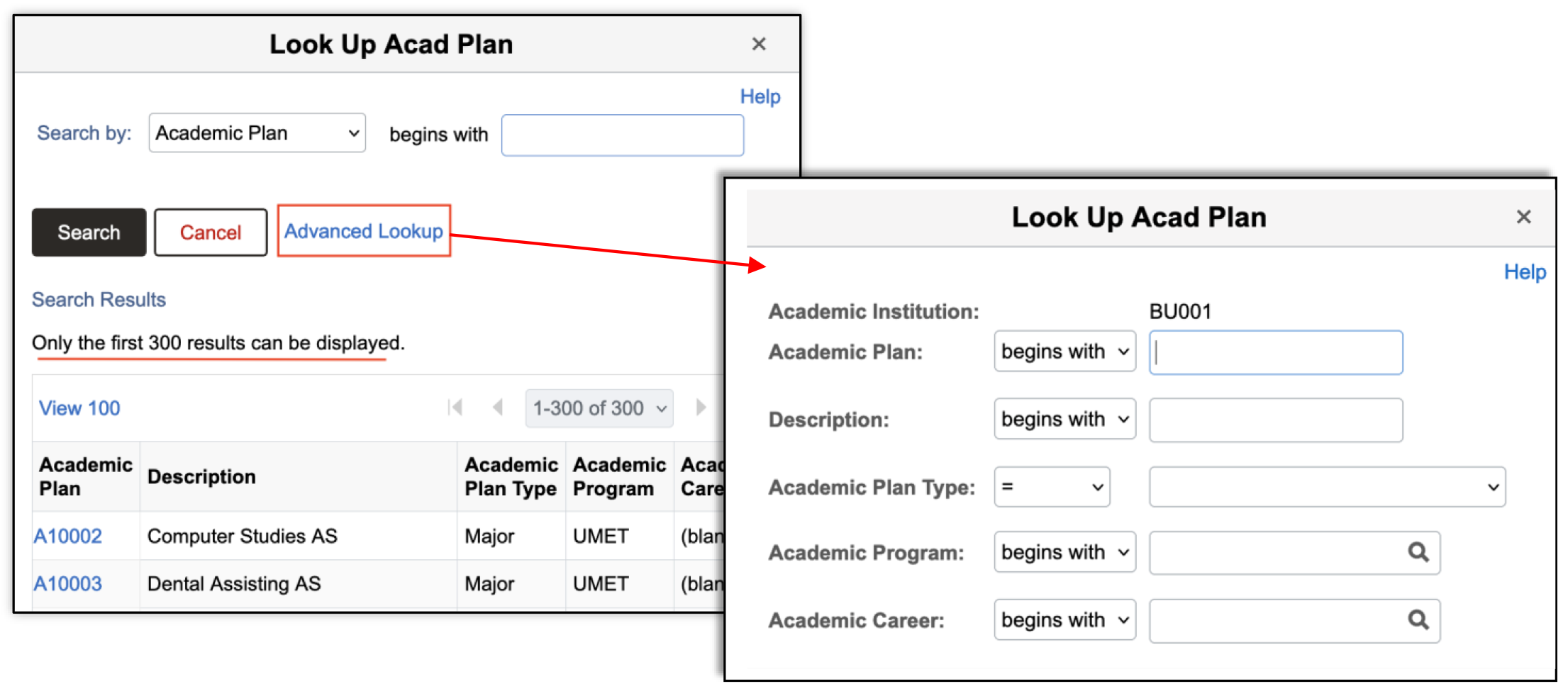
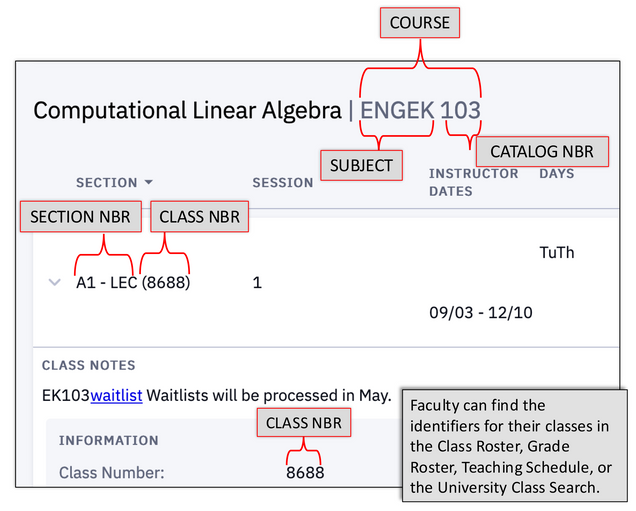
For help with searching and understanding terms and class/course numbers, refer to the Prompt Field Search Tips, Course/Class Identifier Information, and Term (Semester) Overview sections in the Appendix of this guide.
STUDENT BASIC INFO BY ADVISOR
QUERY NAME: BU_R0046C_SR_STDNT_LST_BY_ADVR
This report shows student’s basic information for advisor selection.
- For a term, select advisor in report criteria to list all students assigned to that advisor.
PROMPTS:
- Institution, Term, Advisor (all required)
DATA FIELDS DISPLAYED IN RESULTS:
| Advisor ID | Advisor Email | Advisor Last Name | Advisor First Name |
| Advisor Middle Name | Student Id | Student Email | Student Last Name |
| Student First Name | Student Middle Name | Pronouns | International |
| Acad Standing | Career(s) | Acad Prog(s) | Sub Plan(s) |
| Enrollment Status | Term | Admit Term(s) | Exp Grad Term(s) |
| Acad Load | Approved Acad Load | Start Acad Level | Current GPA |
| Cumulative GPA | Total Term Units | Total In Progress Units | Total Cumulative Units |
| Admitted As First Year | Admitted As Transfer | Milestone |
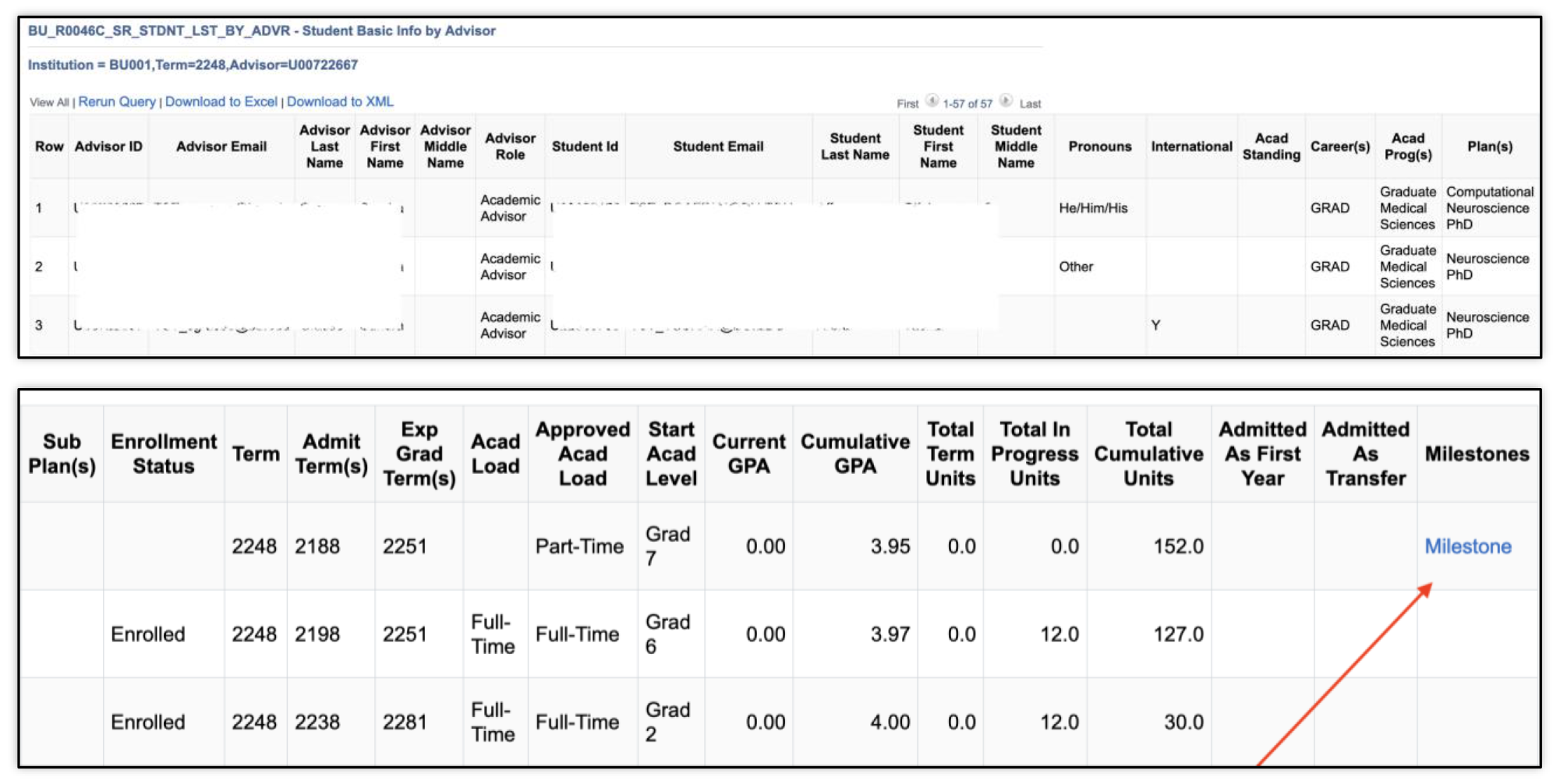
- Click the Milestone link to view the details of the student’s Milestone.
ADVISEES EMAIL DOWNLOAD
QUERY NAME: BU_AA_ADVISEES_COMMUNICATION
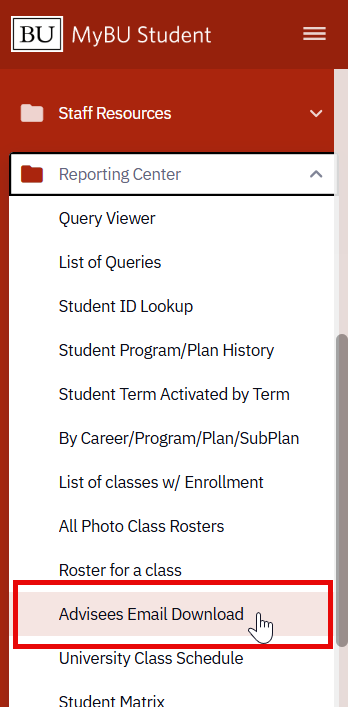
This report is essentially a pared down version of the Student Basic Info by Advisor report described below. It generates a list of an advisor’s advisees, their email addresses, and academic program-plan data.
ⓘ NOTE: This report can be run right from the Reporting Center folder of the left-hand MyBU Student menu. It can also be accessed in Query Viewer.
If this report doesn’t appear as expected, it could be because the user hasn’t been added to the Instructor/Advisor table. Submit a ticket to ithelp@bu.edu and CC advsys@bu.edu to request to be added to the Instructor/Advisor table.
PROMPTS:
- Institution, Term, Advisor (all required)
DATA FIELDS DISPLAYED IN RESULTS:
| Student ID | Student Last Name | Student First Name | Student Middle Name |
| Student Email | Pronouns | Academic Level – Term Start | Academic Career |
| Academic Program(s) | Joint Program Approved | Academic Plan(s) | Academic Subplan(s) |
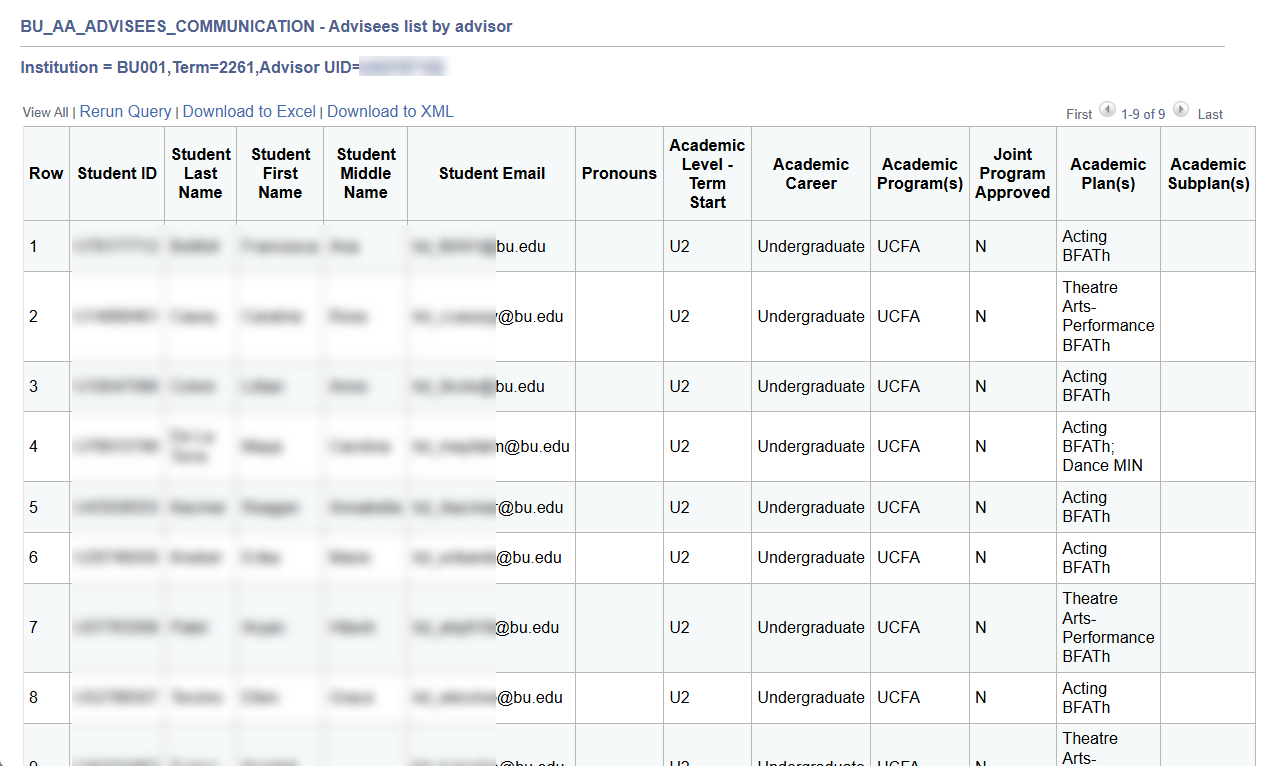
TIP! The Student Email column can be copied and pasted into the “To” field of an email to easily send an email to all advisees.
STUDENT LIST WITH ADVISOR INFO
 QUERY NAME: BU_R0046AV_SR_STDNT_ADVR_INFO
About: This report shows a student list with additional advisor information.
- Enter report criteria that results in list of students with data that includes their assigned advisor(s).
PROMPTS:
- Required: Institution, Term, Career, Primary Acad Prog, College
- Optional: Acad Plan, Sub Plan, Group Name, Service Indicator (all optional)
TIPS!
- College: if College is desired rather than Program, enter the % symbol in the field and perform a lookup by clicking the magnifying glass.
- Group Name: refers to student group. If compiling incoming first years, select the ‘RIFY – Incoming UG First Year’ value (other options available – perform a lookup to review).
- Service Indicator: utilize if compiling students with holds (other options available – perform a lookup to review).
DATA FIELDS DISPLAYED IN RESULTS:
| Student ID | Last | First Name | |
| Middle | International | Advisor ID | Advisor Email |
| Advisor Last Name | Advisor First Name | Advisor Role | Advisor Acad Org |
| Stdnt Advisor Nbr | Term | Academic Standing | Career |
| Acad Prog(s) | Acad Plan(s) | Enrollment Status | Admit Term(s) |
| Exp Grad Term(s) | Acad Load | Approved Acad Load | Start Level |
| Current GPA | Cumulative GPA | Total Term Units | Total In Progress Units |
| Total Cumulative Units | Admitted As First Year | Admitted As Transfer | Milestones |
- If applicable, click the Milestone link to view the details of student milestone(s).
STUDENTS WITH STUDENT GROUPS
QUERY NAME: BU_SR_STUDENT_GROUPS
About: This report shows students listed with associated Student Group(s).
- Specific groups can be searched if desired.
PROMPTS:
- Required: Term, Institution
- Optional: Student Group, Primary Acad Prog
TIP! If compiling incoming first years, select the ‘RIFY – Incoming UG First Year’ value in the Student Group field (other options available – perform a lookup to review)
DATA FIELDS DISPLAYED IN RESULTS:
| ID | Last Name | First Name | Middle Name |
| BU Email | Pronouns | Term | Academic Career |
| Primary Academic Program | Study Agreement | Student Group | Student Group Description |
| Withdrawal \ Cancel | Academic Level – Projected | Academic Level – Term Start | Academic Level – Term End |
| Eligible to Enroll | Enrollment Status | Term Units in Progress | Advisor(s) |
BLOCKED REGISTRATIONS
QUERY NAME: BU_R0010J_SR_BLOCKED_REGS
About: This report allows advisors to identify which of their assigned advisees have active registration holds.
- The results can be filtered by Advisor.
PROMPTS:
- Required: Institution, Term
- Optional: Academic Career, Primary Academic Program, Academic Plan, Service Indicator
DATA FIELDS DISPLAYED IN RESULTS:
| ID | Last Name | First Name | Middle Name |
| BU Email | Term | Term Description | Academic Career |
| Primary Academic Program | Academic Plan(s) | Academic Plan Description(s) | Academic Level – Term Start |
| Approved Academic Load | Academic Load | Eligible to Enroll | Withdraw/ Cancel |
| Service Indicator | Service Indicator Description | Service Ind Active Term | Service Indicator End Term | Service Indicator Active Date | Advisor 1 Role | Advisor 1 ID | Advisor 1 Name | Advisor 2 Role | Advisor 2 ID | Advisor 2 Name (etc.*) |
*The results will display the role, UID, and name of up to 5 assigned Advisors for each student. There is an indicator column if a student has 6 or more Advisors.
Students with multiple applicable service indicators will appear multiple times in the results; one row for each service indicator.
LEGACY ADVISING NOTES
QUERY NAME: BU_R0046AI_SR_ADV_NOTES_DTL
About: This report lists any advising notes for the student that were converted from the legacy SIS mainframe (prior to July 2024.)
PROMPTS:
- Student BUID
DATA FIELDS DISPLAYED IN RESULTS:
| Name | ID | Career | |
| Prim Prog | Last Activated Term | Date | Comment |
| DeptID | CmntID | Name |
Appendix
Page last updated April 2025. For a comprehensive downloadable guide, click the PDF icon below. Other resource formats can also be accessed via the relevant icons.