Financial Aid Staff: View Dates a Student Added/Dropped a Class
Financial Aid staff (who don’t otherwise have access to student academic data) can view dates a student performed enrollment activities for a given term using the Academic Information section on the Customer Accounts page.
Navigation (Full Site): Student Financials > View Customer Accounts
- Alternatively, if using the staff homepage tiles, select the Financial Aid tile and then View Customer Accounts.
- Note that appropriate security access is required to view the Customer Accounts page. Most Financial Aid staff users should have this access; or they can request it with their Departmental Security Administrator (DSA).
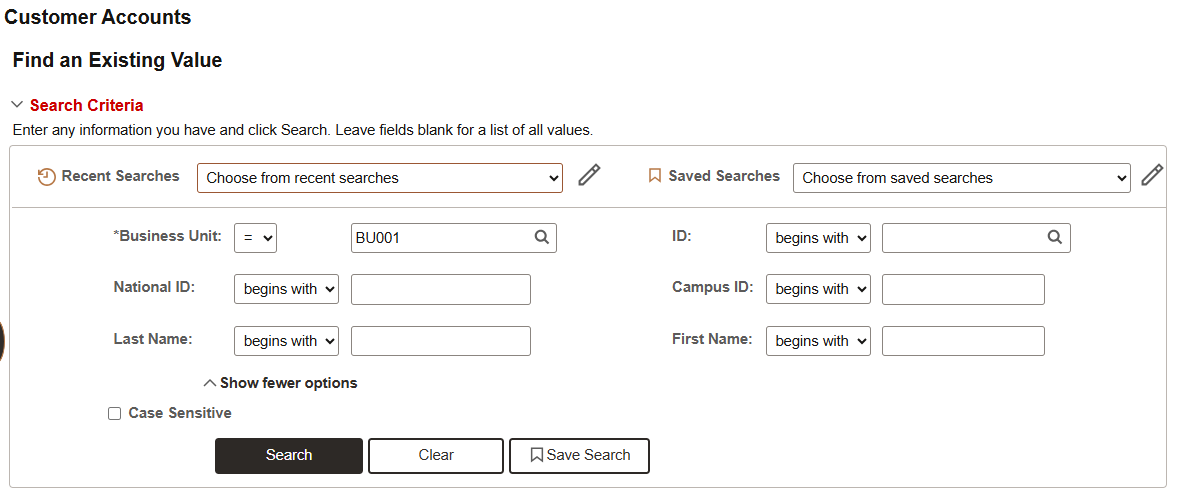
- Search for the student by entering their UID into the ID field.
- Users may also search by entering the student’s National ID (SSN), and/or Last Name/First Name, if UID is unknown.
- Note that on this particular search screen, the Business Unit field may populate as blank. Enter ‘BU001’ or use the lookup to select this value.
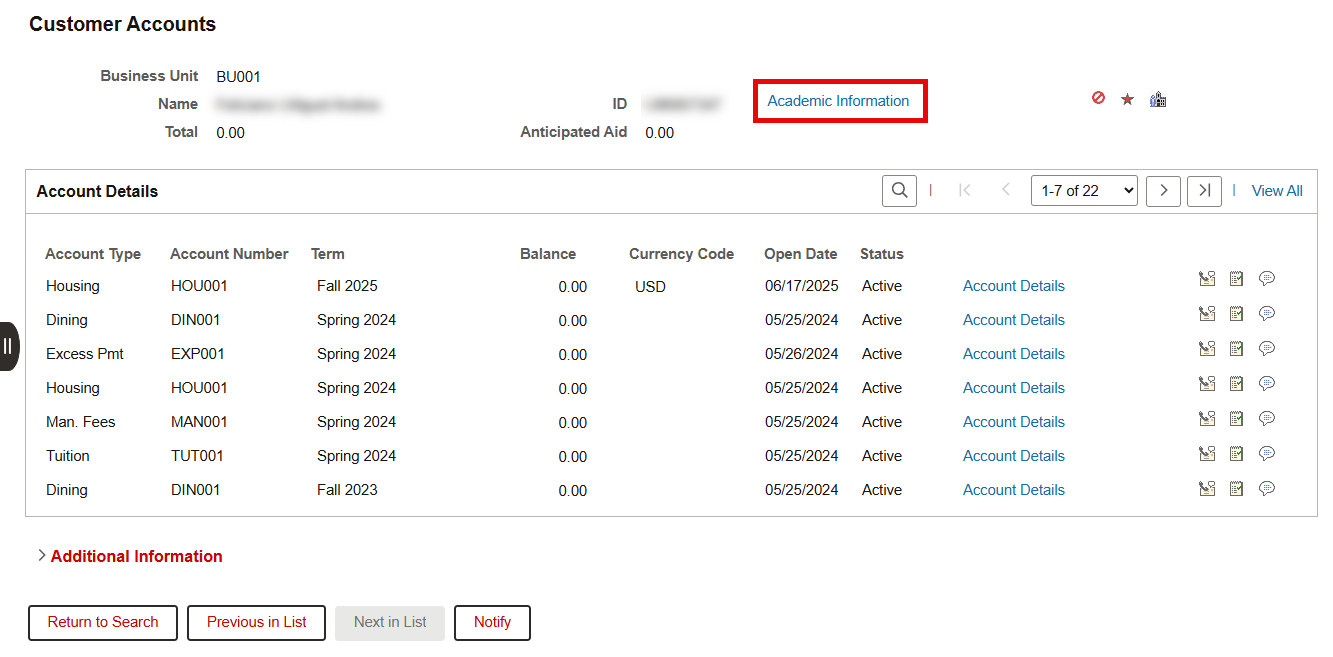
- The Customer Accounts page will display. Click on the Academic Information link at the top of the page.
- The Academic Information window will display. Under the Career Term Data section, find the desired Term and click on the Enrollment link.
- Remember it may be necessary to scroll through multiple rows to find the correct Term.
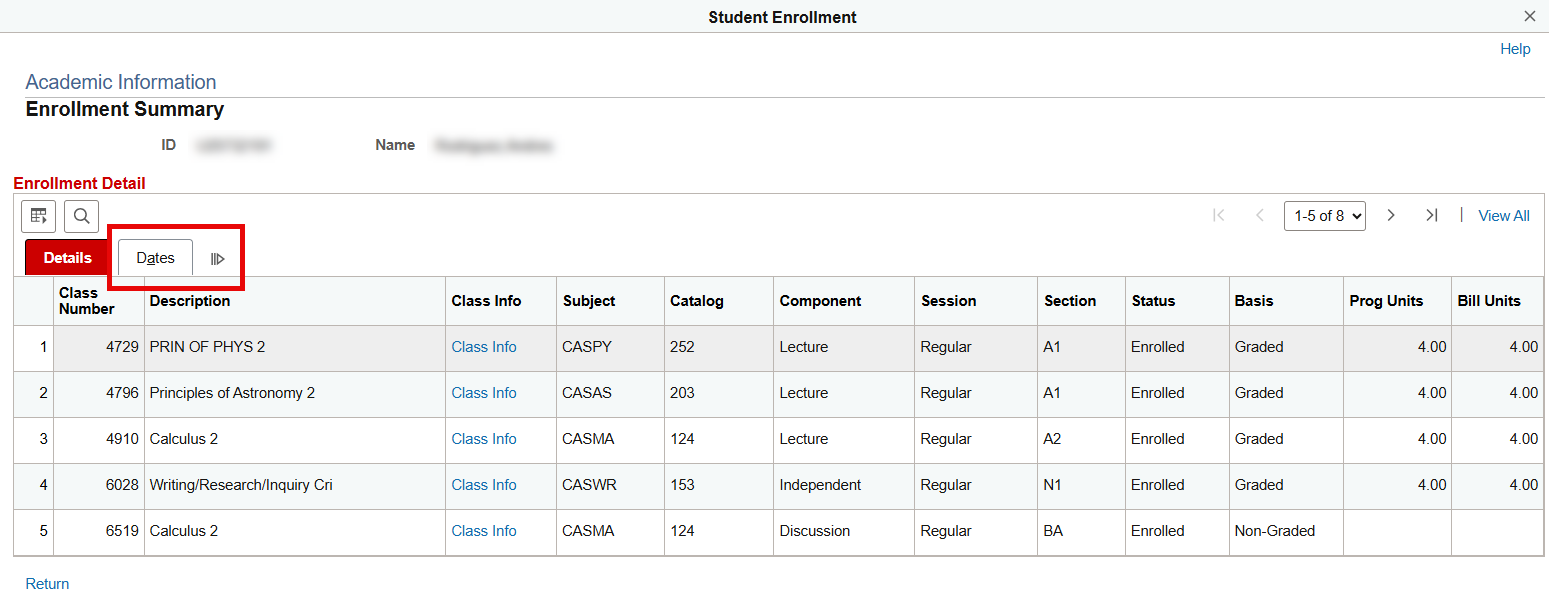
- The Student Enrollment Summary window will open. It will list the classes that the student has enrolled in, defaulting to a view of the Details tab. Select the Dates tab to view enrollment activity.
- Alternatively, click the expand arrow to expand all columns from both tabs in one view.
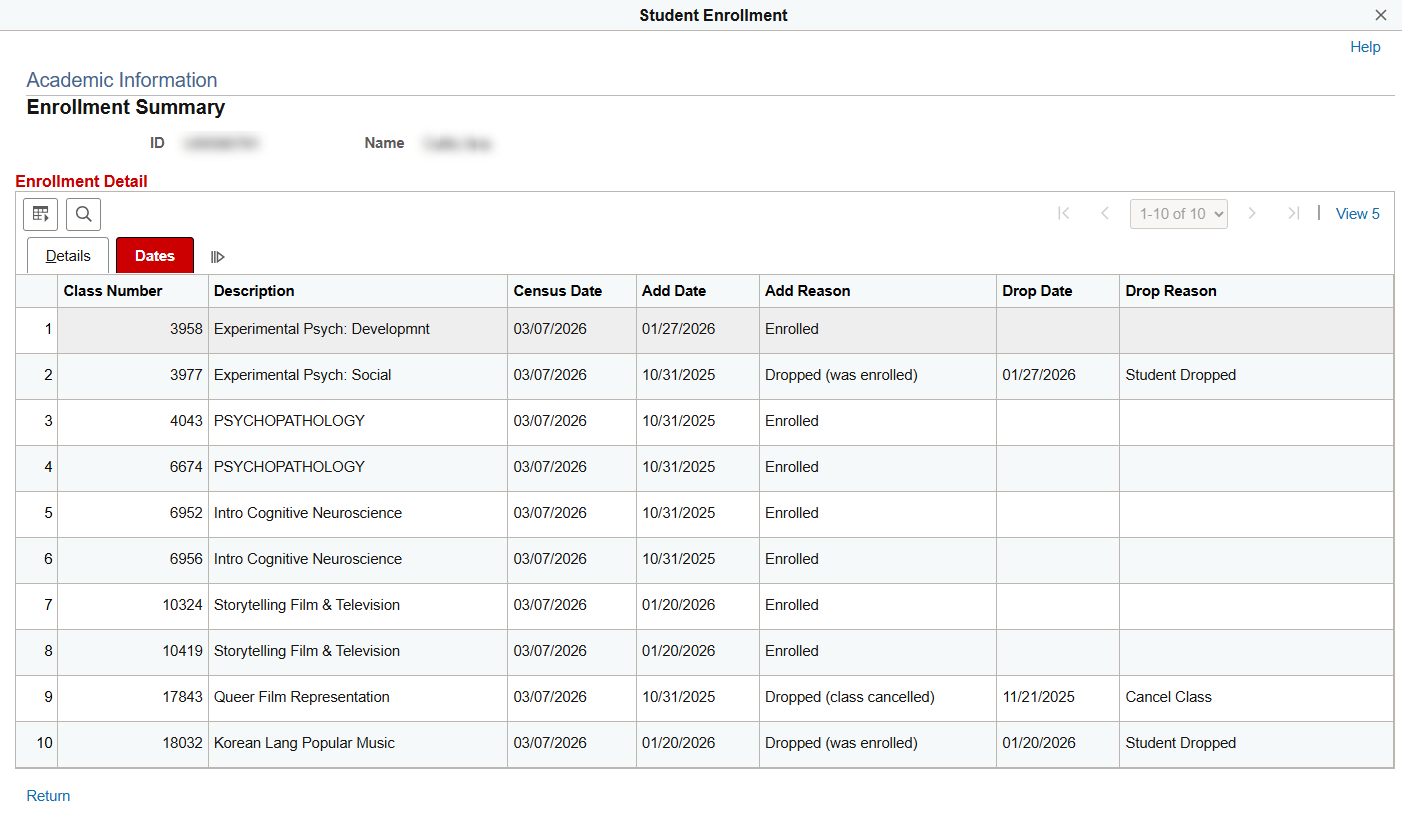
- Review enrollment add/drop information as needed. Note that classes will display in order of their four-digit Class Number.
TIP! Don’t forget there may be multiple rows! Click ‘View All’ to see all the classes the student enrolled in and dropped in that term. In the below example of a Dates tab, all rows for the selected term are shown.


Please note that this resource includes information related to Federal Financial Aid policies which are liable to change. Staff maintaining this documentation will update terminology, links, or processes in accordance with new information as it becomes available in conjunction with Student Information System updates. This guide identifies salient details regarding the usage of MyBU Student and is designed to be used in conjunction to Financial Aid Procedures and Processes.
This page was last updated April 2026. To download a PDF copy of this resource, print this webpage as a PDF.
