This resource describes how students can view and manage Financial Aid Checklist items in MyBU Student. A Checklist combines assigned and completed To Do items, allowing students to track various requirements. For the purposes of Financial Aid, To Do items will be assigned to a student pertinent to their aid application and/or eligibility.
Introduction
Undergraduate students will be assigned To Do items related to their financial aid application and/or renewal. Certain graduate students may also view and track various financial aid To Do items based on the procedures in their respective departments.
Some common Financial Aid checklist items include the FAFSA, CSS PROFILE, income verification documentation, supplemental forms, and direct loan requirements such as entrance counseling and master promissory notes. In some cases, forms can be uploaded directly to the Checklist.
As requirements are completed and documentation is processed, the status of the item will be updated accordingly on the Checklist.
ⓘ NOTE: Requirements that have already been completed will continue to appear on the To Do list, though the status of the item will change. Items proactively submitted by the student (e.g., appeals) may also appear on the list.
Students enrolled in programs on the Medical Campus should discuss financial aid requirements, including any To Do items, with BUMC Student Financial Services.
Screenshots shown in this guide are examples for training purposes only and do not necessarily reflect any one student’s Checklist. Screen options and menus will vary by user; please note that displays may differ for you based on your access and status.
Navigation
Students will see a preview of their To-Dos upon logging in to MyBU Student Portal. Click ‘View’ to navigate directly to the list.
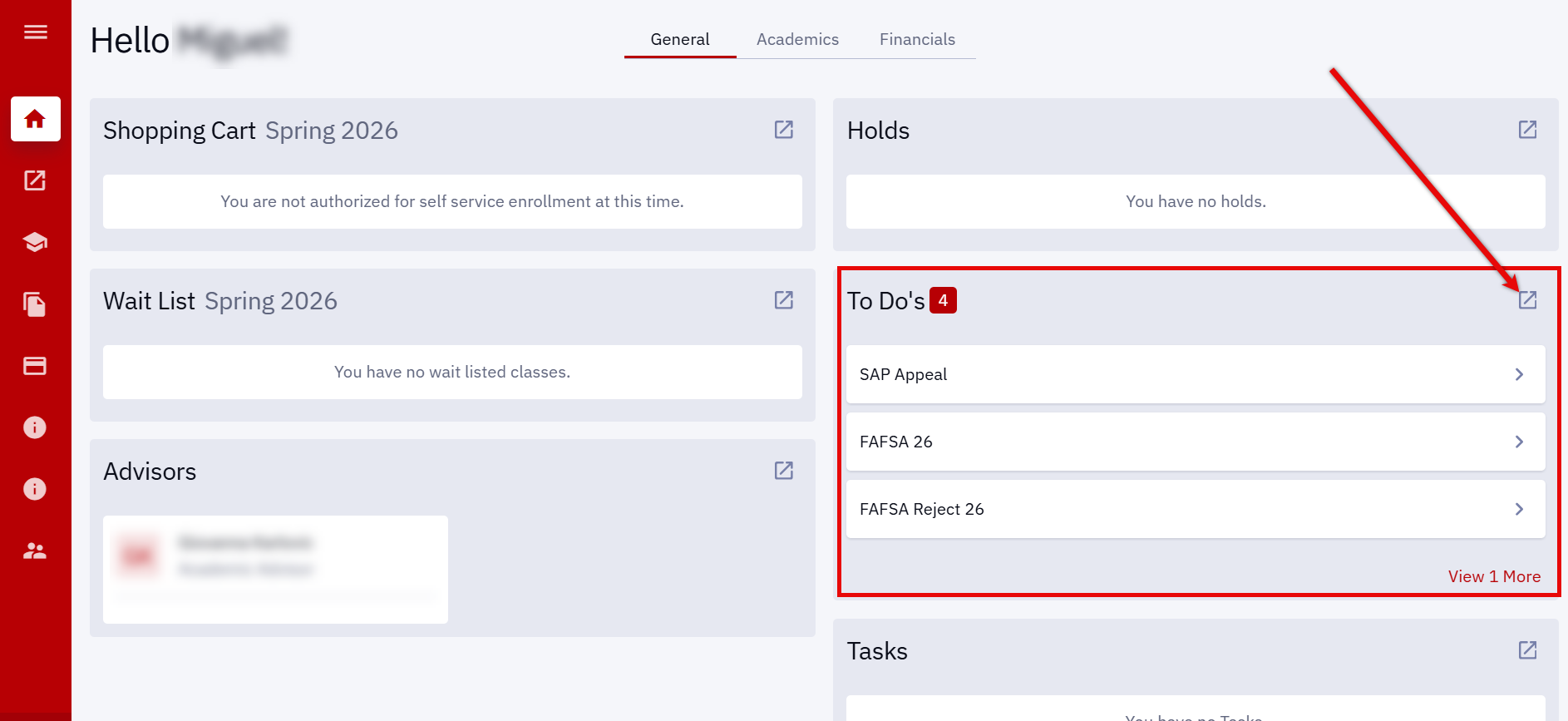
Alternatively, the MyBU Student Dashboard will also show a preview of three checklist items. Click on an item to view details, or click the expand button to navigate to the To-Dos page.
NOTE: Items shown in the Dashboard preview do NOT necessarily reflect the most up-to-date Checklist. The preview only shows the first three items on a student’s Checklist, regardless of status. Completed requirements, for example, may display in this preview.
Be sure to click into to the To Dos page to view the full Checklist, along with the status and description of each item.
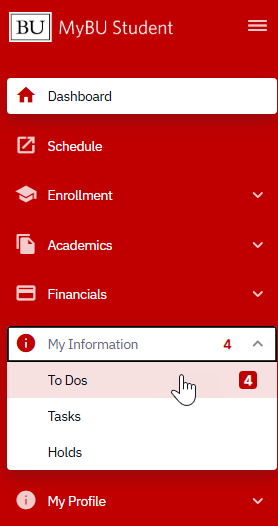
Students can also navigate to the To-Dos page via the left-side navigation menu, under My Information.
ⓘ NAVIGATION NOTES:
Even though they are often related to Financial Aid, Checklist items are not found in the Financials pages of MyBU Student.
To-Dos versus Tasks: In addition to To-Dos, students will also see a Tasks section on their MyBU Student dashboard. A Task, also referred to as an Activity Guide, is more part of a structured, step-by-step process. Clicking into an assigned Task will guide the student through the steps of such a process, for example, applying for graduation. Currently, Financial Aid checklist items are NOT found under Tasks.
Viewing the Checklist
The To-Dos page will show the full Checklist. Some Checklist items are requested by Financial Aid staff while others are triggered automatically by the system. The order in which items are listed can vary, and may not always align with the order in which items were assigned.
NOTE: The newest requirements may not necessarily appear at the top of the Checklist, so it’s important to review the full list. Items for multiple Financial Aid Years may appear across the list as well – be sure to check the listed Aid Year for required items.
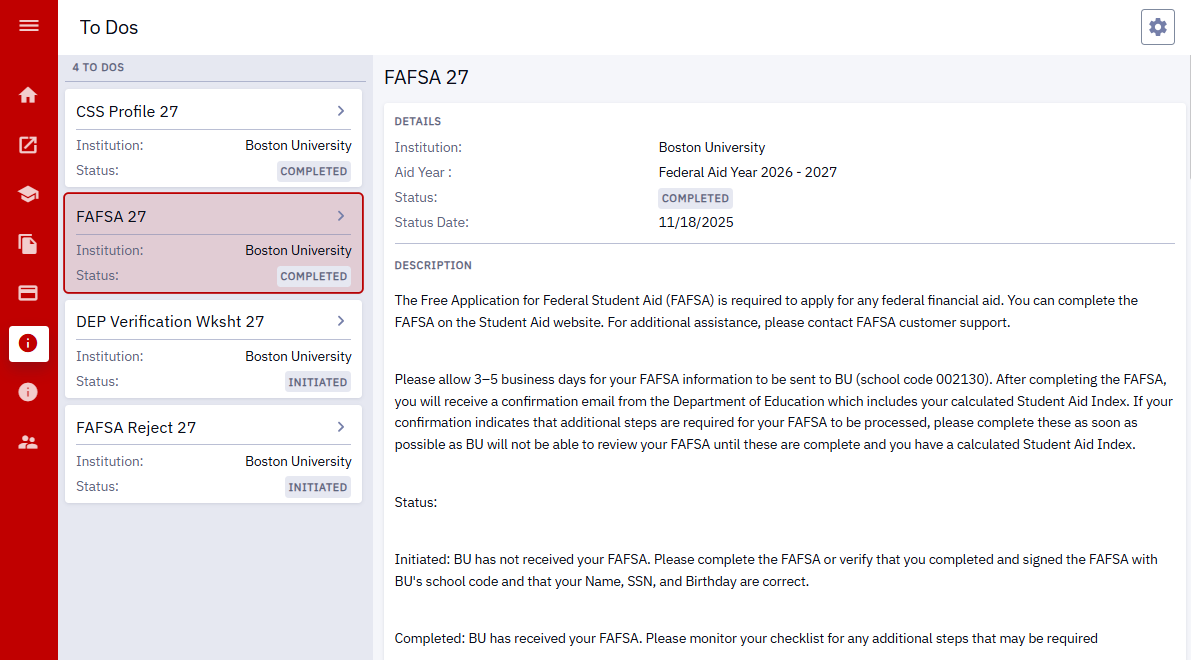
Click on a checklist item on the left-hand side to view its details in the right-hand pane.
Each checklist item has a unique description – be sure to carefully review the Description and Status of each item. The Description will often include instructions or background information to explain why it’s included in the Checklist.
ITEM STATUSES
The status of an item will change as pertinent documentation is processed and reviewed by Financial Aid staff.
The meaning of each status as it relates to that specific checklist item will be defined in the item’s Description. But in general, the following statuses will most commonly apply:
Initiated – item has been assigned.
Received – document has been submitted by student, but not reviewed
Complete – item has been processed
Upon review of submitted documentation, additional related requirements may also be added by Financial Aid staff. Some items may appear on the Checklist already in ‘Received’ or ‘Completed’ status.
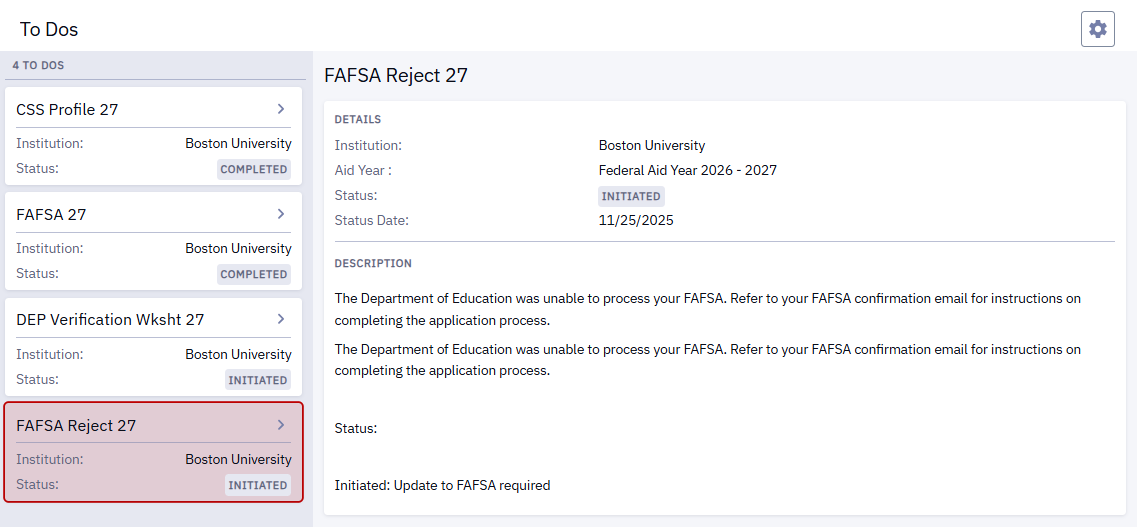
In the below example, the student’s FAFSA has been submitted, but the ‘FAFSA Reject’ item in ‘Initiated’ status means that additional steps must be taken by the student in order for BU to process the FAFSA.
PROCESSING TIME & FOLLOW-UP
Depending on the time of year, it may take up to two weeks for submitted items to reflect as Received or Completed on the Checklist. More specific timing expectations may be described for some items in the item Description.
As long as items have been submitted before any established deadlines, they are considered on time, even if the Checklist has not yet been updated. Standard deadlines for each academic year are posted on the BU Financial Assistance website for continuing students, incoming first years, and incoming transfer students.
For certain assigned items, documentation can be uploaded directly within the To Do module in MyBU Student. For these items, an Attachments section will appear below the item description in the Checklist.
Click ‘Upload from your device’ to select a file.
In the file picker, open the needed file.
Click Submit.
NOTE: After clicking Submit, the attachment cannot be removed or modified.
Uploading Guidelines:
Do NOT upload password protected documents as they will not be able to be processed. The upload feature in MyBU Student is secure and linked only to the user’s student record.
The file must be in .PDF, .JPG, .PNG, .BMP, .TIF, or .TIFF format and cannot be larger than 5 MB in size.
Multiple files can be uploaded if needed.
No need to upload page by page! For multi-page documents, please combine them into a single PDF before uploading. Free tools/tutorials can be found online to combine/merge PDF documents, or if scanning in a paper document, scanner apps can be used to make a multi-page PDF using a smartphone camera.
Attached documents can be viewed once submitted. However, after they are submitted they cannot be removed or modified. If there was an error with the uploaded documentation, please contact BU Financial Assistance.
ⓘ NOTE: The status of the item may not update automatically to ‘Received’ once it’s been uploaded. In some cases, the documentation must be electronically filed and/or reviewed before the status will change. Please allow up to two weeks for processing of most documents. In some cases, it may take longer for Financial Assistance staff to fully process and review submitted items.
All documents can also be submitted to the Office of Financial Aid via the BU FA Document Portal.
Graduate students should contact their specific graduate financial aid office before uploading any documents into MyBU Student. Some offices have alternative procedures to collect documents.
This page was last updated February 2026. To download a PDF copy of this resource, print this webpage as a PDF.