Faculty Queries
Queries in MyBU Student are reports. This resource provides a query overview and catalogs queries that are available to aid faculty with their processes in MyBU Student.

Introduction
The reports detailed in the sections below can be leveraged to help with faculty activities. Most reports can be downloaded into Excel.
In this resource:
These reports are listed in the ‘Queries with Brief Descriptions’ section below:
|
These reports are described with more detailed instructions. Expand the corresponding sections below to review:
|
This resource will be updated as new faculty queries are made available or modified in accordance with system upgrades and user feedback.
⚠︎ Screen options, menus, and reports will vary by user; please note that displays may differ for you based on access that has been granted. All screens shown are for training purposes only.
Query Overview
NAVIGATION

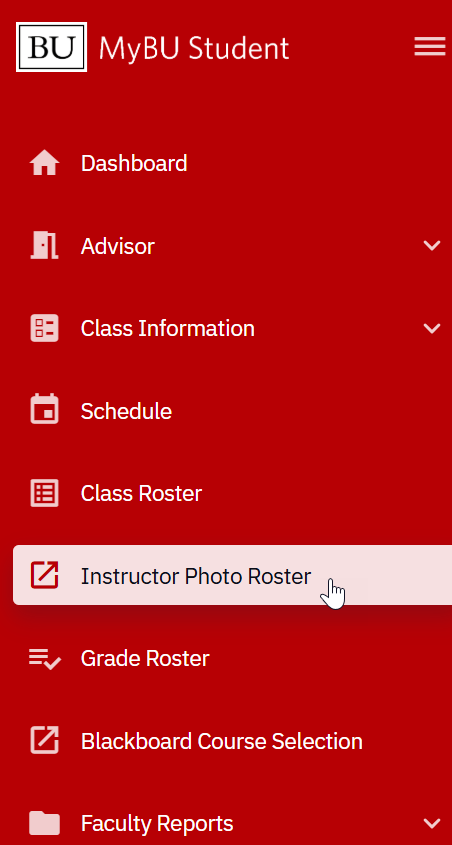
The reports described in this resource can be found in MyBU Student in the left-hand side menu, under the Faculty Reports folder. The exception is the commonly used Instructor Photo Roster, which is located directly below Class Roster on the menu.
Appropriate security is required to access these reports. Any access requests should be directed to your Data Security Administrator (DSA).
Field Search Tips
Each report will require different field prompts that are relevant to the content of the report.

Queries with Brief Descriptions
| Report | Additional Notes |
|---|---|
| Instructor Class Schedule View a schedule for an instructor for a specific term, or across all applicable terms. |
|
| Class Roster View general academic information for students enrolled in a class, or in all classes for that instructor in a term. |
|
| Combined Class List Displays full roster of enrolled students for all sections of a course, or for cross listed classes. |
|
| Course Descriptions Download Provides descriptions and other information for courses offered by the University. |
|
| University Class Schedule Display, print, & export the University class schedule based on filters entered. |
|
| Final Exam Schedule for a Term Displays the final exam schedule for the entire University. |
|
| Check Pre-requisites Check which students enrolled in a particular class have taken a given prerequisite course. |
|
| Grade Distribution Presents a graphical representation of the grades that students earned in a class. |
|
| Student Matrix Check when students who are enrolled in your class are enrolled in other classes and therefore, not available. |
|
Instructor Photo Roster
Use the Instructor Photo Roster report to download and print a grid format of student photos for a class.
ⓘ NOTE: Navigate to Instructor Photo Roster directly from the MyBU Student left-side menu. This query is not located in the Faculty Reports section of the menu.
INPUT SEARCH PROMPTS
Upon selecting the report, the page will default with the current term’s classes – notice the Instructor ID displays at the top. Prompts will also default, however they can be adjusted:
- Term code for class (ex: ‘2258’ = Fall 2025).
- Number of Image Columns dictates how many pictures will display across the page (1-4). E.g., ‘4 columns’ will display a row of 4 pictures. If ‘2 columns’ are selected, 2 larger pictures display on a line.
- Student Enrollment Status allows for the selection of Enrolled, Dropped, or Waitlisted students.
- Include BUID: yes or no.

- Generate Section Report: click link to retrieve students only in that section, or,
- Generate report by class: click link to retrieve all students enrolled regardless of the section.
VIEW RESULTS
A new page will open listing the student photos and names (& UID if selected) for the class that was searched.

The above example reflects a selection of ‘4 columns’ in the prompts.
Combined Class List
The Combined Class List query allows selection of one or more sections of a particular course (including any cross-listed sections) to display a combined student roster.
INPUT SEARCH PROMPTS
- Input the term and course information into the Report Parameters:
- Term code for the course. Click the magnifying glass to look up if needed. (‘2261’ = Spring 2026)
- Subject of the course. Typically comprised of the school/college and department/subject.
- Catalog Nbr of the course. This number combined with the Subject identifies the course. Refer to the Class Identifiers explainer for additional details and for where these numbers can be found.
- Click Class Search.
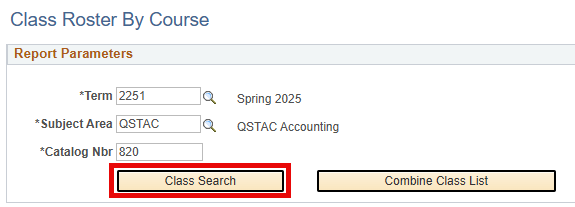
In the above example, the prompts will pull up all class sections for QSTAC 820 in the Spring 2025 term.
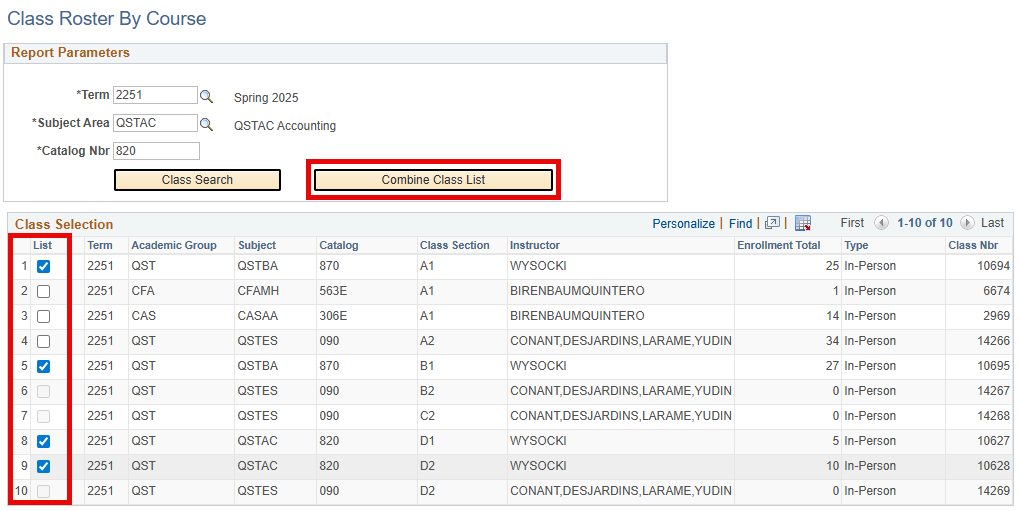
- A list of all class sections, including any cross-listed class sections, will display. Use the checkboxes to select which class sections to include in the combined roster. Note that class sections without any enrolled students cannot be selected.
- Click Combine Class List to generate the combined roster.

VIEW RESULTS
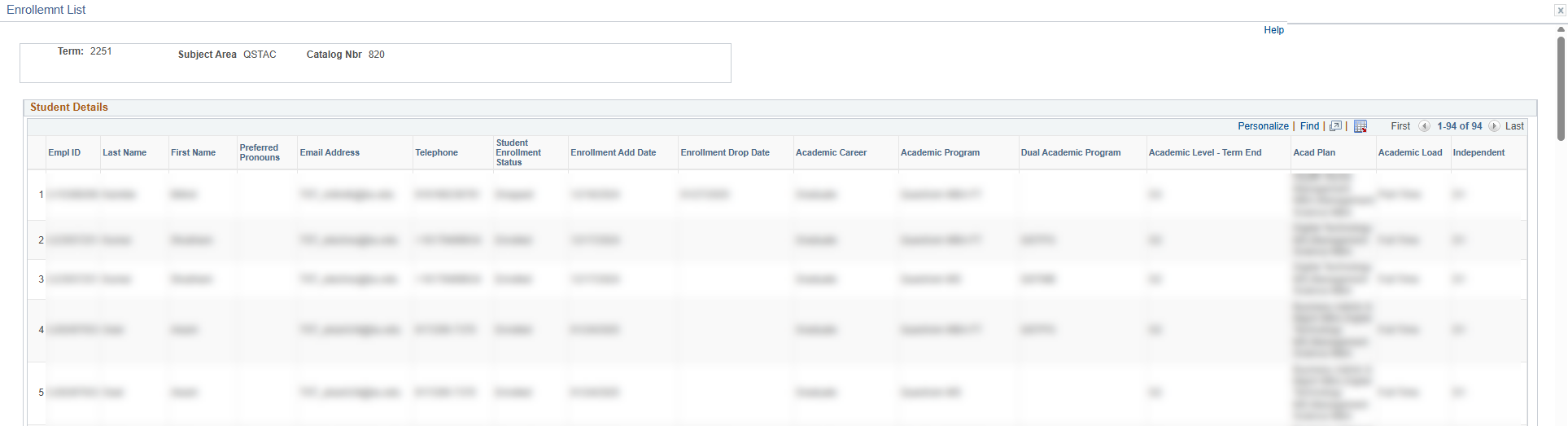
The results will open in a new window under the title “Enrollment List.” Scroll within the window to view all results and options.
Report Viewing Options:
It may be necessary to scroll all the way to the right to see navigation/display options at the top-right of the dataset in the Enrollment List window.
- Click “Personalize” to modify how columns are viewed on the screen.
- Use “Find” to search for values within the list.
- Click to export the list to Excel.
- If more than 100 students are listed, use the right-most navigation buttons to view additional data rows.
Report Data:
Each row presents an enrolled student. The columns will display the following:
- Student’s personal & contact info:
- Empl ID (BUID)
- Last Name
- First Name
- Preferred Pronouns (if applicable)
- BU Email Address
- Telephone
- Student’s enrollment info for the class:
- Student Enrollment Status
- Enrollment Add Date
- Enrollment Drop Date (this field will only be populated if the student dropped the class)
- Student’s academic info:
- Academic Career
- Academic Program
- Dual Academic Program (if applicable)
- Academic Level – Term End
- Academic Plan
- Academic Load
Final Exam Schedule for a Term
Once the final exam schedule is established for a given term, this query can be used to access the final exam schedule for the entire University. The search prompts can be used to filter the results to a specific instructor, academic group, subject/catalog nbr, course ID, and/or academic organization.
Query Name: BU_R0032C_SR_FINAL_EXAM_SCHDL
ⓘ NOTE: Don’t forget! Faculty can also view their own exam schedules in the Schedule section of MyBU Student.
INPUT SEARCH PROMPTS
Other than Institution and Term, all other prompts can be used individually or in combination to narrow down the results:
- Institution code is always BU001.
- Term code. Click the magnifying glass to look up if needed. (‘2261’ = Spring 2026)
- Use Academic Group to filter by school/college.
- Use Subject Area to filter by academic department.
- Use Catalog Nbr (typically entered along with Subject Area) to filter to a specific course.
- Course ID alone can also be used, if known, to filter to a specific course.
- Input the UID of a specific Instructor to view that instructor’s exam schedule.
- Use Academic Org to filter by a specific academic organization.

In the above example, the results will show all the final exams scheduled for MET Computer Science classes in Spring 2025.
VIEW RESULTS
Each row will display the final exam information for a specific class section. If a class does not have a final exam scheduled for the specified term, it will not display in the search results. The columns will display the following:
- Class Information:
- Academic Career
- Academic Group
- Course ID
- Subject Area
- Catalog Nbr
- Class Section
- Description (class title)
- Session
- Enrollment Total
- Exam Information:
- Exam Time Code
- Exam Date
- Exam Start Time
- Exam End Time
- Facility ID(s) (for the room(s) in which the exam will be held)
- Room Capacity
- Combined Exam (yes/no indicator)
- Class Instructor(s) Information:
- Instructor(s)
- Instructor’s Email(s)

Check Prerequisites
Use the Pre-Req Report to check which students enrolled in a particular class have taken a given prerequisite course.
Query Name: BU_R0046AP_SR_PREREQ_CHECK
INPUT SEARCH PROMPTS
First, enter the information for your class. Then, enter the course information for the prereq you’re checking for. Note that if a course has multiple pre-requisite courses, you will need to run the report for each pre-req.

For example: Let’s check to see if the students enrolled in Fourth Semester Chinese (CASLC 212) have taken the pre-requisite course of Third Semester Chinese (CASLC 211):
- The Institution code is always “BU001”
- Term of Class Roster to Check. Click the magnifying glass to look up the code if needed. (‘2248’ = Fall 2024)
- Subject for the class you’re checking. Generally, this is comprised of the abbreviations for the school/college and department/subject of the course. In this example, “CASLC” indicates Modern Chinese Language.
- The Catalog Number of the class you’re checking. The Catalog Number for CASLC 212 is “212”.
- The Section field is optional. You can check for a single section (e.g., A1, L2), or check all sections for the specified term by leaving this field blank.
- The Pre Req Subject (e.g., CASLC, CFATH, etc.)
- The Pre Req Catalog number (e.g., 211)
VIEW RESULTS
Each data row represents a student enrolled in the class you’re checking. The left-hand side of the report displays information from the class roster and the right-hand side displays if/when the student met the specified pre-requisite course requirement.
Please keep in mind the following:
- In some cases, certain types of credit may be on hold or not yet reflected. In these cases, a Message column will be populated on the far-right of the report indicating that “Transfer and test Credit may be incomplete.” These instances may require follow-up with the student.
- If a specific section wasn’t input into the report prompt, the class rosters for all sections will be listed by section (e.g., all the students in A1 then all the students in A2, then B1, and so on).
- The report will also show if the student is currently enrolled in the class for a current or upcoming term. It can be helpful to download the report and filter by “Req Term” in order to check who might still have the pre-req in progress.
Pre-req Report data columns include:
- Student’s information from the class roster being checked:
- Term
- Subject
- Catalog
- Section
- ID (the student’s UID)
- Last Name
- First Name
- Middle Name
- Prim Prog (the student’s primary program of study, e.g., UCAS indicates an undergraduate student in CAS)
- Strt Level (the student’s academic level at the start of the term in question)
- If the student HAS taken the specified pre-req course, the information from when the course was taken will display:
- Req Term (the term in which the student was enrolled in the pre-req course)
- Subject
- Catalog
- Section
- Unit Taken (the number of units received)
- Grade (the grade the student received for the class)
- If the student met the pre-req requirement via an approved standardized test equivalency, the details will display:
- Test ID of the equivalent test taken
- Component of the equivalent test taken
- Test Description of the equivalent test taken
- Score received on the equivalent test taken
- Units received for the equivalent test
- If the student met the pre-req requirement via transfer credit, the details will display:
- Transfer Term to which the transfer credit was applied
- Source Institution of the transfer credit
- Transfer Course
- Grade In (the grade received at the source institution)
- Transfer Units received
ⓘ NOTE:If the student has NOT met the specified pre-req, all fields on the right-hand side of the report will be blank.

Grade Distribution
The Grade Distribution report presents a graphical representation of the grades students earned in a class.
INPUT SEARCH PROMPTS
The query will open in a new browser tab. The prompts will load on the top-left of the screen (see example image under ‘View Results’ below):
- Term code for the course. Click the magnifying glass to look up if needed. (‘2261’ = Spring 2026)
- Subject of the course. Typically comprised of the school/college and department/subject.
- Catalog Nbr of the course. This number combined with the Subject identifies the course.
- Class Section indicates the specific section of the course.
ⓘ Even if there is only one section of the class, be sure to enter the section number, otherwise the results will not populate.
VIEW RESULTS
The default display is a bar chart with grade values listed alphabetically on the X axis and the count of each grade on the Y axis. The percentage breakdown is displayed within each bar.
Report Viewing Options:
- Click the Settings icon on the top-right to personalize threshold and sorting options.
- Toggle chart selection to view a line chart or pie chart.
- Click icons below chart selection to view a list of grades by count (which would then display below the graph.)
- The bottom-left alternate chart displays grade values in order of count.
Click on the example image below to expand.

Student Matrix
Use the Student Matrix to check when students who are enrolled in your class are enrolled in other classes and therefore, not available.
INPUT SEARCH PROMPTS
Select one of your classes to gather the availability of the students enrolled in that class.
- Instructor ID: your BUID and name will automatically populate and cannot be modified.
- Term: current term will default. Click the magnifying glass to select a different term if needed.
- Career: select the applicable level for your course. The prompt will default to “Undergraduate”.
- Course: click magnifying glass to select a course. Note that you can only look up courses you have been assigned to teach, and you can only look up one class section at a time.
Upon selecting the course, additional course details will display on the page. This includes the Course ID, Offering, Session, Subject, Catalog Number, Section, Class Nbr, and Enrolled count, Meeting Days and Times, and Facility ID.

VIEW RESULTS
On the same page, a table will display with rows that correspond to time blocks for each day. Each cell indicates the number of students who have a conflicting class during that timeframe.
- Select the preference for how the time blocks display in the table: 60, 30, or 15 Minute increments.
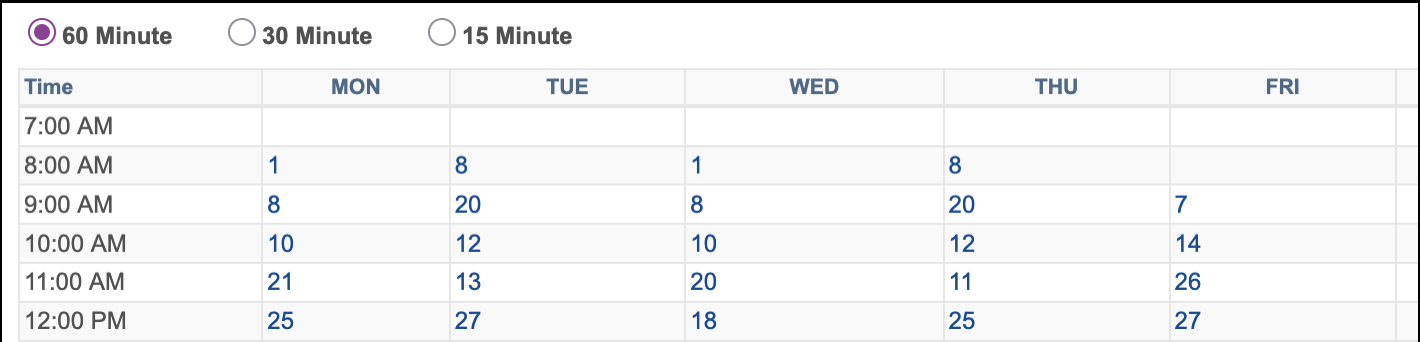
Using the last row as an example:
- 12-1pm on Mon: 25 students ARE enrolled in classes
- 12-1pm on Tues: 27 students are enrolled in classes
- 12-1pm on Wed: 18 students are enrolled in classes
To see who the students are, click on the count link.
For example, upon clicking on the ‘18’ count in the 12-1pm Wed time block, a list of 18 students will display on the page. Their info will include: BUID, Name, Email, and the conflicting Course, as seen below.

TIP! Because each line represents a block of time on certain days, it’s possible that a student will be included in the Student Count for multiple rows. A student will be listed on each line that applies to the days/times when they will be in a class.
Last updated October 2025. To download a PDF copy of this resource, print this webpage as a PDF.