Faculty Attendance Verification Process
The Attendance Verification process confirms whether a student is currently “in attendance” at the University. This resource focuses on the steps that faculty will need to complete if they have students in their classes that need verification.

Introduction
If a student does NOT complete their verification task by the due date, faculty of the student’s enrolled courses are prompted to respond to the student’s attendance. Please complete by the due date noted in university communications.
TIP! Attendance is defined as any level of participation in course-related activities such as attending classes, assignment submission, participation in group work, etc. Please only indicate a student as not attending if the student has not engaged at all in the course this semester.
For additional workflow details, the Attendance Verification Process Overview provides a written and visual explainer.
ATTENDANCE VERIFICATION REPORT
Impacted faculty will receive an email notification from peoplesoft@peoplesoft.com, indicating they are to confirm student attendance. Regardless of how many students need to be reviewed, faculty will only receive one email.
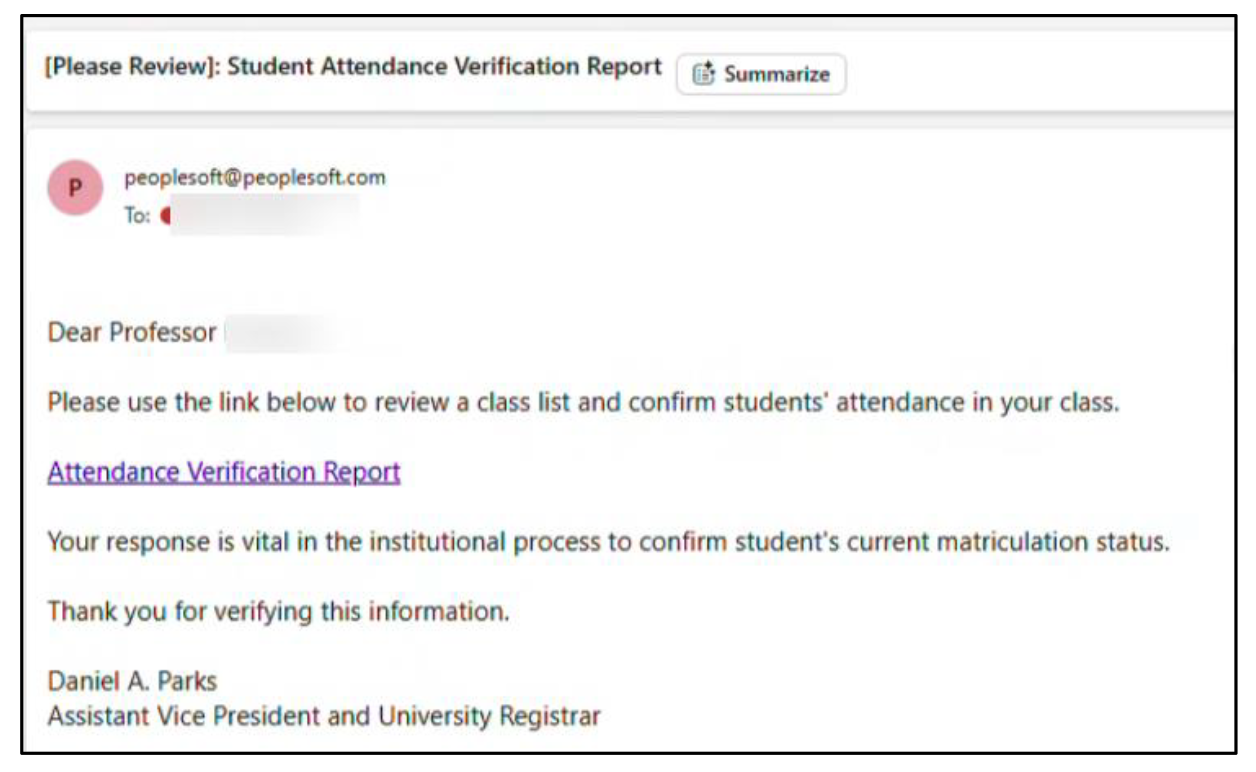
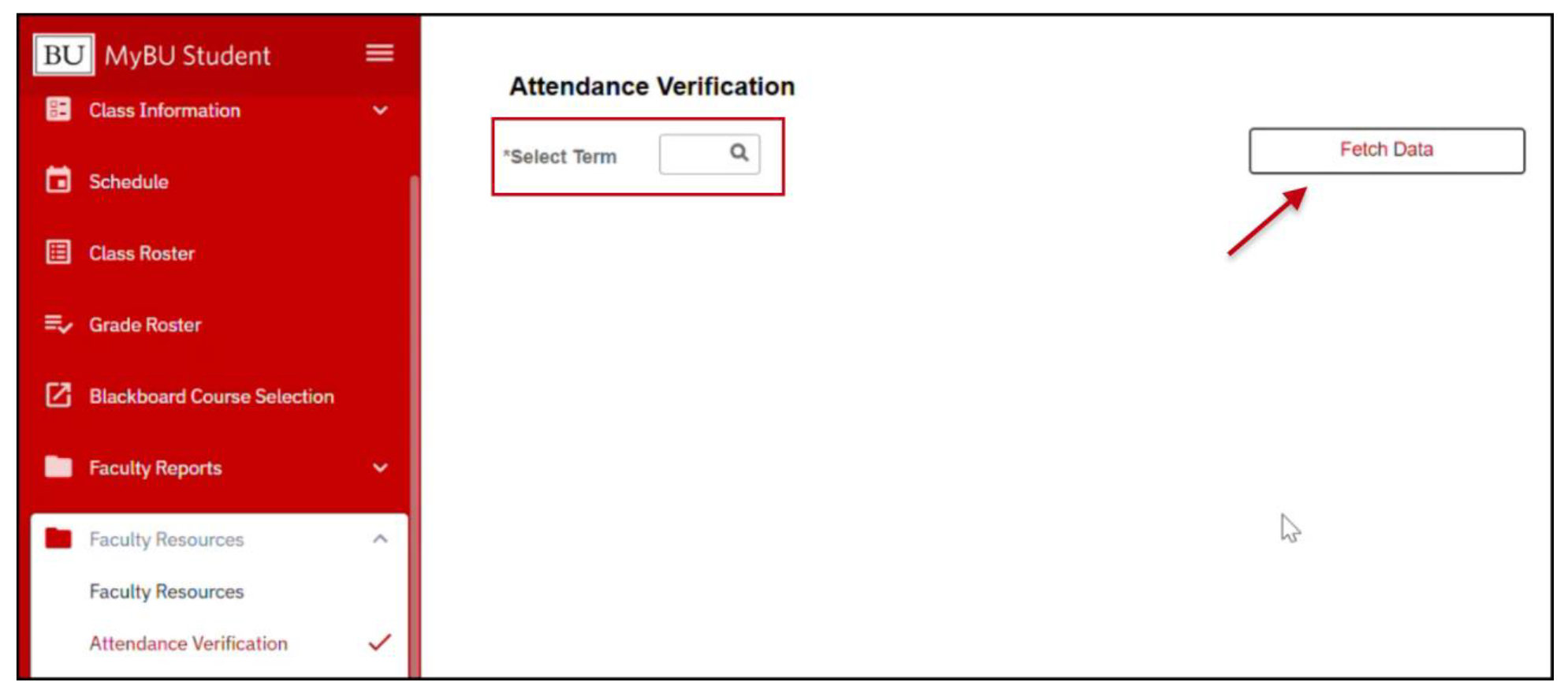
- Click on the link in the email or log into MyBU Student and navigate to Faculty Resources > Attendance Verification.
- Upon the Attendance Verification page launching, select the current Term.
- Click the Fetch Data button.
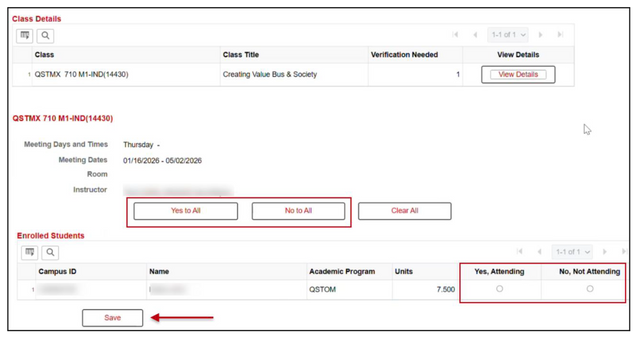
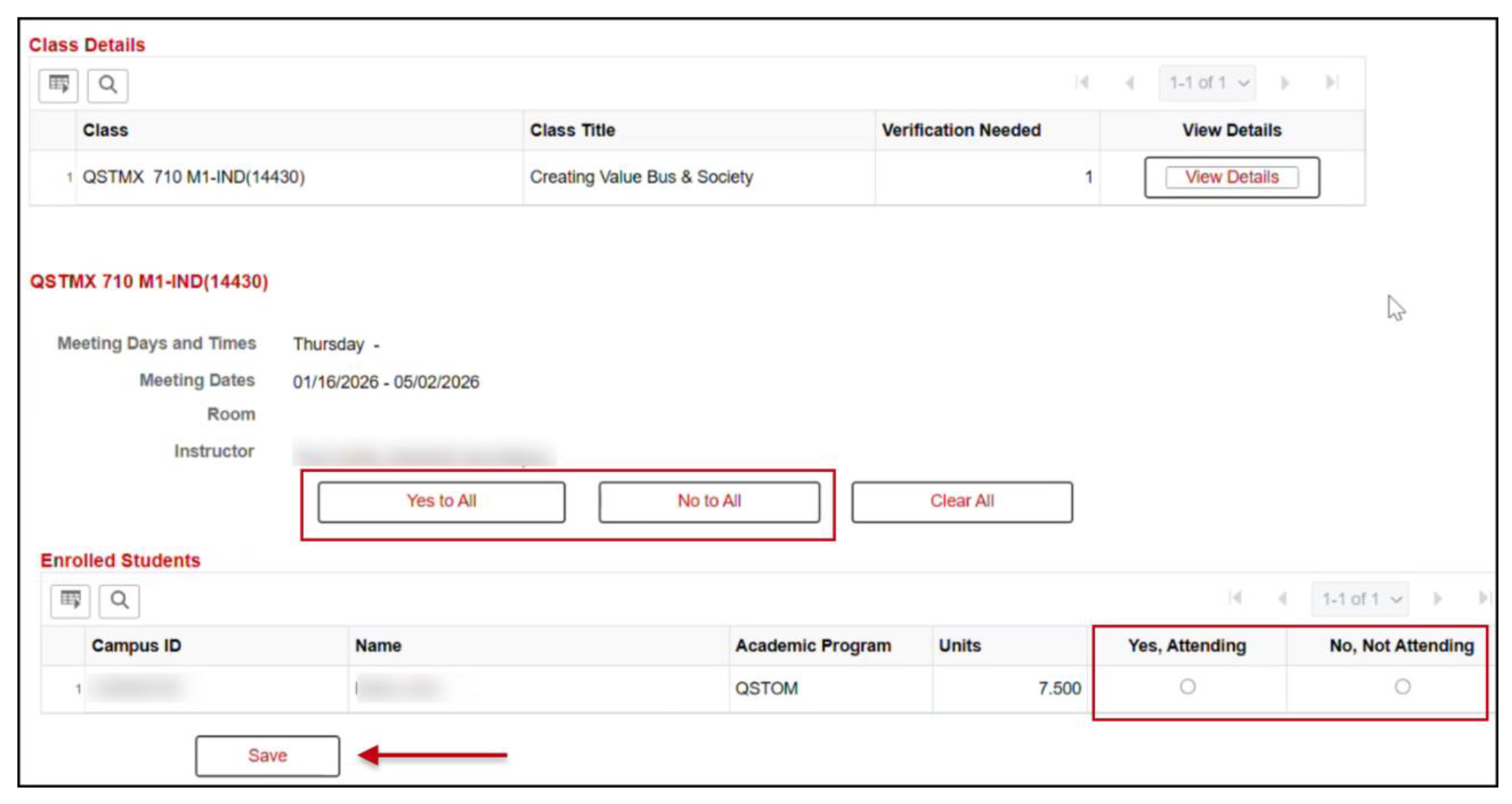
- The Class Details will populate, listing each class where student attendance needs review.
- If there are multiple students in a class requiring verification, the class will only be listed once, and the ‘Verification Needed’ number will indicate how many students need a response submitted.
- Click the View Details button.

- The Enrolled Students section will populate with the impacted student information: Campus ID, Name, and Program.
- When ready to enter the verification, click the selection for Yes, Attending or No, Not Attending. Repeat for each student.
- If the response is the same for all students listed for that class, the Yes to All or No to All buttons can be used.
- Select Clear All to start again.

It’s recommended to confirm attendance before entering and saving selections. Changes to responses can be made that same day, however the system processes this information nightly and access to selections will NOT be available the next day (see example at the end of this resource).
- Click Save. There may be no confirmation message/indicator that displays.
Repeat these steps for each class indicated and each student listed on this Attendance Verification page.
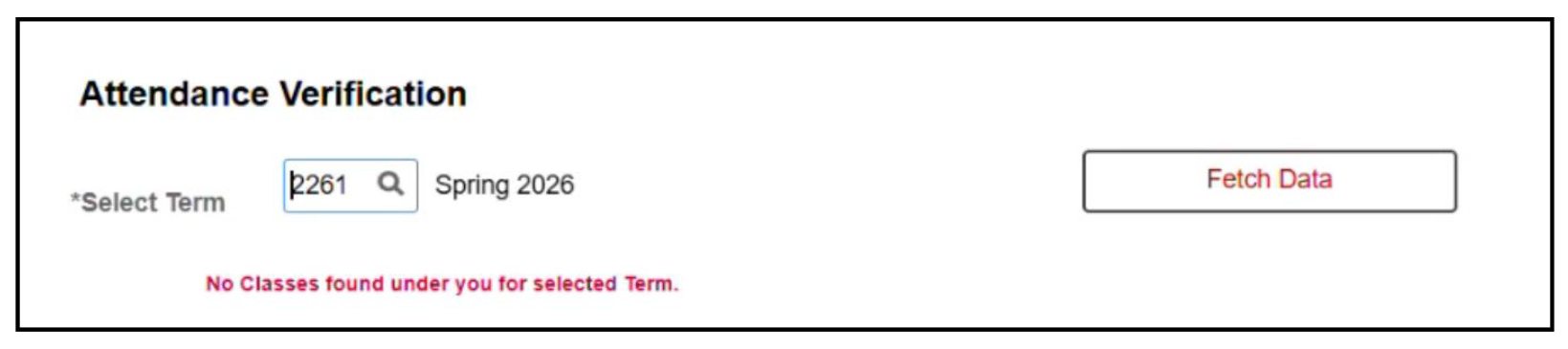
TIP! If faculty navigate to the Attendance Verification page and do not have any verification reports to complete for the Term selected; or, if responses were submitted previous to the current day (submission processed nightly), a message will display: ‘No Classes found under you for selected Term.’
Page last updated Feb 2026. For a PDF copy, print this webpage as a PDF.