Advising Appointments: Drop-Ins
This resource outlines how to create and manage a queue for Academic Advising drop-in appointments. It includes instructions for individual advisors on how to accept students, requeue students, and complete drop-in appointments.


Introduction
The Drop-Ins feature of MyBU Student allows academic advisors to offer same-day support to students through quick, problem-solving sessions during high-volume times.
Drop-In Queues can be opened and managed by Advisors and Department Support staff within a given department. Students can easily check-in to the queue online and Advisors can then accept drop-ins, record summaries, and mark them complete from one interface.
ⓘ NOTE: Not all departments are configured for Drop-Ins in MyBU Student. If you have questions about the configuration of Drop-Ins in your department, please contact your Department Admin.
⚠︎ Screen options and menus will vary by user; please note that displays may differ for you based on access that has been granted.
All screens shown are for training purposes only.
Overview & Workflow
How Drop-Ins Work:
- When a Drop-In Queue is open, any of the Advisors in that department can accept drop-ins from that queue.
- A department may have up to three available queues, depending on the Drop-In Meeting Modes configured for that department (i.e., an in-person queue, a virtual queue, and/or a phone appointment queue).
- Students can join the queue via a unique Drop-In Link generated for each queue. The URL generated for each queue remains the same regardless of how many times the queue is opened or closed. The distribution of this URL is at the discretion of the department.
- Drop-In hours are not configured in MyBU Student but rather queues can be opened and closed manually, on-demand by each department as needed. Those with access to Drop-Ins may open or close their department’s queue(s) at any time.*
- Meeting Types must be specifically enabled for Drop-Ins by each individual department. If the department would like to be able to differentiate drop-ins from appointments in the MyBU Student Appointments Analytics pages, then the meeting type should be labeled beginning “Drop-in:”.
*Advisors and Department Support staff should defer to any agreed-upon practices and procedures related to Drop-Ins when opening/closing a queue or accepting drop-in appointments.
ⓘ Note regarding Drop-Ins versus last-minute appointments: Drop-In queues should typically only be opened during established advising drop-in times for the department. If a same-day/last-minute appointment needs to be arranged with a student outside of established drop-in times, Advisors and Department Support staff can set these up using the Custom tab when creating an appointment. Most departments have configured their appointment restrictions such that students cannot book same-day appointments themselves in MyBU Student.
For information about scheduling non-drop-in appointments, click here.
Workflow
After joining the queue, each student follows this workflow, depicted as a status within the Drop-In Session:

An additional state, Removed, is available for cases when a student cannot be met or unavailable and needs be removed from the queue.
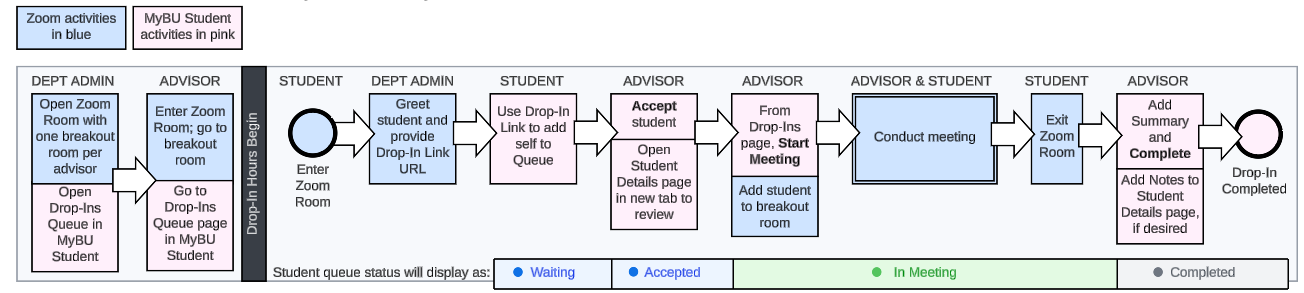
Below are more detailed visual workflows for virtual and in-person sessions. They outline the specific activities for Department Support, Advisors, and students.
Virtual Sessions
Pre-conditions for virtual drop-in sessions:
- Pre-planned drop-in hours with participating advisors confirmed.
- Distribution of Zoom link to students and advisors in advance.
- All participants need to be able to simultaneously open Zoom and MyBU Student on their device.
In-Person Sessions
Pre-conditions for in-person drop-in sessions:
- Pre-planned drop-in hours
- Drop-In Link ready to distribute with students (e.g., via QR code)

Open or Access a Queue
When it is time for Drop-In session, a designated Department Support staff member or Advisor can follow these steps to open or access a queue.
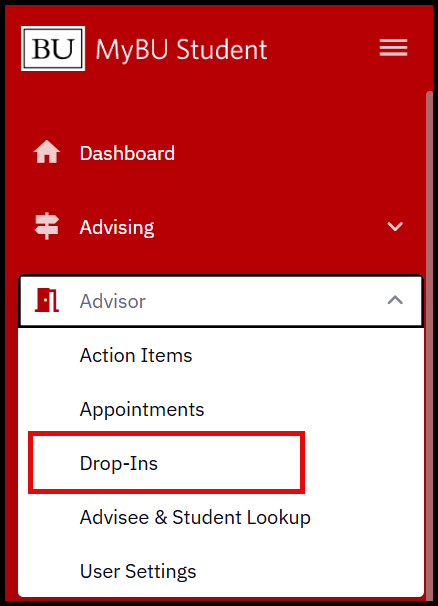
- In MyBU Student, navigate to Advisor > Drop-Ins.
- A list of available Queues will display.
- This list may include queues for departments across the university.
- A ‘New’ button may also be visible on the Queues page, but neither Advisors nor Department Support staff should have access to create a new queue. If there is a need for a new queue or a problem with an existing queue, please contact advsys@bu.edu.
- Locate the queue for the applicable Department and Location and click Manage.
- Keep in mind that some Departments will have multiple queues for different meeting modes, distinguished by different Locations.
- The selected Queue’s page will appear.
- To open the queue for drop-ins, click the Open button at the top-right of the page. This will start a Drop-In Session. The session will end when the queue is closed.
- If the queue is already open, queue management can occur directly from this page.
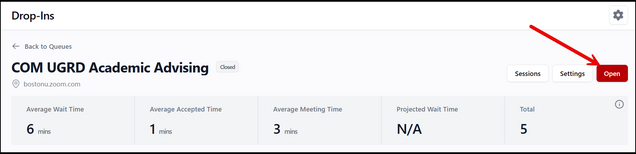
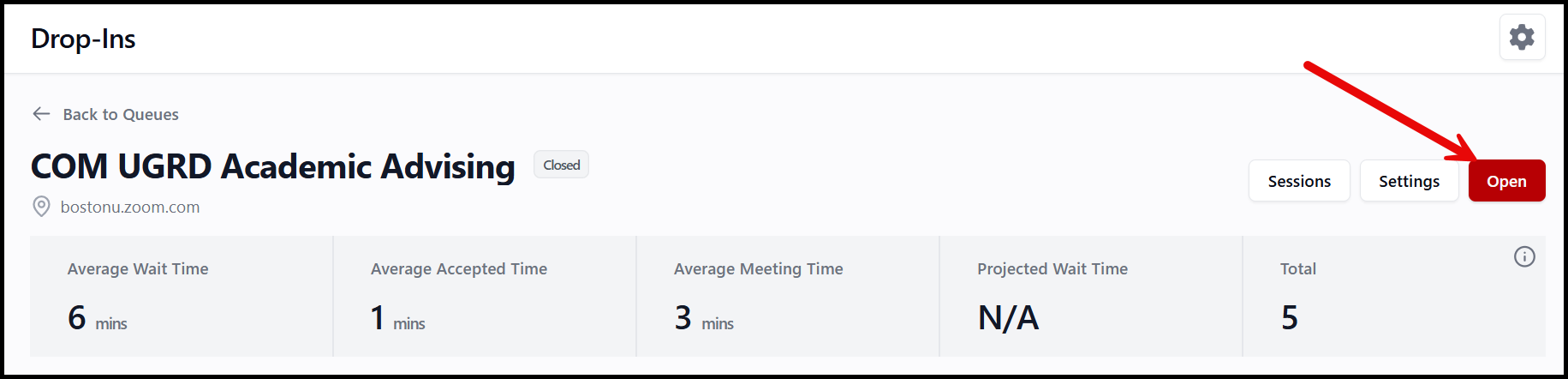
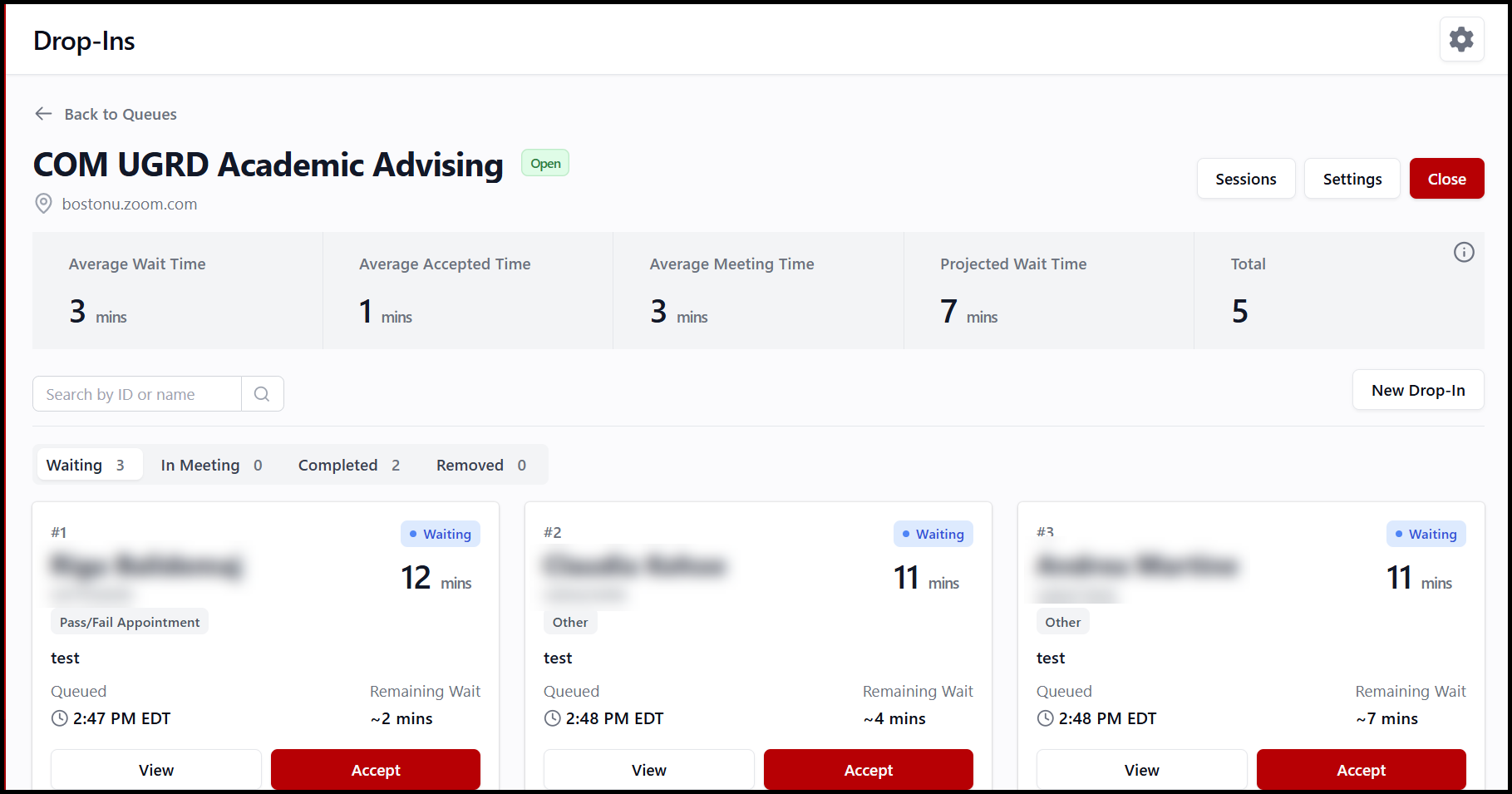
Within an open session, Advisors and Department Support staff can monitor queued students as they move through the workflow of Waiting, Accepted, In Meeting, and Completed (or Removed, as applicable). Queued students are also accepted directly from this Main Queue page.
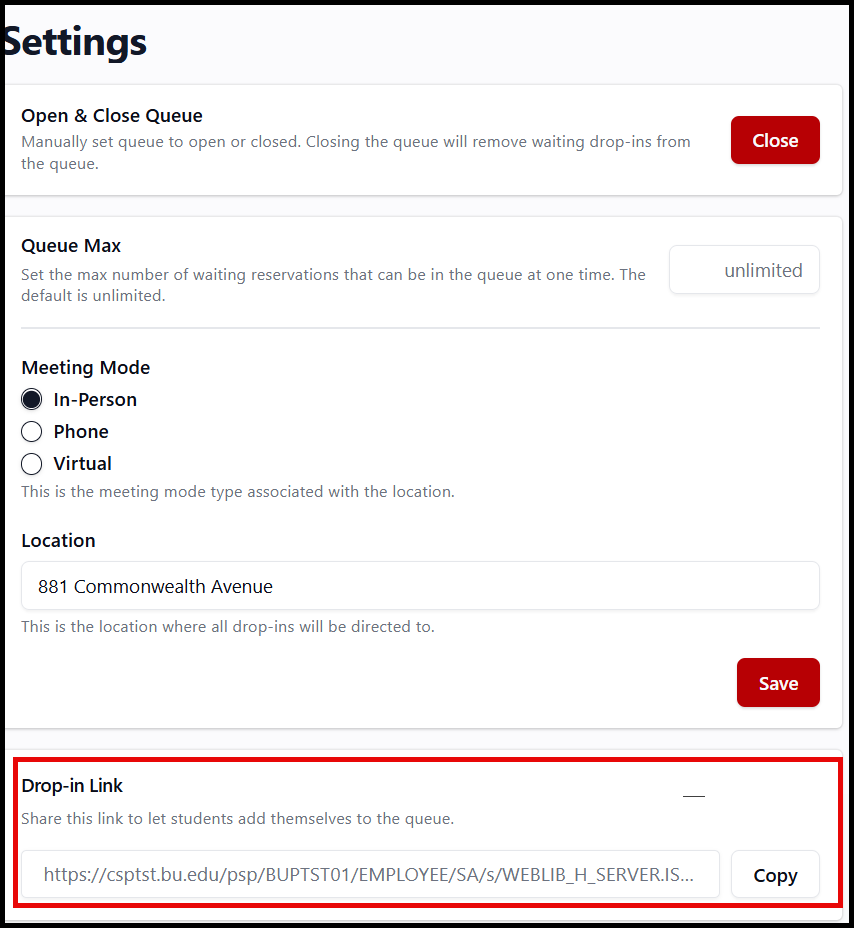
Settings & Drop-In Link
ⓘ Please DO NOT make changes to the Queue settings! The primary reason for visiting this page is to access the Drop-In Link.
To view settings and access the Queue’s Drop-In Link, click the Settings button at the top-right of the page.
The following Settings will display:
- Open & Close Queue – This button can be used to manually open or close the queue.
- NOTE: If there are drop-ins waiting in the queue, the queue cannot be closed from the settings page. However, the queue can still be closed from the main queue page (refer to the previous image example for the main queue display).
 This method prevents additional students from being added to the queue while final students are seen by advisors.
- NOTE: If there are drop-ins waiting in the queue, the queue cannot be closed from the settings page. However, the queue can still be closed from the main queue page (refer to the previous image example for the main queue display).
- Queue Max – Maximum number of waiting reservations that can be in the queue at one time.
- Meeting Mode & Location – the meeting mode type associated with the location.
- Drop-In Link: Click the Copy button to copy the link and share with students so they can add themselves to the queue.
Click ‘Back to Session’ at the top of the Settings page to return to the Queue Session.
Queue Statistics
The following statistics display below the Session header:
- Average Wait Time – The average amount of time students spend in the queue before being accepted by an advisor during the current session.
- Average Accepted Time – The average time between when a drop-in is accepted and when their meeting actually begins during the current session.
- Average Meeting Time – The average duration of meetings for all drop-ins during the current session.
- Projected Wait Time – An estimate of how long the next student is expected to wait before being accepted. This projection is based on the number of active advisors and average meeting times from both current and past sessions.
- Total – The total number of drop-ins who have joined the queue during the current session, regardless of whether they were accepted or are still waiting.
Relevant statistics reset as applicable when the queue is reopened after being closed.

Adding Students to the Queue
Students should add themselves to the queue using the Drop-In Link which can be found on the session’s Settings page.

TIP! Use a QR Code generator to create and display a QR code for the Drop-In Link in the office or Zoom room, which students can scan to join the queue from their phone.
ⓘ NOTE: A queue’s Drop-In Link is the same for each session. Keep this in mind when distributing the Drop-In Link and be mindful of when queues are opened.
From the Drop-In Link, students will be prompted to log in to MyBU Student if they are not already logged in. They will be brought to an Enter Drop-In Queue page where they input a Meeting Type and Reason before clicking ‘Save’ to join the queue. This will bring the student to a page where they can monitor their status and wait time in the queue. The student can also remove themselves from the queue or edit the Meeting Type or reason.
Manual Add:
It is recommended to use student self-service, but students can be manually added to the queue if necessary, by clicking New Drop-In. From there, input the Meeting Type and Reason and then click Save to add the student to the queue.
- Note that there is no way for a manually added student to access their queue monitoring page as they can when adding themselves.
Monitoring the Queue
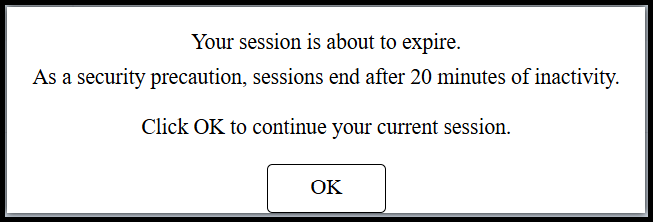 TIP! Don’t forget that MyBU Student screens time out after 20 minutes of inactivity. Users who are passively monitoring the queue should keep an eye out inactivity notifications and click OK to remain in the session.
With that said, the queue will remain open until it is closed, even if there are no users currently on the page.
Queued students will display starting with the student who has been waiting the longest with a default of 10 students shown per page.
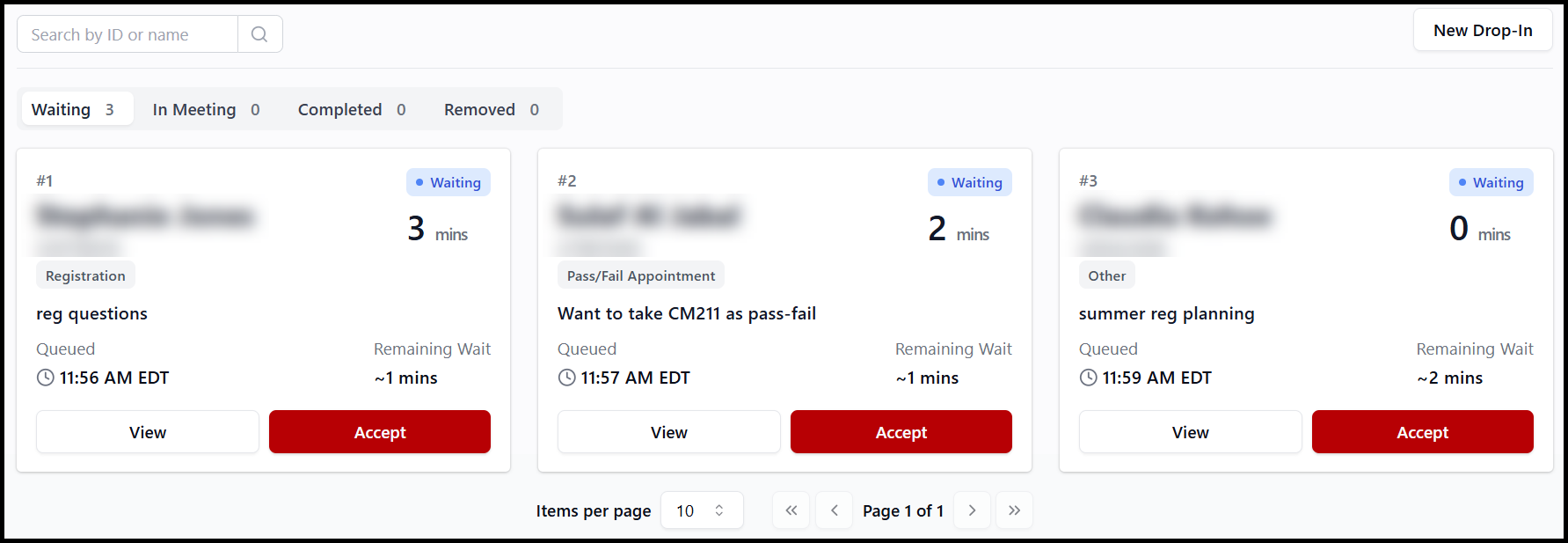
- Use the arrows to scroll through the queue as needed, or find a specific student in the queue by searching for their name or UID in the search bar at the top-left of the queue section.
- Toggle the tabs as needed to view students in a particular status (Waiting, In Meeting, Completed, or Removed). The default display will show waiting students.
For each student in the queue, the following information can be seen at a glance:
- Place in the queue (for those in Waiting status only), i.e., #1, #2, etc.
- Name
- UID
- Meeting Reason
- Time they joined the queue
- For those with a status of In Meeting, Accepted, Completed, or Removed, an end time will also be reflected.
- Status (Waiting, Accepted, In Meeting, Completed, or Removed)
- For those with status of In Meeting, Completed, or Removed, the person who took this action will also display (e.g., the name of the advisor who accepted the meeting)
- Wait Time
- Wait time freezes once the student is in the meeting and will resume if the student is requeued.
- Remaining Wait
- For students who are waiting, the remaining wait time will be calculated based on available queue data.

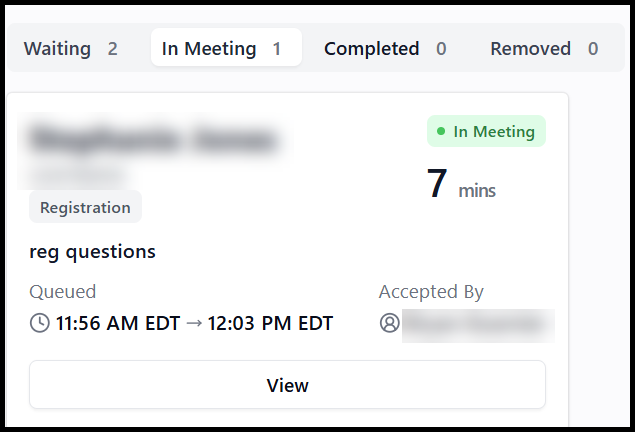
Click View to expand full details of the student’s queue reservation.
Edit or Remove a Queued Student
- To modify a queued reservation, click View on the student’s queue entry.
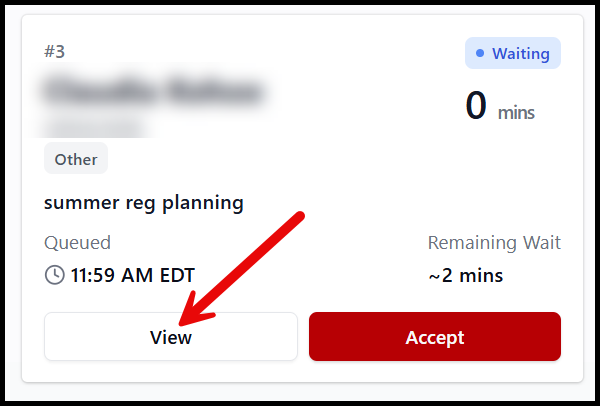
- The queue reservation will display.
- To modify the Meeting Type or Reason, click Edit.
- To remove the student from the queue, click Remove.
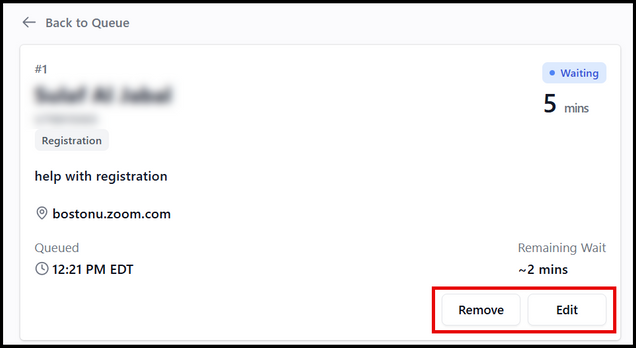

TO EDIT
Update the Meeting Tye or Reason as needed and click Save.

Upon saving, a confirmation message will appear and the screen will return to the reservation details.
TO REMOVE
Select from the available removal reasons and click Remove.

Upon removing, a confirmation message will appear and the screen will return to the Queue page.
Advisors: Accept & Conduct Drop-In
The following instructions are for advisors. Advisors can access and view the queue as described in the above section. It is also from the queue that Advisors should accept appointments. There is no special action an Advisor needs to take in MyBU Student before accepting appointments in an open queue in their department.
- When ready to meet with a student in the queue, click Accept.
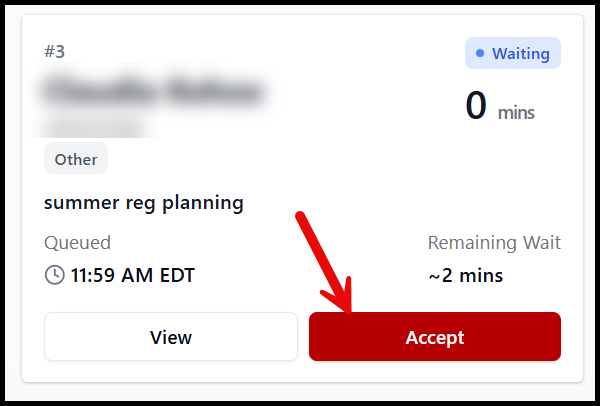
ⓘ Accepting the queued student does NOT start the meeting. It will only block other advisors from accepting the meeting until the meeting is started or the student is requeded or removed from the queue.
- The reservation details will appear, reflecting the student in ‘Accepted’ status and their wait time.
From the reservation details page, the Advisor may take the following actions:
- Requeue – puts the student back at the top of the queue.
- Remove – this will remove the student from the queue altogether. A meeting will not be created for the student, and the Advisor will be brought back to the session page.
- Removal reasons: Change of Mind, No Longer Needed, Out of Time, Redirected to Resource, Unable to Locate
- Edit – Modify Meeting Type or reason
- Start Meeting
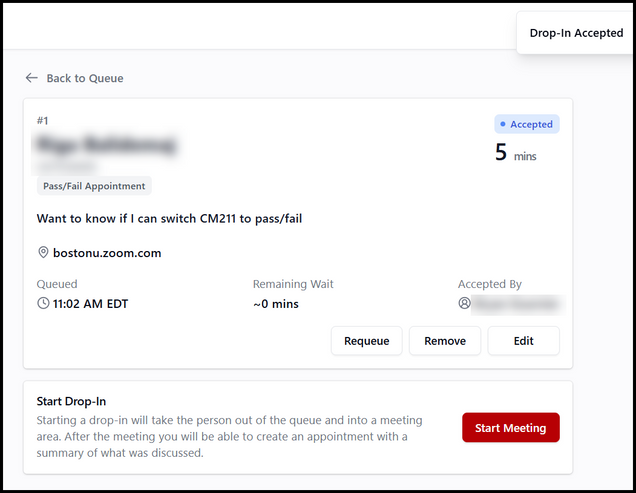
- When ready, click Start Meeting.
- A new landing page will display, with ‘In Meeting’ status reflected.
- The ‘In Meeting’ status will remain until the Advisor completes the meeting.
- From here, the Advisor can copy and paste the student’s UID and then navigate to the Advisee & Student Lookup (or other pages in MyBU Student) as needed while conducting the meeting.
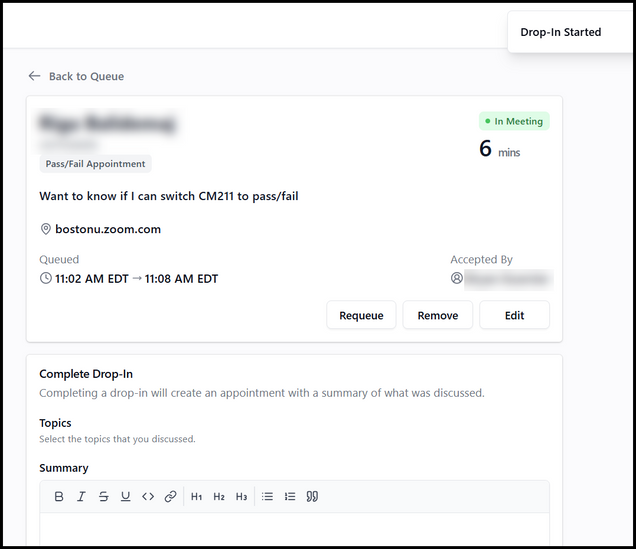
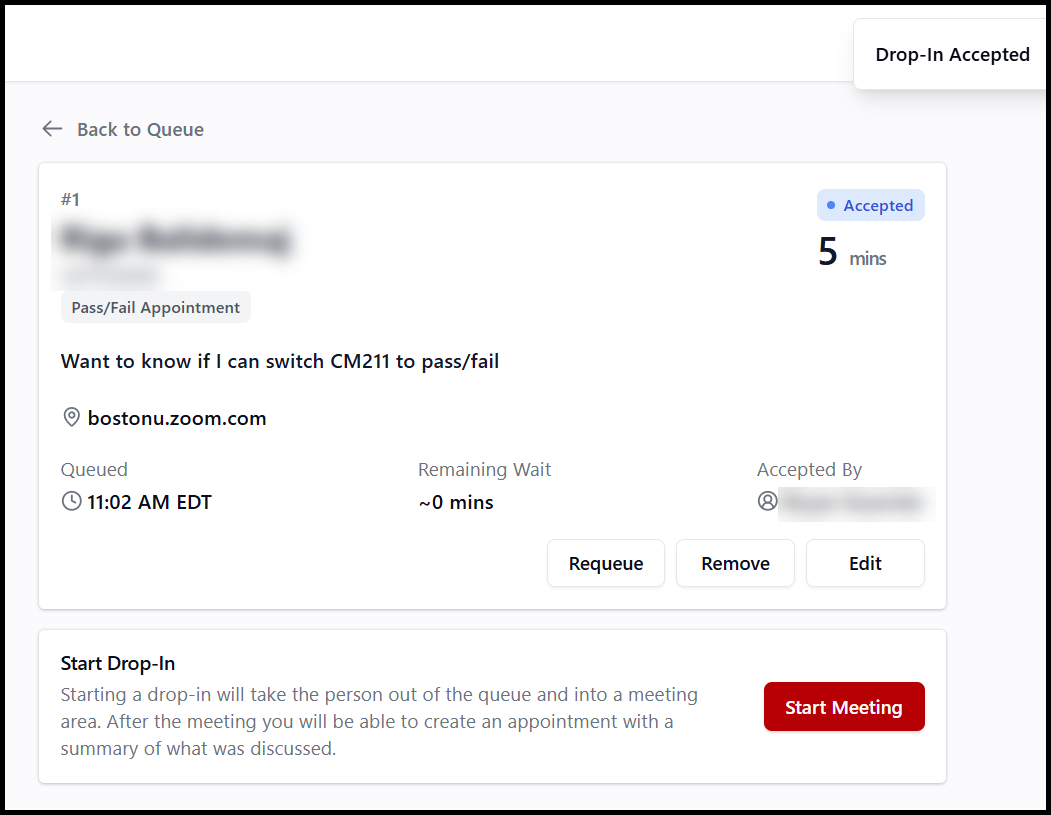

TIP! Open the Student Details page in a new tab in order to easily navigate between the student’s info and the meeting. The drop-ins queue can stay active and accurate in one tab while a second tab is used to conduct the meeting with the student.
To Complete the Drop-In:
- If the advisor has closed or navigated away from the meeting on the Drop-Ins page, they should return to it when the meeting is over:
- Navigate back to Advisor > Drop-Ins.
- Find the necessary queue (it will show as open) and click Manage to return to that queue.
- On the Session page, toggle to the In Meeting tab.
- Locate the student and select View to complete the meeting.
- Input the Appointment Summary, which will be visible to both the Advisor and the Student.
- Attachments can be added if desired by clicking ‘Upload a file’ or dragging and dropping the file into the box on the page.
- Click Complete. This moves the student into ‘Completed’ status in the queue and puts the summary in their Appointments page.
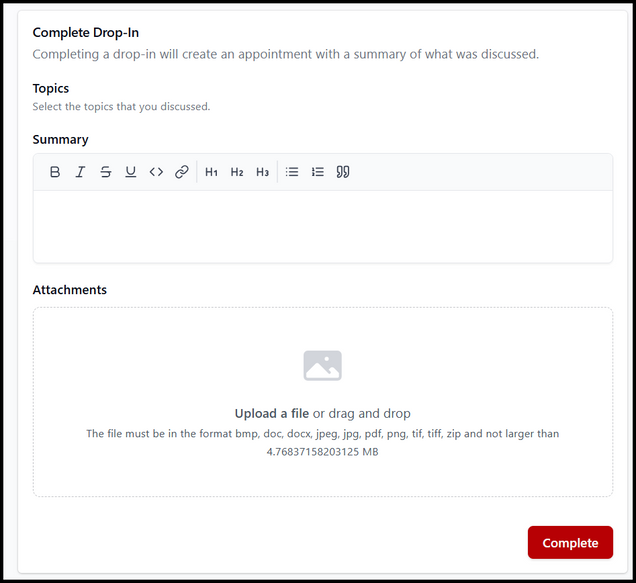
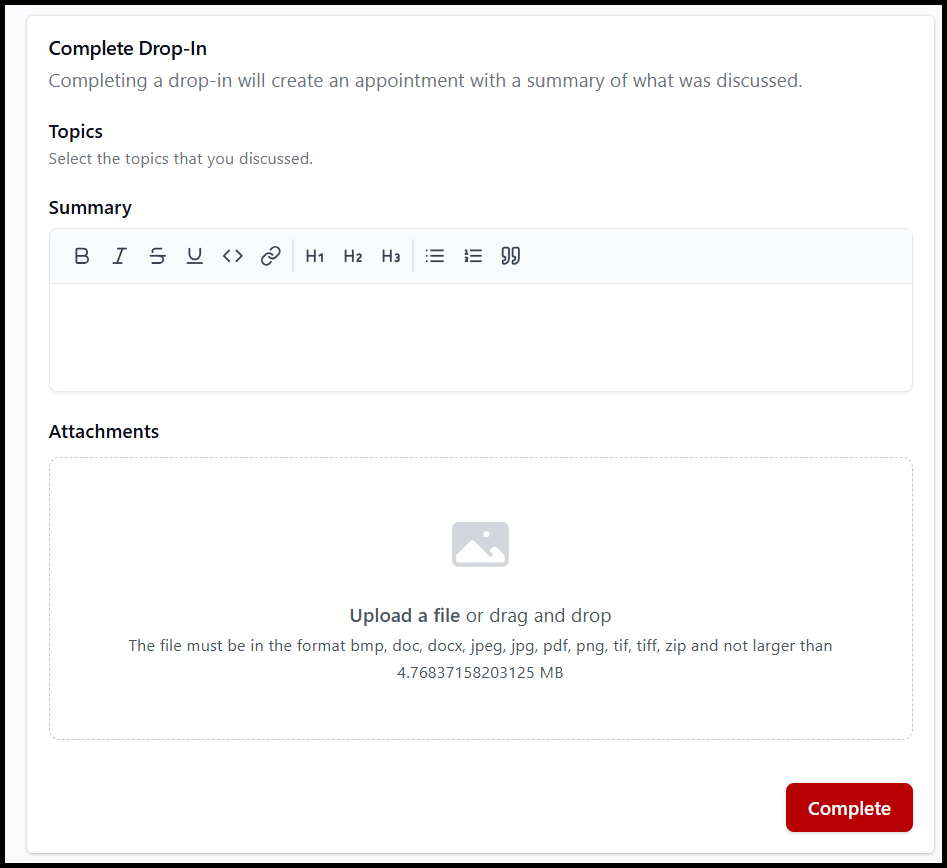
Completing the drop-in is the same as adding an Appointment Summary to a scheduled appointment. This will be reflected on the Student Details Appointments tab and summaries will display on the Notes tab. Drop-in Appointments do not get added to the advisor’s Outlook calendar.
ⓘ Don’t forget to complete the meeting! Leaving the drop-in on ‘In Meeting’ status can have negative impacts on your Appointments calendar.
Closing the Queue
- To close the queue, click the Close button at the top-right of the queue’s page. This will stop additional students from entering the queue but allow Advisors to finish out appointments with anyone remaining.

ⓘ NOTE: No warning message will appear before the queue is closed. However, if a queue is closed in error, it can simply be re-opened, which will not affect the status of any students currently in the queue.
- A confirmation message will appear at the top-right of the screen, and the queue’s status will reflect that it is closed.

When a queue is closed:
- No additional students may enter the queue.
- All students currently in ‘Waiting’ or ‘In Meeting’ status must be completed or removed. This requires going into the ‘Accept’ screen for each student still in ‘Waiting’ status.
- Once the queue is clear, it becomes eligible to be reopened at the department’s discretion.


Viewing Prior Sessions
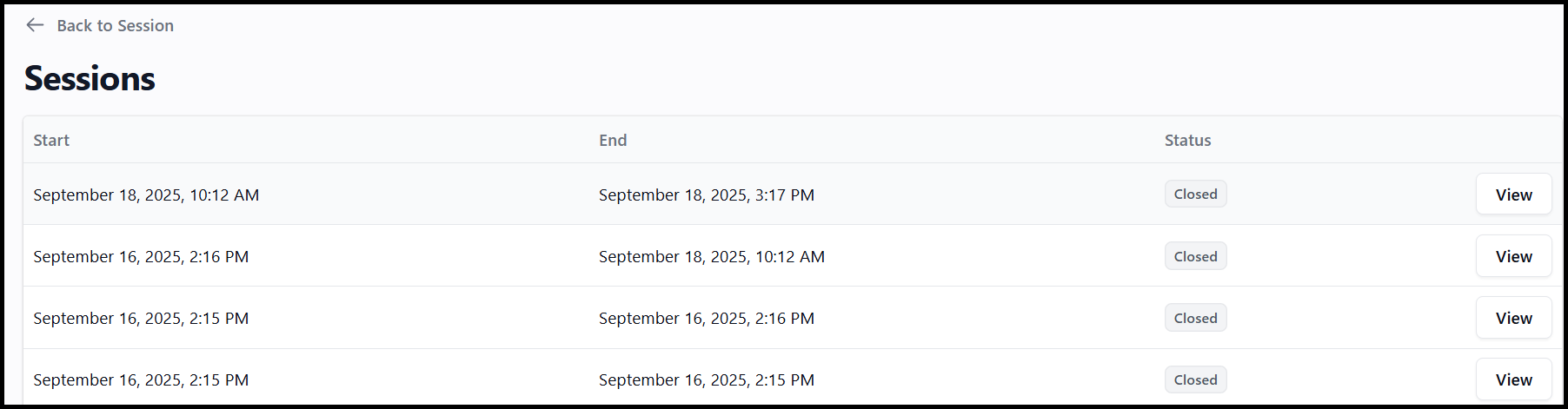
- A list of a queue’s previous Drop-In Sessions can be accessed by clicking the Sessions button at the top-right of the Queue’s page.
- A list of previous sessions will appear starting with the most recent. To view the statistics for a particular session, click the View button.
Last updated October 2025. To download a PDF copy of this resource, print this webpage as a PDF. Other resource formats can also be accessed via the relevant icons.