Accessibility
Compliance with accessibility guidelines is important both for adhering to BU web guidelines and for ensuring your visitors have a good experience on your site. It’s also a requirement for new websites under the BU Minimum Web Accessibility Standards (MWAS).
Learn About BU’s Accessibility
Check Colors
While more content-based, there’s also a valuable guide on TechWeb of 10 easy improvements for client content consisting of text, images, headings, and other information to keep in mind when designing.
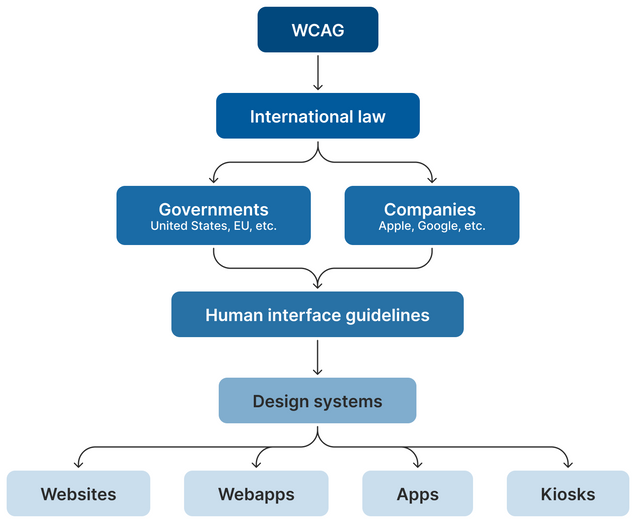
It’s important to also remember WCAG.
Digital Accessibility Presentation
Accessibility Reporting
If there’s an accessibility issue from a vendor, client, or AE, it should be submitted as a bug through ServiceNow.
Tips
Validate HTML Markup
Check for APCA Colors
Keep Links Underlined
Ensure all links are easily identifiable by using more than just color to indicate they’re clickable. The simplest way? Keep the underline.
Key Points:
- MWAS requires accessibility compliance, including clear link indicators.
- Checkpoints to watch:
- Color Conveyance: Don’t rely on color alone for conveying information.
- Navigation: Don’t remove underlines unless there’s another clear indicator that text is a link.
Best Practices:
- Links should look like links—underlined by default.
- For body text links not underlined, ensure:
1. A 3:1 contrast ratio between link and surrounding text.
2. A non-color indicator (like an underline) on hover and focus.
Ensure hover and focus effects work with both mouse and keyboard using `:hover` and `:focus`.
Exceptions: Main navigation, buttons, and social media links can use shapes to indicate clickability instead of underlines.
Happy coding!
The “Checkbox Hack” (and things you can do with it)
:valid
Another Stab at Truncated Text