Content Organization Guide
Where is the Content Organization Guide Template?
The Content Organization Guide Template is in Google Sheets.
Who creates the Content Organization Guide for a project?
- The Strategist will duplicate the template.
- The entire team will contribute together to fill out the guide. This means designers, developers, and the assistant creative director (ACD) are all responsible for adding to and editing the document.
- Strategist: Responsible for completing tab 1 (Project: Content Sections) and tab 2 (Project: Sitemap Pages & Annotations). These tabs are detailed further down in this document.
- ACD/Designer: Responsible for completing tab 3 (Templates, Documentation & WFs (Wireframes)) and tab 4 (Functionality Map). These tabs are detailed further down in this document.
When is the Content Organization Guide started?
The Strategist begins the document during the sitemap phase of Discovery.
What is the purpose of the document?
The purpose of the guide is to:
- Serve as a blueprint for all those on the client side who are responsible for maintaining the site/site governance.
- Distill all of the key information from our Discovery process for the use of both our clients and internal project team members. This includes our plans for:
- Site content
- Site structure
- Any design and functionality requirements discussed in wireframes and client meetings. Example: A custom BU Landing Page section will be curated or only display the latest posts.
- Act as a useful tool to assist with Implementation planning and estimation as Discovery phase comes to an end.
- Help guide new project team members (i.e., developers, writers, and content coaches) throughout Implementation.
Do all clients receive a Content Organization Guide?
No. Smaller sites and Discovery efforts may not warrant a guide. However, clients with larger and/or more complex sites will receive a guide in order to manage the maintenance of their site moving forward.
When is the Content Organization Guide completed?
The document is completed after all tabs have been thoroughly filled out by all responsible internal team members, after wireframes have been finalized (the final stage of our Discovery process).
Once complete, the account executive (AE) on the project will set aside time for the Strategist and ACD to walk the client through the guide and how to utilize it.
Where can I find the Content Organization Guide for my project?
The Strategist will save the document within the “Strategy Docs” folder within the Creative Services drive for the project being worked on. All internal team members should be given the link.
When the guide is complete and delivered to the client, it should be added/accessible via Web Team, as well.
Sections:
The following is a list of the sections of the Content Organization Guide
Project: Content Sections
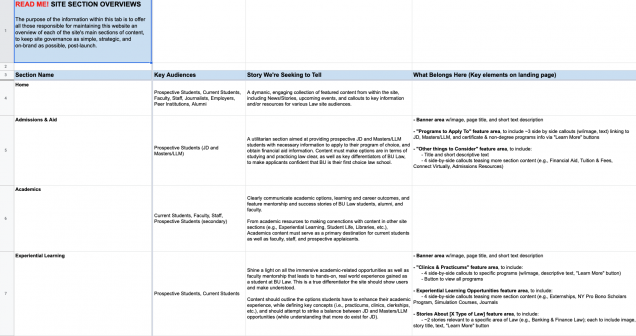
Overview:
The purpose of the information within this tab is to offer all those responsible for maintaining this website an overview of each of the site’s main sections of content, to keep site governance as simple, strategic, and on-brand as possible, post-launch.
Project: Sitemap Pages & Annotations
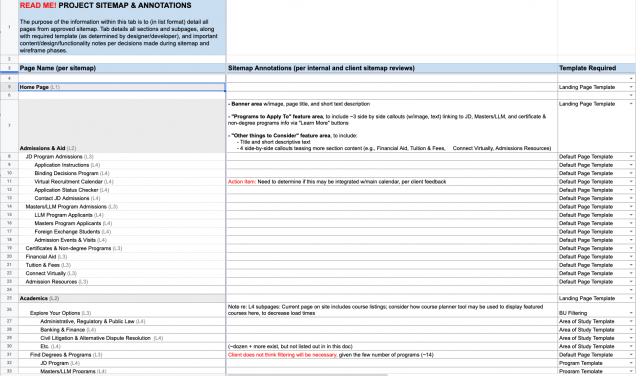
Overview:
The purpose of the information within this tab is to (in list format) detail all pages from approved sitemap. Information in this tab details all sections and subpages, along with required template (as determined by designer/developer), and important content/design/functionality notes per decisions made during sitemap and wireframe phases (both internally and with client).
Instructions and Tips:
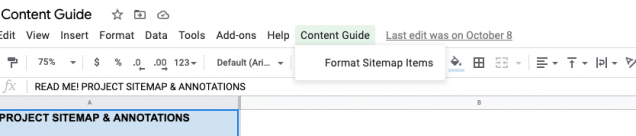
- After entering all of the pages in the sitemap, the designer and developers should assign templates as the project evolves.
- A script has been created to help facilitate formatting the sitemap in Column A of this tab.
- The Homepage should be (L1)
- Section Landing Pages should be (L2)
- Enter the level in parentheses at the end of the title of the page, such as (L2). This can be entered in plain text, no need to indent or format the column yet.
- To format the column with indentation, color, and so forth: select the fields in column A and run the format script located under: “Content Guide -> Format Sitemap Items”
Templates, Documentation & WFs

Overview:
The purpose of the information within this tab is to detail the various templates, components, post types, etc., that will be necessary to create this site. Information about each required item is detailed, and a link to relevant project wireframes and/or demos may be accessed via this tab.
Instructions and Tips:
The designer and developer on a project should add the templates, plugins, post types, and components needed in the project with a quick and client friendly description of their purpose and features and elements. The information here should be kept up to date as wireframes evolve and go through revisions and will be used by the team to populate Github issues to define more detailed design and development requirements.
Definitions:
Template: Some examples:
- A custom page template applied to the “page” post type
- Default Page Template
- No Sidebars Template
- Calendar Template
- BU Landing Pages Template
- A template for an archive or other non-post-based feature
- Taxonomy Archive Template
- Post Type Archive Template
Custom Template: Like above, but a custom template built for this project.
Post Type: An existing or Custom Post Type such as BU Profiles or “Post” for news.
Component: A feature that is shared across multiple templates or post types (specifically, components that already exist in our Framework and Plugins). Examples:
- BU List Child Pages shortcode
- BU Profiles Shortcode
- A Gutenberg Block
- BU Text Widget
Custom Component: A feature that is shared across multiple templates or post types that is being built for this project. Examples:
- A new Footbar specific to the Law site theme
- A “Billboard” component with a CTA for the Law site used on multiple pages/templates
- A New Gutenberg Block
- A shortcode for displaying Publication posts, a custom post type in the Law theme.
Plugin: A plugin such as External Permalinks or BU Prepress that adds functionality. Note some plugins add post types and templates that may need to be documented separately.
Functionality Map
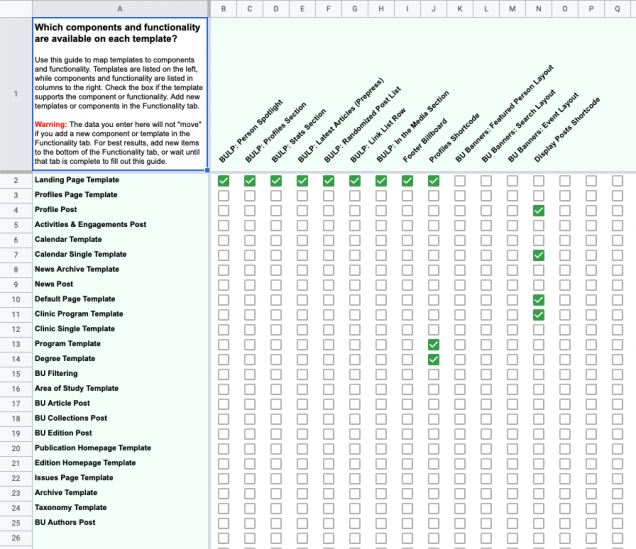
Overview:
This tab outlines which components and functionality are available on each template the site requires. The purpose of this template is to help the entire team understand at a glance which templates will support which components on the site. The lead designer and ACD should fill in this template, and then ask the developer and content strategist to review to ensure everyone is on the same page. The project manager (PM) and account executive should be aware of this page in case they need to communicate with the client on functionality.
Use the names on this sheet to refer to your templates and components in a consistent way throughout the project, so that everyone is using the same language. Using different terminology than what is outlined here can cause confusion when it comes time to build the website.
Instructions and Tips:
Use this guide to map templates to components and functionality. Templates are listed on the left, while components and functionality are listed in columns to the right. Check the box if the template supports the component or functionality. Add new templates or components in the Functionality tab.
Warning: The data you enter here will not “move” if you add a new component or template in the Functionality tab. For best results, add new items to the bottom of the Functionality tab or wait until that tab is complete to fill out this guide.
Note: The left column and top column are automatically filled out; all the team needs to do is check the boxes for components that are used on multiple templates or post types.
Additional Tips and Instructions by Role:
Lead Designer: Be sure you are using standard terminology and abbreviations when naming templates and components. For example, always use BULP to abbreviate BU Landing Pages. Ask your ACD if you’re unsure. If you are naming a custom component or template, try to use language which easily connects to the client ask to reduce confusion. Avoid highly technical language; keep it short and simple.
ACD, PM, and AE: When reviewing, make sure you have a high-level understanding of what each item is or what goal it solves. If something is named in a way that is difficult for you to understand, or you aren’t sure what it is, ask the team now for clarification so you can communicate effectively.
Strategist: When reviewing, be sure that you have a strong understanding of each of the templates and components and what the general goal of each is. Are features and content being connected together in the places you expected from a strategy point of view? If not, question it now.
Developer: When reviewing, be sure that you have a strong understanding of each of the templates and components and what the general goal of each is. Consider which templates are matched to which components. Do they make sense? Is there a component being added to a template that creates a development challenge? Question it now.
Examples of possible feedback from each perspective in the screenshot above:
- An ACD, PM, or AE may ask for clarification on what the purpose of the In the Media Section is and what kind of behavior the client can expect from it. Does it need to pull profiles of authors?
- A strategist may ask the team if it’s possible for a BU Profiles shortcode to show on an article post.
- A developer may ask the team about the profiles shortcode being available on the landing page. Does the landing page have a section that supports this shortcode?