Billing Process
Account Executives are responsible for managing the billing on any project they are assigned. Each Recovery Unit team member (Marketing Design, Interactive Design, Photo) enters their time (hours) throughout working on a project; it is important to check actual hours against the approved estimate at regular intervals throughout a project’s lifecycle to ensure the hours are being tracked accurately and to raise any red flags if a project seems to be going over the number of billable hours in the estimate. For Interactive Design projects, the PM is responsible for ensuring accuracy of time-tracking and reports to the AE weekly with “burn reports” indicating the overall health of the project budget.
Note: If you are working on a President’s Office project, all billing should be coordinated with the executive managing director, Creative Services.
Creative Services Billing System
The Creative Services Billing System (CS Billing) is a custom online application that we use to manage project billing. The CS Billing System is linked with ActiveCollab (time tracking) and Cumulus (photo orders). When a new project is added into ActiveCollab, it is populated in the CS Billing System via several scheduled integrations throughout the course of the day. Basic project details, photo orders, and time-tracking data in ActiveCollab integrate automatically with the CS Billing System. The system can be accessed at https://appnet.bu.edu/creative/ using a Kerberos password.
Note: Any errors in the CS Billing System that originate in ActiveCollab should be updated in ActiveCollab so that they are then corrected in CS Billing via the next scheduled integration. Account executives will receive emails if designers track their time incorrectly (a common error is a unit attributing the wrong type of work, e.g., when a designer attributes their time-tracking to “account management”). When error messages are received, forward them to the appropriate Marketing Design or Interactive Design project manager to resolve in Active Collab. Once confirmed, the AE can then remove any excess hours within the corresponding CS Billing entry. If you encounter a discrepancy in hours between Active Collab and CS Billing, consider the following:
- Check if the integration window was missed and wait for the next integration to see if hours are added.
- Active Collab integrates with CS Billing Monday to Friday at 9:30 AM, 12:30 PM, 3:30 PM, and 6:30 PM.
- Not all integrations succeed; you may need to wait for 1-2 more cycles for accurate hours.
- Ensure that all hours in Active Collab are correctly marked as “Billable” or “Not Billable.”
- If issues persist, notify the Project Manager overseeing Active Collab.
- For large projects, run a time entry report in Active Collab to verify entries against CS Billing.
- If hours don’t match, adjust them in invoicing by adding a recovery unit with negative hours. This won’t delete entries but will align the hours. Note any changes in the CS Billing project description.
Internal Service Requests
Internal Service Requests (ISRs) are 10-digit numbers that are used to bill clients at the close of projects. These tie back to a client’s account, so that we can post project charges. We bill according to different billing centers (print/web/photography), so clients must complete a different ISR for each distinct unit of ours that worked on their project. An ISR must be requested from the client before you can bill them. It is highly recommended to request the ISR at the time a client approves a project estimate. The following are the types of costs that are billed to each ISR:
Print ISR: Print ISR should be made out to “Marketing & Communications—Print/Design Com.” The following costs are billed to a print ISR:
- Marketing Design time
- Writing time incurred by a writer that reconciles to Marketing Design (this includes both MarCom writers as well as freelance writers work)
- Stock photography
- If a print piece is edit- or proofreading-only, those costs bill under this ISR
- Any other out-of-pocket costs incurred on the print project, such as illustrator fees or shipping costs for proofs
Interactive Design ISR: Web ISR should be made out to “Marketing & Communications—Web/Interactive Design.” The following costs are billed to a web ISR:
- Interactive design time
- Interactive development time
- Writing time incurred by a writer that reconciles to Interactive Design (this includes both MarCom writers as well as freelance writers work)
- Stock photography
- Any other out-of-pocket costs incurred on the web project, such as illustrator fees
Photography ISR: Photo ISR should be made out to “Marketing & Communications—Photography/Multimedia.” The following costs are billed to a photo ISR:
- All BU Photography costs (both for BU images and/or photo shoot costs)
- In CS billing the Cumulus orders are called BU Image Order in the dropdown.
Closing Out A Project
When a project is complete, perform the following steps:
- Confirm that all final billing amounts in CS Billing are accurate for client invoicing.
- Create an invoice in the CS Billing System and review the exported Excel file.
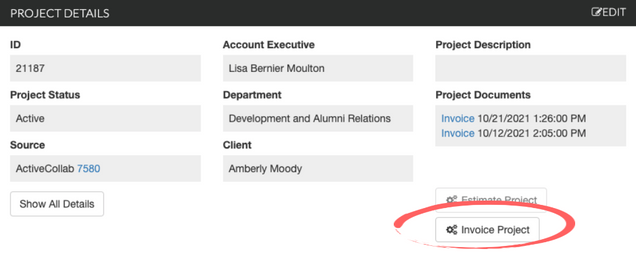
- Note: Once an invoice is created in the Billing System, any subsequent invoices created against the same project will reflect only remaining hours not already invoiced.
- Save a copy to the corresponding Dropbox or Google Drive project folder and email a PDF version to the client for their reference.
- Please rename the file to reflect the name of the project (ex: ADM_earlyinquiry_brochure_invoice_10212021)
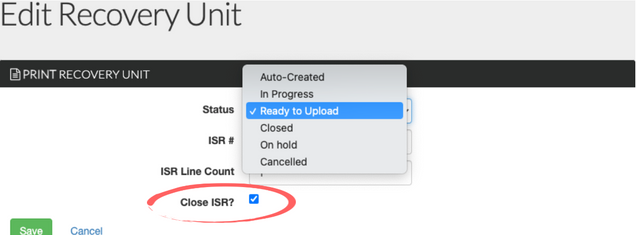
- Mark project “Ready to Upload” in the CS Billing System.
Monthly Billing Process
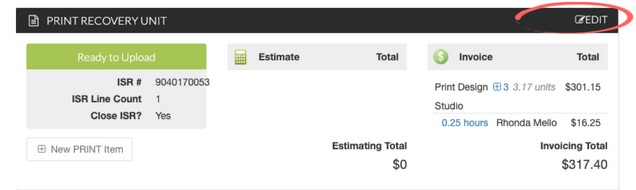
In the case of most Interactive Design projects, we bill the client monthly due to the duration of website projects. This gives the client a monthly pulse on how hours are trending and also provides a consistent record for bookkeeping purposes for both us and our clients. If you are closing out a project with monthly billing, please ensure the box for “Close ISR” is blank and not filled in. Otherwise a new ISR will be required to re-open the project.
Historical Invoice Review
To locate a previously billed invoice, you can search for the project’s title in the top search bar or in the overall projects page. If using the overall projects page, ensure to click the filter and set the status to “all” to see all past entries as seen below:

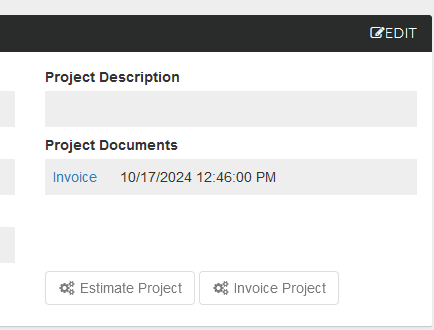
Once in the desired project page, click on the “invoice” text highlighted in blue on the top right and you’ll download the excel file of the previous invoice.